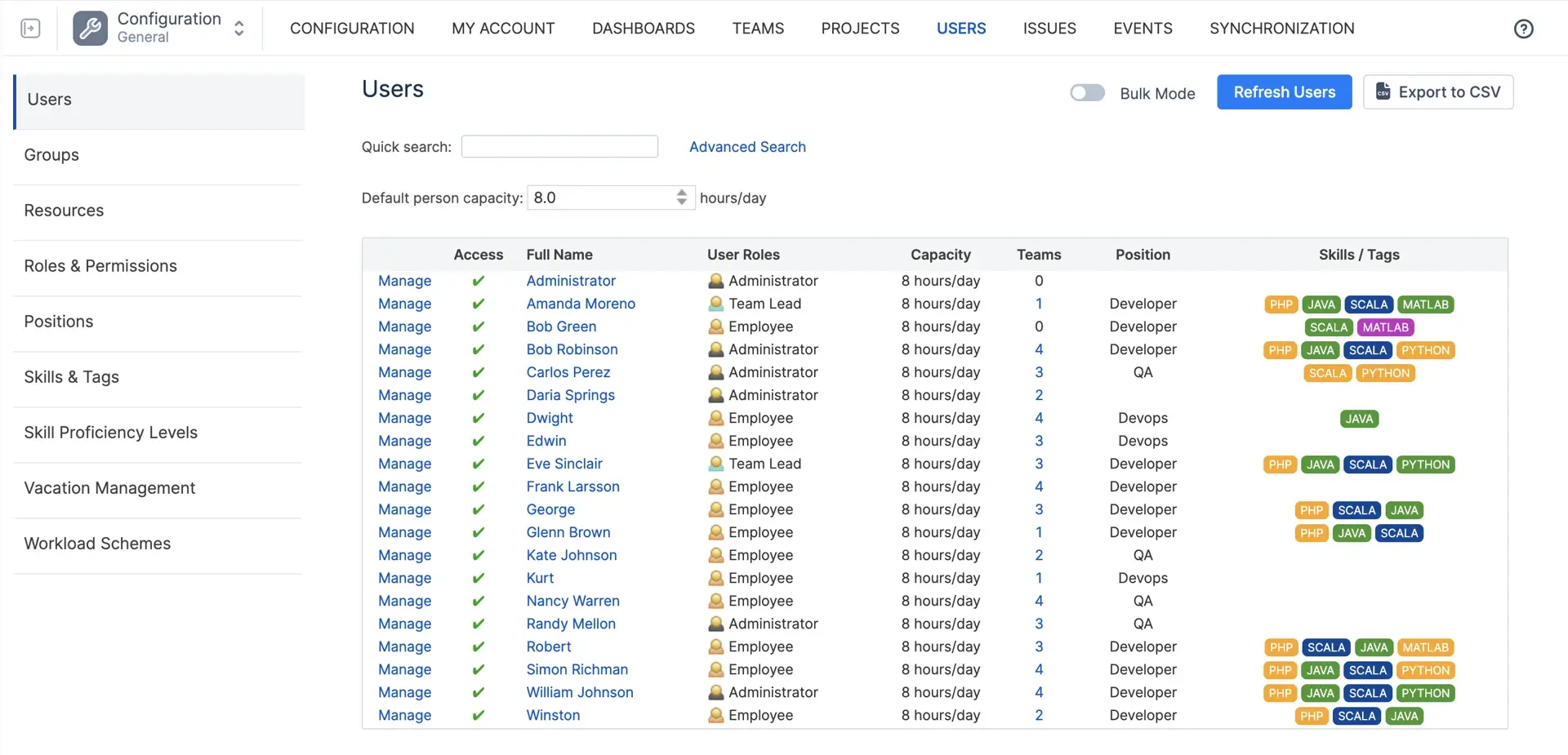
ActivityTimeline es una aplicación de planificación de recursos, por lo que la aplicación ayuda a gestionar los recursos humanos y no humanos y a planificar la actividad de los usuarios y equipos individuales.El recurso o usuario de ActivityTimeline se considera cualquier persona presente en la aplicación (básicamente, toda persona con una licencia de Jira activa). Se puede asociar a los usuarios diferentes roles, puestos y habilidades, lo que determinará sus permisos en el sistema, además de añadirles metadatos para permitir una mejor planificación de los recursos.Puedes acceder a la lista de todos tus recursos en Configuración de ActivityTimeline → Usuarios:
Gestión de recursos
Un recurso es cualquier persona para la que planifique trabajo. Por lo general, es una persona con una cuenta de Jira que aparece automáticamente en ActivityTimeline. También puede ser alguien sin licencia de Jira (un contratista, un diseñador de una agencia) a quien añada manualmente, o algo no humano en lo que reserve tiempo, como un equipo de pruebas o una sala de reuniones. La aplicación los trata a todos de la misma manera: cada uno obtiene una fila en la línea de tiempo.
Lo que hace que un recurso sea útil para la planificación es lo que le asigne. Un rol de usuario decide qué puede ver y editar la persona en ActivityTimeline. Un puesto ("Ingeniero de QA", "Arquitecto de soluciones") describe lo que hacen. Las habilidades, cada una con un nivel de competencia, describen lo que pueden hacer. Las etiquetas son etiquetas libres para cualquier otra cosa. La implicación es cuántas horas al día están disponibles, a lo que volveremos en la sección de Capacidad. Nada de esto es obligatorio para empezar, pero cuanto más complete, más podrá hacer la aplicación por usted: los equipos funcionales, los informes de disponibilidad por habilidad y puesto, y la búsqueda por habilidad en el Planificador dependen de ello.
Usted gestiona los recursos en Configuración de ActivityTimeline → Usuarios. Si tiene muchos, el Modo masivo edita hasta 1.000 usuarios en una página, puede eliminar una habilidad de muchos usuarios a la vez, y Exportar a CSV lleva toda la lista a una hoja de cálculo. En la nube, también puede indicar a la aplicación que cargue usuarios solo de grupos de Jira seleccionados, lo que mantiene la lista corta en instancias grandes.
Lo que hace que un recurso sea útil para la planificación es lo que le asigne. Un rol de usuario decide qué puede ver y editar la persona en ActivityTimeline. Un puesto ("Ingeniero de QA", "Arquitecto de soluciones") describe lo que hacen. Las habilidades, cada una con un nivel de competencia, describen lo que pueden hacer. Las etiquetas son etiquetas libres para cualquier otra cosa. La implicación es cuántas horas al día están disponibles, a lo que volveremos en la sección de Capacidad. Nada de esto es obligatorio para empezar, pero cuanto más complete, más podrá hacer la aplicación por usted: los equipos funcionales, los informes de disponibilidad por habilidad y puesto, y la búsqueda por habilidad en el Planificador dependen de ello.
Usted gestiona los recursos en Configuración de ActivityTimeline → Usuarios. Si tiene muchos, el Modo masivo edita hasta 1.000 usuarios en una página, puede eliminar una habilidad de muchos usuarios a la vez, y Exportar a CSV lleva toda la lista a una hoja de cálculo. En la nube, también puede indicar a la aplicación que cargue usuarios solo de grupos de Jira seleccionados, lo que mantiene la lista corta en instancias grandes.
Administración de equipos
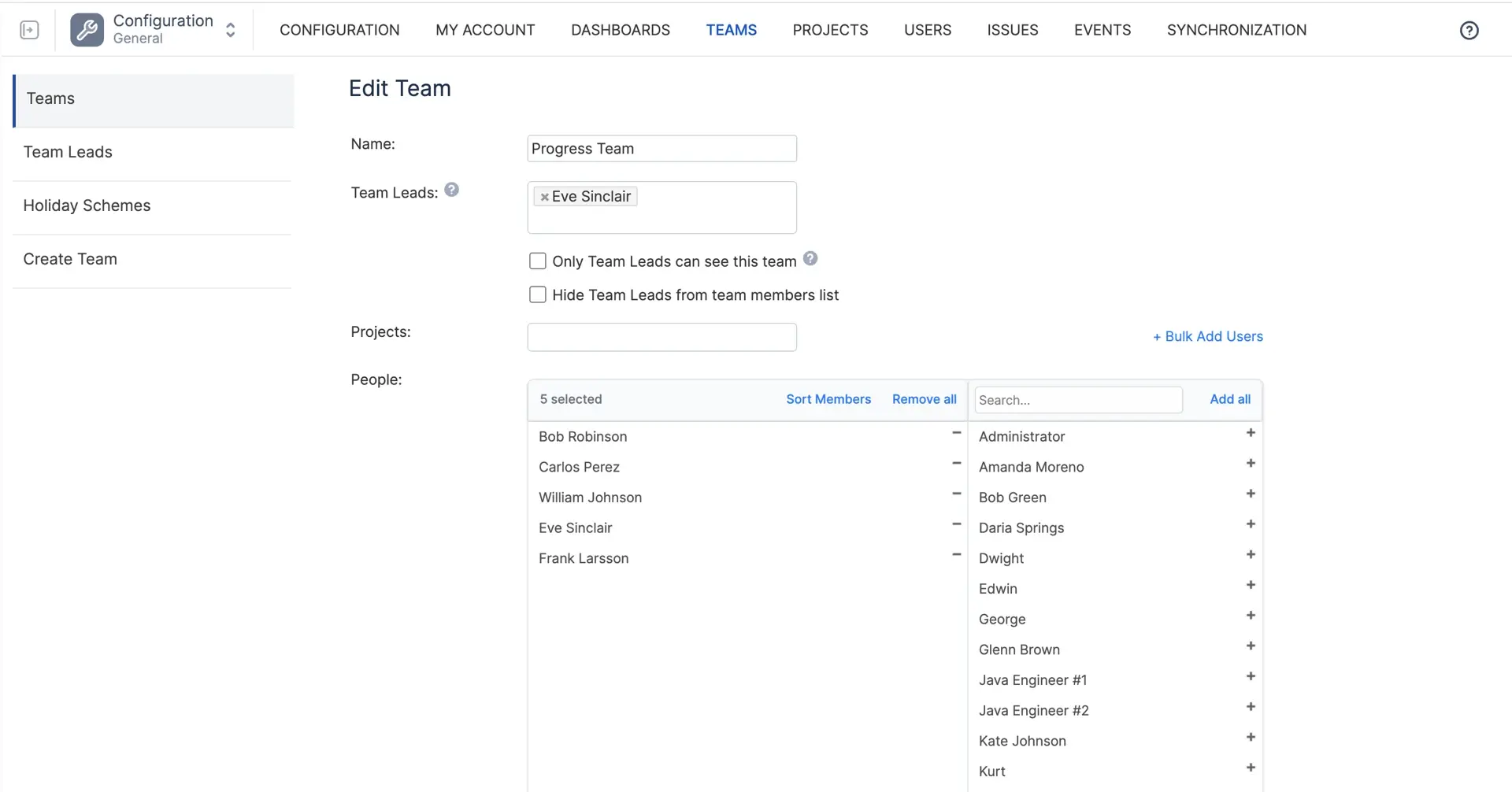
El concepto de equipo es bastante sencillo en ActivityTimeline, que es esencialmente un grupo de personas unidas en una sola entidad.
A classic team is one you assemble by hand: pick the people, save, done. You add and remove members whenever you like, and you can hand that job to a team lead so it stops landing on the Jira admin. This is the right choice when membership is a management decision, like a project team or a squad.
A classic team is one you assemble by hand: pick the people, save, done. You add and remove members whenever you like, and you can hand that job to a team lead so it stops landing on the Jira admin. This is the right choice when membership is a management decision, like a project team or a squad.
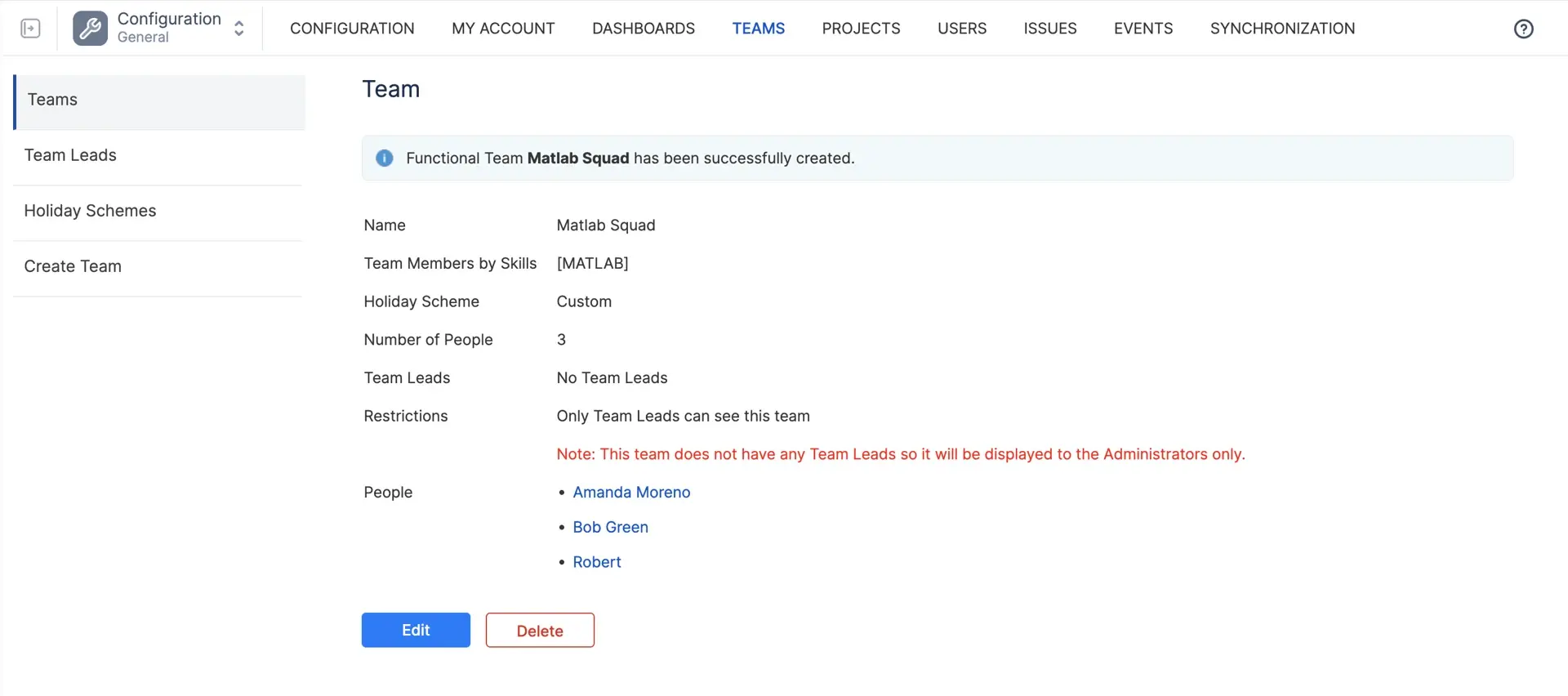
Un equipo funcional se crea a sí mismo a partir de los atributos de usuario. Usted elige una habilidad o un puesto, y todos los que tengan esa habilidad o puesto estarán en el equipo, ahora y en el futuro. Si contrata a un tercer desarrollador Java el próximo mes y le asigna la habilidad Java, aparecerá en el equipo "Java" sin que nadie tenga que editarlo. Esta es la opción correcta cuando la pertenencia depende de lo que la gente puede hacer en lugar de a quién reportan. El inconveniente es que solo funciona si las habilidades y los puestos se mantienen realmente actualizados, así que decida quién es responsable de eso antes de confiar en ello.
Básicamente, eso es todo, cuando tienes tus equipos configurados y listos, puedes planificar sus actividades, hacer un seguimiento del progreso e informar para ver el panorama general.
A few small things that make teams nicer to live with: you can order the members inside a team the way you want them to appear on the Planner (by role, by seniority, whatever helps the planning meeting), and a day off or a note can be created for the entire team at once instead of person by person, which is handy for company events and offsites.
A few small things that make teams nicer to live with: you can order the members inside a team the way you want them to appear on the Planner (by role, by seniority, whatever helps the planning meeting), and a day off or a note can be created for the entire team at once instead of person by person, which is handy for company events and offsites.
Cronología personal
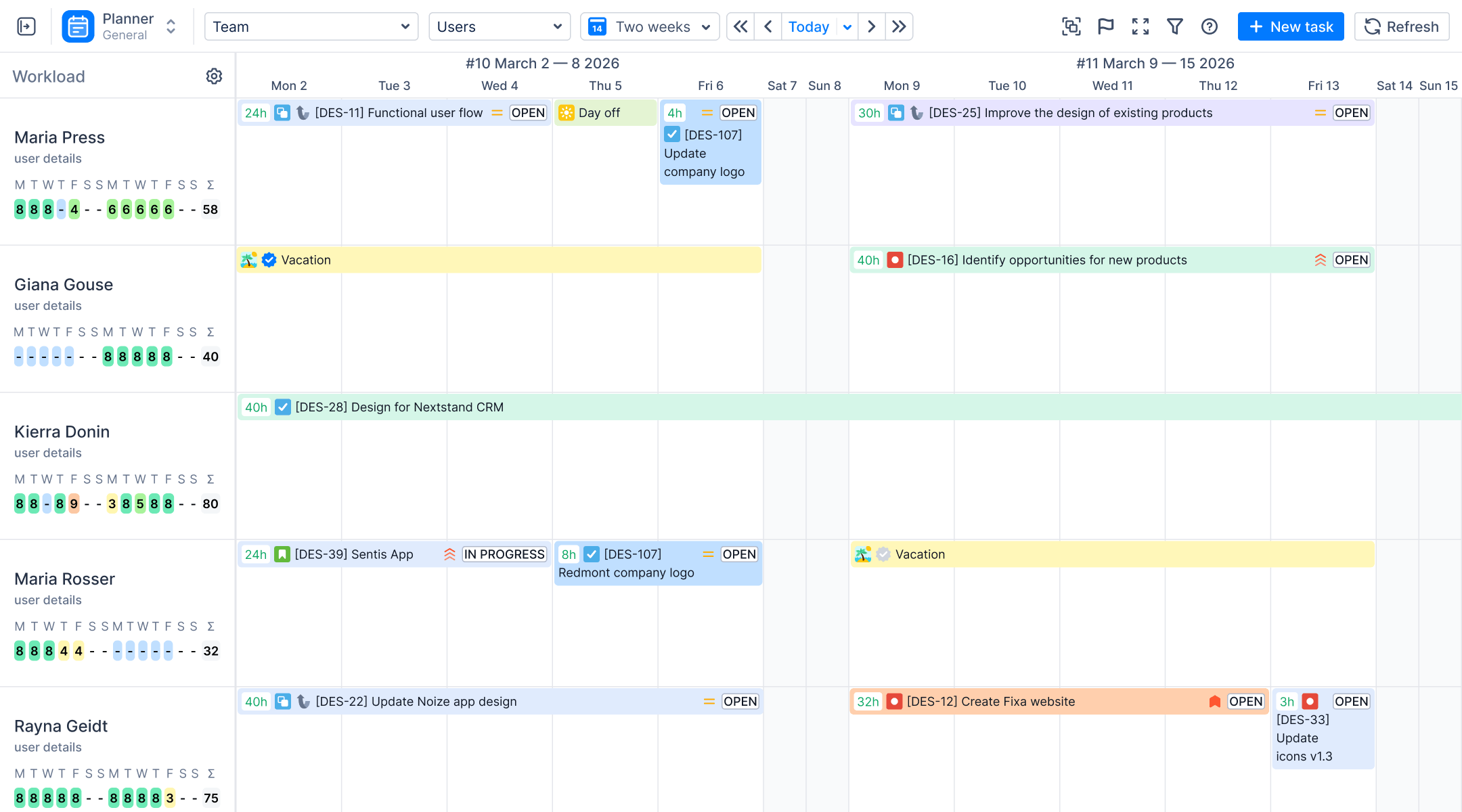
Como software avanzado de planificación de recursos, ActivityTimeline lleva este concepto a un nivel superior, permitiendo mostrar los recursos (usuarios y equipos individuales) en una dimensión temporal, teniendo en cuenta la carga de trabajo y las limitaciones de capacidad de los recursos disponibles.
Under the person's name you see the workload indicator, a small number per day (or per week and month when you zoom out) that says how many hours are planned against how many they have. The color tells you at a glance what to do about it: yellow and olive mean there is room for more, green means the day is full, light red and red mean too much has been planned and something has to move, blue means the person is out (day off, vacation, sick leave, holiday), and grey means nothing is planned. The thresholds behind the colors are configurable under Configuration → Workload Indicator, so if your team considers 6 planned hours a full day, you can say so.
Under the person's name you see the workload indicator, a small number per day (or per week and month when you zoom out) that says how many hours are planned against how many they have. The color tells you at a glance what to do about it: yellow and olive mean there is room for more, green means the day is full, light red and red mean too much has been planned and something has to move, blue means the person is out (day off, vacation, sick leave, holiday), and grey means nothing is planned. The thresholds behind the colors are configurable under Configuration → Workload Indicator, so if your team considers 6 planned hours a full day, you can say so.
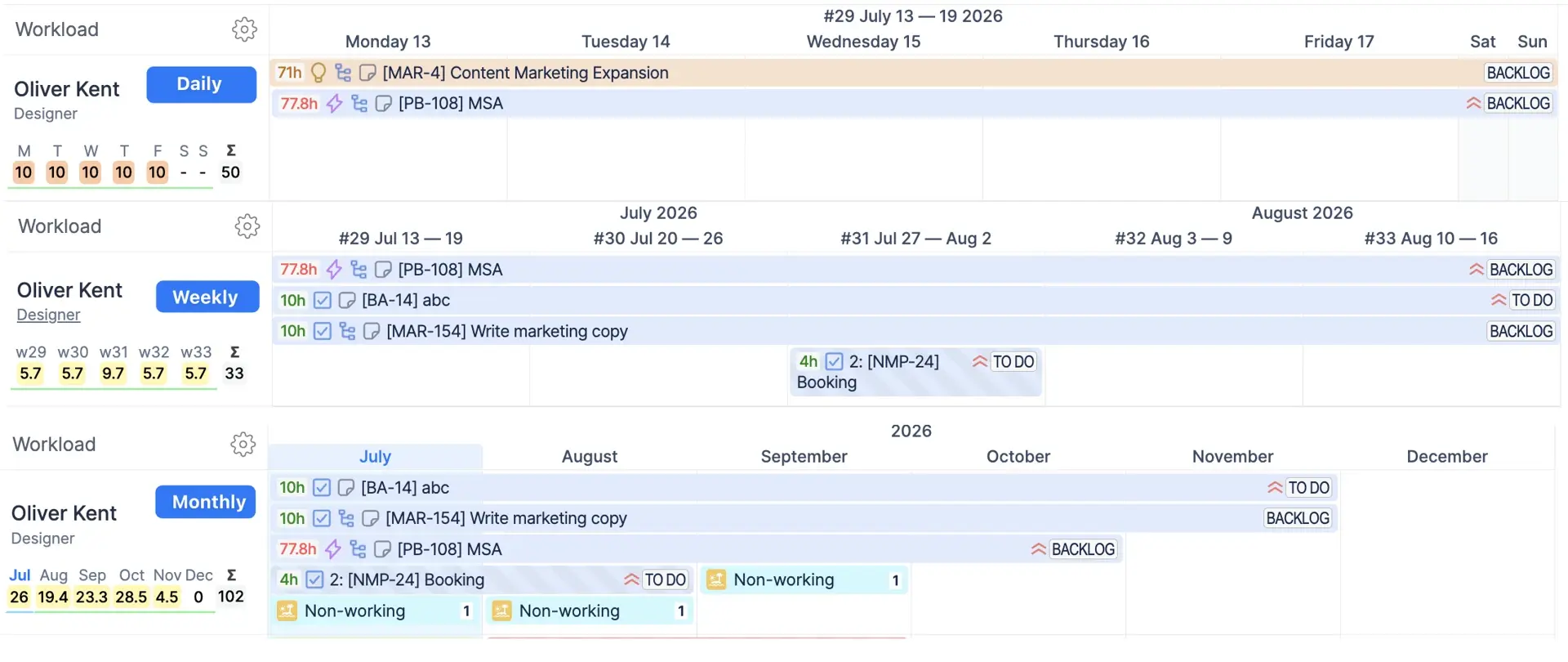
Debajo del nombre de cada recurso, puedes ver el indicador de carga de trabajo y mostrar la cantidad de horas asignadas a una persona durante un período específico. Esto depende de la estimación de las tareas asociadas y de los eventos personalizados que estén programados en su cronograma. Los diferentes colores del indicador muestran la carga que tiene una persona en comparación con su capacidad (implicación):
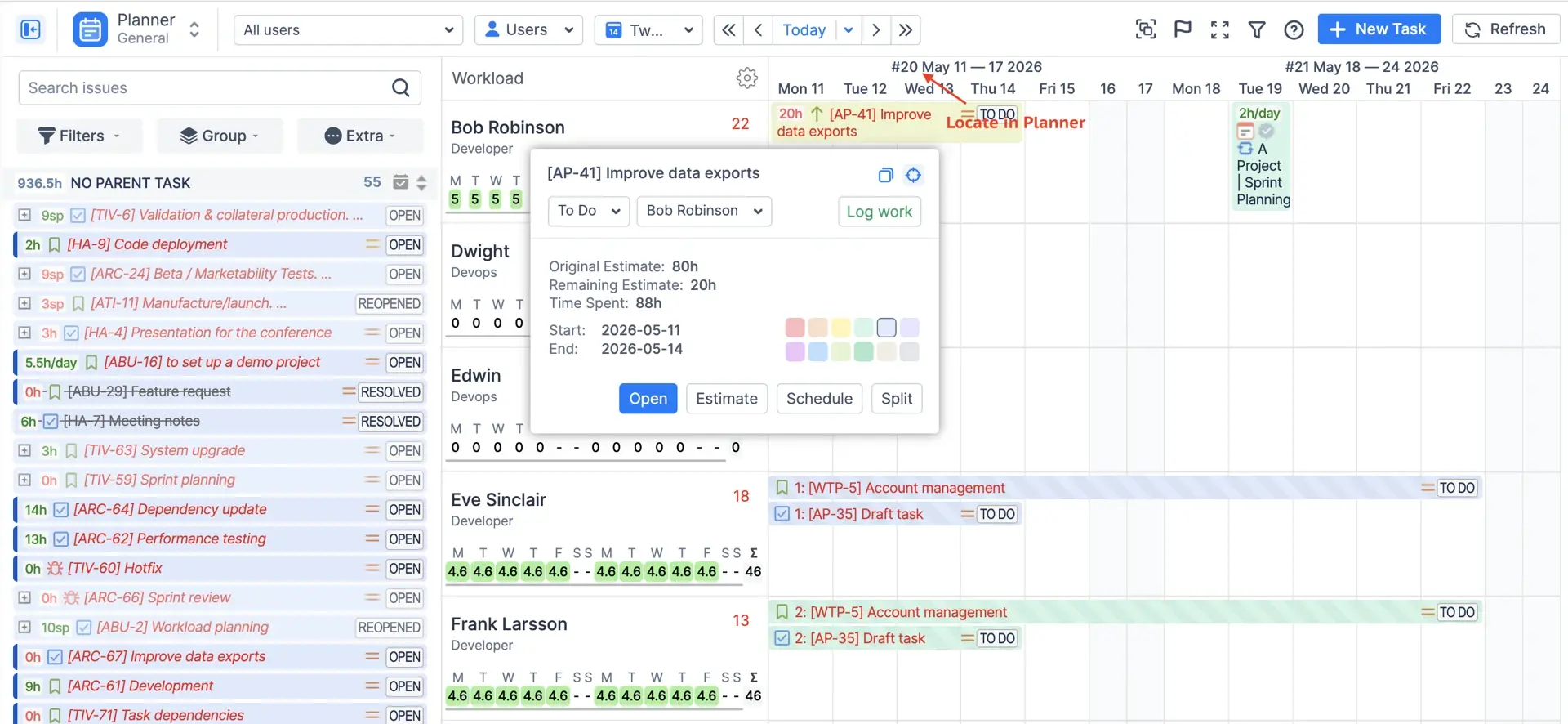
Cronología del equipo
Esta funcionalidad amplía el concepto de cronograma y permite planificar los elementos de trabajo para todo el equipo en general sin entrar en detalles. Esto es particularmente útil cuando se planifica para períodos más largos cuando el nivel de certeza no es alto.
The selector on the Planner top panel switches between three views. Users shows individual timelines only. Teams shows one row per team.
The selector on the Planner top panel switches between three views. Users shows individual timelines only. Teams shows one row per team.
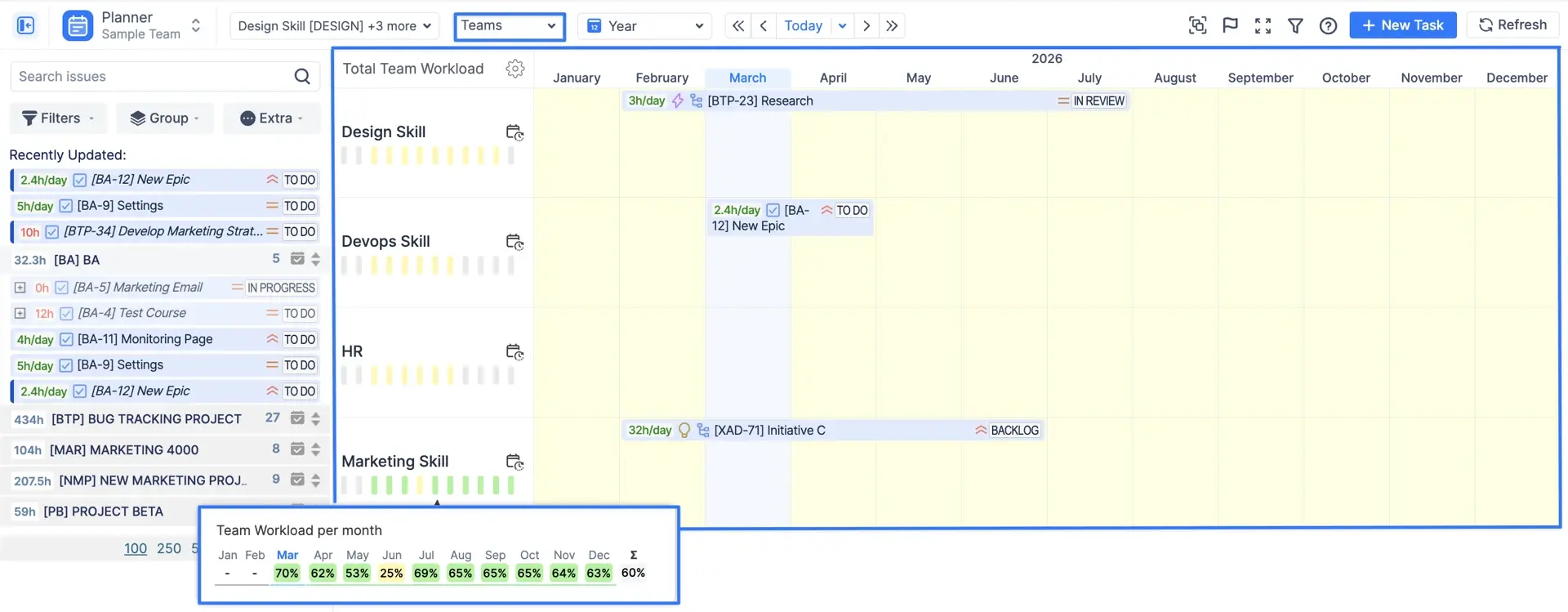
Equipo con usuarios muestra la fila del equipo en la parte superior y los miembros debajo, para que pueda ver el trabajo no asignado a nivel de equipo y la carga de cada persona en una sola pantalla. Las asignaciones a nivel de equipo también se cuentan en los informes: el Gráfico de capacidad del equipo y las previsiones de utilización pueden incluir o excluir la carga de trabajo del panel de equipo, para que pueda ver a un equipo en su conjunto o profundizar en las personas.
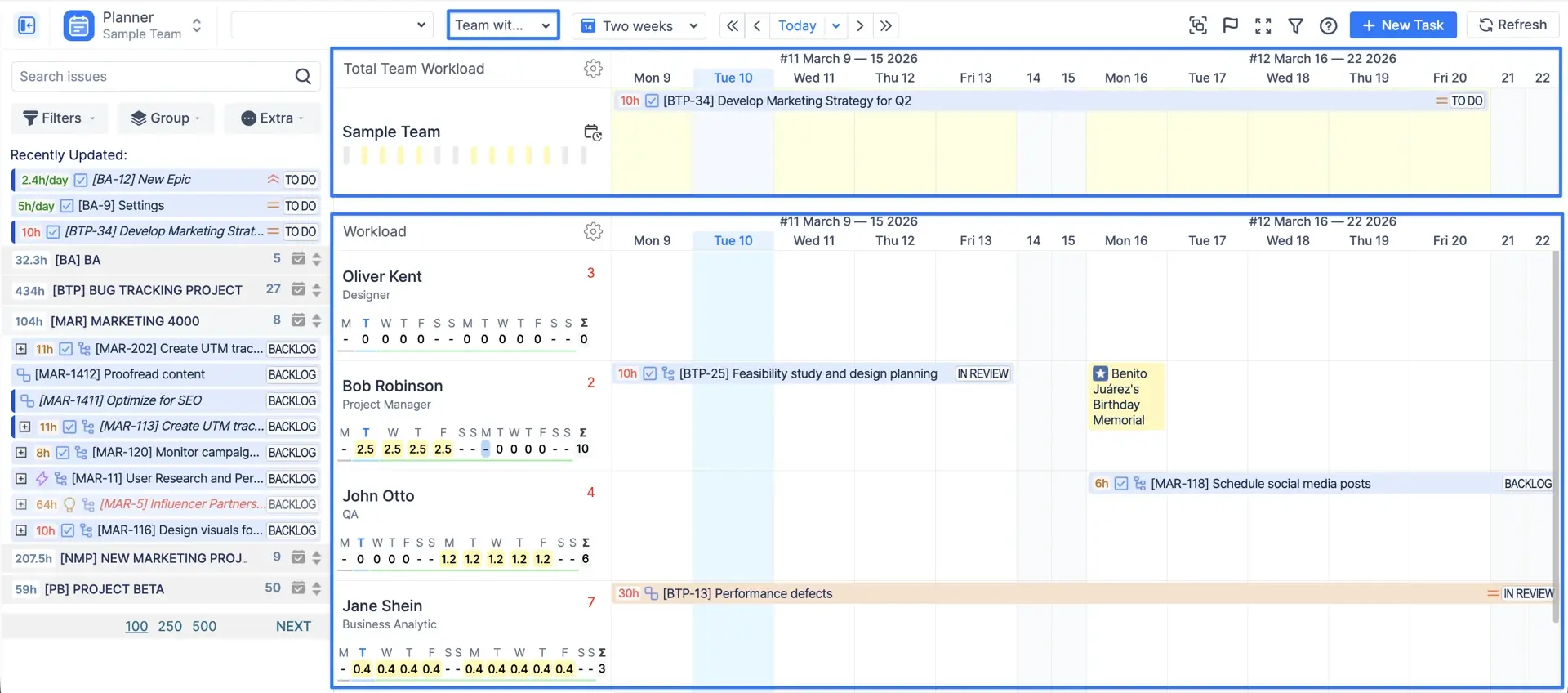
Puede consultar la guía detallada sobre el panel de Equipo en nuestra documentación: Panel de equipo
Tareas de Jira
Planificación sencilla de tareas en Jira. Todas las tareas de los proyectos habilitados se cargan desde tu instancia de Jira a ActivityTimeline durante la configuración inicial y los usuarios con los permisos necesarios pueden acceder a ellas para planificarlas.
The panel on the left of the Planner is the backlog you plan from. One thing to know up front: by default it lists issues updated in the last 30 days, so if an old issue seems to be missing, add a filter and it will appear. Filters can include or exclude projects, sprints, assignees, statuses and custom fields, and you can search by key or text. Once you have found an issue, you drag it onto a timeline.
The panel on the left of the Planner is the backlog you plan from. One thing to know up front: by default it lists issues updated in the last 30 days, so if an old issue seems to be missing, add a filter and it will appear. Filters can include or exclude projects, sprints, assignees, statuses and custom fields, and you can search by key or text. Once you have found an issue, you drag it onto a timeline.
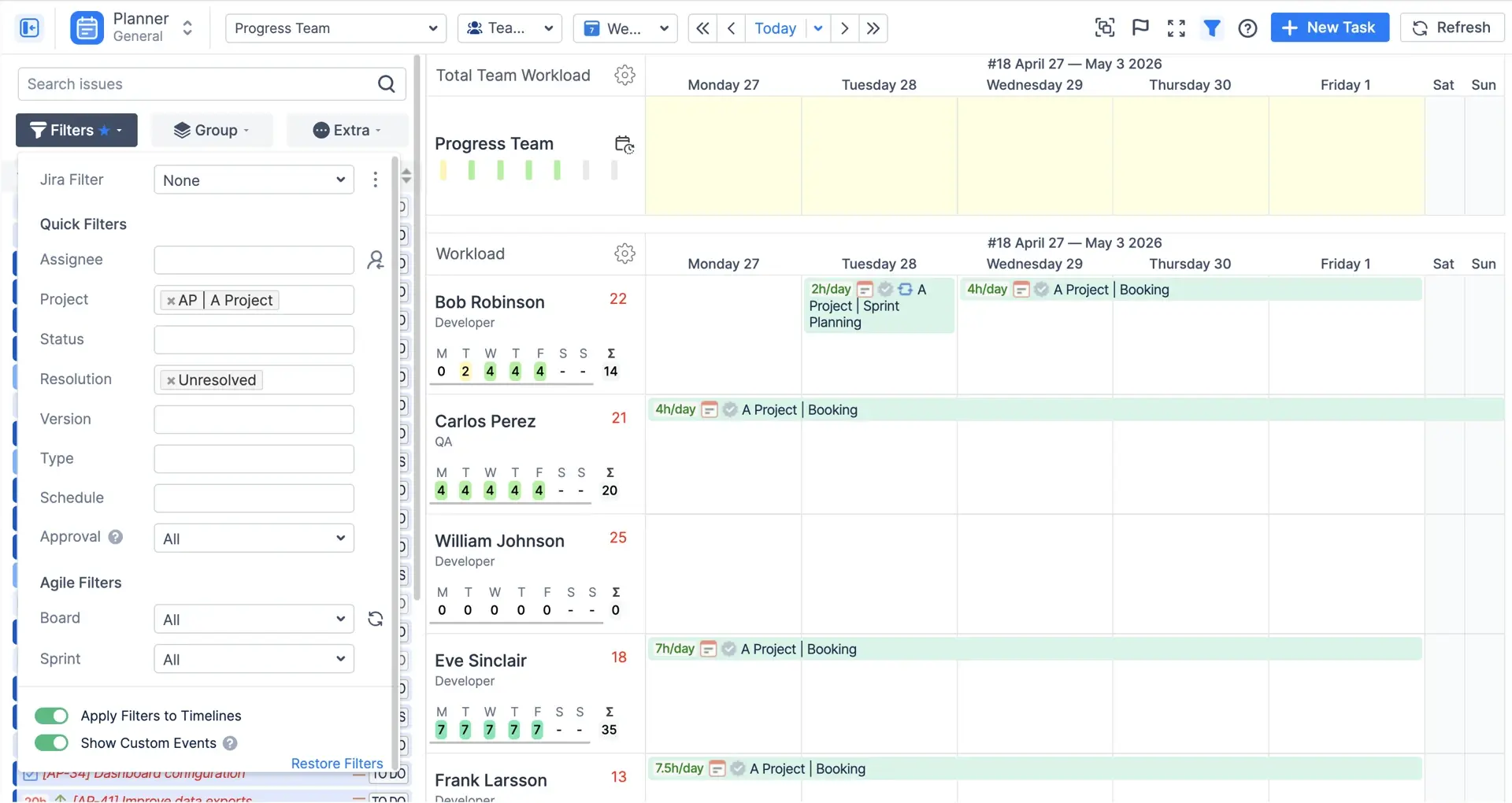
Cada incidencia está representada por una barra individual, que tiene un conjunto de atributos que describen esta tarea (es decir, prioridad, tipo de incidencia, estimación, etc.). Sin embargo, la apariencia es personalizable y se puede ajustar según las necesidades de los usuarios en Menú Configuración→ Incidencias:
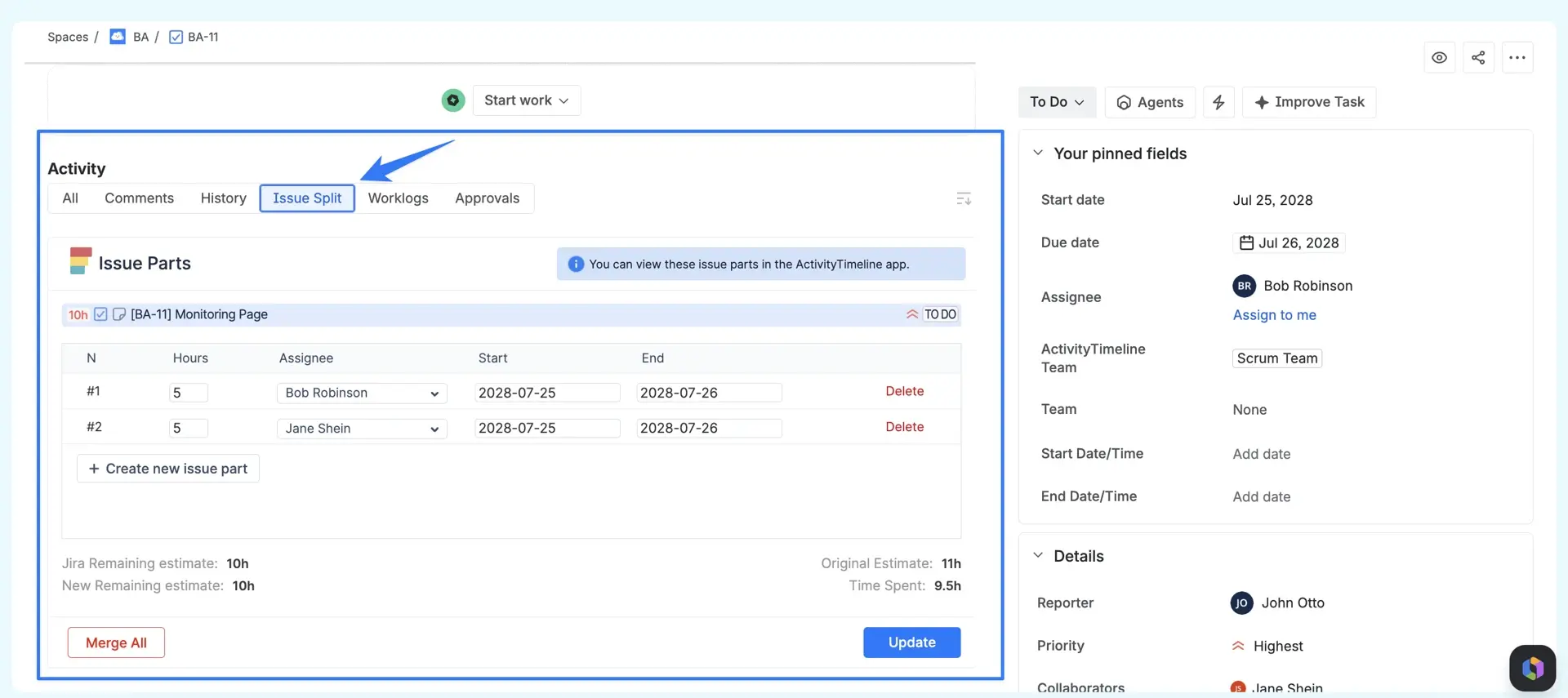
Eventos locales
Además de los eventos estándar de Jira, ActivityTimeline también tiene un conjunto de eventos personalizados que proporcionan algunas funciones adicionales y cubren casos que, por lo general, no se admiten en las incidencias de Jira.
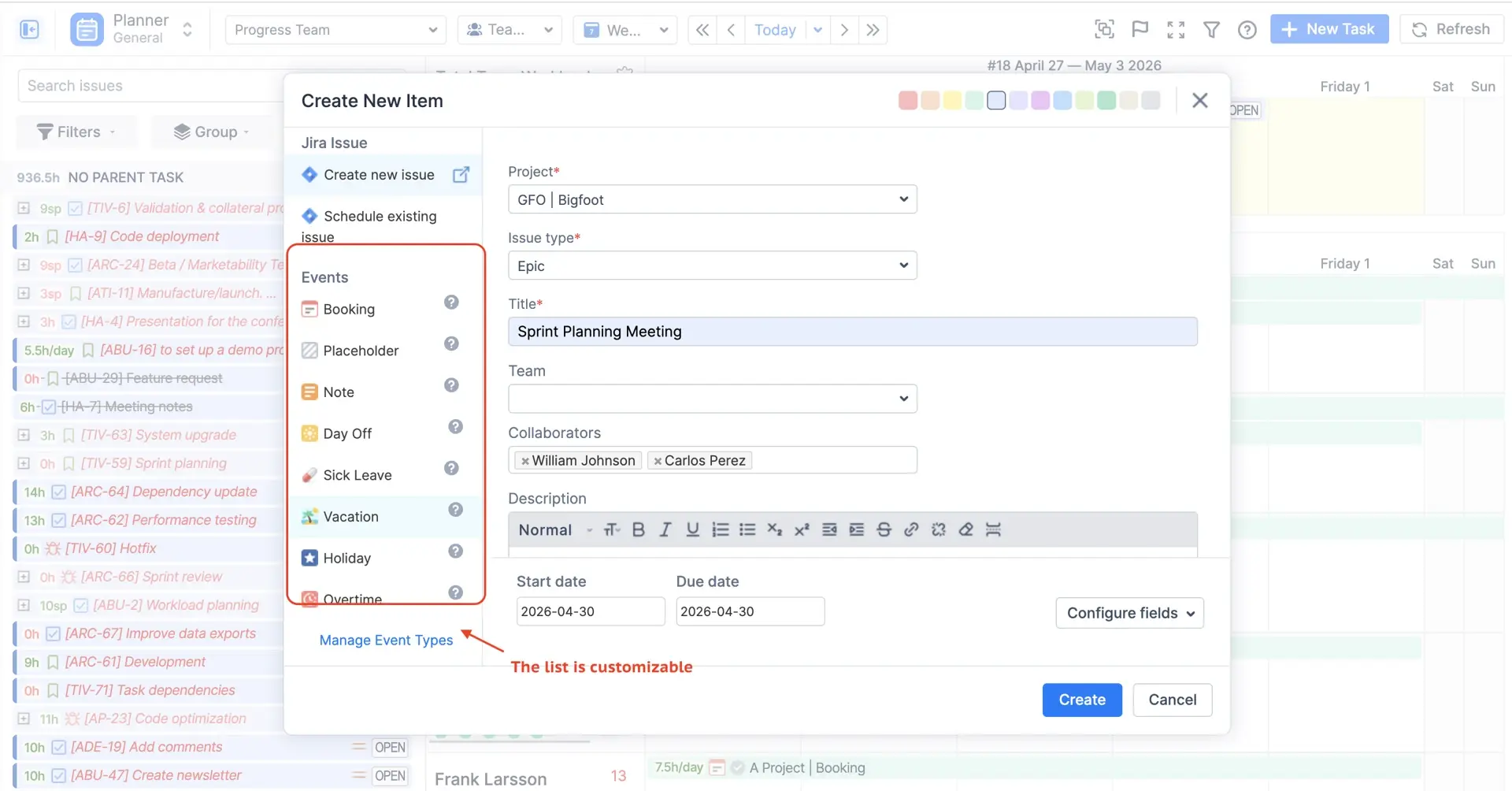
Los usuarios pueden crear eventos personalizados que estén disponibles en ActivityTimeline: reserva, día libre, festivo, nota, horas extras, marcador de posición, baja por enfermedad y vacaciones. Además de estos eventos, puedes crear tus eventos en función de los tipos de eventos del sistema, como una reserva, un día libre, etc., lo que te brinda aún más flexibilidad en términos de planificación.
- Reserva resta horas cada día que cubre, que es la forma en que reserva a alguien para un proyecto antes de que existan los tickets.
- Horas extra añade horas, para los días en los que se acuerda tiempo adicional por adelantado y no desea que la persona aparezca como sobrecargada.
- Día libre, Vacaciones, Baja por enfermedad y Festivo eliminan el día, o parte de él: un día libre puede ser un día completo o un número determinado de horas, y los festivos suelen provenir de un calendario de festivos para que no tenga que introducir la Navidad manualmente para cada país.
- Nota no afecta a la capacidad; es un recordatorio de texto en la línea de tiempo.
- Marcador de posición es la excepción: es un elemento de "qué pasaría si". Utilice marcadores de posición para probar un plan sin tocar Jira y, cuando el plan sea aceptado, apruebe el marcador de posición y se convertirá en un ticket real de Jira, descripción incluida.
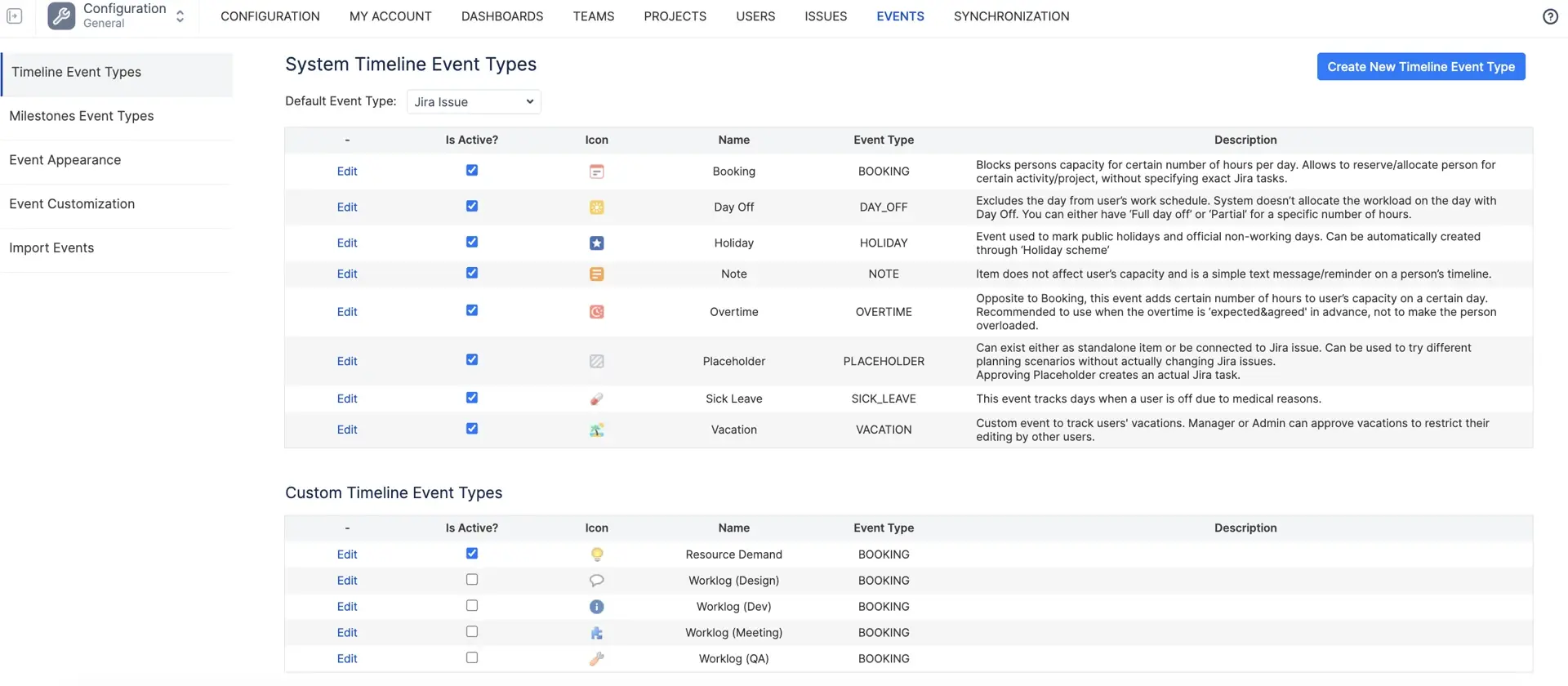
También puede crear sus propios tipos de eventos basados en estos ocho (por ejemplo, un evento de "Formación" que se comporte como una reserva), y usted decide por tipo si requiere aprobación. Las vacaciones siempre requerían aprobación; ahora eso es una configuración, y lo mismo ocurre con las reservas, los marcadores de posición, los días libres y las bajas por enfermedad.
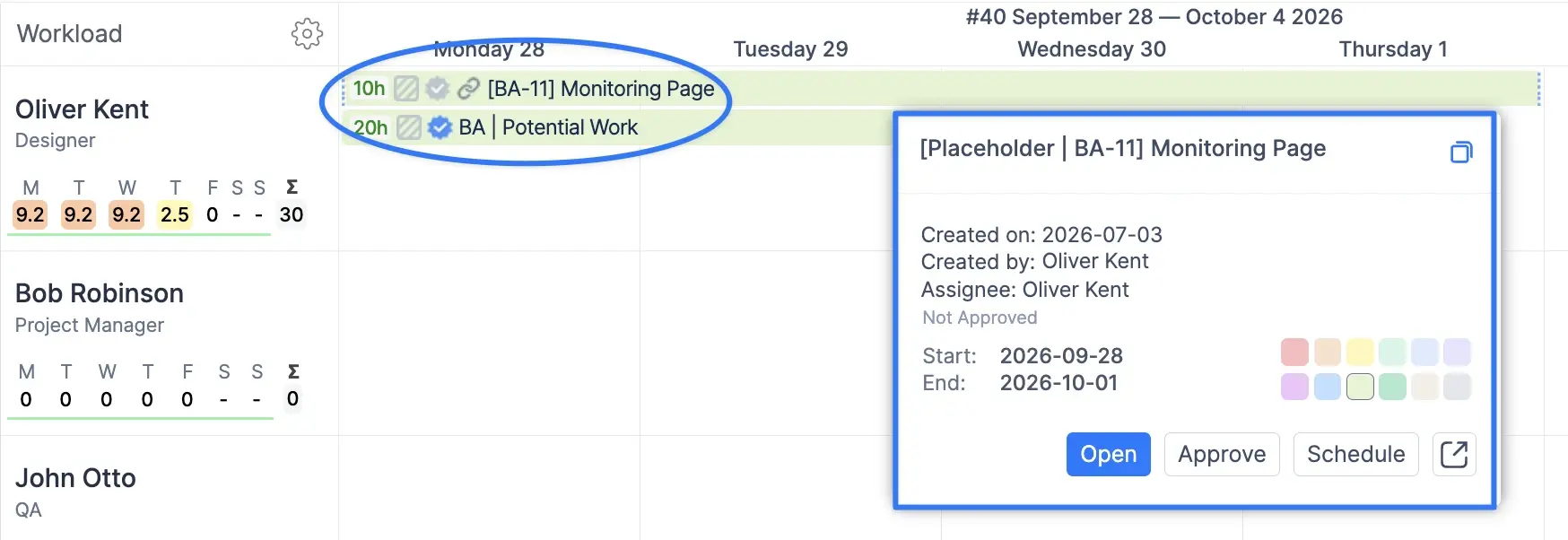
Si su equipo gestiona sus reuniones en Google Calendar u Outlook, estas también pueden importarse y mostrarse en la línea de tiempo como eventos, de modo que un martes lleno de llamadas se vea completo. Si los eventos importados cuentan como tiempo registrado o se muestran solo como contexto es una configuración dentro de la configuración de la hoja de horas.
Administración de cargas de trabajo
Hay diferentes interpretaciones de lo que es la carga de trabajo, pero en pocas palabras, se trata simplemente de la cantidad de trabajo estimada que se ha asignado a un recurso durante un período de tiempo específico. ActivityTimeline está diseñado específicamente para permitir la asignación adecuada de la carga de trabajo entre los recursos y garantizar que todos los recursos se utilicen al máximo, pero no se sobrecarguen.
One consequence worth stating plainly: an issue with no estimate adds nothing to the workload. It will sit on the timeline and the indicator under the person will stay yellow. If you see a full-looking timeline and a relaxed indicator, missing estimates are almost always why.
One consequence worth stating plainly: an issue with no estimate adds nothing to the workload. It will sit on the timeline and the indicator under the person will stay yellow. If you see a full-looking timeline and a relaxed indicator, missing estimates are almost always why.

Puedes obtener más información sobre el indicador de carga de trabajo en nuestra documentación:
You can learn more about the workload indicator in our documentation: indicador de carga de trabajo
You can learn more about the workload indicator in our documentation: indicador de carga de trabajo
Administración de la capacidad
La planificación de la capacidad de los recursos en Jira resulta sencilla con ActivityTimeline. Para saber si la persona está sobrecargada, subcargada o si la cantidad de trabajo es simplemente perfecta, es necesario definir la capacidad del recurso o, como lo llamamos nosotros: Implicación.Esto se puede configurar para la organización en su conjunto o individualmente para cada recurso y para cada día.
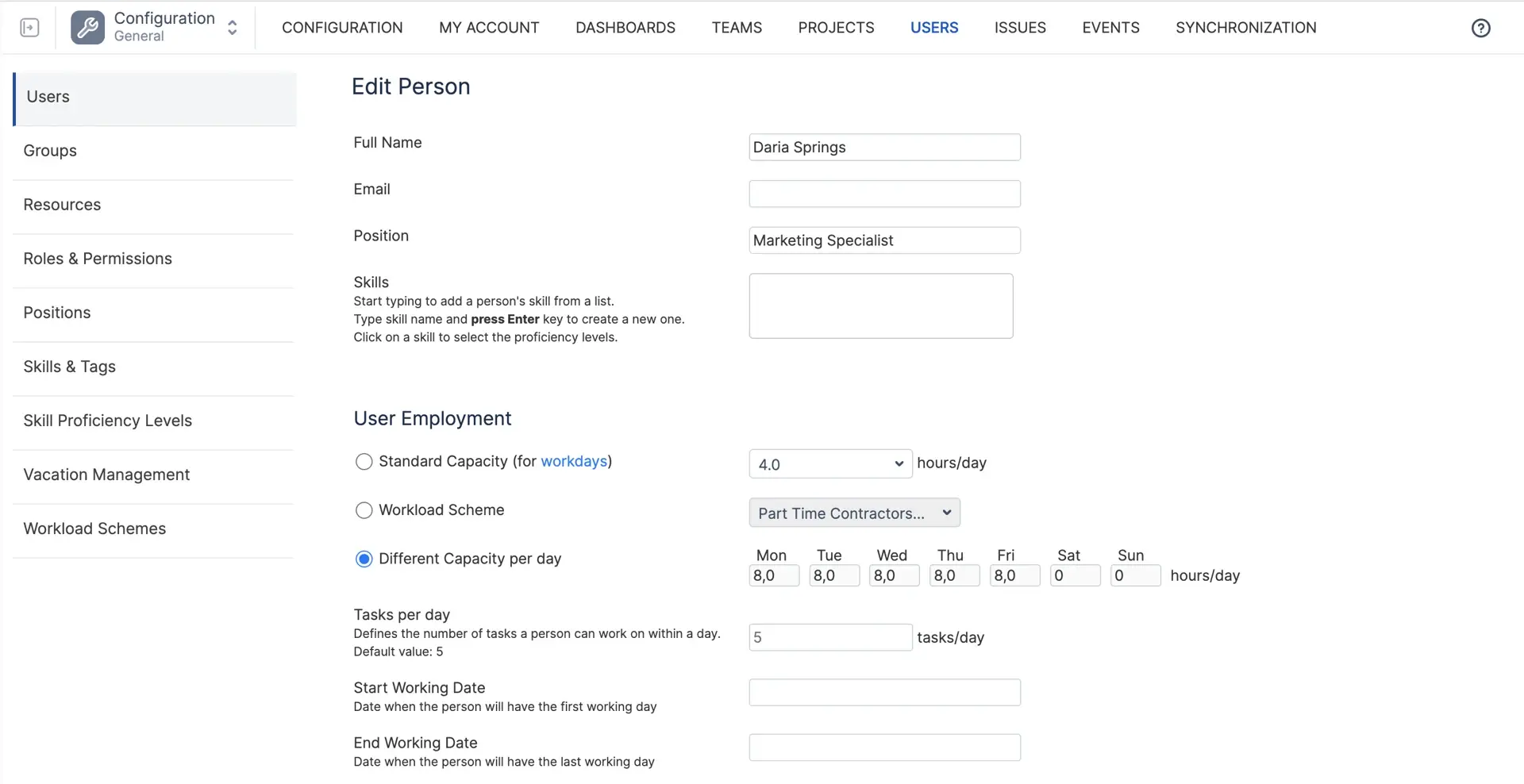
Al calcular la carga de trabajo del recurso, el sistema comparará la cantidad de trabajo asignada a la persona en un período y determinará si el recurso está sobrecargado, subcargado o si tiene una carga de trabajo nominal.
The comparison of workload against capacity is what colors the indicator: below capacity is yellow or olive, at capacity is green, above it is light red or red. Vacation balances have their own cycle, and you can set when that cycle starts, globally or per person, so it lines up with your HR calendar rather than the January default.
The comparison of workload against capacity is what colors the indicator: below capacity is yellow or olive, at capacity is green, above it is light red or red. Vacation balances have their own cycle, and you can set when that cycle starts, globally or per person, so it lines up with your HR calendar rather than the January default.
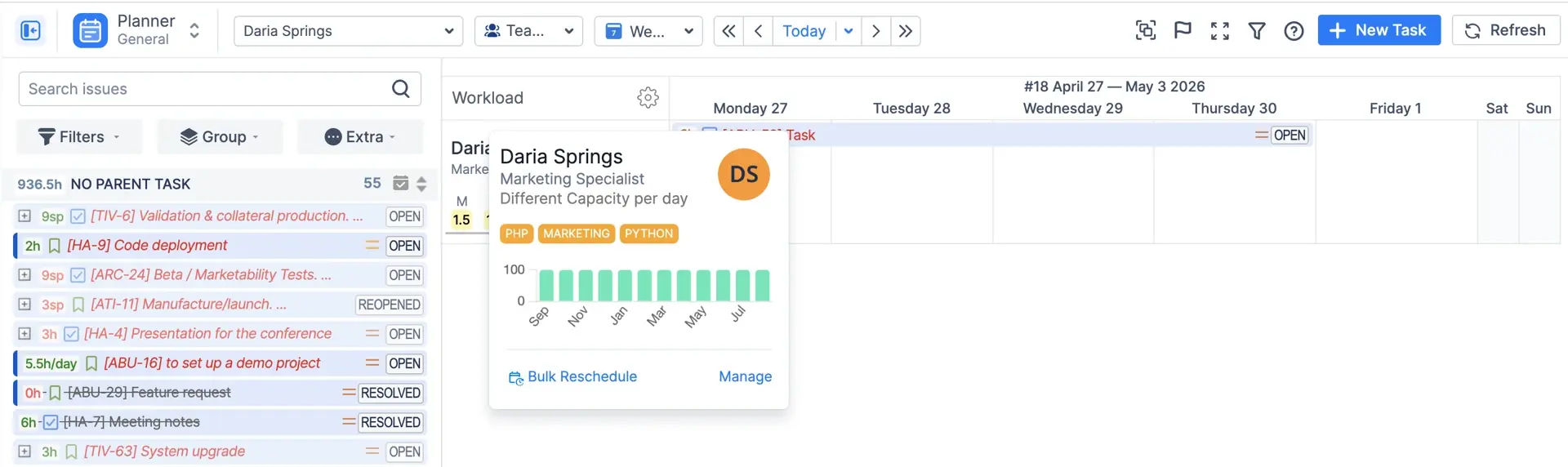
Puedes gestionar la implicación individual de cada recurso en su perfil:
Seguimiento del tiempo de Jira (registros de trabajo)
Los registros de trabajo son entradas de tiempo que los usuarios enviaron a las tareas de Jira mientras trabajaban en ellas. ActivityTimeline las sincroniza desde Jira y permite registrar el tiempo directamente a través de su interfaz de usuario.
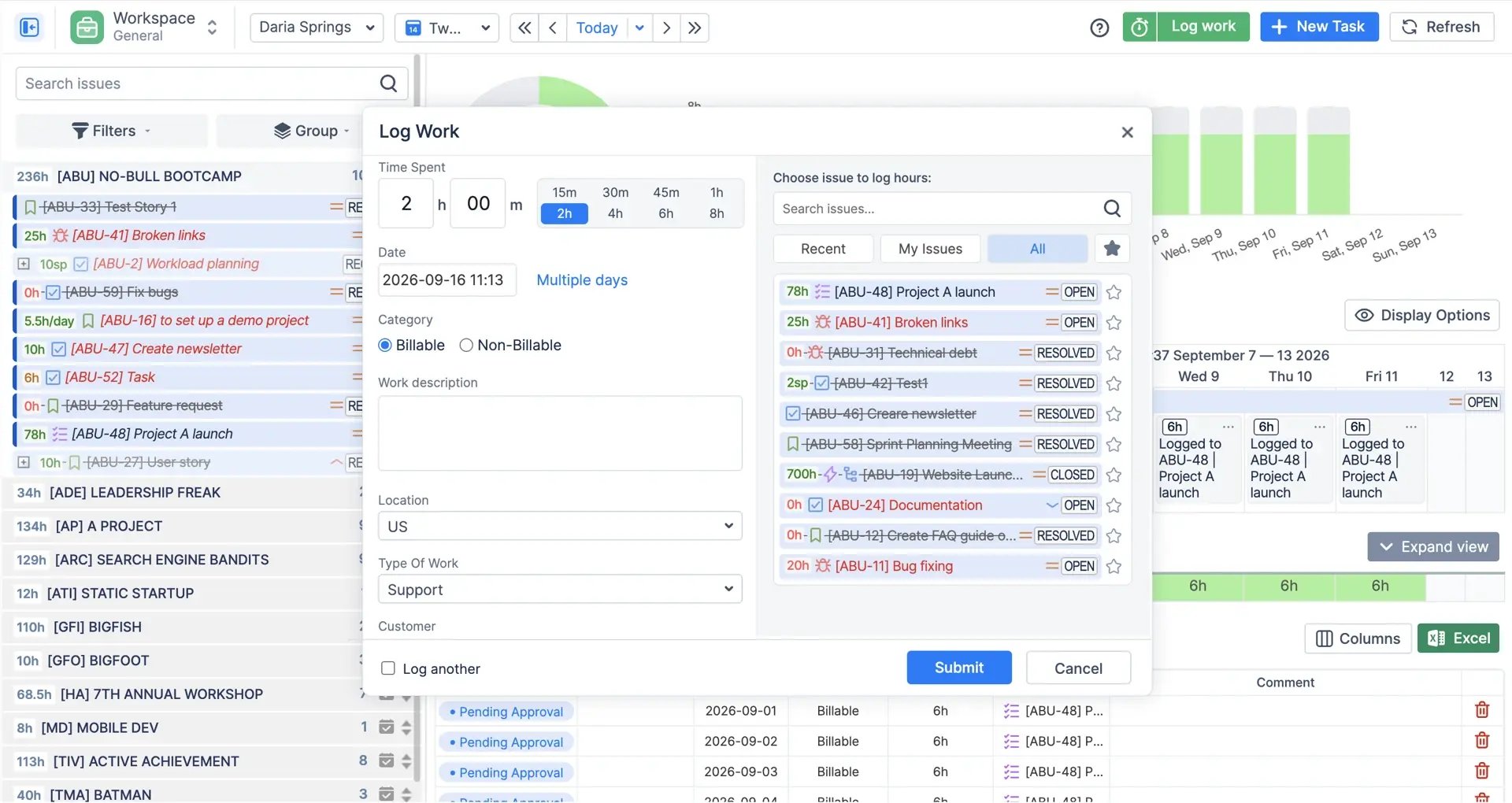
Los registros de trabajo pueden contener más que un número: una categoría (por ejemplo, facturable o no) y atributos personalizados que su equipo financiero solicite. Los administradores pueden limitar la antigüedad de los registros, con opciones desde unos pocos días hasta 75, lo cual es importante si cierra sus libros contables mensualmente.
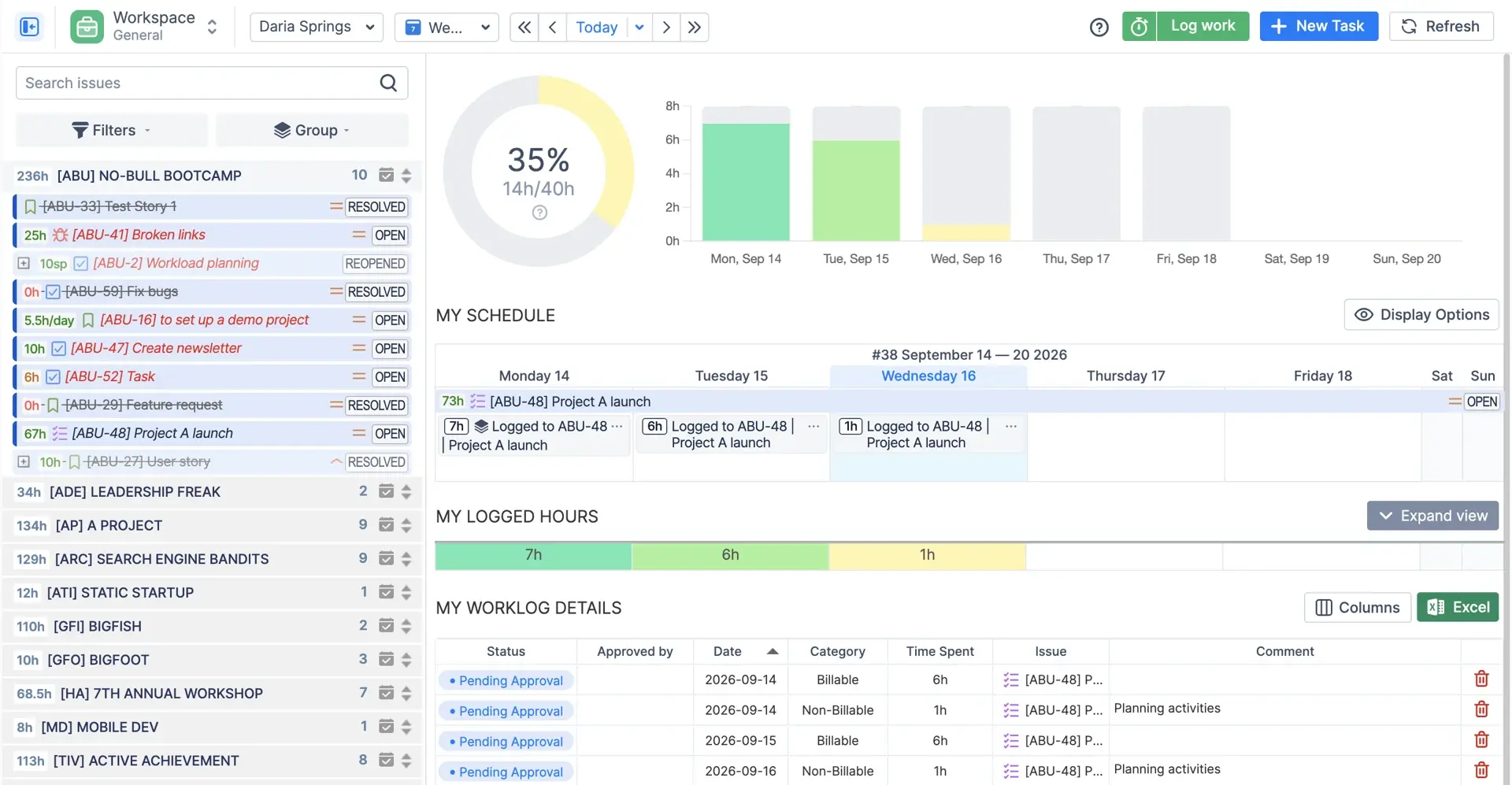
Dónde aparecen los registros de trabajo: el módulo de hojas de horas es el lugar principal, con filtros que separan los registros de trabajo de Jira de las reservas y eventos del calendario. En el Planificador, el modo de indicador predeterminado llamado Registros de trabajo y carga de trabajo muestra el tiempo registrado del pasado y el tiempo planificado para el futuro en la misma fila, que es la forma más rápida de ver si el plan coincidió con la realidad. Esa comparación, entre lo planificado y lo real, es lo que hace que las estimaciones mejoren con el tiempo: si un tipo de tarea siempre se registra con el doble de su estimación, lo verá en cuestión de unos pocos sprints.
Dónde aparecen los registros de trabajo: el módulo de hojas de horas es el lugar principal, con filtros que separan los registros de trabajo de Jira de las reservas y eventos del calendario. En el Planificador, el modo de indicador predeterminado llamado Registros de trabajo y carga de trabajo muestra el tiempo registrado del pasado y el tiempo planificado para el futuro en la misma fila, que es la forma más rápida de ver si el plan coincidió con la realidad. Esa comparación, entre lo planificado y lo real, es lo que hace que las estimaciones mejoren con el tiempo: si un tipo de tarea siempre se registra con el doble de su estimación, lo verá en cuestión de unos pocos sprints.
Si tienes alguna pregunta adicional relacionada con la siguiente sección, no dudes en ponerte en contacto con nuestro equipo en:
Cómo encaja todo
Todo lo anterior se reduce a tres números por persona al día. La capacidad es el tiempo disponible. La carga de trabajo es el tiempo que ha planificado para ellos. Los registros de trabajo son el tiempo que realmente han dedicado. Comparar la carga de trabajo con la capacidad le indica si el plan es realista. Comparar los registros de trabajo con la carga de trabajo le indica si sus estimaciones lo fueron.
Los recursos y los equipos son a quienes pertenecen esos números, las líneas de tiempo personales y de equipo son donde los ve, y las tareas de Jira y los eventos personalizados son lo que los genera. Ese es todo el modelo. La mayoría de los equipos nunca necesitan más que esto, y los que sí lo necesitan (módulos financieros, previsiones por habilidades, API REST) lo encuentran a solo dos o tres clics de distancia.
Si algo en esta página no coincide con lo que ve en su instancia, avísenos en reliex.com/support. Esta página se actualiza cuando lo hace la aplicación, y una buena parte de esas actualizaciones comenzaron como un ticket de soporte.
Los recursos y los equipos son a quienes pertenecen esos números, las líneas de tiempo personales y de equipo son donde los ve, y las tareas de Jira y los eventos personalizados son lo que los genera. Ese es todo el modelo. La mayoría de los equipos nunca necesitan más que esto, y los que sí lo necesitan (módulos financieros, previsiones por habilidades, API REST) lo encuentran a solo dos o tres clics de distancia.
Si algo en esta página no coincide con lo que ve en su instancia, avísenos en reliex.com/support. Esta página se actualiza cuando lo hace la aplicación, y una buena parte de esas actualizaciones comenzaron como un ticket de soporte.

Pruébelo con su propio Jira. La prueba dura 30 días, no requiere tarjeta de crédito y el asistente de configuración le guiará a través de los mismos conceptos y en el mismo orden que esta página.