The In Progress column has 14 cards, three people are "working on" five things each, and nothing has reached Done since Tuesday. Everyone looks busy and nothing ships. That's the problem a Kanban board is meant to make visible.
Here's the short answer: in Jira, a Kanban board is a board without sprints, where work flows continuously through columns and WIP limits stop any column from filling up. Below is how to set one up step by step, an example board you can copy, the settings that matter, and where a Kanban board stops being enough.
{{key-takeaways}}
Why Kanban Boards Matter for Business Teams
Kanban boards are more than just task boards. They are a visual representation of work in progress (WIP), showing the flow of tasks through various stages — from “To Do” to “Done.” Each column on the Kanban board represents a phase in your workflow. For company-managed projects, this means aligning multiple teams on the same page. For agile teams, including scrum teams, the Kanban methodology provides full transparency, allowing team members to see the entire team’s progress in real time.
The board view allows teams to organize and manage tasks effectively, including setting up swimlanes and configuring work item fields to optimize workflow.
But as useful as a Jira board can be, it has its limits. Handling multiple projects, managing team capacity, and maintaining continuous improvement requires more advanced tools. That’s where ActivityTimeline steps in.
{{rich-cta-2}}
What is a Kanban board in Jira?
A Jira Kanban board is a board that shows issues as cards in columns, one column per stage of your workflow, such as To Do, In Progress, Review and Done. Unlike a Scrum board, it has no sprints and no sprint commitment. People pull the next card when they finish one, and each column can have a work-in-progress (WIP) limit.
If your work arrives every day and can't wait two weeks for the next sprint, Kanban is usually the better fit. For the general board setup in Jira, see our Jira board guide.

How do you create a Kanban board in Jira?
- Create a space with the Kanban template. In Jira, choose Create space, pick Kanban, and choose team-managed or company-managed. Company-managed gives you more board settings, including WIP limits with a minimum and a maximum.
- Map statuses to columns. In Board settings → Columns, add a column for each real stage and drag each status into one. A status left unmapped hides its issues from the board.
- Set WIP limits. In company-managed boards, enter a maximum (and optionally a minimum) under each column in Board settings → Columns. In team-managed boards, open the column menu and choose Set column limit.
- Add swimlanes. In Board settings → Swimlanes, group cards by assignee, epic or a JQL query. Team-managed boards offer Group by on the board itself.
- Decide on a backlog. Turn on the Kanban backlog if you want new work to wait off the board until someone pulls it in.
- Add quick filters for the views people switch to most, such as "Only my issues" or "Bugs".
Jira Kanban board example
Here's a board for a five-person product support team:
Swimlanes: one for issues with priority Highest (so urgent work is always on top), then everything else. Quick filters: "My issues", "Bugs", "Customer: Acme".
The limit on Review is the one that changes behaviour. When Review is full, the next person who finishes a card helps review instead of starting something new.
How do WIP limits work in Jira?
A WIP limit is the maximum number of cards allowed in a column. Jira doesn't block you from going over it: the column header turns red (and yellow below a minimum, in company-managed boards), so the team sees the problem and acts on it. That's deliberate. The limit is a signal for a conversation, not a lock.
A good starting point is one card per person in In Progress, then adjust after two weeks by looking at where cards wait longest.
Which Kanban reports does Jira have?
Cumulative flow diagram shows how many issues sit in each column over time. A band that keeps getting wider is your bottleneck. Control chart shows how long issues take from start to finish (cycle time) and how much that varies. Both are under Reports on company-managed boards.
What can't a Jira Kanban board show?
A Kanban board counts cards. It doesn't know that one card is two hours and another is three days, that Alex has cards on two other boards, or that Maria is on vacation next week. WIP limits are per column on one board, so a person can be within every limit and still be overloaded across boards.
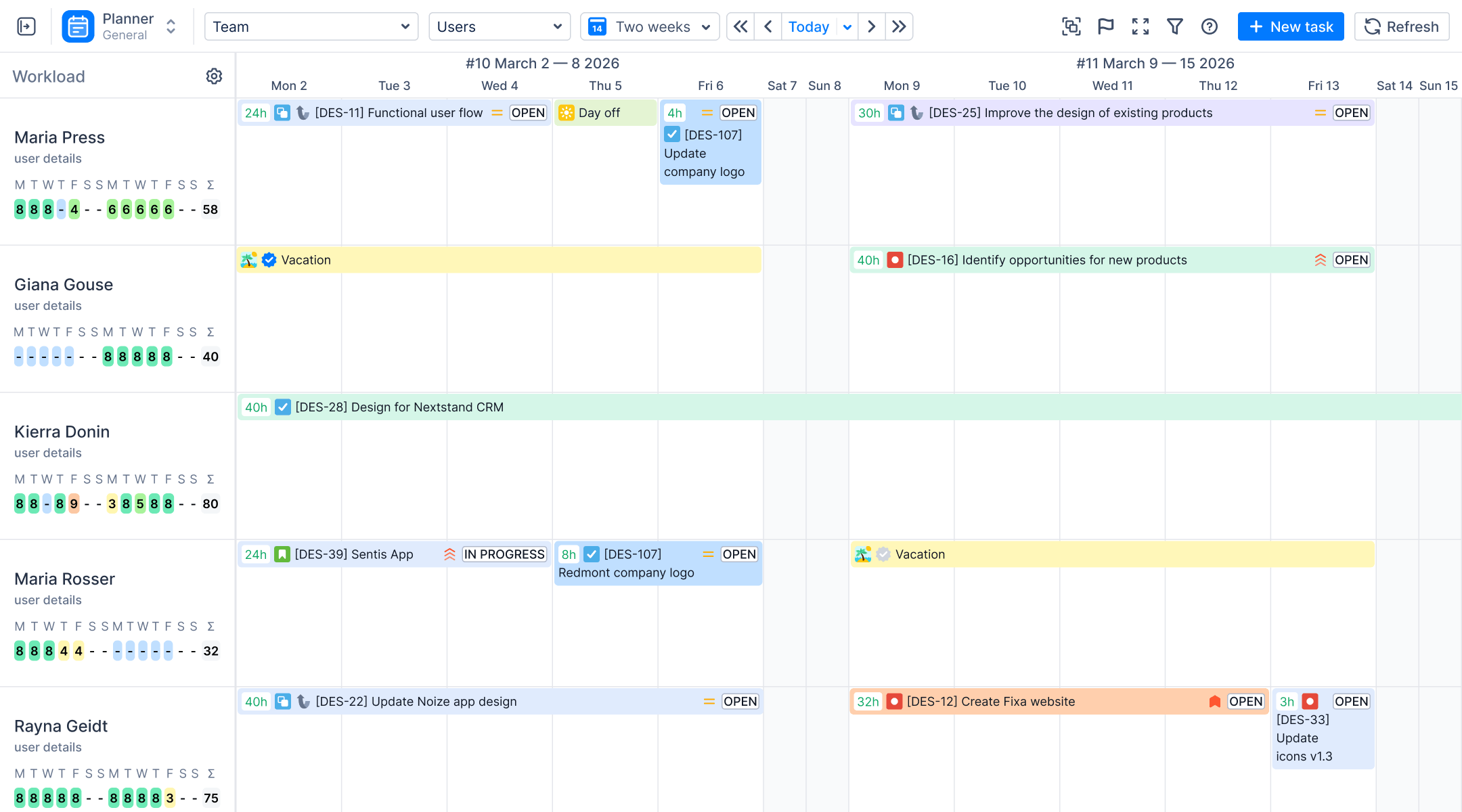
ActivityTimeline covers that part. It reads the same Jira issues and lays them out per person on a timeline:
- Issues from all your Kanban (and Scrum) boards appear on each person's row, so cross-board overload is visible.
- Each day is colored by how full it is in hours: green when fully planned, red when overloaded, blue when out of office.
- Vacations, holidays and meetings reduce available hours, so the plan accounts for them.
- The Project Progress Report and Planned vs Actual Report show progress and estimates against logged time per project or epic.

WIP Limits and Capacity Management Made Easy
One of the core principles of the Kanban system is limiting work in progress (WIP). In Jira, you set WIP limits for each column, but this doesn’t always prevent overload. A team member might have maximum number of tasks in progress, but this limitation is only applied to one Kanban board. Since they might be involved in a few boards, they end up with too many tasks, though it won’t be visible directly on the Jira Kanban board. This way, your team’s capacity can quickly become unbalanced.
When you switch to ActivityTimeline, you can see that except those 3 tasks, the person has 2 more from other board and becomes overloaded. With ActivityTimeline, you can set WIP limits not just for columns but for individual team members. This ensures that each person has a manageable workload, preventing burnout. If a team member is overbooked, ActivityTimeline highlights it, allowing teams to rebalance tasks instantly.

Managing Multiple Projects without Losing Control
If you’re juggling multiple projects, Jira’s default Kanban board can quickly become chaotic. Switching between boards wastes time, and keeping track of everyone’s tasks becomes a headache. ActivityTimeline turns this chaos into clarity. It allows teams to visualize multiple Kanban projects on a single timeline, making cross-team coordination seamless.
After adding a new status, users must also create a corresponding new column for tickets associated with that status, demonstrating the functionality of the workflow customization feature.
For example, if your software development team is working on bug fixes while your marketing team is preparing a product launch, you can see both teams’ tasks in one place. If the development team is over capacity, you can immediately adjust tasks or reassign them to maintain smooth progress.

By default, the Timeline provides a cross-project view that displays everything assigned to a user or team. If you need to focus on specific items or projects, you can easily filter them out using either the timeline filter or advanced filtering options. Just navigate to the Timeline Filter button and click on it to set your preferences for filtering.

Visualizing the Kanban Backlog and Planning Ahead
A Kanban board without a well-organized backlog is just a task board. The Kanban backlog is where all future tasks are stored before they are ready to move into the workflow. With ActivityTimeline, you can visualize this backlog directly on your timeline, making it easy to plan ahead.
This is more than just listing tasks — it’s about understanding the work items your team will tackle next, setting priorities, and balancing workloads. Product owners can quickly review the backlog, decide which tasks to prioritize, and assign them to the right team members.
Managing Distributed Teams
Managing distributed teams can be challenging, but Jira Kanban boards can help. By using a digital Kanban board, teams can collaborate and track progress in real-time, regardless of their location. Teams can also use Jira’s collaboration features, such as comments, @mentions, and file sharing, to communicate and work together effectively. Additionally, Jira’s reporting features allow teams to track progress, identify areas for improvement, and make data-driven decisions. By using Jira Kanban boards, distributed teams can stay on the same page, deliver continuous value to customers, and improve their workflow and collaboration.
Advanced Reporting for Continuous Improvement
Jira offers basic reports like control charts, but ActivityTimeline takes reporting to another level. You can see detailed reports on your team’s capacity, monitor cycle time for tasks, and track performance across multiple teams. This isn’t just about seeing what was completed yesterday — it’s about understanding your workflow and making data-driven improvements.
For example, if your team consistently exceeds WIP limits, it may be a sign that your workflow needs adjusting. You can investigate why - ActivityTimeline’s reports make continuous improvement a reality, not just a concept.

With the Project Progress Report, you get a real‑time dashboard showing how each Kanban project is advancing. This report tracks total work items, tasks completed yesterday, tasks in progress, and what’s coming up next. For teams juggling multiple projects, it highlights which Kanban boards are on track and which ones need attention. If your WIP limits keep getting breached, the Project Progress Report will pinpoint the exact stage where work is piling up, so you can adjust workflows or reassign tasks before deadlines slip.

The Planned vs Actual Report lets you compare your original plan against reality. It overlays the planned timeline for each user story or task block with the actual time logged by team members. This is crucial for continuous improvement in a Kanban system, where you’re striving to minimize cycle time and smooth out flow. When your actual durations consistently exceed estimates, you’ll see it immediately. No more surprises in status meetings! You can then dig into the data, identify tasks that need smaller work items or extra collaboration, and refine WIP limits to prevent future overloads.
Together, these reports give you full transparency into your Kanban backlog health and team capacity. They transform reporting from a passive activity — “what happened yesterday?” — into a proactive practice: “how can we optimize tomorrow?” By surfacing insights on cycle time trends, workload imbalances, and scope deviations, ActivityTimeline ensures continuous improvement isn’t just a buzzword but an integral part of your Kanban practice.
Final Thoughts
To be clear about the difference: ActivityTimeline plans in hours and days, not card counts, so it doesn't replace Jira's WIP limits or flow reports. Use the board to manage flow, and the timeline to see whether the people can carry it.
A Kanban board tells you where work is stuck. It can't tell you who has room to unstick it.
{{rich-cta-5}}