
Have you ever managed a project where a single delay in one task caused a massive chain reaction across your entire team's schedule? In Jira project management, dependencies are often the "invisible" roadblocks that turn a well-planned sprint into a chaotic scramble. To help you maintain control, ActivityTimeline provides a specialized system for identifying and resolving these conflicts before they derail your deadlines.
The core answer to how to visualize Jira project dependencies effectively is to move beyond simple lists and use a timeline-based alert system. While standard Jira provides the data through issue linking, ActivityTimeline (AT) transforms this data into visual signals on your team’s schedule. By tracking scheduling conflicts based on "blocks" and "blocked by" links, AT ensures you never accidentally schedule a task before its prerequisites are finished.
Why Jira Project Dependencies Fail in Real Life?
Managing dependencies in Jira is not inherently difficult. In fact, setting up issue links and visualizing them in timelines or Gantt-style views is relatively straightforward. The real problem is that these dependencies exist in a vacuum.
Native Jira dependency views show how tasks relate to each other, but they completely ignore the most critical variable in delivery: the available capacity of the person who must execute the task.
Jira project dependencies describe logical order — “blocks” and “is blocked by” relationships — but they say nothing about whether the contributor responsible for the next task actually has time to work on it. As a result, the dependency chain may look perfectly structured, yet still collapse the moment it hits a real-world constraint: human capacity.
This is where traditional dependency tracking breaks down.
A dependency line might suggest that Task B can start immediately after Task A. But if the developer assigned to Task B is already overloaded, on vacation, or committed to higher-priority work, that dependency becomes meaningless.
That’s why teams often experience:
- Invisible bottlenecks. Work piles up behind overloaded contributors, even though the dependency graph looks clean.
- False predictability. Roadmaps appear realistic on paper, but collapse once execution begins.
- Late discovery of delays. Teams only realize there’s a problem when deadlines are already at risk.
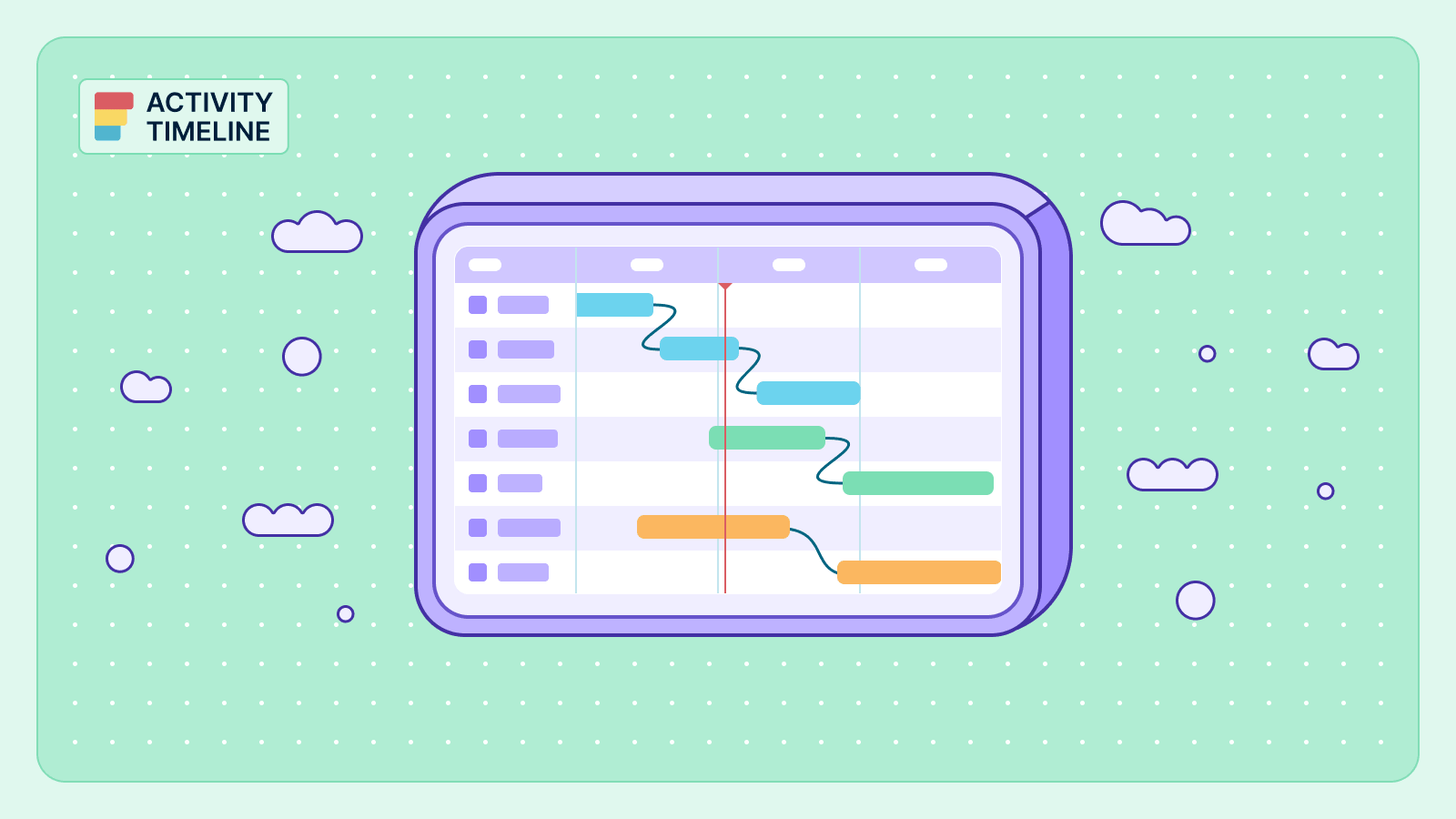
To compensate, many teams usually rely on classic Gantt charts packed with dependency lines. But without capacity context, these charts simply visualize task order, not feasibility.
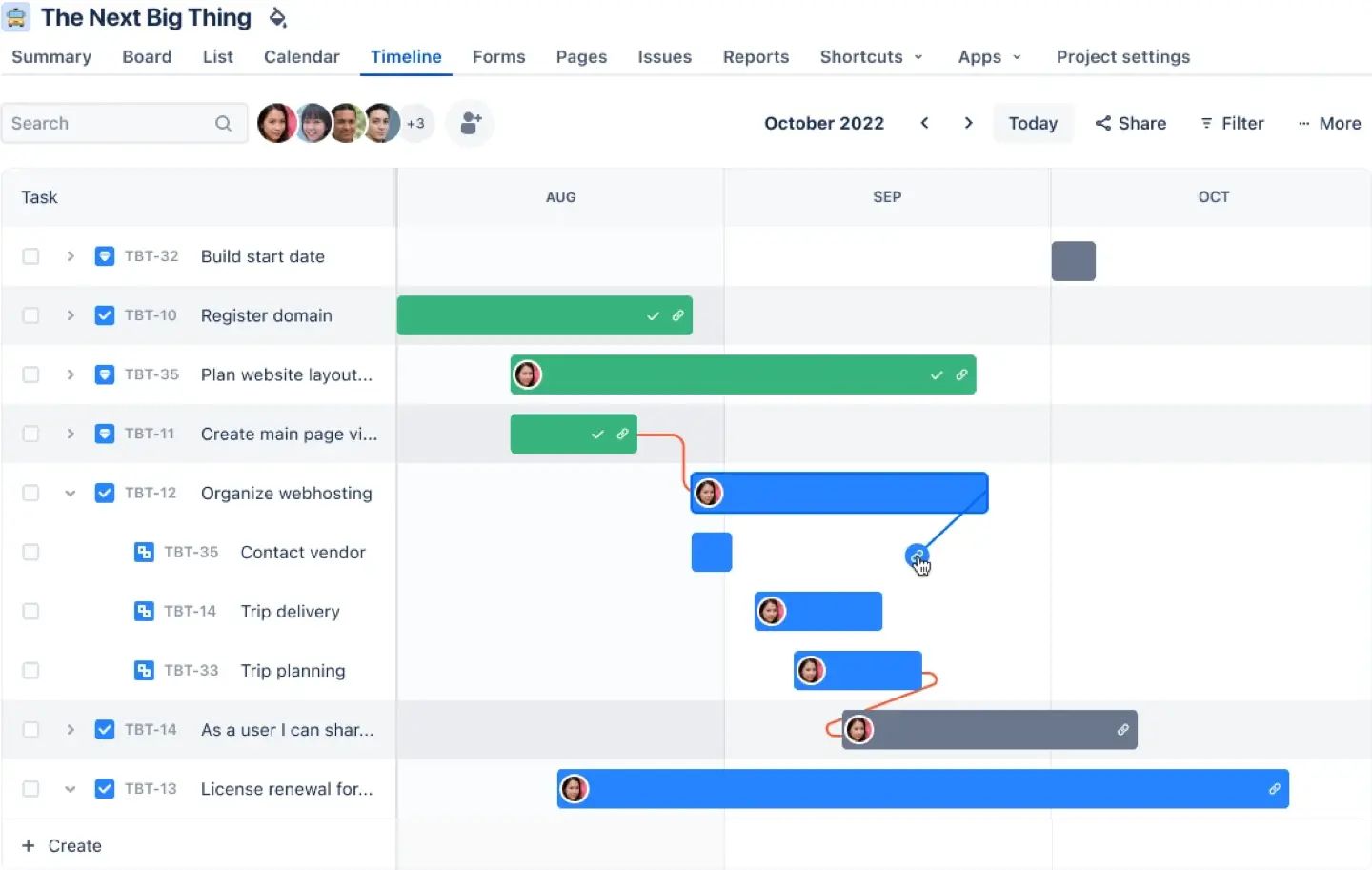
Without integrating capacity into dependency planning, dependency management becomes a theoretical exercise. And in that context, it offers little advantage over traditional Gantt charts because it still cannot answer the only question that matters:
Do we have the people and time to deliver this plan?
Understanding Dependency Types
In Jira, dependencies define how different work items — such as tasks, stories, or epics — are connected and the order in which they should be completed.
There are several dependency types that teams can configure to reflect real-world project relationships. For example, a finish-to-start dependency means that one work item must be complete before the next can begin, while a start-to-start dependency allows two tasks to begin at the same time. Other types, like finish-to-finish and start-to-finish, offer even more flexibility for complex scheduling needs.
Configuring your work item links in Jira to accurately represent these dependencies is essential for effective project management. By clearly defining how work items are related, teams can anticipate potential delays, allocate resources more efficiently, and ensure that no task is started before its prerequisites are complete.
For example, if a development team needs to wait for a design to be finalized before coding can begin, setting up a finish-to-start dependency between those work items in Jira helps everyone stay aligned. Understanding and using the right dependency types empowers teams to manage their projects proactively and avoid unnecessary roadblocks.
What is the Best Way to Visualize Jira Project Dependencies?
The most effective way to manage these relationships is through ActivityTimeline, a resource planning and time-tracking application that bridges the gap between Jira data and visual scheduling. Unlike traditional tools that prioritize drawing lines, ActivityTimeline focuses on scheduling logic and visual alerts.
ActivityTimeline visualizes dependencies by tracking chronological conflicts. It reads the "blocks" and "blocked by" links directly from Jira and monitors where those tasks are placed on the calendar.
How Does the Logic Work?
The system calculates if a "blocked" issue is scheduled to occur before the issue that is blocking it. If Issue B cannot start until Issue A is finished, but you have dragged Issue B to a date before Issue A, the system recognizes this as an error.
The Visual Signal
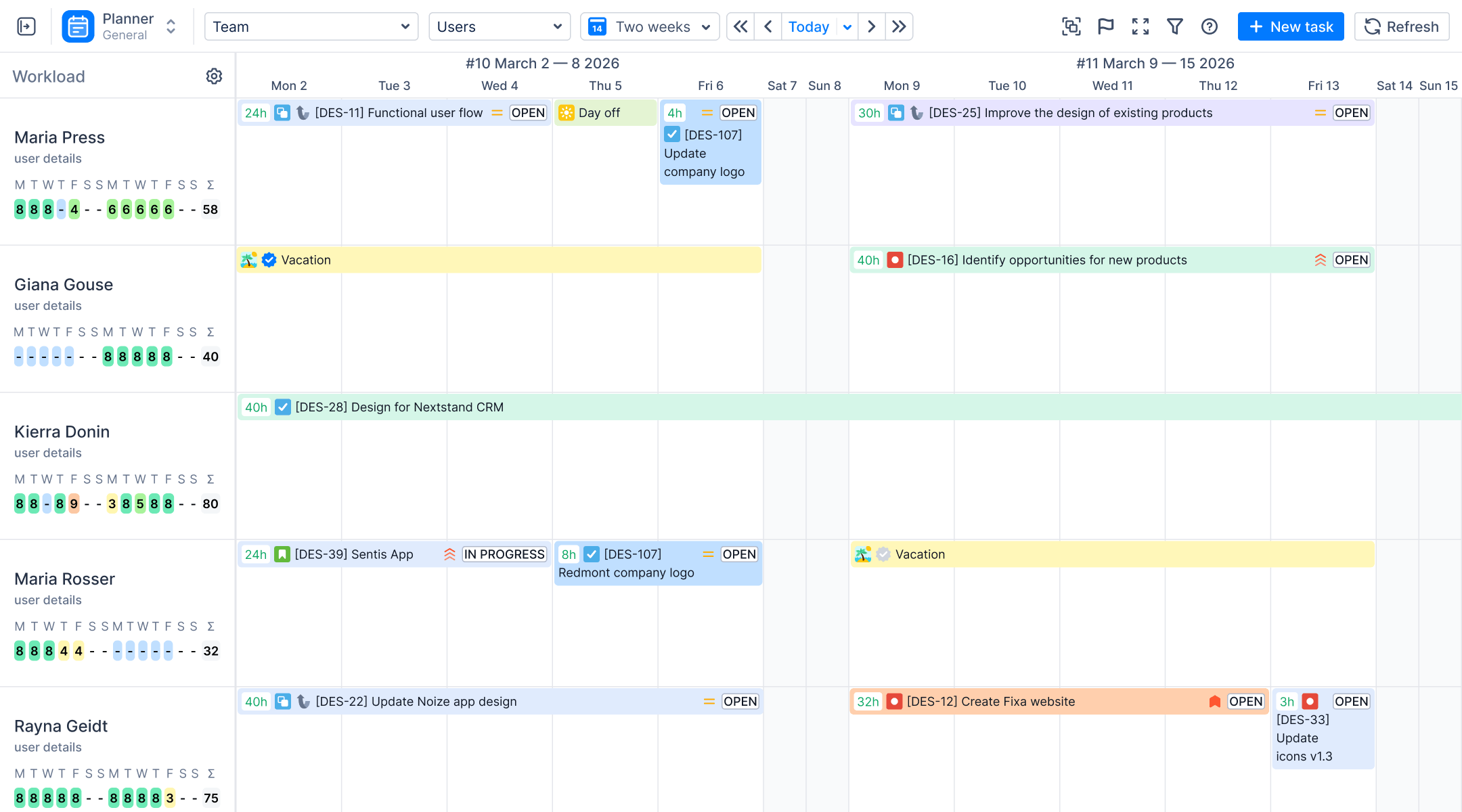
Instead of connector lines, ActivityTimeline uses a bold exclamation mark icon on the issue card. This alert signals to the manager that the current schedule is physically impossible based on the dependency data in Jira. This "minimalist" approach allows the Planner view to remain clean and readable, even when managing large teams with complex workloads.

How to Set Up and Track Dependencies in ActivityTimeline
To successfully visualize Jira project dependencies, you must follow a structured configuration process. This ensures the application is reading the correct metadata from your Jira instance.
Step 1: Enable Dependency Tracking in Settings
To begin visualizing these links, an Administrator must first activate the feature within the application’s configuration menu.
- Navigate to the Configuration menu at the top of the ActivityTimeline interface. Item linking is set in the admin panel using the configuration menu, allowing you to manage dependencies between work items.
- Select the Timeline Panel settings page.
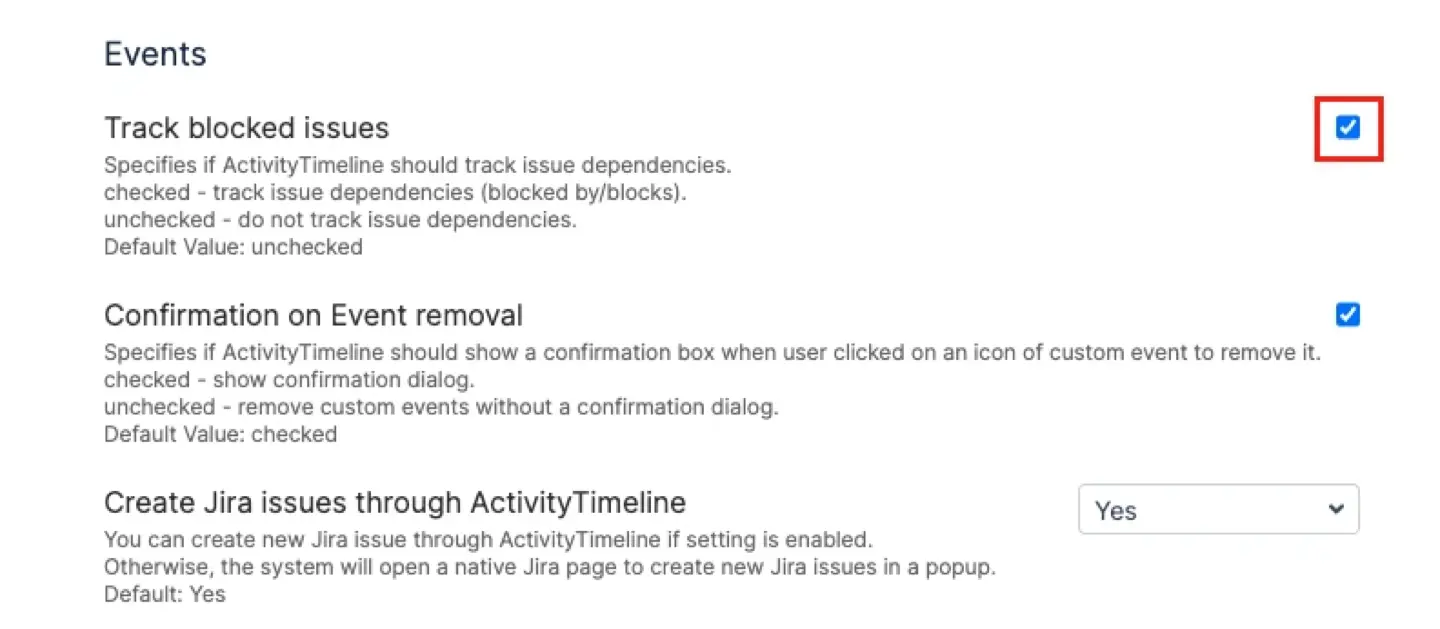
- Scroll down to the Events section.
- Check the option labeled “Track blocked issues”. Note: Administrator permissions are required to enable this feature.
- Click Update to save your changes.
Step 2: Establish Links Within Jira
Work item links must be created and defined by an administrator before they can be used in advanced planning features. It is important to remember that you cannot create or define new dependency relationships directly within the ActivityTimeline interface. All relationship data must originate from Issue Linking inside Jira.
- Open an issue in Jira.
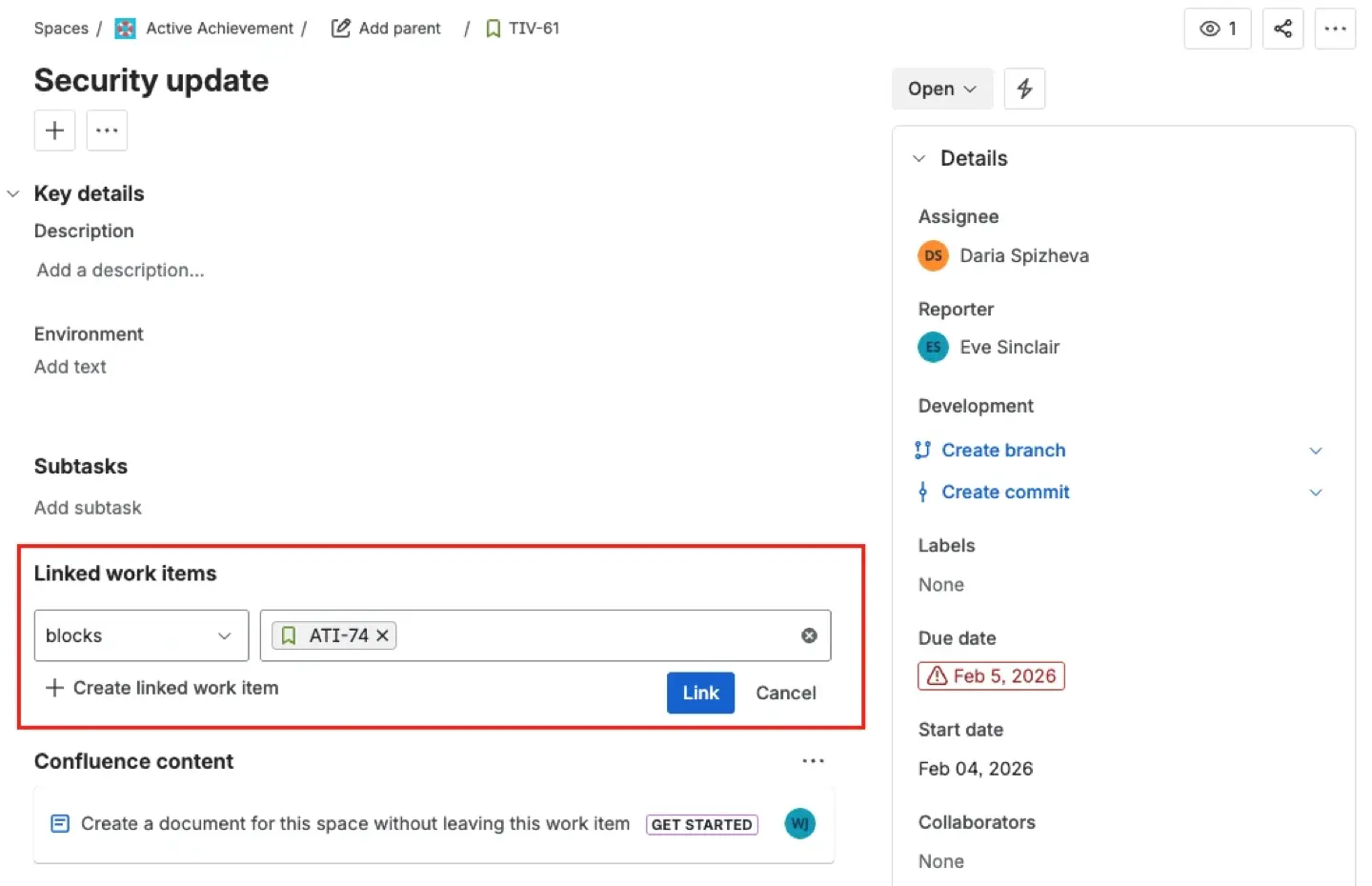
- Click on Link Issue. You can add a new link type by selecting 'Add New Link Type' in the left hand sidebar under the work item linking settings. Then, define the name of your new link and the descriptions using the fields for inward and outward description.
- Choose the link type using the dropdown menu, such as “blocks” or “is blocked by”.
- Select the corresponding issue and save the link. You must save changes to apply the new or edited link type.
- Perform a Full Issue Synchronization in ActivityTimeline to ensure the new links are cached.
Existing work item links can be edited or removed by selecting the item link by selecting the appropriate option in the admin panel.
Step 3: Identify Conflicts on the Planner
Once the links are created and tracking is enabled, you can manage your team’s schedule with confidence on the Planner Dashboard.
- Drag an issue from the Issues Panel on the left to a team member’s timeline.
- If the issue is blocked by another task that is scheduled for a later date, a red exclamation mark will appear on the issue bar.
- Hover over the exclamation mark to see details about the blocking issue. Actions such as inverting the dependent relationship are available using the right side to invert the link.
- To resolve the conflict, simply drag the blocked task to a date after the prerequisite task is completed. You can also use the dropdown menu or remove option to manage or delete dependencies as needed.
Step 4: Use the Team Panel for High-Level Overview
When managing Jira project dependencies across multiple teams, the Team Panel provides a broader perspective. This view allows you to see how dependencies between different departments — such as Marketing and Development — impact the overall delivery roadmap.
- Switch from the 'Users' view to the 'Teams' or 'Teams with Users' view on the top toolbar.
- Observe the overall workload indicators for each team.
- Identify any exclamation marks that appear on team-level tasks (like Epics) to spot cross-departmental bottlenecks.
Best Practices for Dependency Management
Managing dependencies effectively in Jira requires a strategic approach and attention to detail. One best practice is to create clear and concise work item links, ensuring that every dependency is easy to understand and track. For more complex relationships, consider using custom work item links—these allow you to define unique connections that go beyond the default options, making it easier to represent your team’s specific workflow.
To configure dependencies, use the icon in the upper right corner of the Jira screen to access the admin panel, where you can set up or modify work item links as needed. When dealing with multiple dependencies, it’s important to decide whether tasks should be handled as concurrent or sequential dependencies. Sequential dependencies ensure that tasks are completed in a specific order, while concurrent dependencies allow for parallel progress where possible.
Regularly reviewing and updating your work item links helps teams stay on top of changes and prevents outdated dependencies from causing confusion. By following these best practices, teams can use Jira to manage dependencies with confidence, ensuring that every project milestone is met and that collaboration remains smooth across all teams involved.
Key Limitations of Dependency Types to Keep in Mind
While ActivityTimeline is a powerhouse for visualizing Jira project dependencies, it is designed with a specific philosophy.
- No Connector Lines: If you are specifically looking for a visual layer that draws lines or arrows between tasks (standard Gantt connectors), you will not find this in the Planner view. AT prioritizes a clean UI that focuses on capacity and workload rather than "spaghetti" visualizations.
- Focus on Blocking: The feature is specifically built to highlight "blocks/blocked by" relationships to prevent scheduling errors. It does not currently visualize every type of custom Jira link (like "relates to" or "duplicates").
- Manual Resolution: The system flags the error but does not automatically move the tasks for you. This ensures you, as the manager, maintain full control over the schedule and can make informed decisions based on team availability.
Conclusion
Knowing how to visualize Jira project dependencies is the difference between a project that runs like clockwork and one that is constantly hitting hidden walls. By leveraging the visual alerts in ActivityTimeline, you can transform Jira's raw data into actionable insights that protect your team from burnout and ensure your project stays on track.
ActivityTimeline elegantly solves the dependency problem by showing you exactly where your schedule breaks. It provides the clarity needed to balance workloads, respect task hierarchies, and hit your milestones with precision.
{{rich-cta-1}}





.png)