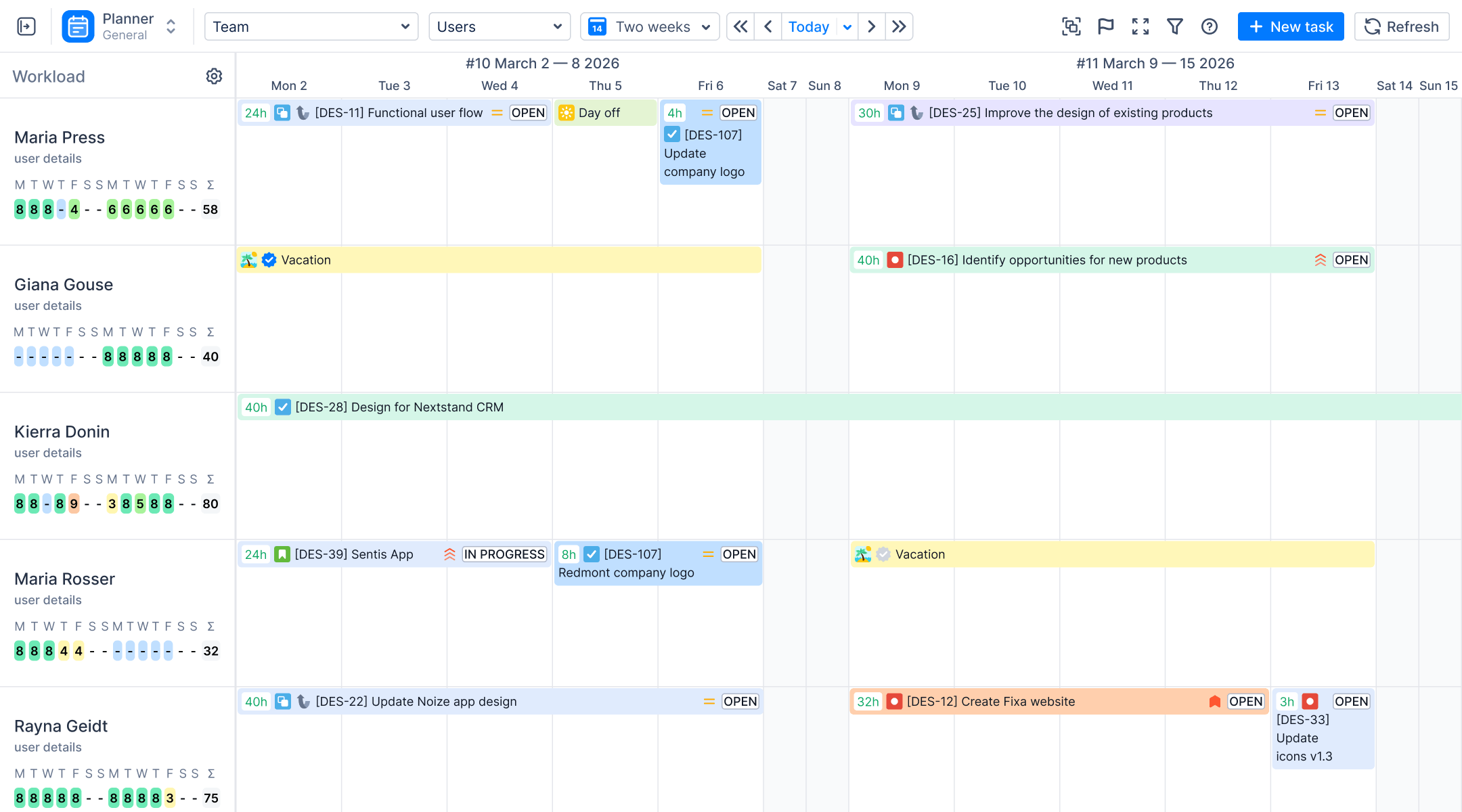

Are you struggling to manage multiple Jira projects without losing sight of the bigger picture? For many project managers, the search for a Jira work roadmap tool with drag and drop functionality? ends with the realization that static planning just doesn't scale.
A project roadmap is a high-level visual summary that maps out the vision and direction of your product offering over time. While Atlassian Jira Software (Jira) offers basic roadmapping, teams managing multiple projects often find themselves hindered by manual updates and a lack of real time visibility.
ActivityTimeline is the definitive roadmapping tool that bridges the gap between high-level strategic goals and daily resource allocation. By providing an intuitive interface with seamless drag-and-drop functionality, AT transforms how agile teams plan and track progress across their entire organization.
Why Is Static Roadmapping Hurting Your Project Management?
Managing agile projects across multiple teams requires more than just a list of tasks. When you rely on other tools or a CSV file to build your product roadmap, you create a disconnect from your live Jira data. This fragmentation leads to several critical business challenges:
- Inaccurate Timelines: Without a clear roadmap that syncs with real-time progress, your end dates become mere guesswork.
- Team Burnout: If you cannot see team capacity across different teams, you risk overloading a team member who is already assigned to multiple versions of different projects.
- Stakeholder Misalignment: External stakeholders require a visual representation of key milestones to remain on the same page, which is impossible with scattered Jira plans.
- Hidden Bottlenecks: Failing to identify dependencies between smaller tasks and epic level initiatives causes cascading delays.
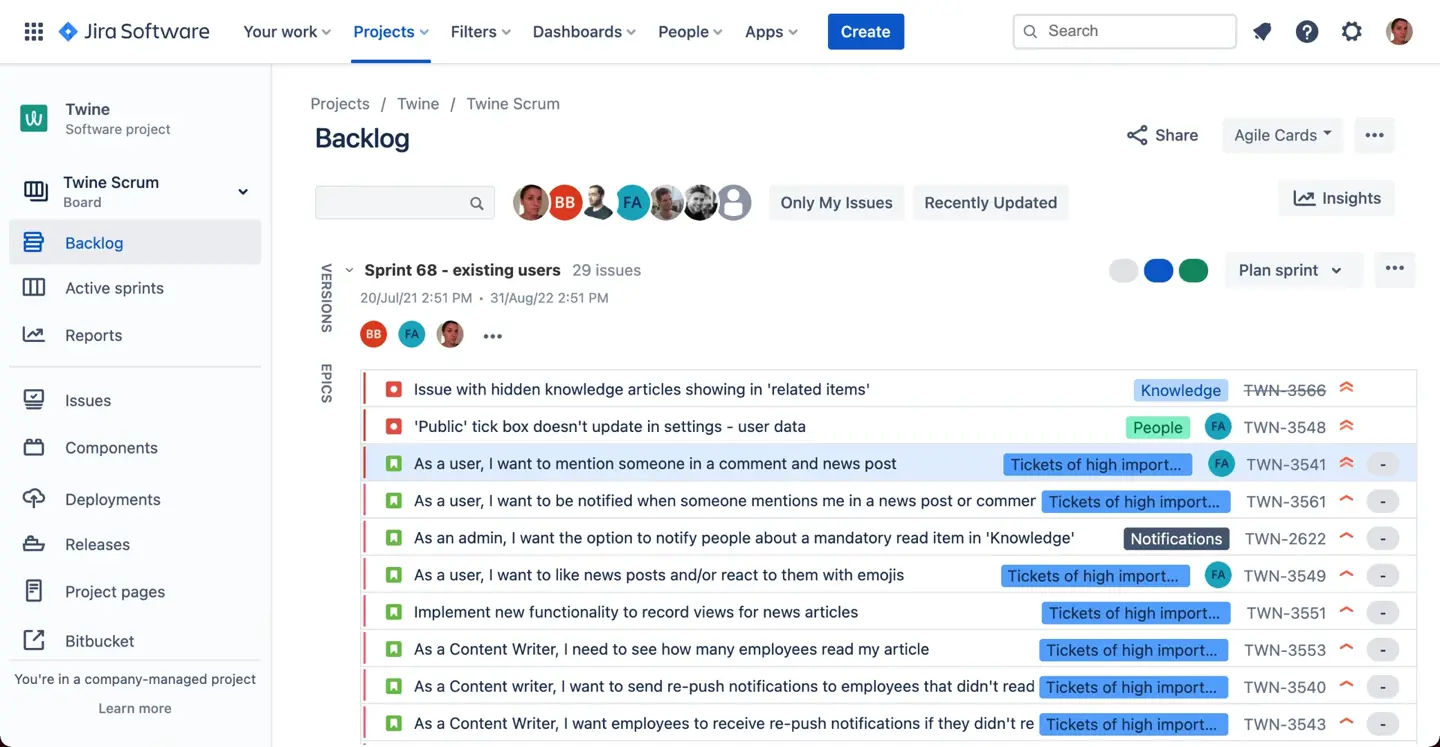
What Makes ActivityTimeline the Ultimate Jira Roadmap Tool?
To succeed in modern project management, you need a roadmap feature that is as dynamic as your Agile teams. ActivityTimeline acts as a powerful Jira plugin that enhances Jira Software Cloud and Data Center environments. It provides a single roadmap view that consolidates multiple Jira projects into one timeline view.
A workload roadmapping tool must do more than just display dates. AT offers a suite of key features designed for the modern manager:
- Cross-Project Releases: You can create cross-project releases to bundle updates from different teams into a single delivery milestone.
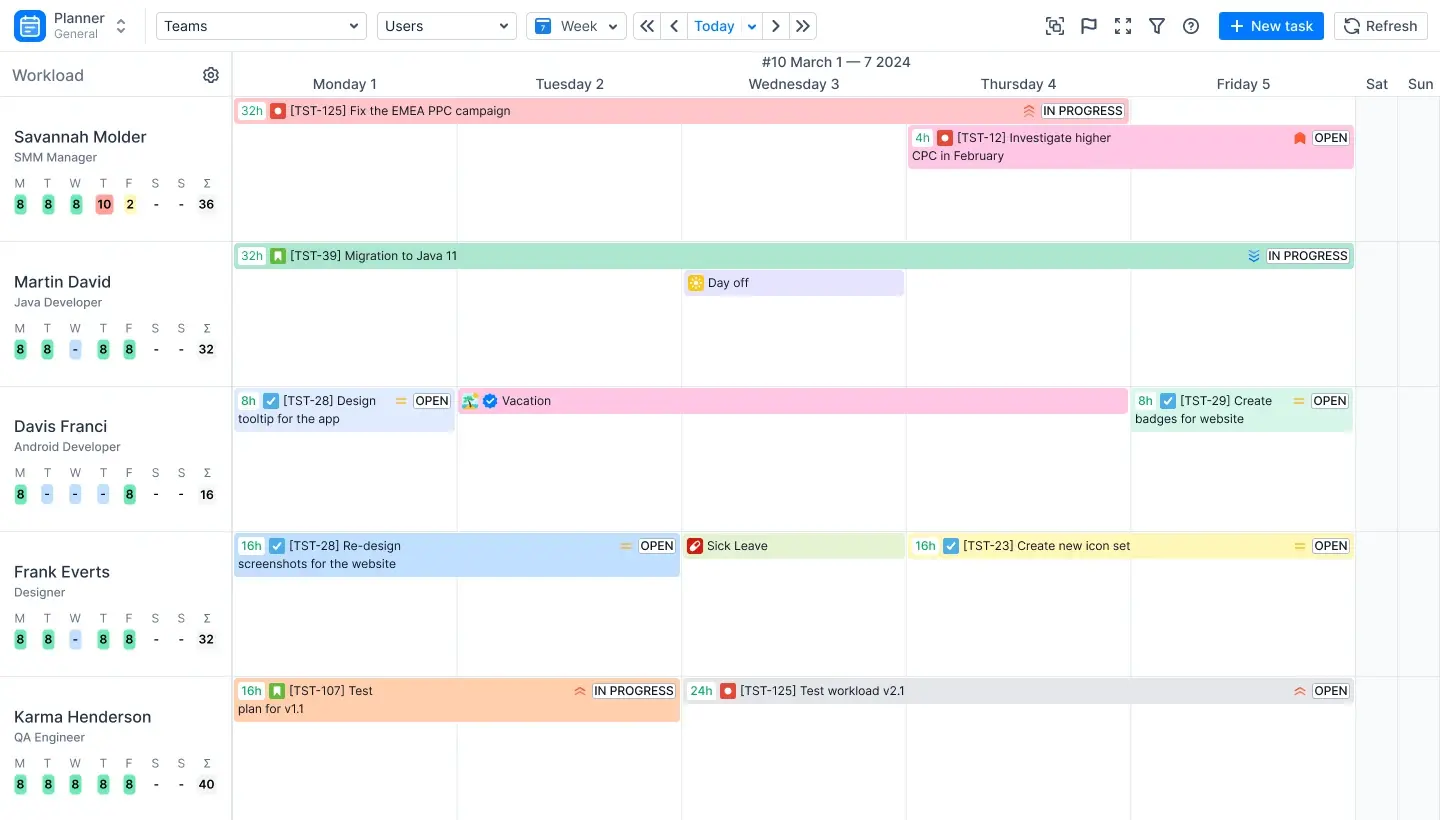
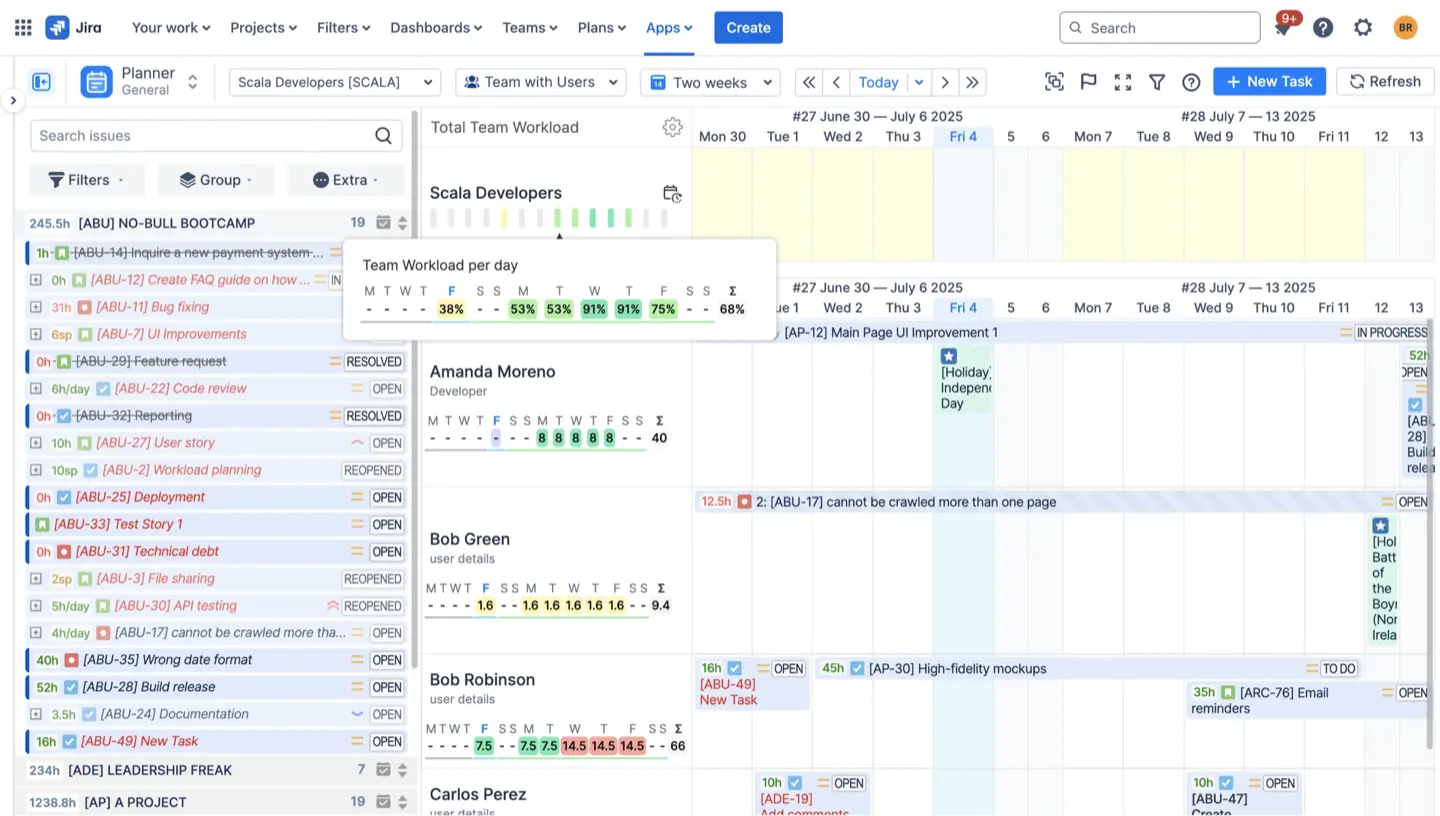
- Visual Capacity Planning: AT uses unique workload indicators to show real time visibility into whether a team is underloaded (yellow), overloaded (red), or balanced (green).
- Skill-Based Resource Allocation: Beyond simple Jira project assignments, you can filter work based on specific skills, ensuring the right team member is on the right task.
- Milestone Tracking: A dedicated Milestone Panel helps you track progress against project goals and key milestones like demos or launch dates.
How to Use ActivityTimeline for Comprehensive Planning
ActivityTimeline transforms into a dynamic Jira roadmap tool through its Planner module, which utilizes drag-and-drop functionality to bridge the gap between high-level roadmapping and daily task execution. Based on the documentation and user support logs, here is a scoop of real cases where ActivityTimeline serves as a visual roadmap tool:
- The "Cross-Project" Roadmap: Visualizing the Backlog
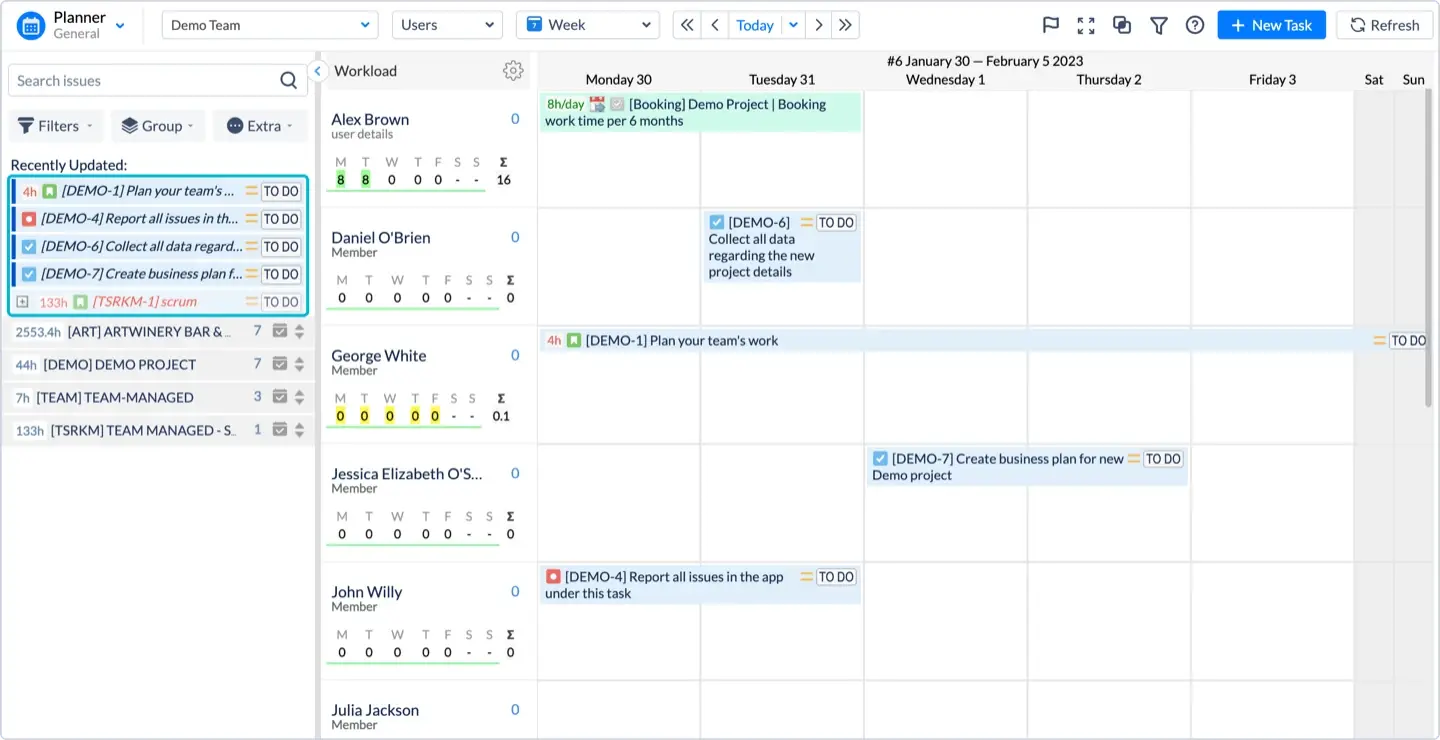
Users often struggle with Jira's project-specific boards when managing resources across multiple initiatives. ActivityTimeline acts as a cross-project roadmap where managers use the Issue Panel (backlog) to visualize all unscheduled tasks.
- The Case: A manager needs to assign tasks from a backlog containing tickets from various projects. By simply taking a task from the Issue Panel and performing a drag-and-drop action onto a user's timeline, the system automatically schedules the work.
- The Result: This action automatically updates the Start and End dates in Jira, keeping the Jira data in sync with the visual roadmap.
- The "Agile" Roadmap: Sprint Management
For teams using Scrum, ActivityTimeline visualizes Sprints on a Milestones Panel, allowing for a timeline view of sprint durations rather than just a list of issues.
- The Case: A user wants to assign specific tickets to a Sprint without opening each issue individually. Using the Milestones Panel, they can drag a task from the list or timeline directly onto the sprint line.
- The Result: This updates the Sprint value in Jira immediately. Furthermore, users can drag and drop issues directly onto a Sprint event in the Milestones Panel to change the sprint assignment, streamlining the planning process.
- The "Portfolio" Roadmap: High-Level Team Planning
When planning for longer periods (months or quarters) where individual assignments are not yet clear, users utilize the Team Panel. This turns ActivityTimeline into a high-level roadmap tool for Epics and initiatives.
- The Case: A manager needs to allocate a large Epic to the "Dev Team" for the next quarter but is not ready to assign specific developers. They select the "Teams" view and drag-and-drop the Epic onto the Team Timeline.
- The Result: This action assigns the work to the team as a single entity using a custom Team Field integration with Jira. It provides a delivery roadmap view of the team's assigned work.
- The "Scenario" Roadmap: Using Placeholders
Teams often need to roadmap potential work that does not yet exist in Jira to see if they have the capacity to take on new projects.
- The Case: A manager wants to see if a user has space for a task without actually modifying the Jira ticket or if the ticket hasn't been created yet. They drag a task from the backlog while holding the Ctrl/Command key (Mac/Windows).
- The Result: This creates a Placeholder on the timeline. It visualizes the impact on capacity and roadmap timing but does not schedule the actual Jira ticket until the manager is ready to "approve" and convert the placeholder.
- The "Capacity-Aware" Roadmap: Managing Overload
ActivityTimeline functions as a roadmap that reacts to resource availability.
- The Case: A developer is overloaded for the week. The manager sees a red workload indicator and needs to adjust the roadmap. They drag-and-drop the task to a different user or resize the task bar to extend it over more days,.
- The Result: This splits the workload or reassigns it, instantly updating the remaining estimates and availability indicators to show a "Green" (balanced) status. If a task is too large, the manager can drag it while holding Shift to split the issue between multiple users or days.
- The "Recovery" Roadmap: Rescheduling Overdue Work
Roadmaps often drift, and tasks get left behind. ActivityTimeline provides specific drag-and-drop workflows for recovery.
- The Case: A project has several overdue tickets that were planned for the past. The manager applies a filter for "Overdue Tickets."
- The Result: The manager drags-and-drops these expired tickets from the past dates to the present or future on the timeline, automatically rescheduling them and updating their due dates in Jira.
How to Create a Dynamic Roadmap with Drag-and-Drop Functionality
Using a Jira roadmap tool with drag and drop functionality should be "easy agile" in practice. ActivityTimeline provides a minimal learning curve, allowing you to create roadmaps in minutes using your existing Jira data.
Step 1: Sync Your Multiple Jira Projects
First, ensure all relevant Jira projects are enabled in the ActivityTimeline configuration. This allows the tool to pull in all Jira plans and smaller tasks automatically.
Step 2: Use the Timeline View for Scheduling
Navigate to the Planner module. Here, your roadmap timeline is laid out with users and teams on the vertical axis and time on the horizontal axis. Use the intuitive interface to prioritize tasks by dragging them from the left issue panel directly onto the timeline.
Step 3: Manage Cross-Project Releases
If you are handling multiple teams, use the Team Panel to plan at the epic level. This high-level view allows you to create roadmaps for entire departments, enabling teams to see how their work contributes to strategic goals.
Step 4: Map Dependencies and Avoid Delays
To map dependencies, simply link tasks visually. If one Jira project task is delayed, AT helps you identify dependencies and bulk reschedule related items to maintain a clear roadmap.

Advanced Use Cases for Product Teams
For product teams using Jira Advanced Roadmaps (now Jira Plans) or Jira Align, AT provides the granular detail those other tools might lack.
- Scenario Planning: You can create multiple versions of your plan using Placeholders. This allows you to test "what-if" scenarios for resource allocation without changing live Jira issues.
- External Reporting: Embed your advanced roadmap onto a Confluence page to keep stakeholders informed with a single click.
- Time Tracking Integration: AT doesn't just plan; it tracks. By comparing planned vs. actual work, you can refine your project's goals based on historical velocity.
Conclusion: Take Control of Your Project Roadmap
A Jira roadmap tool with drag and drop functionality? is no longer a luxury—it is a necessity for any organization managing multiple projects. ActivityTimeline provides the visual representation and real time visibility needed to turn complex Jira data into a clear roadmap for success. By enabling teams with a roadmap timeline that respects team capacity, you ensure that your strategic goals are met without sacrificing team health.
{{rich-cta-1}}