
It’s already 2026, and everything moves at high speed. Fast results have become a standard requirement for every successful team. However, Jira planning is still stuck in the past. You want to map out a project for the next few months, but you have no place for drafts. Every ticket you create to test an idea becomes a real commitment immediately. This process clutters your backlog and ruins your project statistics.
You are forced to choose between accurate reports and realistic schedule. This lack of flexibility is a significant problem. Effective project planning usually requires foresight, however, in Jira you cannot see how a potential project impacts team capacity until the tasks are already active. This often leads to unexpected overloads and missed deadlines.
The technical side of the process is also frustrating. Managers must remember complex codes and syntax to use placeholders in Jira. All this manual effort is easily wasted because of a single typo.
How placeholders work in Jira software and their limitations?
Understanding placeholders structure in Jira
Jira placeholders are dynamic variables used to represent information that is not yet known. For example, they can represent names, dates, or a future budget amount. Still, it has nothing to do with task placeholders that sometimes should be used for strategic forecasting to map out future work when specific details are not final.
Without placeholders for tasks, you cannot see how a potential task affects your team's capacity. Standard Jira does not provide a Workload Indicator to visualize these impacts. It is difficult to identify if a plan will cause overloads before the task enters the backlog.
Jira task placeholders in ActivityTimeline provide the perfect middle ground. A placeholder is a temporary, internal entity in AT that allows you to reserve a team member's time for a specific duration and project without creating a corresponding issue in Jira. By using these specialized planning events, you can simulate workloads, visualize capacity, and master what-if scenario planning—all while keeping your Jira instance pristine.
How to optimize resource management using placeholders in ActivityTimeline?
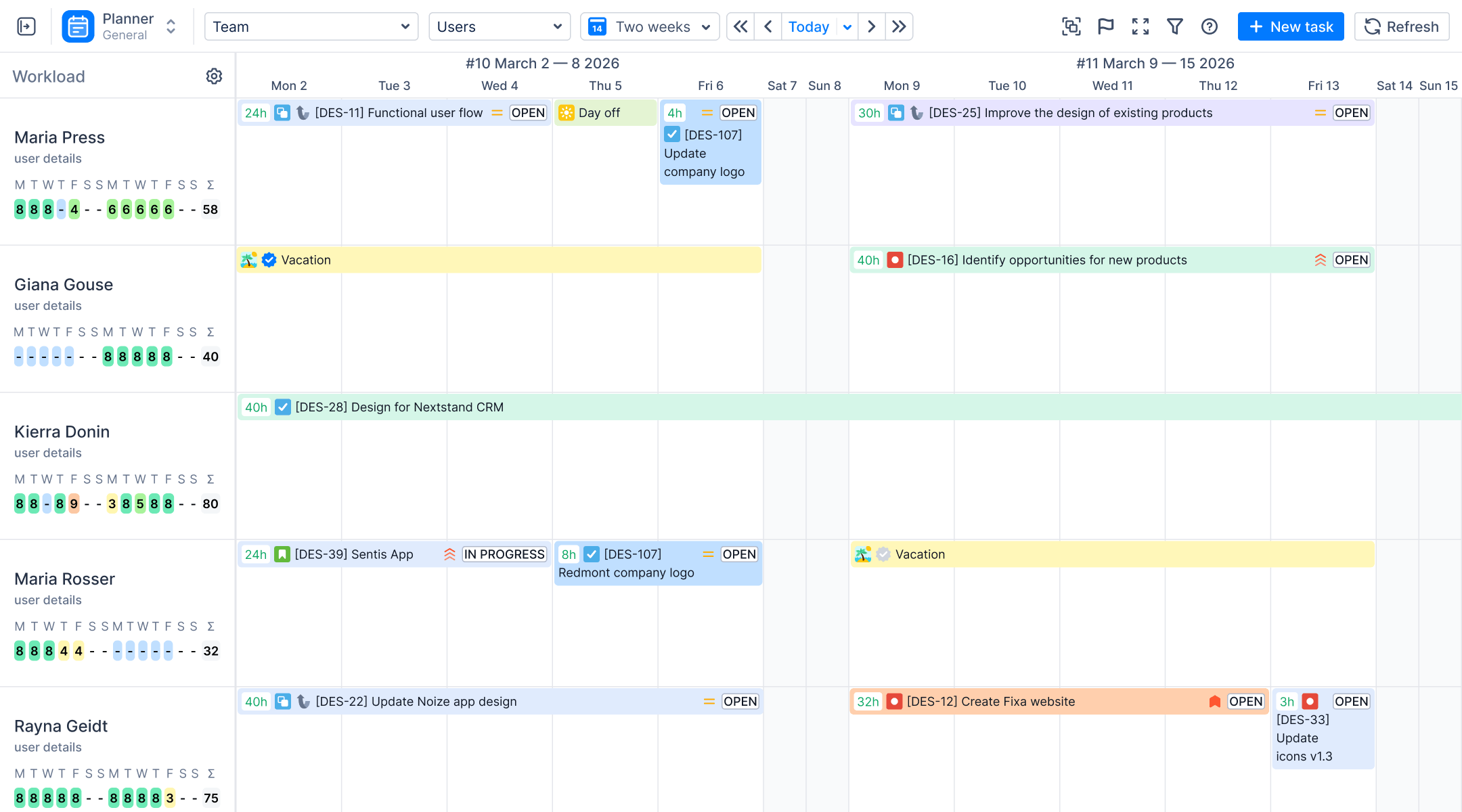
With standard Jira, you cannot see how a potential plan affects total capacity. ActivityTimeline provides Workload Indicators to visualize these impacts clearly. This feature allows you to see if your team is overworked or has idle time. If the indicator shows an overload, you can just adjust parameters like dates or estimates to create a better schedule.
Standard Jira usually requires an existing ticket to plan work. This is inefficient because it overloads project statistics with unnecessary data. In contrast, ActivityTimeline placeholders exist as standalone elements. You can plan work months ahead without adding a single task to your Jira backlog. Because of that, Jira data remains clean until the plan is final. If you decide to proceed, you can link the placeholder to a real Jira ticket later.
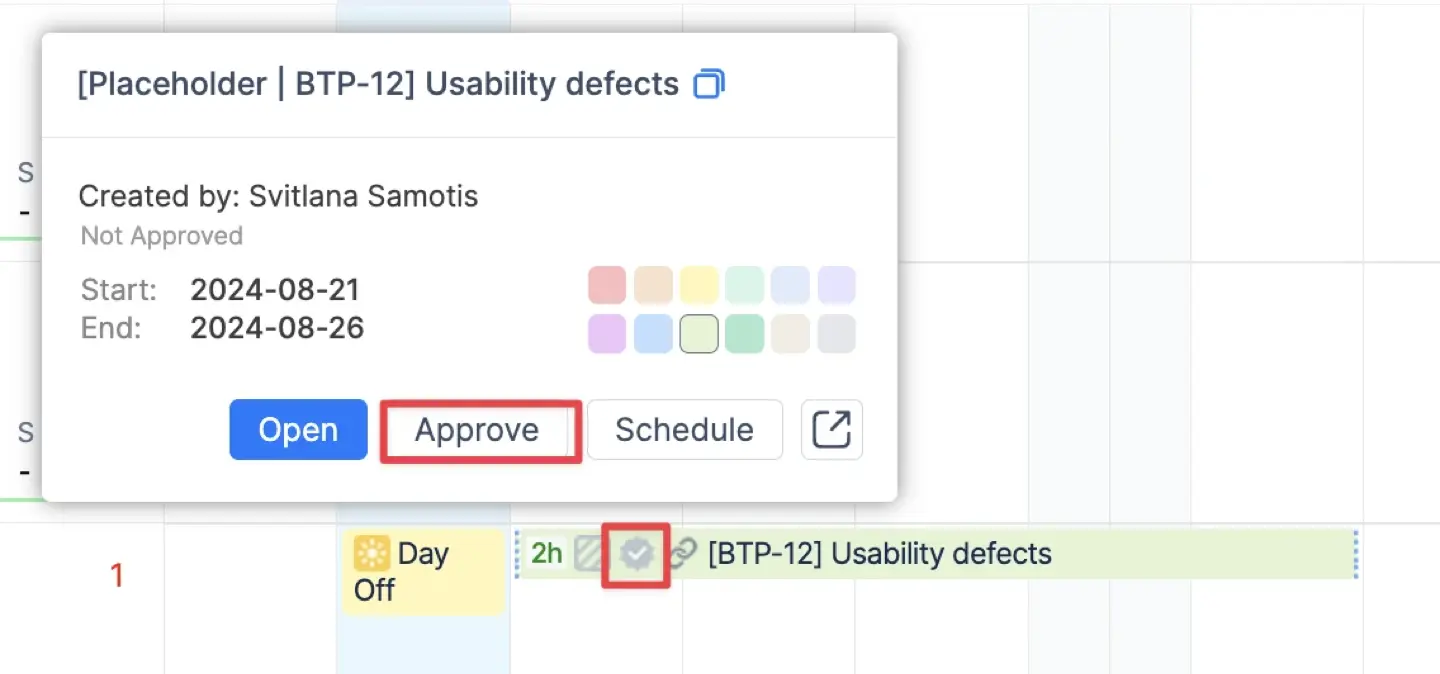
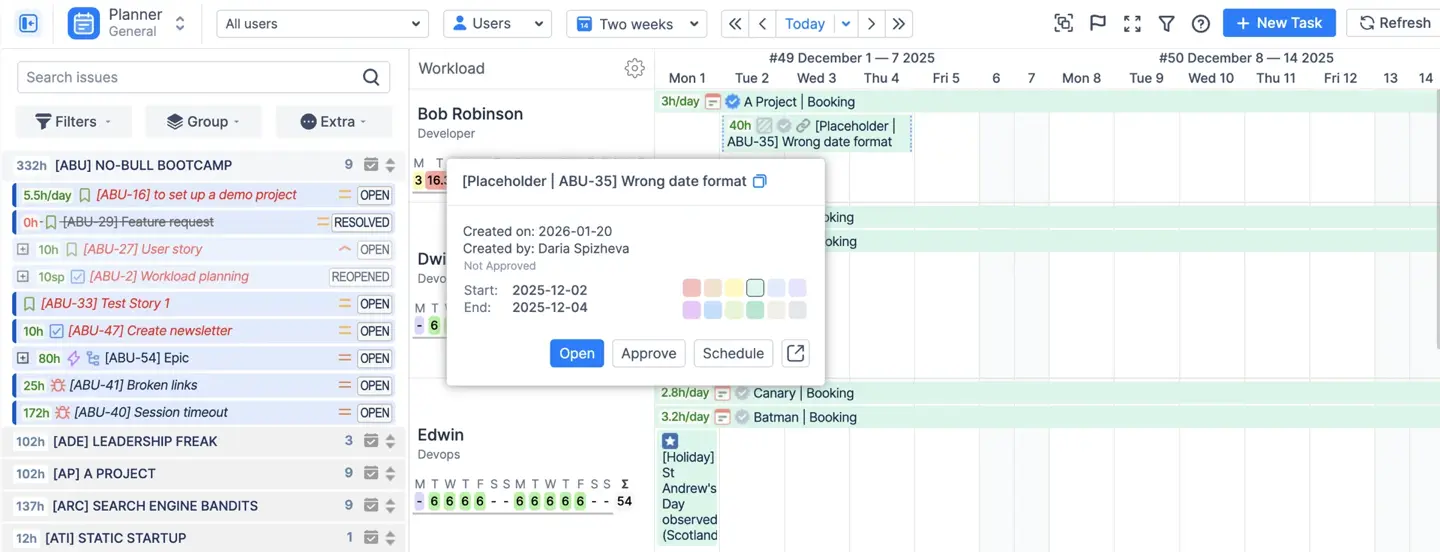
ActivityTimeline gives you full control over your schedule because of the approval button. You can change plans multiple times until they are perfect. Only then do you approve them to convert the placeholder into a real Jira task. Once you select the approval icon, the system replaces the placeholder with the actual ticket. The assignee changes to the person whose timeline held the placeholder. This creates a smooth transition from a plan to an active project.
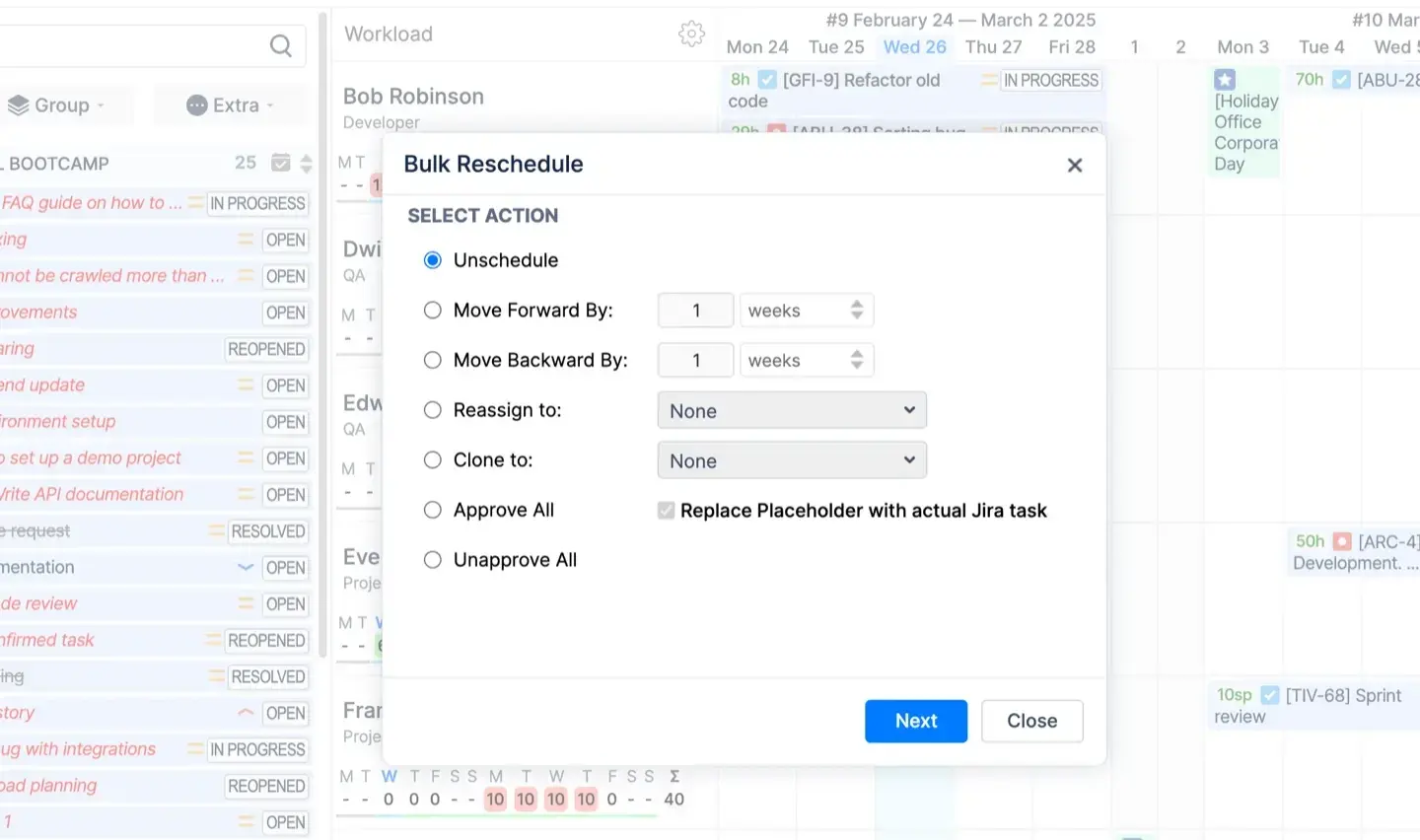
Projects often change and you need a feature for shifting dates. Bulk Rescheduling supports mass reassignment, unscheduling and cloning. It is helpful when projects are delayed or moved forward. To save time, you can even duplicate existing plans as many times as needed. Cloning copies plans for different dates or users.
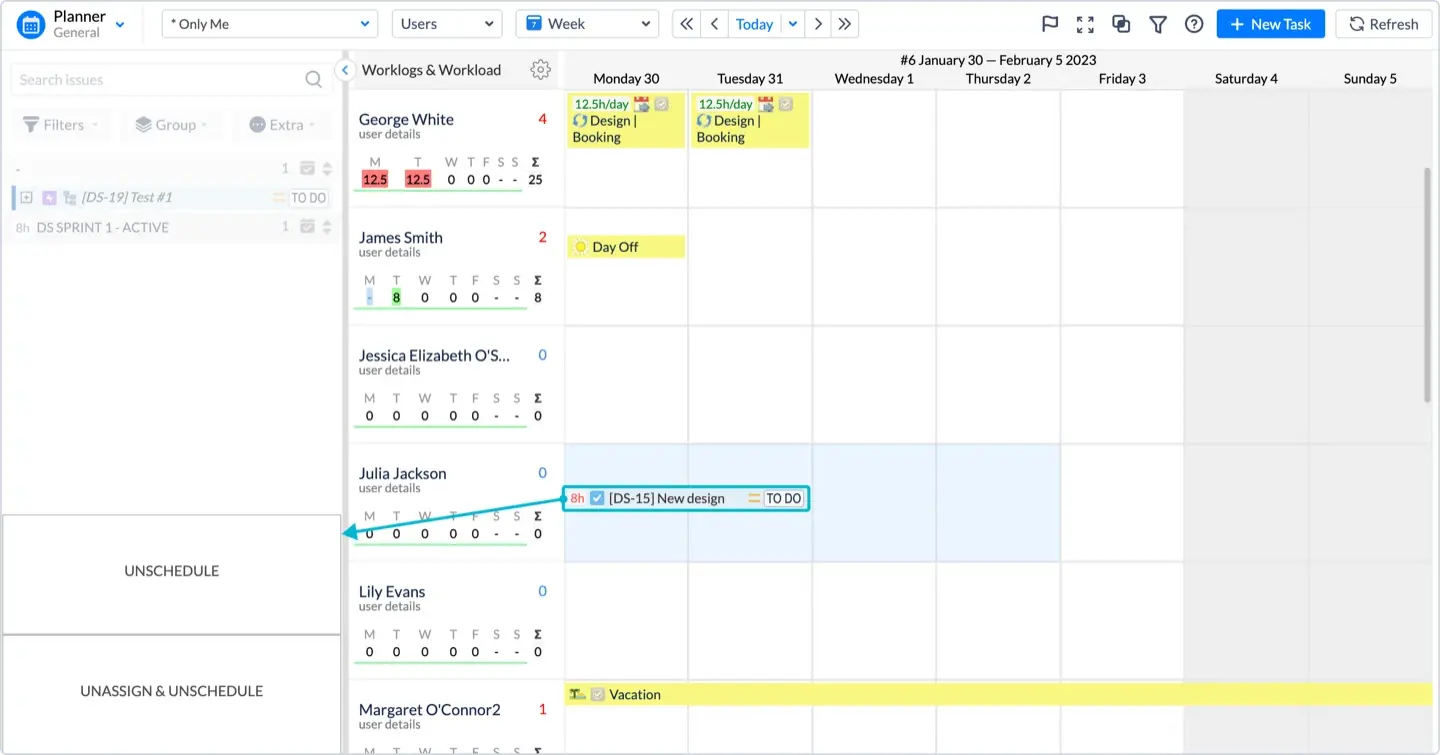
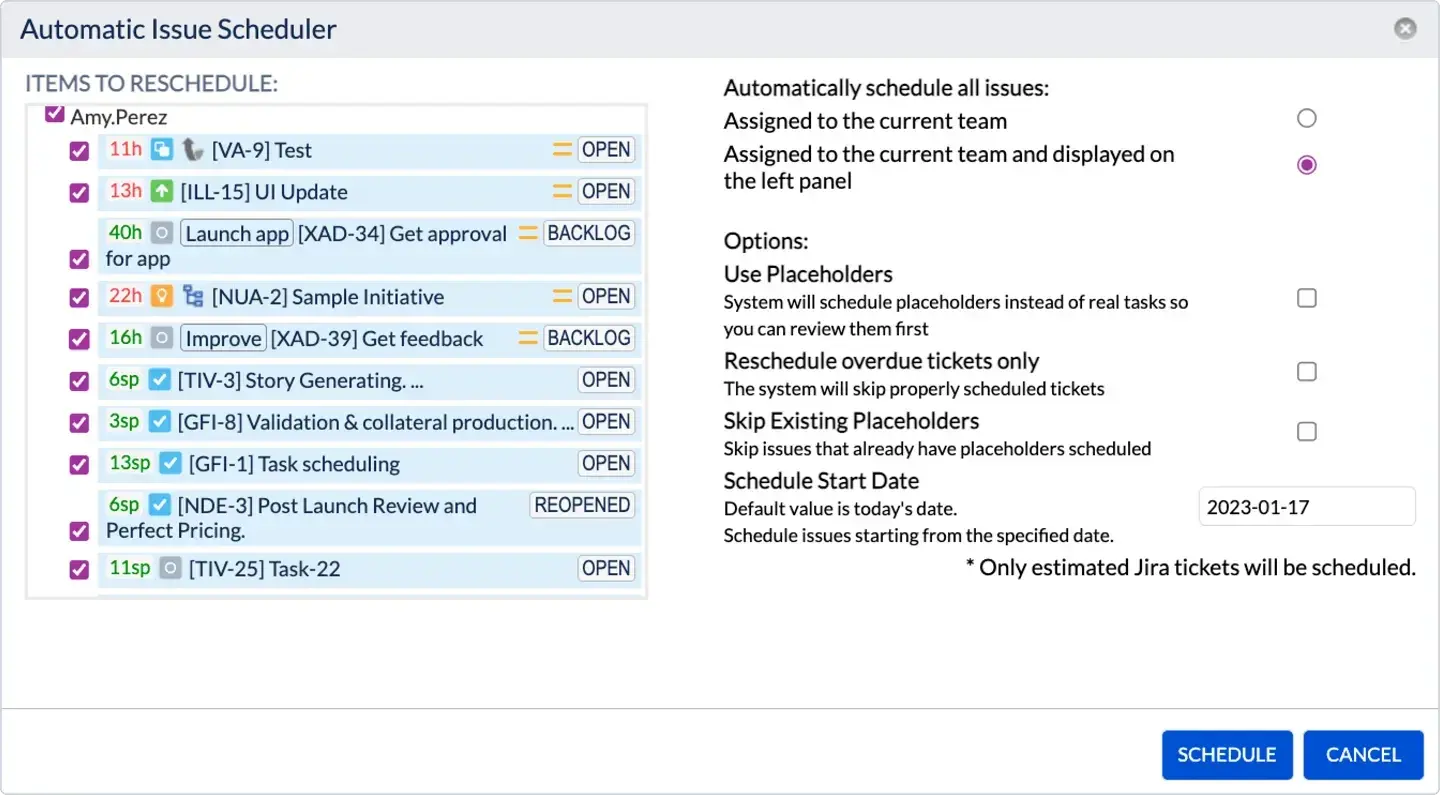
Also, you can distribute tasks based on team availability using the Auto-Scheduler. You can set the system to create placeholders instead of real tasks. This allows you to review the suggested schedule before it affects your statistics. If a plan is no longer needed, you can delete the placeholder easily. Just drag it to the Unschedule zone.
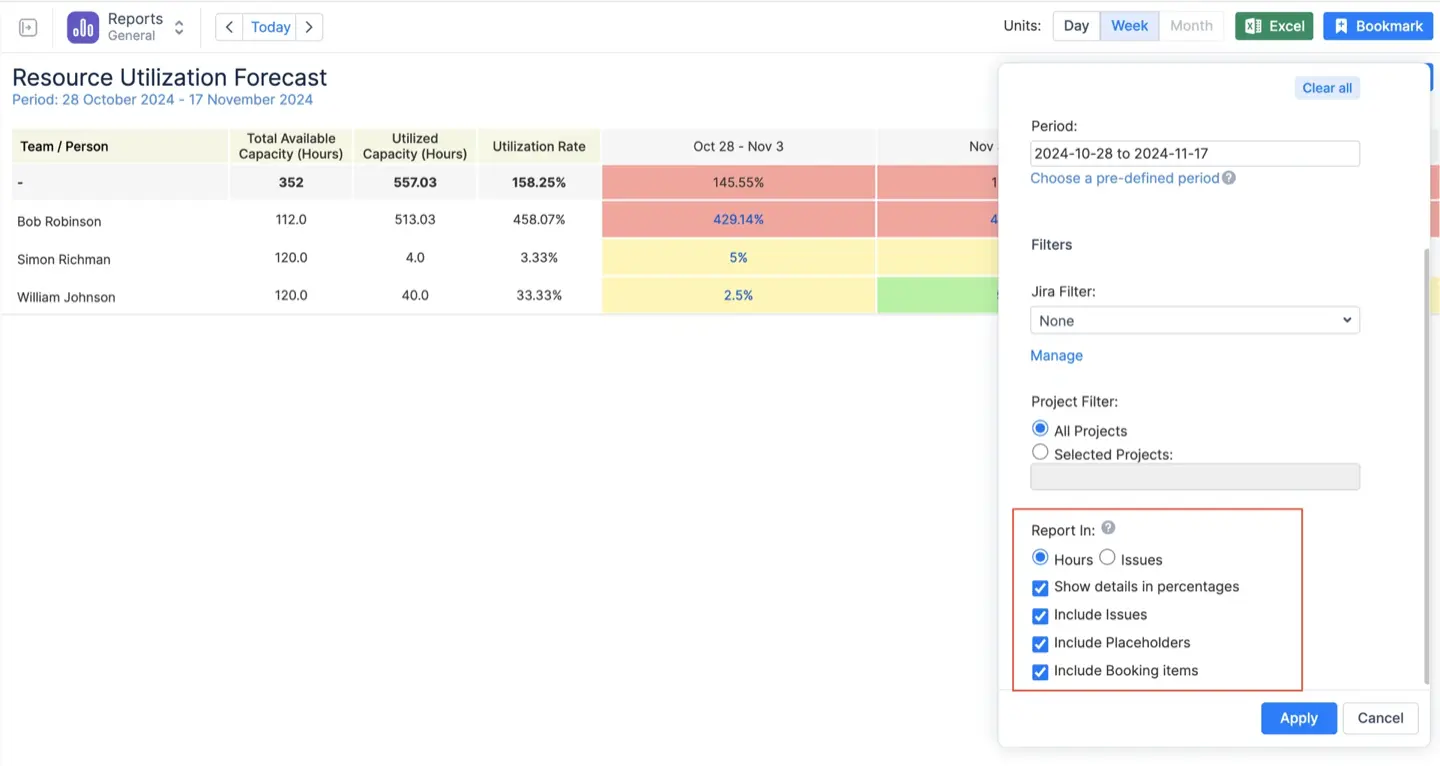
Finally, ActivityTimeline provides flexibility in reporting. You can exclude placeholders from reports and forecasts if needed. You can also include them in Availability Reports and Utilization Forecasts using special filters. This helps you tailor data to your specific project needs.
Now we see how ActivityTimeline addresses these limitations by offering advanced features that Jira software lacks.
We have several use cases to demonstrate how companies address these limitations. One of the examples is Sirius Technologies. Their main problem was a lack of foresight. This means they could not see how potential work would impact team capacity before it officially started.
The company solved this by implementing ActivityTimeline to allow pre-planning of workloads one week in advance. This approach allows them to identify potential blockers early and manage project impacts more effectively.
What are the easiest ways to create placeholders in ActivityTimeline?
The easiest way to create a placeholder for an existing Jira ticket is with a couple clicks using the drag-and-drop method. For this method to work, you need to drag an issue holding the Ctrl or Command key and drop it onto the timeline view. This feature creates a placeholder associated with the issue without scheduling it in Jira.
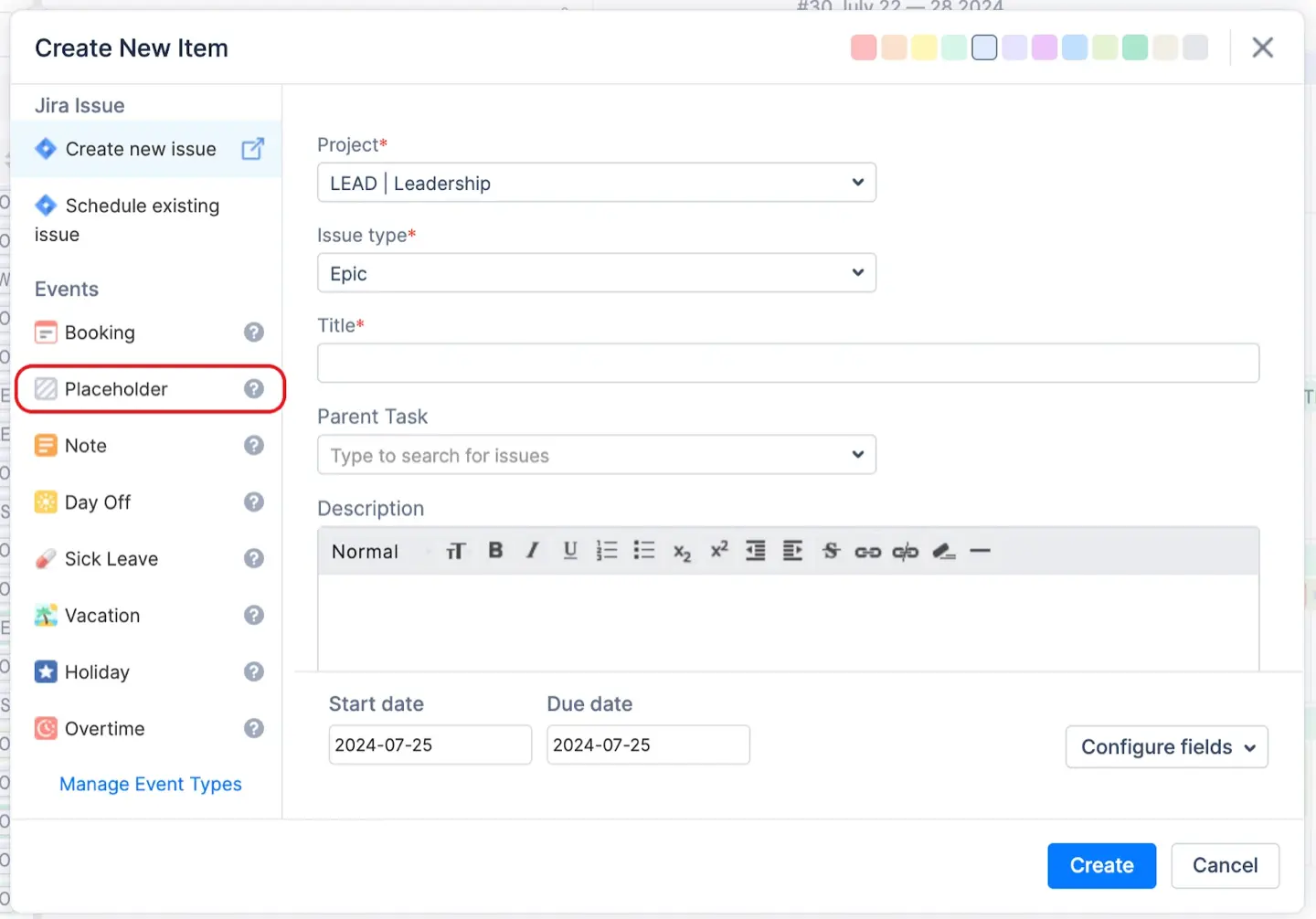
The next option is to create items manually. You can do it using the New Task button and cell click. This tool supports Standalone placeholder that do not need an existing Jira issue. It’s helpful for managers who are planning months ahead when details are not final. You can also search for an existing Jira issue to link it to your new placeholder.
An advanced Auto Schedule tool is also available. This tool places work based on team availability and task priority. It includes an option to use placeholders for the entire draft plan. This allows for a full schedule review before any real tasks are created in Jira.
Administrators can create placeholders using the REST API. This allows syncing data between different software platforms.
Step-by-Step: Managing What-If Scenarios with ActivityTimeline
Setting up a what-if scenario using placeholders is a streamlined process that allows you to "try before you buy" with your project resources.
Step 1: Create a Standalone Placeholder
Navigate to the Planner Module in ActivityTimeline. Click on an empty cell in a team member's timeline or select the 'New Task' button. Select 'Placeholder' from the event list. Enter a title (e.g., "Potential Website Redesign"), select the project, and provide an estimate in hours.
Step 2: Simulate Workload Impact
Once created, hover over the Team Workload Indicator. The system will show you exactly how this tentative project shifts the team's capacity. You can now drag the placeholder to different dates or different team members to find the most efficient staffing configuration.
Step 3: Refine and Adjust
If the workload indicator turns red, you can resize the placeholder to spread the work over more days or split the task between two different team members. This interactive "sandbox" environment lets you resolve scheduling conflicts before they ever become live issues in Jira.
Step 4: Convert to a Live Jira Issue
When the project is confirmed and you are ready to begin execution, open the placeholder. In the 'Approval' section, ensure the 'Create Jira Issue for this Placeholder' box is checked and click 'Approve'. ActivityTimeline will automatically replace the internal placeholder with a real Jira task, keeping all your planning dates and assignees intact.
Conclusion
Standard Jira placeholders often create a messy backlog because they lack an approval step. Every draft immediately impacts project statistics. This makes long-term Jira planning difficult. ActivityTimeline fixes these issues by offering a flexible approach. You can test various scenarios and approve them only when the schedule is ready. This keeps your data clean and your team productive.
Upgrade your Jira experience and get the clarity you need. Start your free trial of ActivityTimeline.
{{rich-cta-2}}