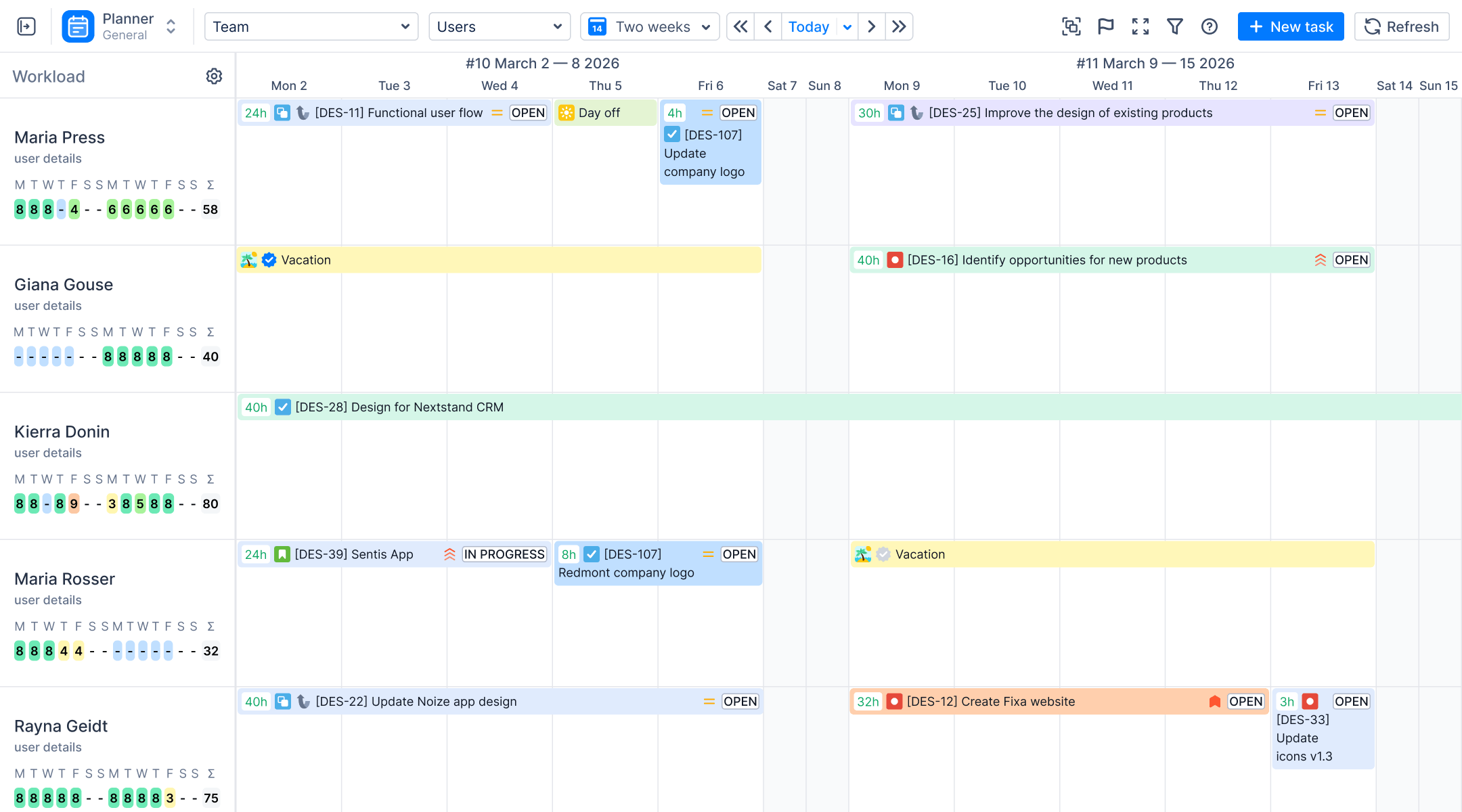

When you need to zoom out and answer strategic questions like “What is our roadmap for Q3?”, “Do we have the capacity for this new initiative?”, or “How does this Epic align with our release schedule?”, Jira’s native list views and boards often create more noise than clarity.
Jira Timeline view is a powerful tool for high-level planning and visualization, enabling teams to see task timelines, dependencies, and overall project schedules at a glance.
To bridge the gap between detailed task execution and high-level strategic planning, you need a visual layer that sits on top of your Jira data. While Jira's native tools include basic timeline and charting features, many teams turn to Gantt chart views and Jira Premium for advanced planning capabilities such as custom issue hierarchies, cross-team planning, and managing initiatives above epics.
In this guide, we will explore the specific methods to create, visualize, and validate a high-level plan directly within your Jira environment. Effective visualization in Jira helps project managers, team leads, and stakeholders gain a comprehensive overview of project health, progress, and bottlenecks.
Introduction to Jira Project Timeline
A Jira project timeline serves as a powerful visual representation of your project’s schedule, bringing clarity to even the most complex project plans. By mapping out tasks, milestones, and deadlines on a single timeline, project managers can easily oversee the entire project lifecycle and ensure that every team member is aligned with the overall objectives. This high-level view is essential for effective project management, as it allows teams to allocate resources efficiently, anticipate and address potential bottlenecks, and keep the project on track.
With a Jira project timeline, you can create a project plan that is both comprehensive and easy to understand. The timeline makes it simple to see how different tasks and milestones fit together, helping teams to plan ahead and adjust as needed. It also provides a clear visual representation that can be shared with all stakeholders, including external stakeholders who require regular updates on project progress. With Jira project timeline teams can plan, execute, and deliver projects with greater confidence and transparency.
The Challenge: Why Jira Native Views Struggle with Strategy
While Jira excels at the micro-level (execution), it often struggles at the macro-level (planning). Project managers frequently face several hurdles when attempting high-level planning natively:
- Granularity Overload. Boards are often cluttered with hundreds of sub-tasks, making it difficult to see the start and end dates of larger initiatives like Epics.
- Lack of Capacity Visibility. Standard boards do not visualize whether a team is overbooked in the coming months, only that they have tasks assigned.
- Static Planning. Creating “what-if” scenarios usually requires creating fake Jira issues, which pollutes your clean project data.
To solve this, you need a dedicated timeline view that aggregates data and allows for capacity-aware scheduling. Tools that provide more visibility and let you view projects from different angles can help overcome these challenges.
While Jira offers a basic timeline view, many teams managing multiple projects or complex initiatives require more advanced visualization and planning capabilities. This is where apps come into play, transforming the standard Jira timeline into a robust visual planning instrument. Add-ons such as ActivityTimeline provide enhanced features like advanced resource allocation, and detailed time tracking, making it easier to coordinate work across multiple teams and projects.
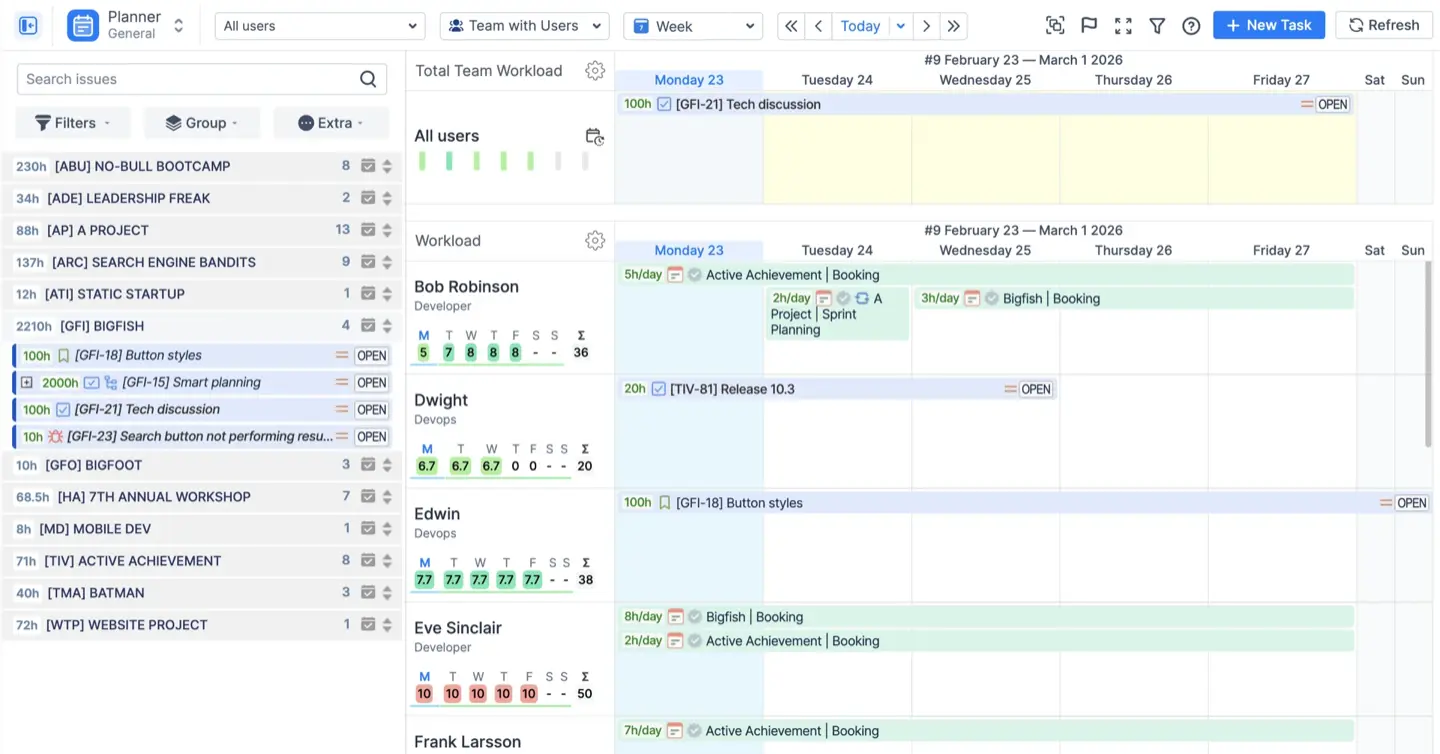
Features like multi board view and one timeline enable teams to see issues visualized across multiple projects, making it easier for keeping track of progress and managing projects holistically. Some tools also allow you to filter and display only issues relevant to your current focus, so you can keep track of the most important tasks. You can use filters to only display certain issue types, priorities, or statuses on the timeline, helping you focus on the most relevant tasks for your team.
Method 1: Use the Team Panel for Long-Term Planning
The most effective way to build a high-level plan is to shift your focus from individual assignees to whole teams. The Team Panel in ActivityTimeline is designed specifically for this purpose. It allows you to schedule work for an entire department or team months or quarters in advance, even when you don’t yet know which specific individual will do the work.
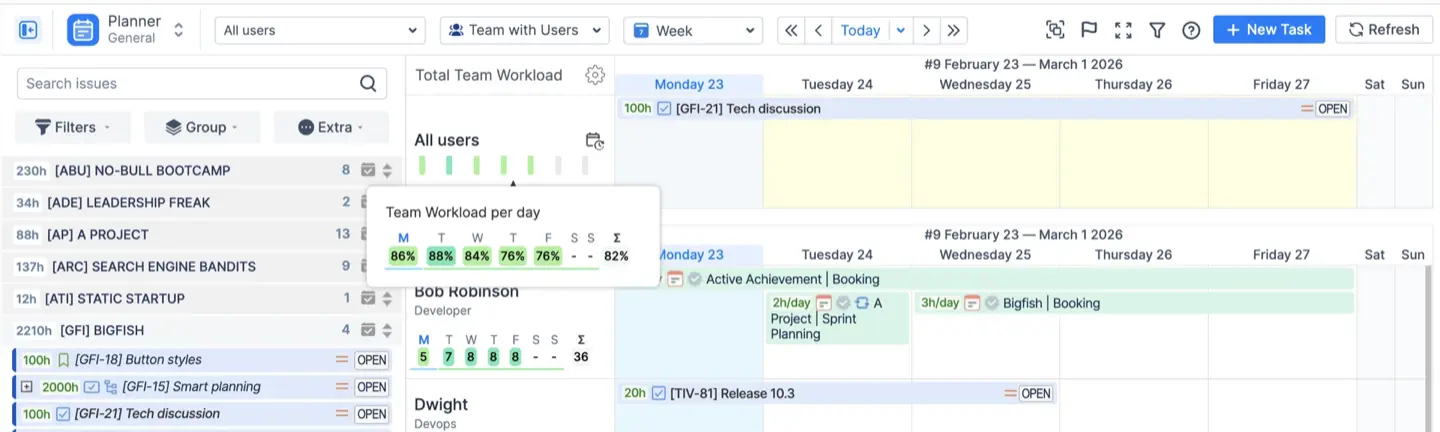
By monitoring the current workload and working hours of each team member, you can ensure effective resource management—analyzing team capacity, allocating resources efficiently, balancing workloads, and managing capacity and scheduling across multiple projects. This visibility also makes it easier to identify potential candidates for new tasks based on their availability and workload. The Team Panel helps ensure that the team works efficiently across multiple projects, supporting coordination and optimal resource allocation.
How to Execute Team-Level Planning
- Switch Views: Change your Planner view from “Users” to “Teams” or “Team with Users”. This hides individual timelines and displays a consolidated timeline for the entire team.
- Schedule High-Level Items: Drag and drop high-level Jira items, such as Epics or Initiatives, directly onto the Team Timeline. This helps you plan work for the team in advance by setting the strategic direction without forcing you to break the work down into user stories immediately.
- Monitor Capacity: The view automatically calculates the total capacity of the team (the sum of all members’ availability) and compares it against the workload assigned to the team. This provides an immediate visual alert if you have over-committed the department for a specific month or quarter.
- Sync with Jira: You can map these high-level team assignments back to Jira using a custom “Team Field”. This ensures that when you assign an Epic to a team in ActivityTimeline, that data is reflected in Jira (and synchronized with Jira Plans (Advanced Roadmaps) if integrated).
Method 2: Visualize Strategic Milestones and Sprints
A high-level plan is defined by its deadlines. To create a true roadmap view, you must visualize the key dates that drive your plan. Milestones play a crucial role in tracking progress and keeping teams aligned, as they act as key date trackers within project planning.
ActivityTimeline’s Milestones Panel sits above the user and team timelines, providing a constant visual anchor for your strategic goals. Placing milestones and releases on the timeline can visually remind teams of important due dates and help ensure tasks are scheduled on the right date.
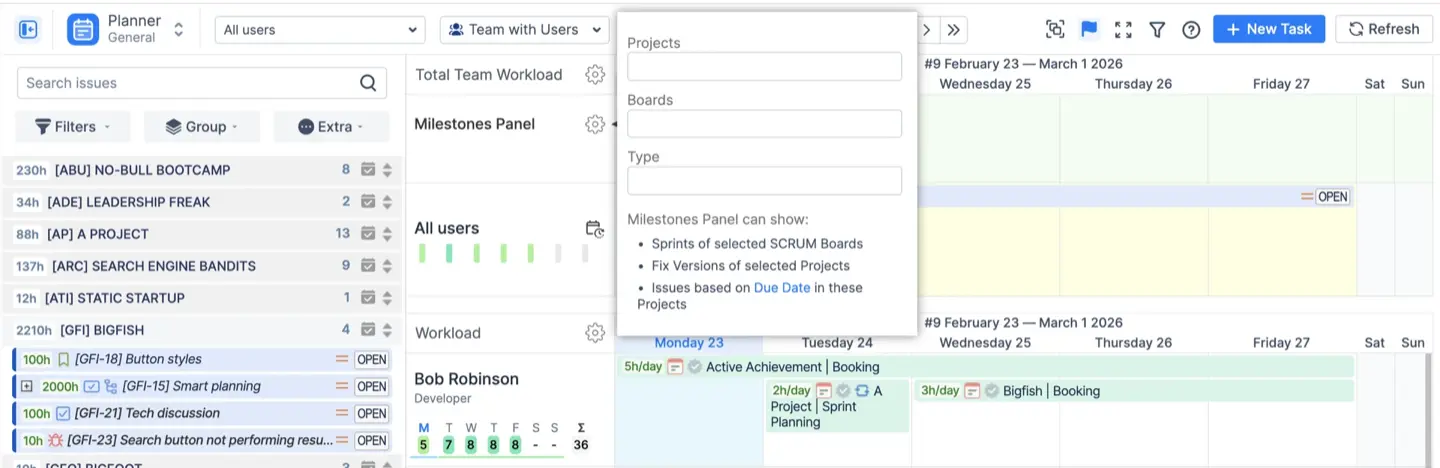
The default Timeline allows teams to visualize epics on a timeline with clear start and due dates, and it is essential that every Epic has a start date and due date to render properly on the timeline. Additionally, color-coding bars in the timeline helps categorize by status, priority, or team, making it easier to read at a glance, while progress tracking can be observed through color-coded progress bars indicating the state of each epic.
Key Milestone Types
- Sprints: If your teams work in sprints, you can visualize them as timeline bars that span their full duration (Start to End dates). This helps you align high-level Epics with specific sprint cycles.
- Releases & Fix Versions: You can automatically display Jira Fix Versions as milestones. This allows you to see exactly when a release is due relative to the work being planned on the timeline.
- Custom Milestones: For strategic dates not tracked in Jira (e.g., "Client Demo," "Phase 1 Deadline," or "Code Freeze"), you can create custom milestone events directly on the timeline to keep the team aligned on high-level goals.
Method 3: Scenario Planning with Placeholders
To effectively manage future work, teams should start planning early by using placeholders to model potential scenarios on the timeline.
High-level planning often involves “what-if” scenarios for potential work that hasn’t been approved or fully defined yet. Creating Jira issues for these tentative projects can clutter your backlog. ActivityTimeline solves this with Placeholders.
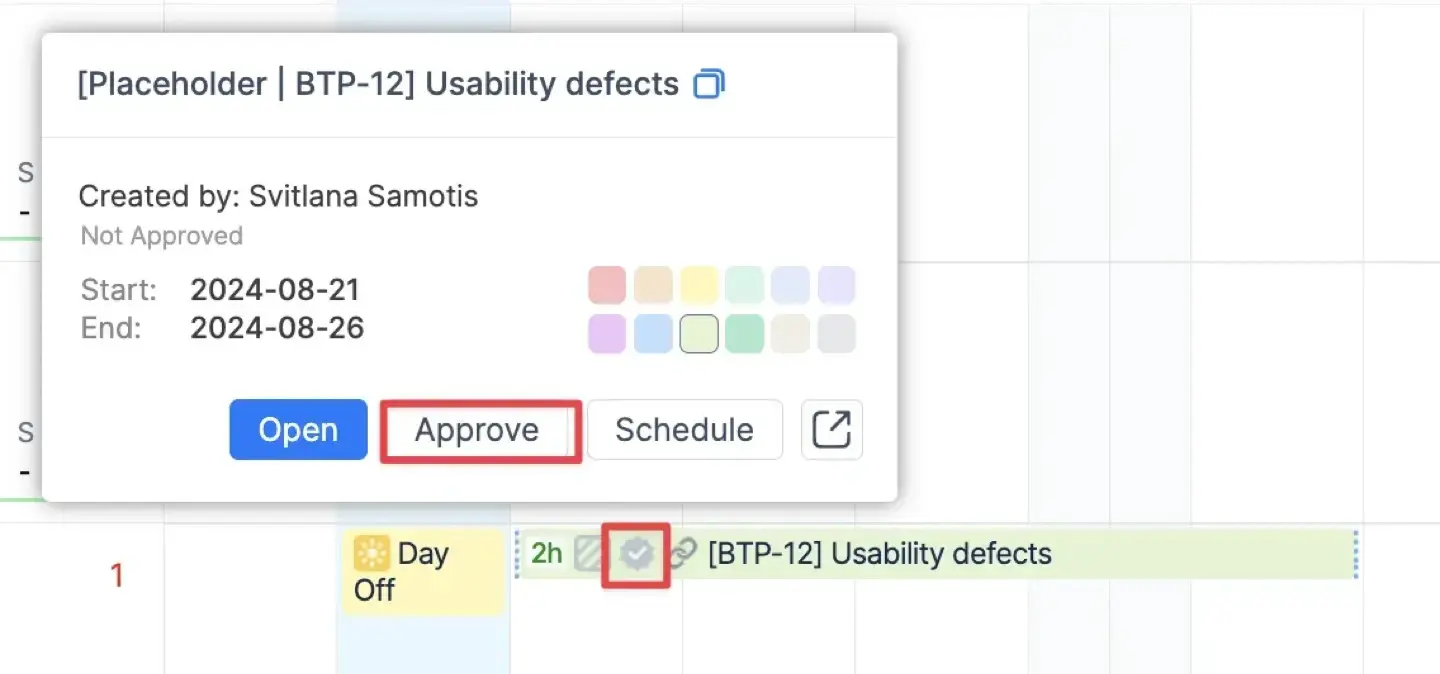
Additionally, creating a new level above Epics, such as Initiatives, allows you to group work across multiple projects in a hierarchy, making scenario planning more organized and scalable.
How to Model Future Scenarios
- Create Generic Plans: You can create Placeholder events directly on the timeline to reserve capacity for potential projects (e.g., "Q4 Marketing Initiative"). These exist only within ActivityTimeline and do not pollute your Jira instance with fake tickets.
- Use Generic Resources: If you haven't hired the team yet, you can create "Resources" in ActivityTimeline that represent roles rather than specific people (e.g., "Java Developer 1," "Consultant").
- Model Capacity: Assign your placeholders to these generic resources to model capacity requirements. This helps you determine if you need to hire new staff before you commit to the project.
- Convert to Reality: Once the plan is solidified and the project is approved, you can bulk-approve these placeholders and convert them into actual Jira tasks.
Method 4: Aggregated Views for a Bigger Picture Visualization
When viewing a timeline over a long period (e.g., a year), seeing hundreds of individual sub-tasks can be overwhelming. To maintain a high-level view, use the Aggregated View. Make sure to add dates to your tasks and issues since only items with dates will appear correctly in the aggregated timeline, ensuring a complete and accurate high-level overview.
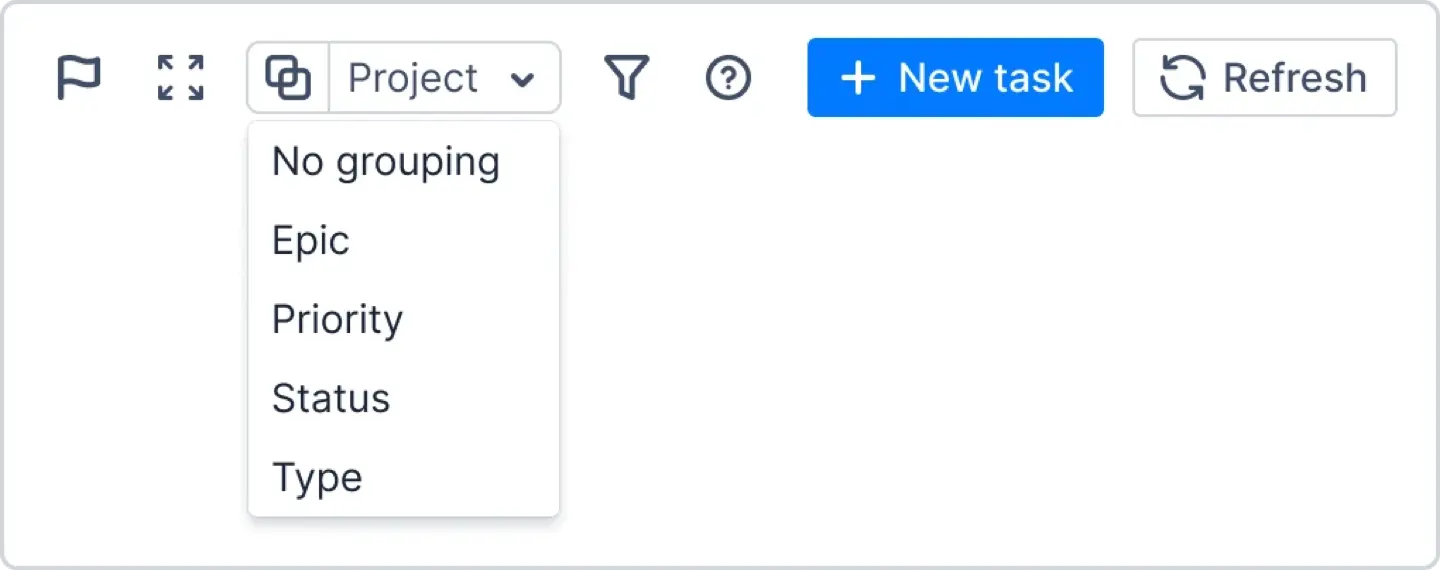
This feature allows you to collapse individual tasks on the timeline into single summary blocks grouped by Project or Epic. You can schedule issues by dragging and dropping them onto the timeline, and if you have task dependencies, link tasks using the 'Dependencies' option to create visual connectors between related tasks. This helps avoid bottlenecks by making dependencies clear and manageable.
On Premium and Enterprise plans, Jira Plans can group multiple projects into one high-level view, giving you a comprehensive roadmap across teams and initiatives. This transforms a granular daily schedule into a clean, high-level roadmap, showing you exactly how long a Project or Epic spans across the calendar without the visual noise of individual execution details.
Method 5: Validation with Forecasting Reports
A plan is only as good as its feasibility. Before finalizing your high-level plan, validate it using the Forecasting Reports module. Leveraging forecasting reports can save precious time by providing early warnings about resource constraints and offering valuable insights into project feasibility and resource allocation.
Jira offers a variety of dashboards and tools to help visualize project implementation stages, including timelines, roadmaps, and Gantt-like charts. Custom charts play a significant role in project reporting, providing visual representations of key project metrics and KPIs in Jira. Integrating third-party add-ons and third party plugins can further enhance Jira's native visualization options and unlock new possibilities for project management and reporting.
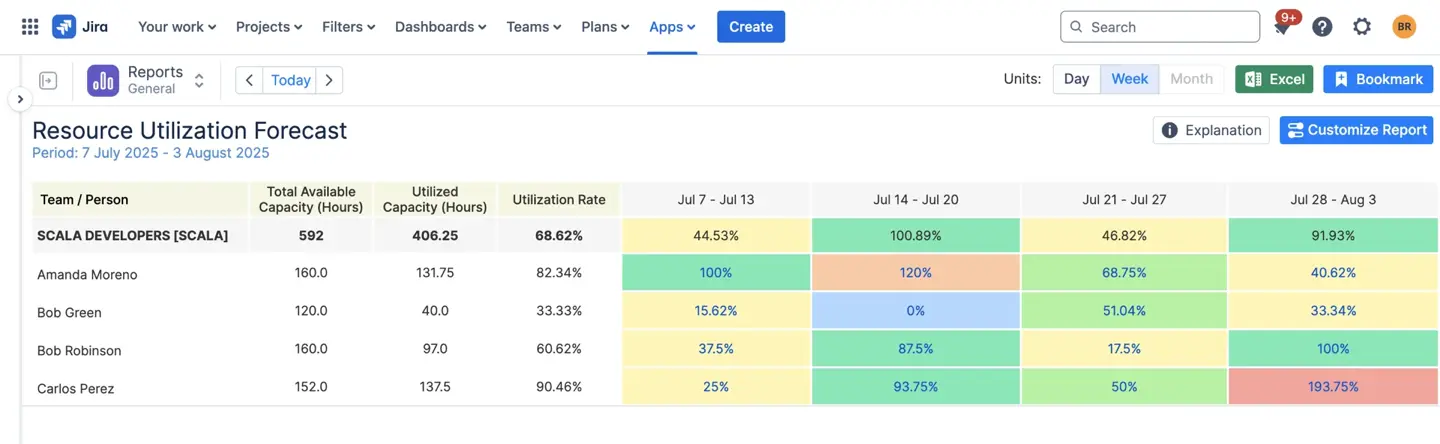
- Resource Utilization Forecast: This report compares total available capacity against the planned workload for future periods (weeks or months). It is the ultimate reality check to verify if your high-level plan fits within the team’s actual constraints.
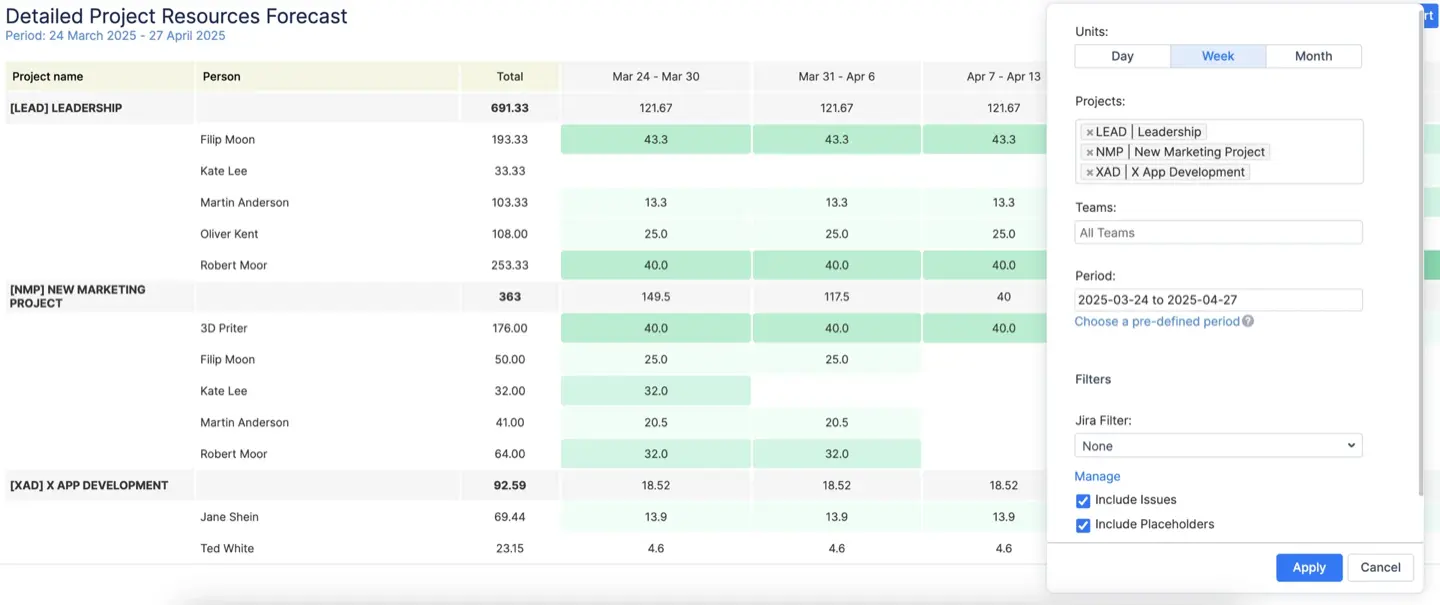
- Project Resources Forecast: This provides a breakdown of how many hours or days are allocated to specific projects over the coming months. It offers a clear view of resource distribution, ensuring that high-priority initiatives are receiving adequate attention.
Best Practices for High-Level Planning in Jira
Achieving effective high-level planning in Jira requires a strategic approach that brings together clarity, structure, and ongoing communication.
- Start by creating a clear and concise project plan that outlines the major objectives, deliverables, and timelines for each initiative.
- Define key project milestones and use the timeline view to visualize how these milestones align across multiple projects and teams.
- Resource allocation is critical. Ensure that you allocate resources effectively by regularly reviewing team capacity and adjusting assignments as needed.
- Leverage the Jira board and timeline view to monitor progress, track dependencies, and quickly spot potential bottlenecks before they impact delivery.
- Establish a routine for reviewing the project plan, updating timelines, and communicating changes to all stakeholders, ensuring that everyone remains aligned and informed.
By following these best practices, you can create a high-level plan that is both actionable and adaptable, making it easier to manage multiple projects, coordinate work across teams, and deliver results on time.
Troubleshooting Common Timeline Planning Issues
Even with the best planning, issues can arise when managing a project timeline in Jira. Common challenges include incorrect start and end dates, unrealistic task dependencies, and insufficient resource allocation. To address these issues, begin by thoroughly reviewing your project plan for any inconsistencies or errors in the timeline view.
- Use Jira’s resource planning tools to check that resources are allocated appropriately and that no team is overburdened.
- Pay close attention to task dependencies. Ensure that they are realistic and do not create unnecessary delays or bottlenecks.
- Regularly update start and end dates to reflect the current status of the project, and use the timeline view to monitor progress and adjust plans as needed.
- Open communication with both team members and external stakeholders is essential; keep everyone informed of changes to the project timeline and resource allocation to avoid surprises.
By proactively identifying and resolving these common issues, your team can maintain momentum, avoid missed deadlines, and deliver projects that meet stakeholder expectations.
Conclusion
You can create Jira timeline and achieve a high level plan visualized on a timeline in Jira using tools like ActivityTimeline allowing for better resource management and project visualization.
Creating a high-level plan in Jira doesn’t require exporting data to Excel or maintaining separate roadmapping tools. By leveraging ActivityTimeline’s Team Panel, Milestones, and Placeholders, you can visualize strategic initiatives directly alongside your team’s actual capacity. This ensures your high-level plans are not just aspirational, but executable.
{{rich-cta-5}}