
You've just adopted Jira and as one of the many Jira users, you see it has time tracking fields and a basic Jira timeline view per project. You ask your team: "Is this enough for us to manage our projects and analyse the data effectively?" You know that choosing the right tool ensures better data management across your Jira instance.
The "Good Enough" Trap: What You Can't Do Using Jira
At first, Jira feels like a good project management software app that offers numerous performance improvements. You finally have a system to track issues, move tasks across boards and log work. It looks like you have everything under control. But very quickly you hit a wall.
You can’t see all your projects on a single timeline, making it impossible to spot overlaps or manage resources. You have no way to know who is overloaded and leave management is nonexistent, which makes tracking data difficult. Logging time is possible, but there is no centralized timesheet or report to give you a clear view of team capacity.
You might tell yourself Jira is “good enough”. But if your tool still forces you to use Google sheets just to do the real work, it’s worth considering something that actually covers the full picture and offers better support. Here is where advanced Jira tools can help.
A Direct Comparison: Native Jira Tools vs. Jira Apps Features
Jira handles issue tracking well, but it wasn’t built to cover the entire workflow. This is where Jira apps and plugins for Jira step in, especially those designed for a data center.
ActivityTimeline adds the three critical features Jira is missing. You get Cross-Project Resource Planning, Workload & Capacity Management and Advanced Timesheets & Reporting
1. Project Planning & Scheduling
You are probably sick of constantly getting lost in tabs and jumping between Jira boards, wishing to fix this issue.
Sure, standard boards in Jira are great for focused work. But they are strictly dedicated to the workflow of a single project. If you are in charge of multiple projects, this becomes a struggle. You may find yourself constantly switching between several boards just to understand what is happening with different versions of the projects. This chaotic system makes it nearly impossible to see the bigger picture.
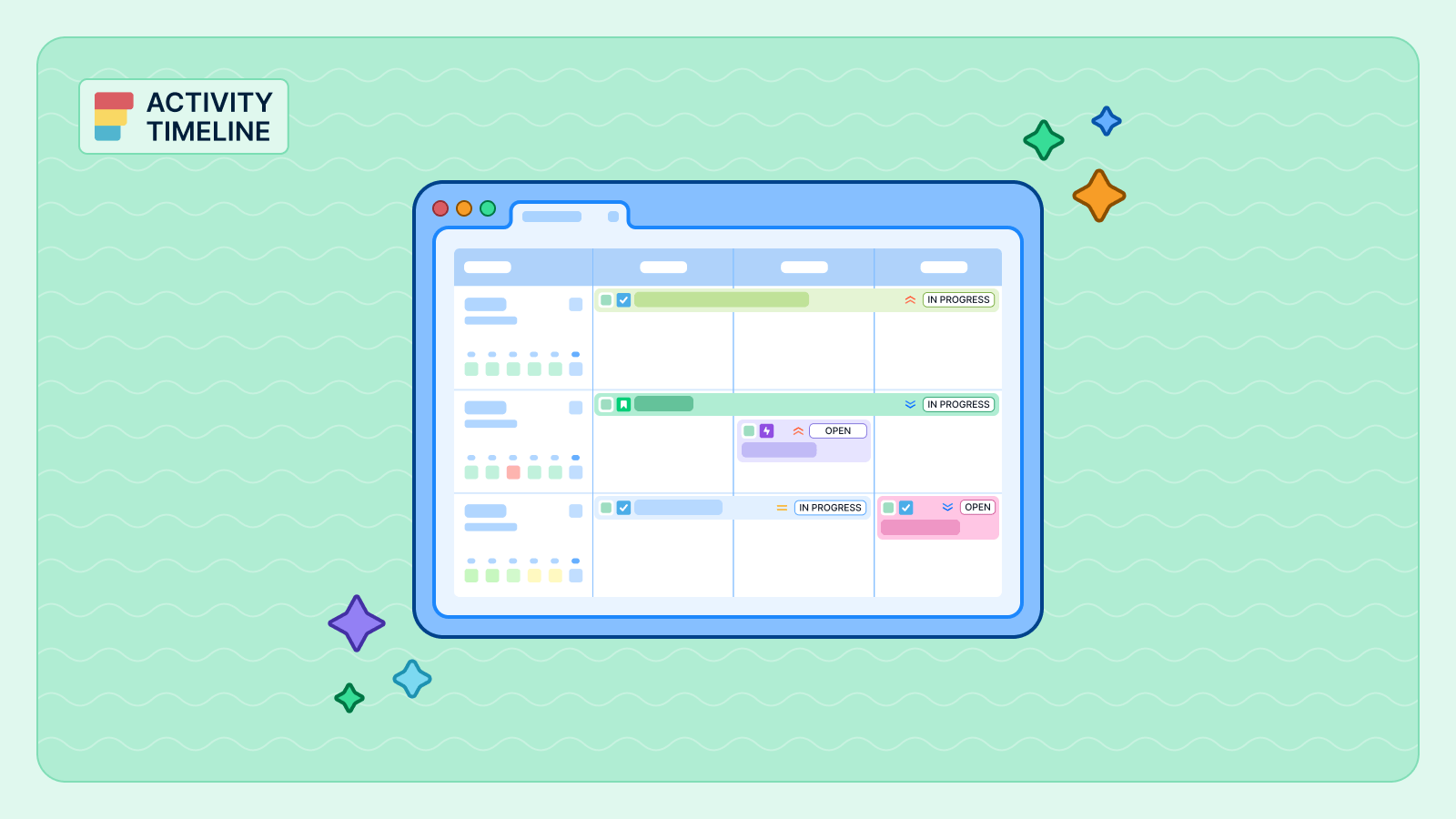
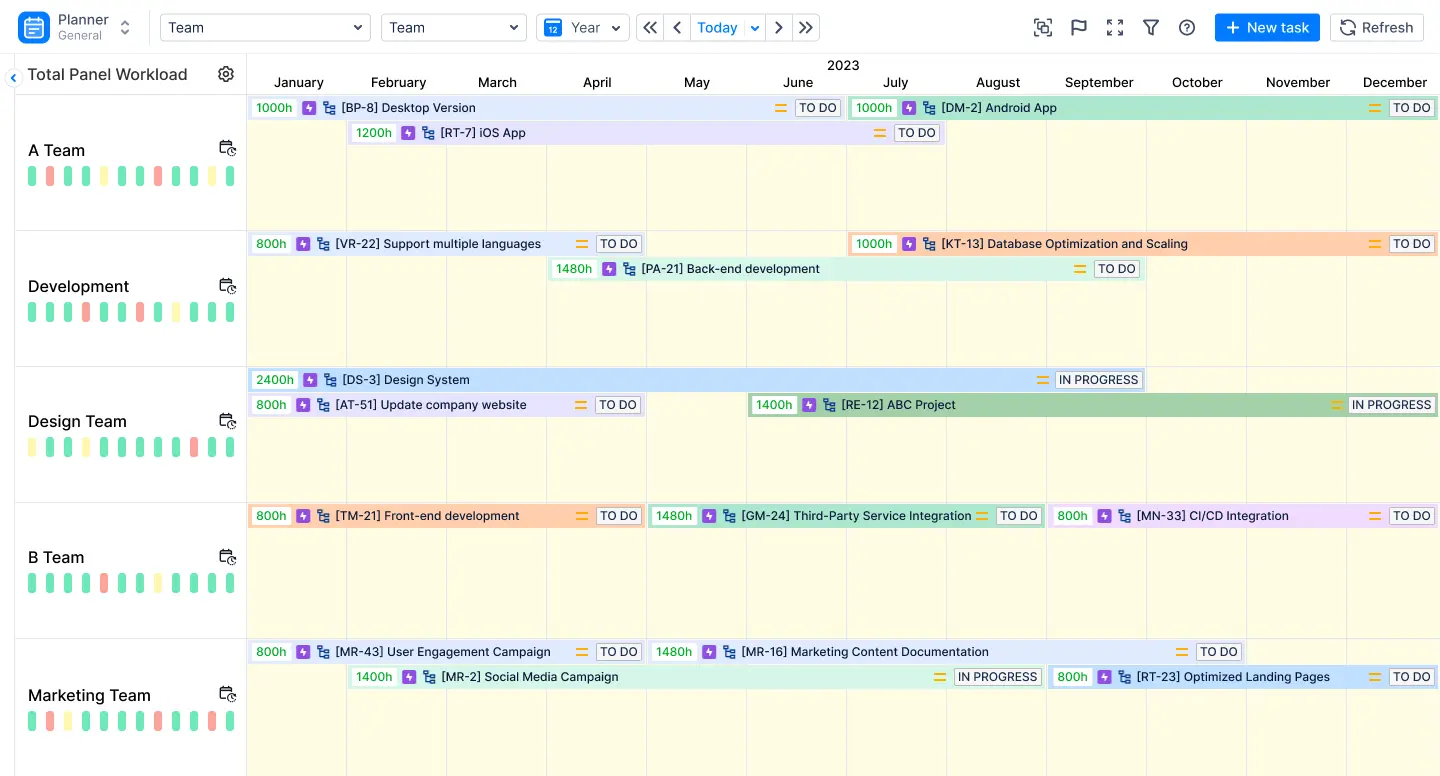
With problems like these, you may find some Jira tools, such as ActivityTimeline, helpful. It has a unique feature called the “Planner dashboard”. In that one place all your projects, teams and tasks are shown. Instead of guessing, you get a clear view of your team’s work across all projects.
The Planner has two sections: an Issues Panel for your backlog and a Timeline Panel for scheduling. The system can automatically update Jira data, you just need to drag and drop tasks onto a user’s timeline. This is thanks to Jira plugins that integrate seamlessly with your workflow. Also, you can instantly zoom out from a weekly schedule to a quarterly or yearly view to see your long-term plan. You can even visualize high-level events using the Milestones Panel.
You are not the only one struggling with planning chaos. Medtronic, a global healthcare leader, faced this exact problem. They previously relied on Excel for tracking projects, but as they reached thousands of tasks that method became almost impossible to use, often requiring significant bug fixes. By switching to ActivityTimeline, they replaced their slow manual process with an efficient mobile system, which significantly reduced the time spent on planning and provided full visibility into resource availability.
2. Workload Management
Jira operates on a dangerous assumption: that your team has infinite capacity. It stays silent whether a developer is drowning in an 80-hour week or quietly sitting idle. Jira will happily let you assign fifty hours of work to a forty-hour week without a single warning. It simply doesn’t see capacity. This lack of visibility is a silent productivity killer: some team members will definitely drown in work, while others will wait for assignments.
What can Jira plugins do? ActivityTimeline fills this critical gap with its Workload Indicator, which helps manage work items. Instead of running complex reports to find out who is busy, you get an instant, color-coded signal for every user:
- Green: The workload is balanced and optimal.
- Yellow: The user is underloaded, meaning you can safely assign more work.
- Red: The user is overloaded. Seeing it, you can divide few tasks to prevent burnout.
This real-time insight ensures that your planning is based on actual availability, avoiding the burnout trap that standard Jira board often hides.
But real work isn’t just about total hours. It’s about how those hours are spent. ActivityTimeline solves this with smart calculation algorithms. You simply choose the mode and the system recalculates the schedule in a split second:
- Balance Mode is ideal for tasks that need consistent attention. Why split working hours manually? Just assign a 10-hour task to a 5-day window and the system automatically logs 2 hours each day.
- Was the deadline yesterday? Liquid Mode is designed for times when a task needs to be finished ASAP. When you select this mode, the system fills up the user’s maximum capacity for today and automatically pushes the remaining hours to tomorrow.
3. Leave & Holiday Management
Have you ever thought that Jira lives in a fantasy world? Jira seems to completely forget that people get sick, take vacations, or enjoy national holidays. That’s why, to manage your team’s availability, you end up relying on separate Google Sheets just to track non-working days. This creates a dangerous blind spot: you might assign a critical deadline to a developer, only to find out later that they are on a beach in Spain. ActivityTimeline brings reality back into your planning by managing time off through non-working events like “Vacation”, “Sick Leave”, “Day Off” directly on your dashboard, especially for teams using Jira Cloud apps.
For those managing global teams, an effective Jira plugin offers Holiday Schemes. You can simply establish a scheme for a specific region and apply it to relevant teams, ensuring that you set up notifications for public holidays. That will save you from the headache of manually tracking international days off. This specific set of features is vital for managing team availability.

4. Time Tracking & Timesheets
“Where did the time go?” In native Jira you may never know. Sure, the platform allows you to “Log work” on an individual issue. But the data is scattered across hundreds of separate tickets, creating a fragmented mess. There is no centralized timesheet to review the big picture, no approval process to verify accuracy and no native way to distinguish “Billable” from “Non-Billable” admin tasks.
ActivityTimeline upgrades Jira with a dedicated Track Timesheets module that centralizes your reporting. With this Jira cloud app and other marketplace apps, there is no need to collect data manually, you get interactive visual timesheets that allow you to distinguish “Billable” from “Non-Billable” work. This ensures that your invoicing is always accurate.
The system provides three distinct forms of reporting, matching your needs:
- The Progress View offers a visual breakdown of logged hours vs. required hours. That helps you instantly spot if a team member is falling behind.
- The Timeline View uses color-coded visualization to show if teams are over- or under-logging
- For deeper analysis, the Detailed View breaks down work logs to help you differentiate between Billable and Non-Billable hours for accurate billing.
The system also secures your data integrity through a built-in Approval Workflow. Project managers can review and approve timesheets with this feature. These records are locked from further edits after approval. You can even use Bulk Approve mode to handle multiple timesheets at once. Ultimately, this module transforms raw logs into powerful Timesheet Reports. Do you need to run payroll or present data to a client? Just generate the exact report you need or export everything to Excel with a single click.
5. Reporting
Native Jira reports work fine if you only need a basic view of what already happened. But when the goal is to plan ahead and search for specific capacity using a filter, the standard tools are not enough. You can only guess about how busy your team will the following week or month, because they do not offer any forecasting.
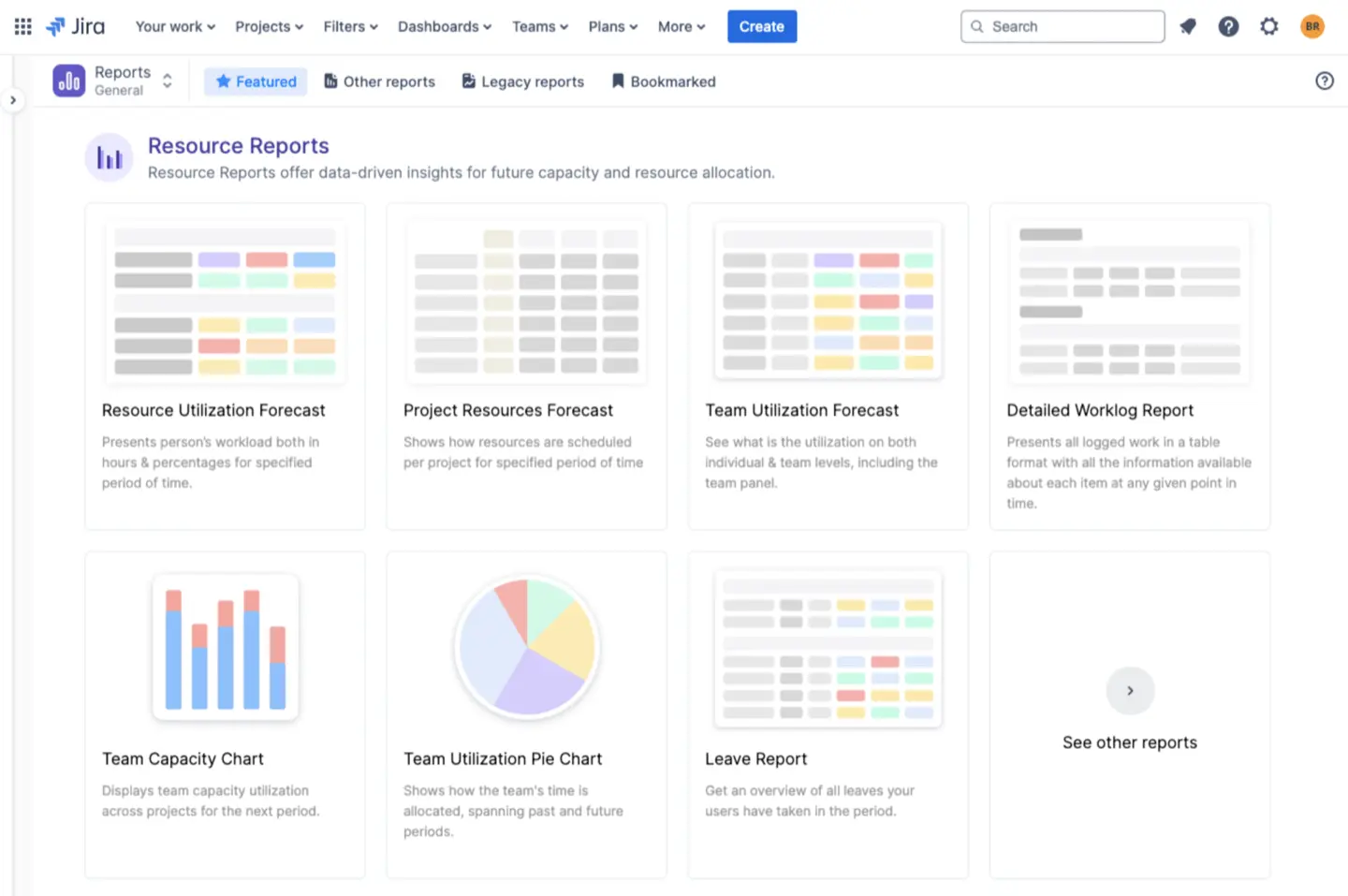
To change that, some Jira apps and Jira reporting plugins, like ActivityTimeline, add reports that actually look into the future, not just the past. You can use two types of forecasting reports in ActivityTimeline to better analyse your metrics:
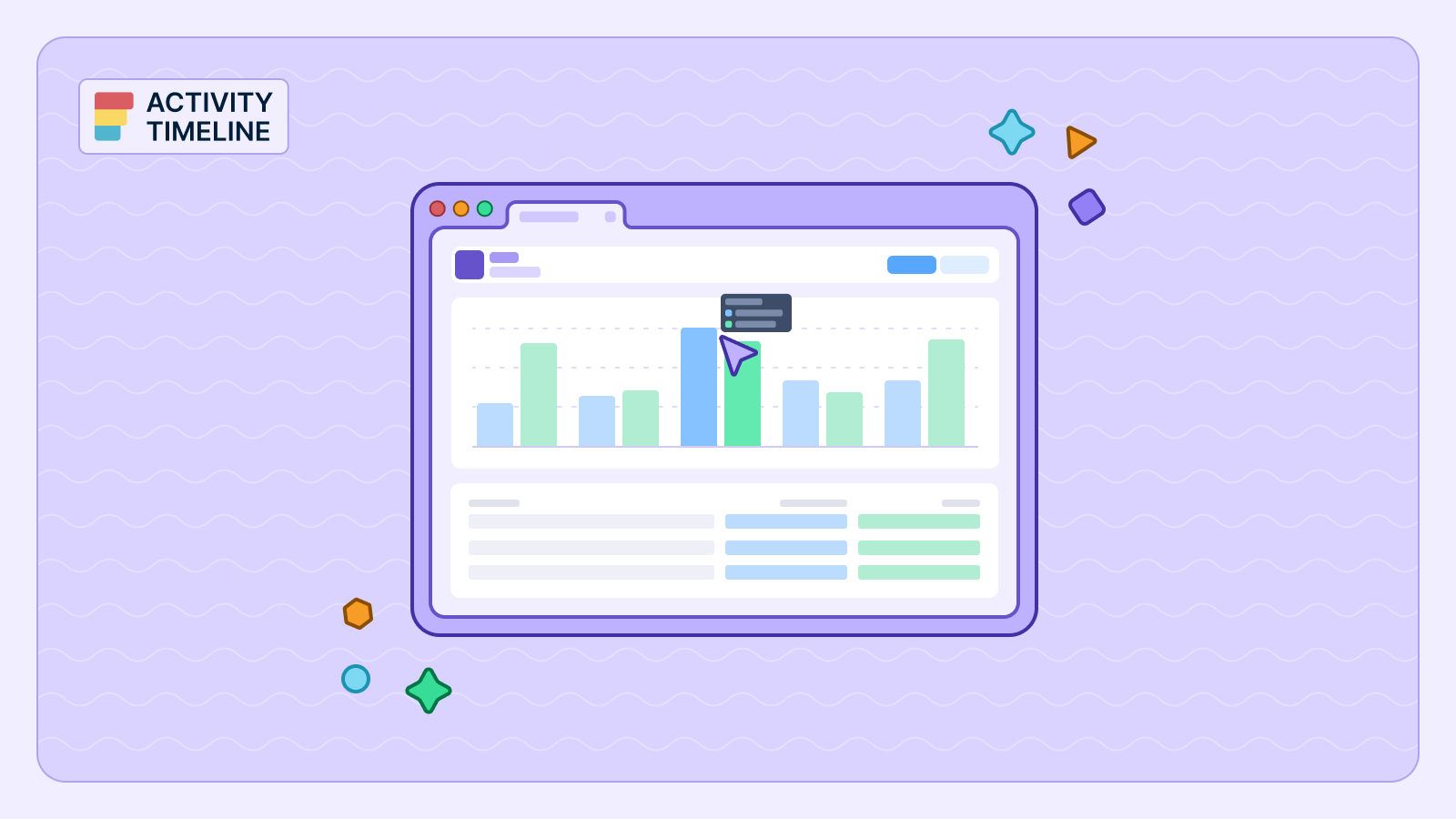
- Resource Utilization Forecast. This report provides an overview of a team’s expected workload for the future. Instead of asking, “Who is available next month?”, you see it instantly. It calculates the total available vs. the utilized capacity, allowing you to spot under- or over-utilization in advance and adjust plans before deadlines are missed.
- Planned vs. Actual Report. This report shows how accurate your estimates really are. It compares the planned time to actual logged time and highlights where tasks took more or less effort than expected. Also, you can generate a report at various levels (issue, project, epic or Jira custom field).
For organizations facing compliance requirements, this level of detailed reporting is essential. Companies like FractureCode Corporation found that ActivityTimeline was flexible enough to embed robust time reporting directly into their workflow. Furthermore, the company was pleased to share active feedback on future enhancements, demonstrating that the tool evolves based on real user needs.
Conclusion
Native Jira is great for tracking tasks. But if you need to streamline your process to manage people, time, and capacity, you need a dedicated resource planning tool. Standard functionality is not enough. ActivityTimeline completes Jira, turning it into a true project management solution.
{{rich-cta-1}}