
Do you know exactly where your team’s time goes? Many managers think they know their capacity until a deadline hits.
Jira time tracking helps with that. It lets you create better plans for future work, track project profitability and balance the workload across your team.
How monitoring time spent helps
Monitoring time helps you see if your estimates were right. This allows you to compare planned hours with the actual work to see if your schedule was realistic. With this comparison, you can find bottlenecks and even see team members who have too many or barely any tasks.
This data is essential for detailed financial reporting and billing. You can separate client work from internal tasks to create correct invoices. This helps accounting check costs and prevents mistakes in payroll.
When to track time in Jira
Here are examples when you should track time:
- Agile sprint planning. Helps to keep sprints on schedule.
- Resource allocation. Use it to manage resources across multiple projects at once.
- Billing. Log work to distinguish billable and non-billable hours.
- Forecasting. Check logged time to predict capacity for future projects accurately.
- Profitability. Monitor time to verify if a project is within budget.
Tracking time also helps you protect your team. You can find and stop team burnout before it hurts the success of your project.
Native Jira time tracking
Setup
Before the team can use Jira time tracking, admins must enable it. First, learn how to enable time tracking in Jira.
In time tracking settings, you can adjust the working hours to line up with your schedule.
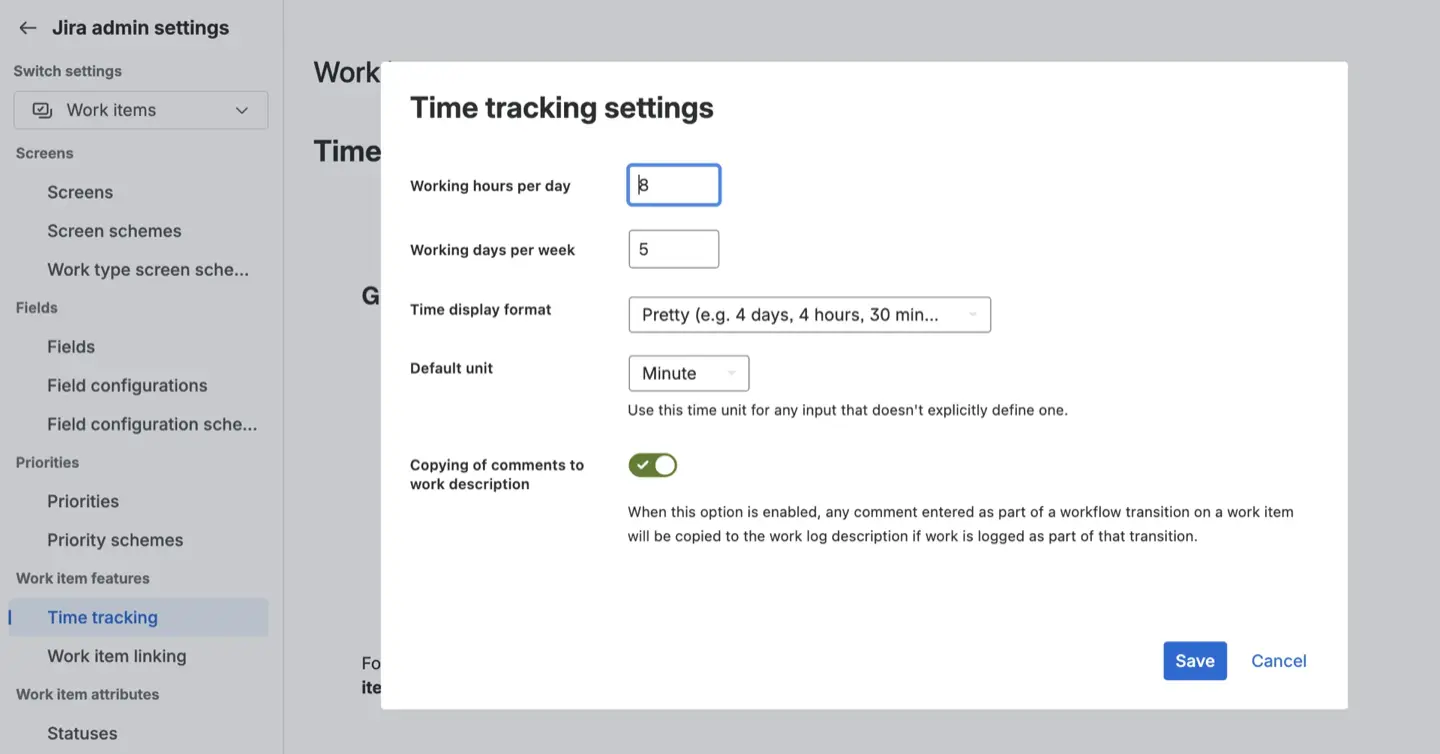
Note that without Work on Issues permission the option to log work will not appear on users tasks.
How to log work effectively
Users can log work directly on a work item. They just need to click the Log Work button and use special units to enter time.
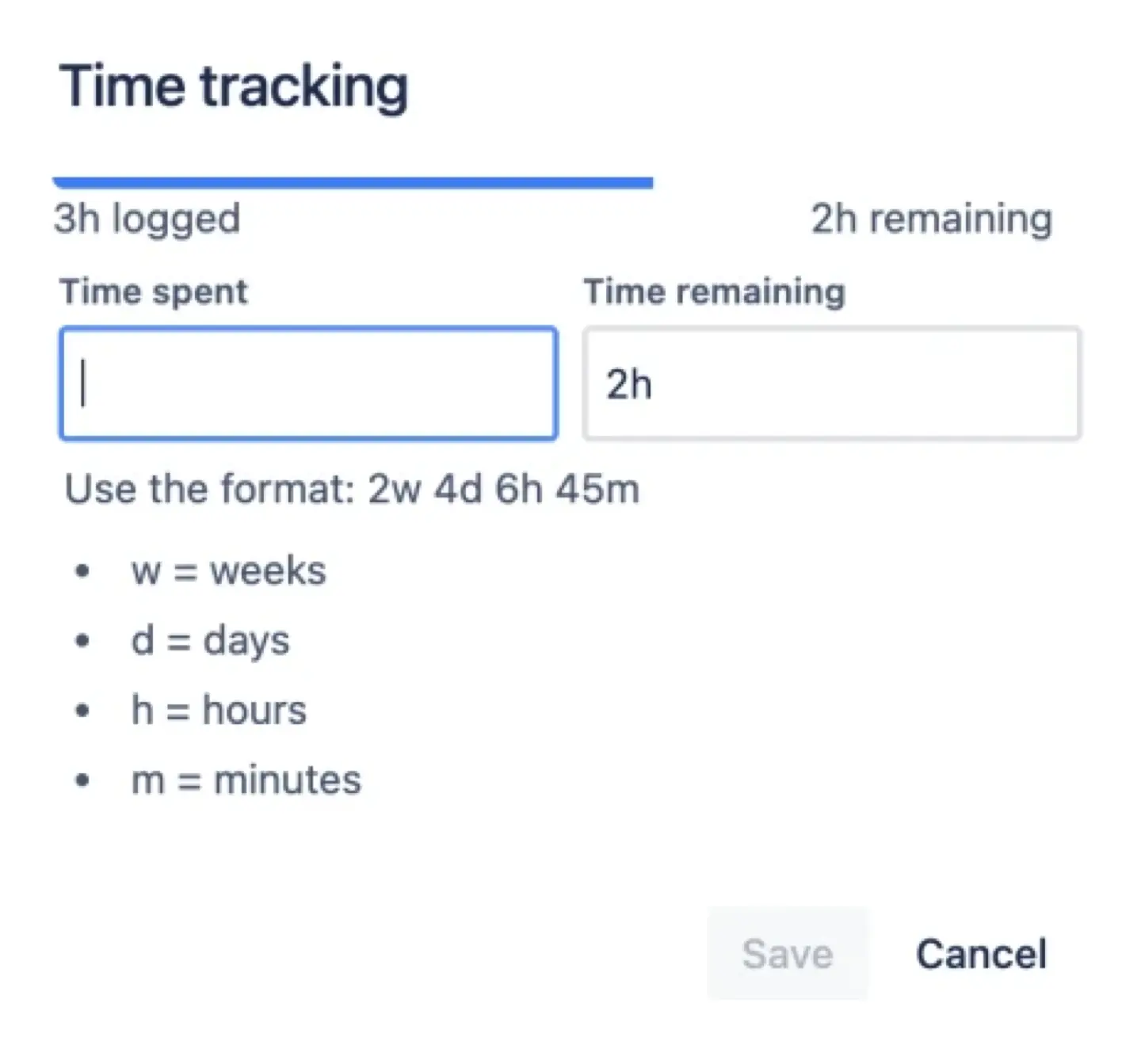
It is best to add a short description to every entry to explain what was done and help managers understand why a task took a specific amount of time.
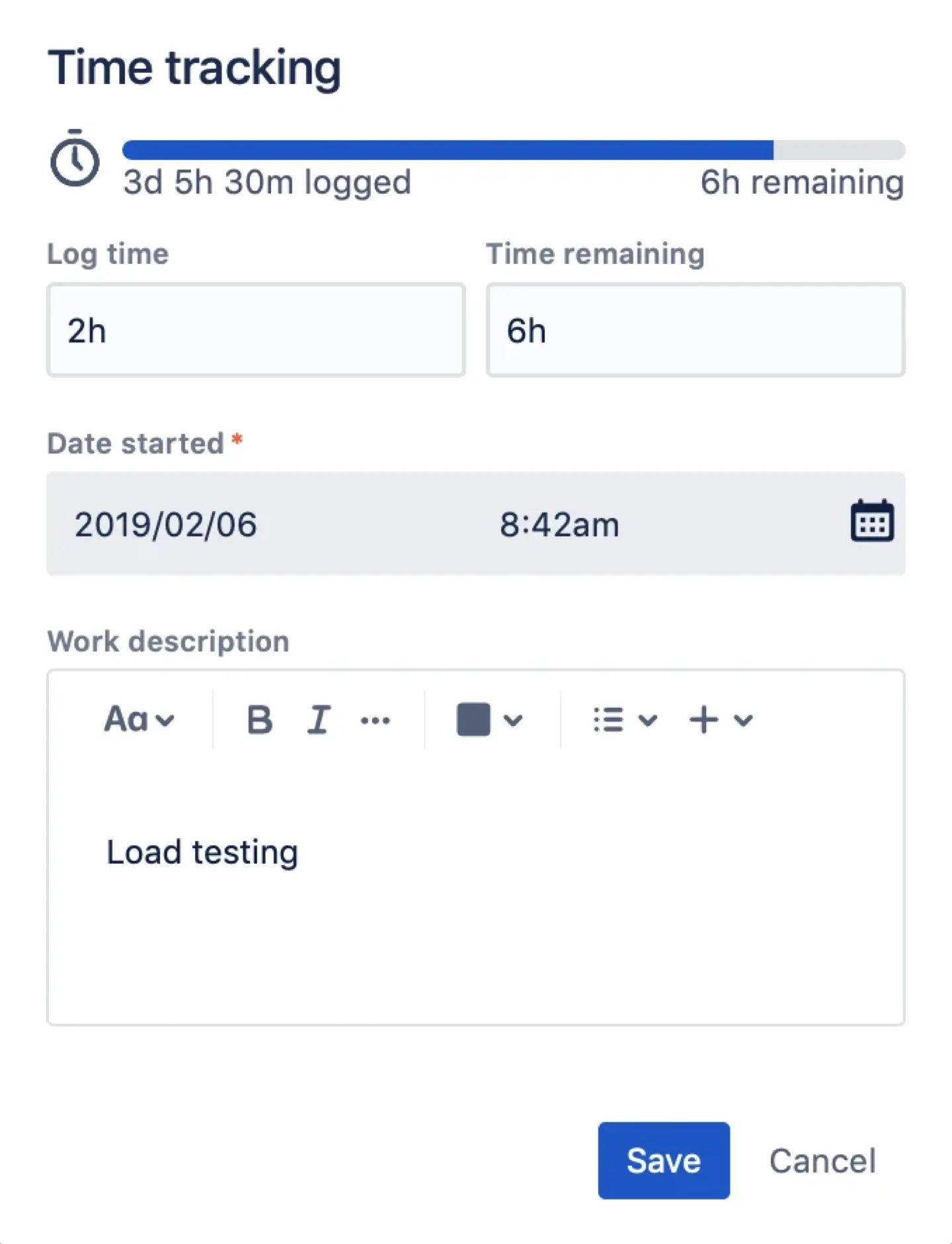
When you save a log, Jira updates the remaining estimate. You can also change it manually to keep your schedule accurate as deadlines shift or new work comes in.
Reporting
There is a Jira Time Tracking Report for company-managed projects. This report compares the estimate with the actual time spent. Jira Time Tracking Report calculates the accuracy of your planning so you can see if your team is ahead or behind schedule.
Jira has several limitations:
- Manual-only logging. People should remember to log work every day.
- Missing activity. You cannot track time for emails or meetings if they are not linked to a task.
- No combined views. You cannot see one timesheet for a team that works across multiple projects.
- No automation to monitor the job in real-time.
ActivityTimeline: Extending Jira time tracking
Advanced time logging features
ActivityTimeline has a built-in timer that allows users to track work in real-time. To use it, go to Individual Workspace or the Jira issue view.
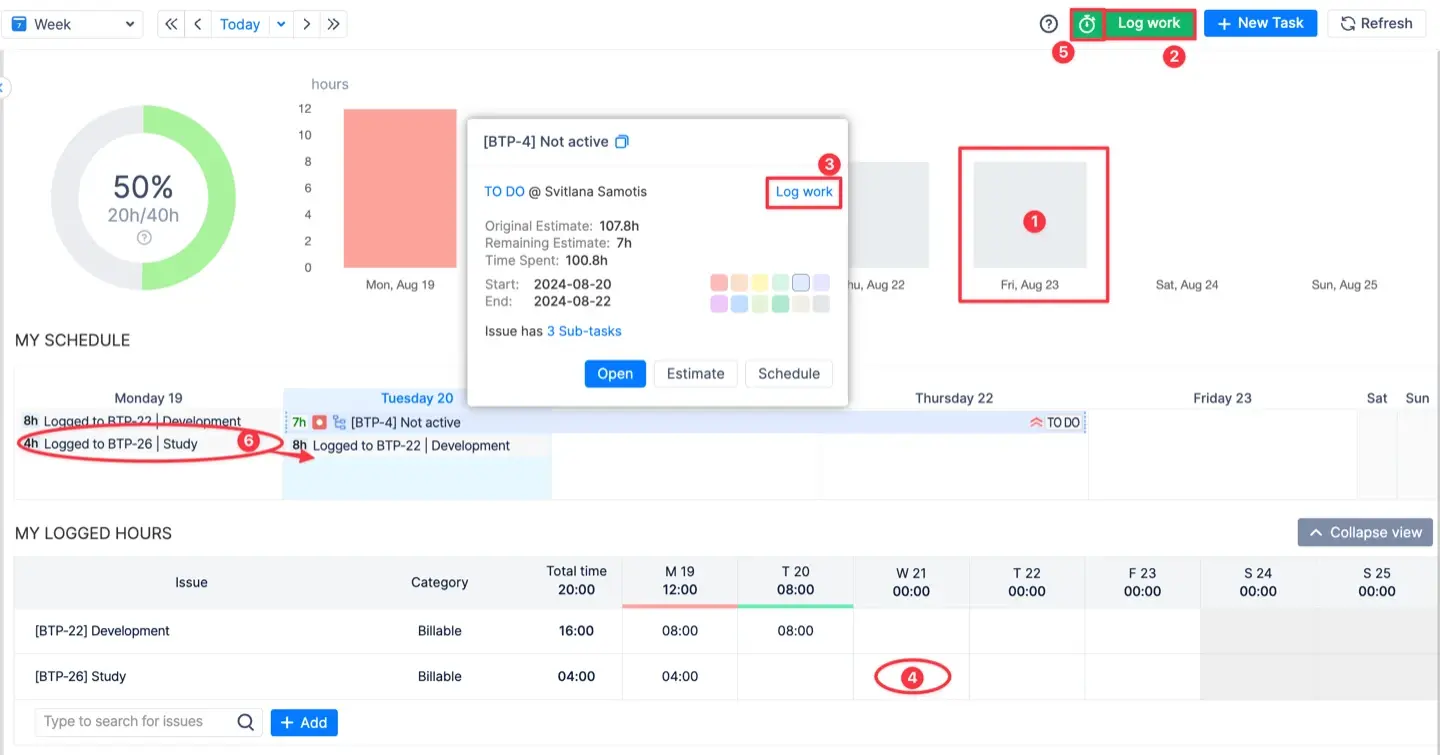
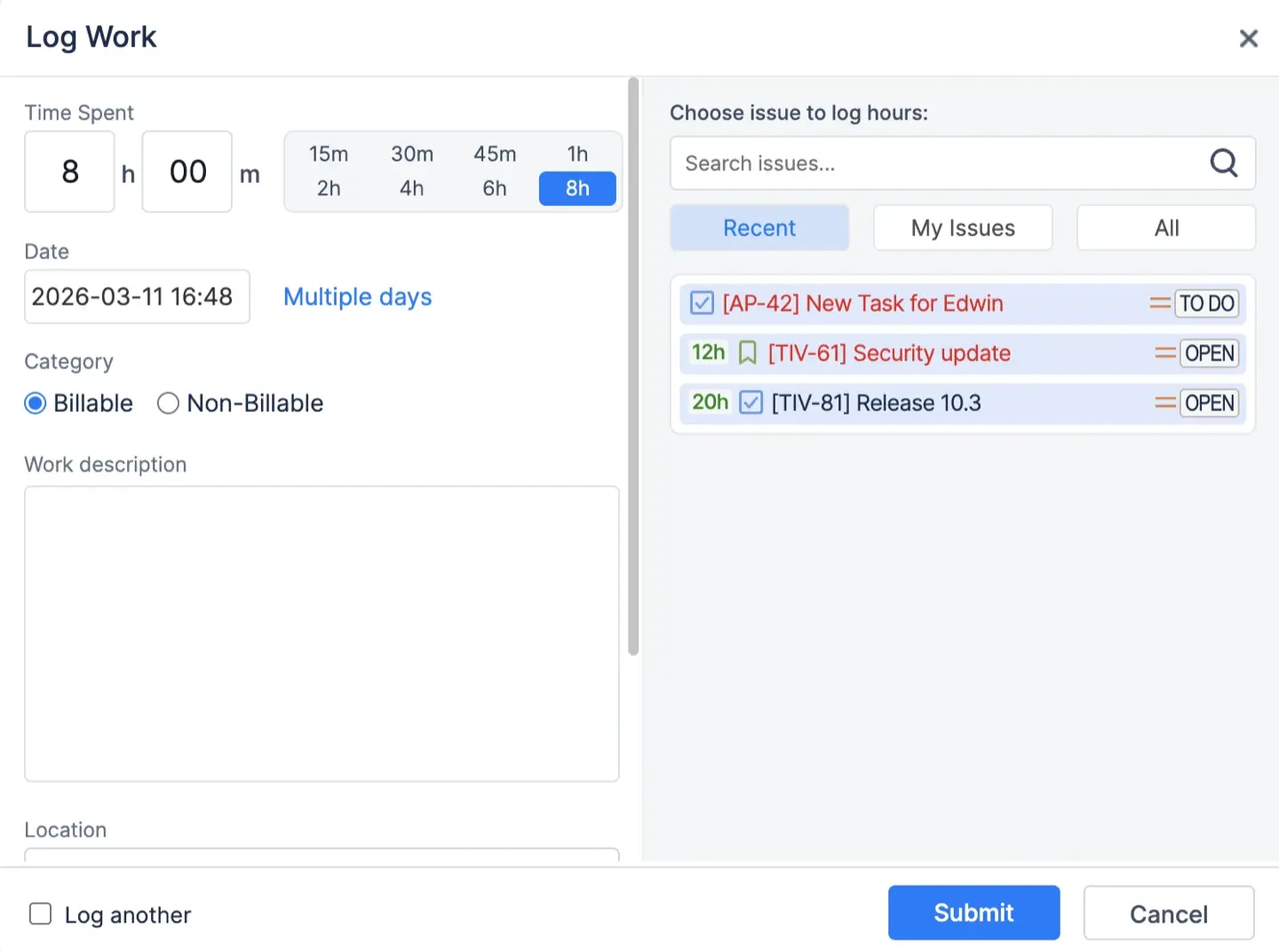
For long tasks, the app supports multi-day logging. You can record time for a single task across several days or weeks in one entry. This reduces repetitive manual work and simplifies reporting for long-running projects.
You can also sync external calendars like and the system will automatically convert calendar events into worklog for your timesheets. This is perfect for tracking meetings and client calls without manual entry.
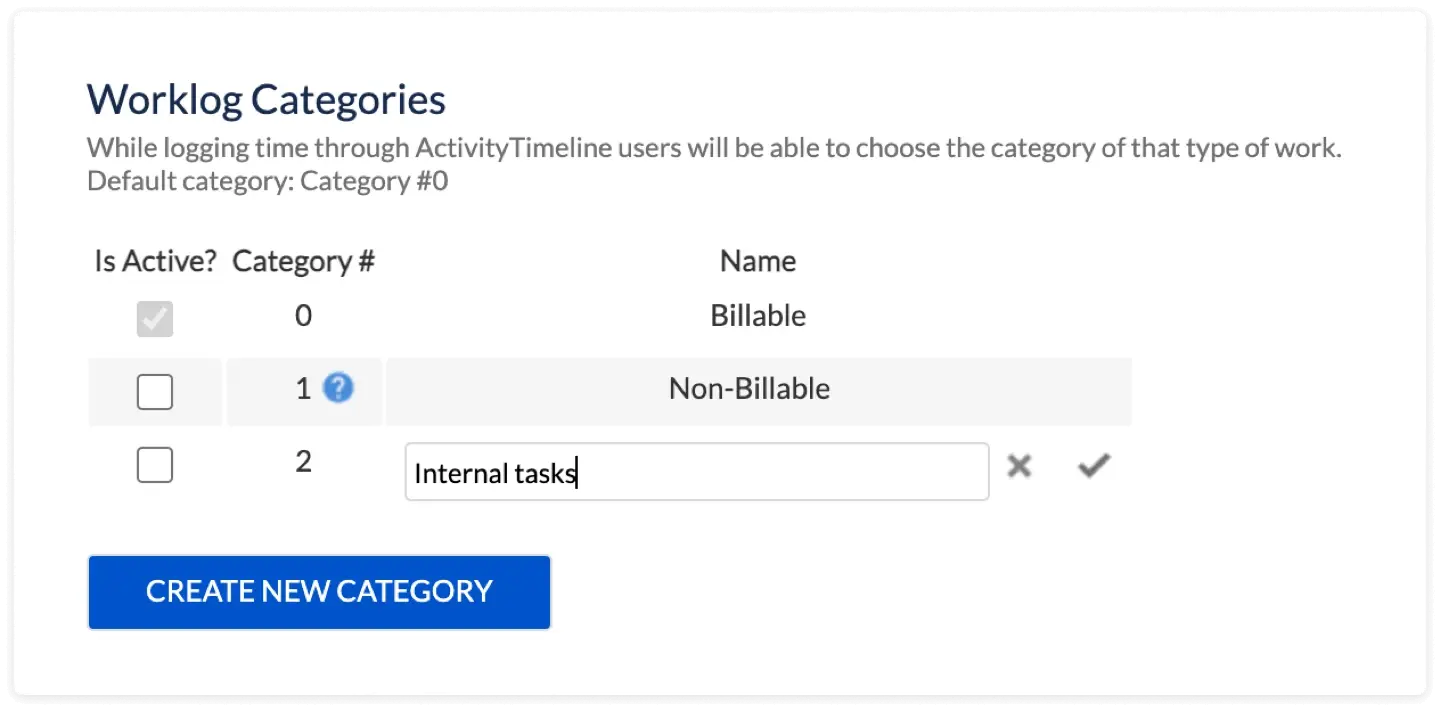
Users can label their time with Worklog Categories (Billable or Non-billable) or add custom attributes. To handle extra work, use the Overtime event. It increases a user's capacity for a specific day so the extra hours are recorded correctly without showing a workload error.
Reporting and timesheets
Accurate logs are only useful if you can analyze the results through clear reports.
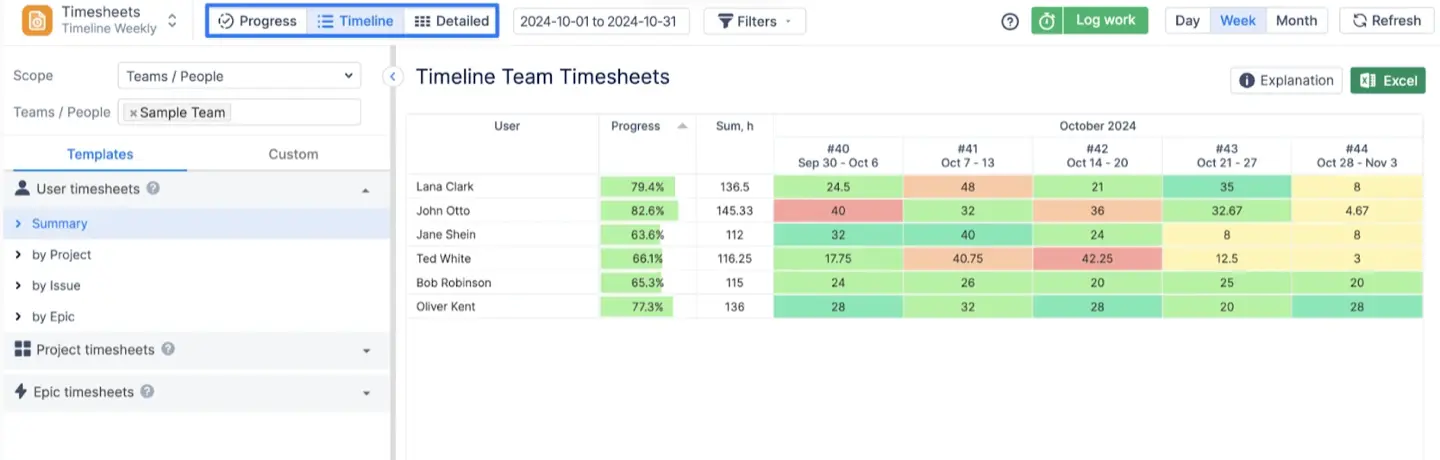
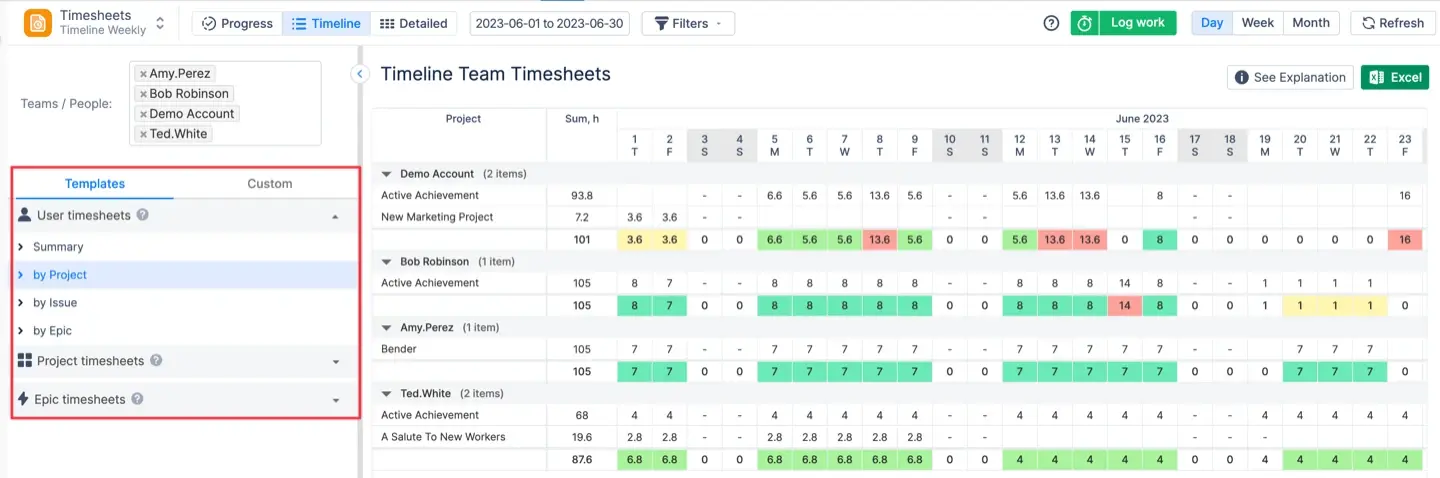
ActivityTimeline has 3 types (views) of Timesheet Reports. The Progress View monitors required versus logged hours and approval status. The Timeline View provides a daily color-coded breakdown of logged time to spot gaps. The Detailed View shows every individual worklog with comments and dates for a granular inspection.
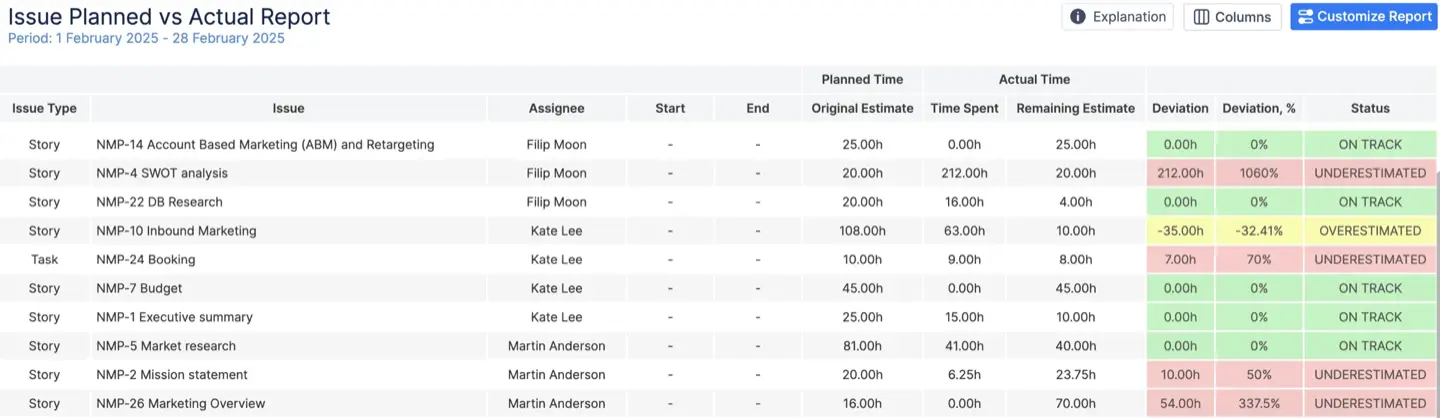
You can also use the Planned vs Actual report to check your estimate accuracy. It calculates deviations and labels tasks as On Track, Underestimated, or Overestimated.
Reports are highly customizable. You can add Jira custom fields as extra columns or group data by specific attributes.
The system has built-in Epic Timesheet templates for managers to review time spent on projects. These include Epic Summary (total time), By User (time per team member), and By Issue (time assigned to specific issues).
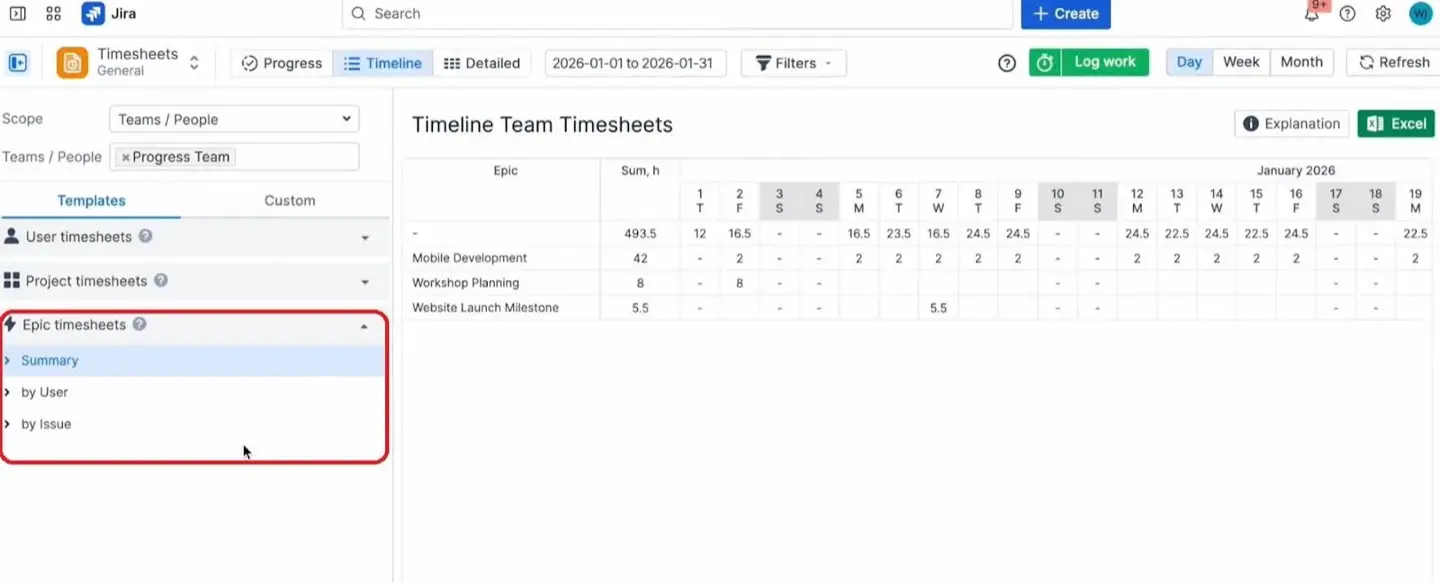
Every report can be exported with an Excel button.
Approval workflows
Approvals turn daily logs into records you can actually trust. Time tracking in Jira becomes secure when managers review timesheets. You can use the Bulk Approve feature for large teams or approve the worklog one at a time. It is possible to reject a log and request a fix if it is inaccurate.
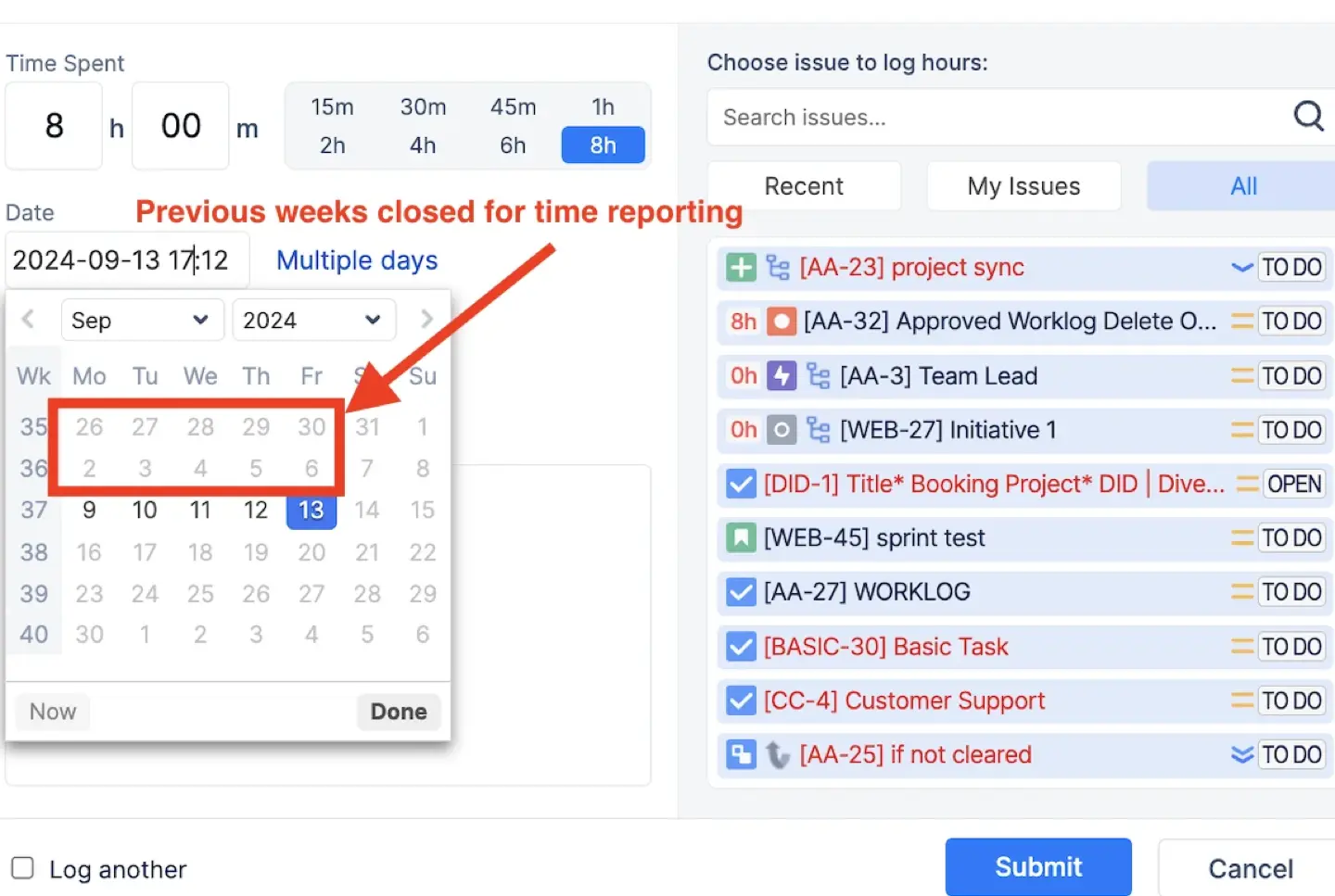
The system locks a timesheet once a manager approves it, and users can no longer edit those entries. You can also set specific Approval Periods to close old reporting dates automatically. This prevents anyone from modifying past entries after a period ends. This level of control guarantees data accuracy and makes time tracking in Jira secure.
Other features. Timeline visualization
A solid Jira time tracking integration simplifies your workflow.
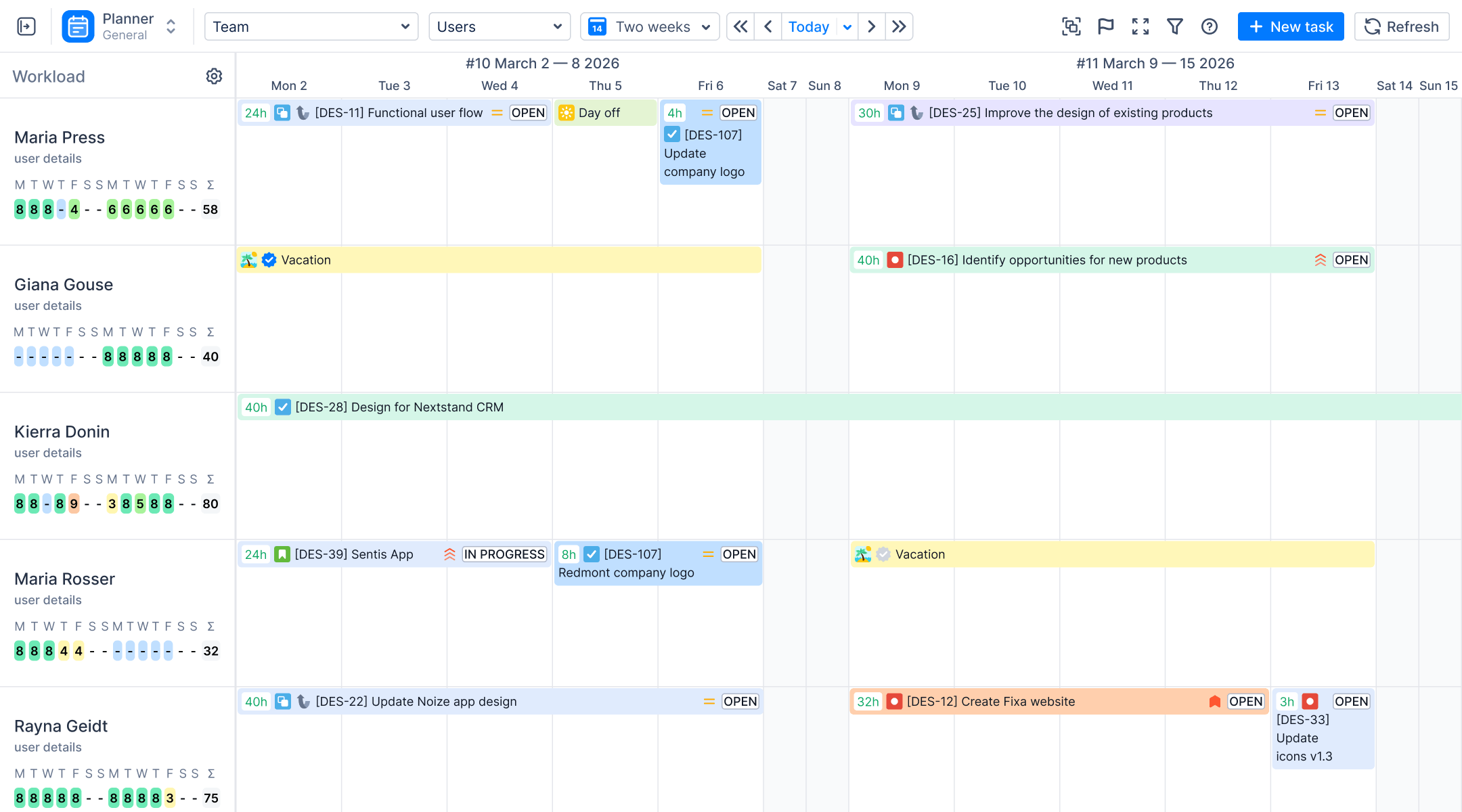
ActivityTimeline offers a visual planning dashboard that shows cross-project timelines in a calendar view. This dashboard can display a whole team or a member. This setup makes it easy to schedule tasks and manage work across all Jira projects at the same time.
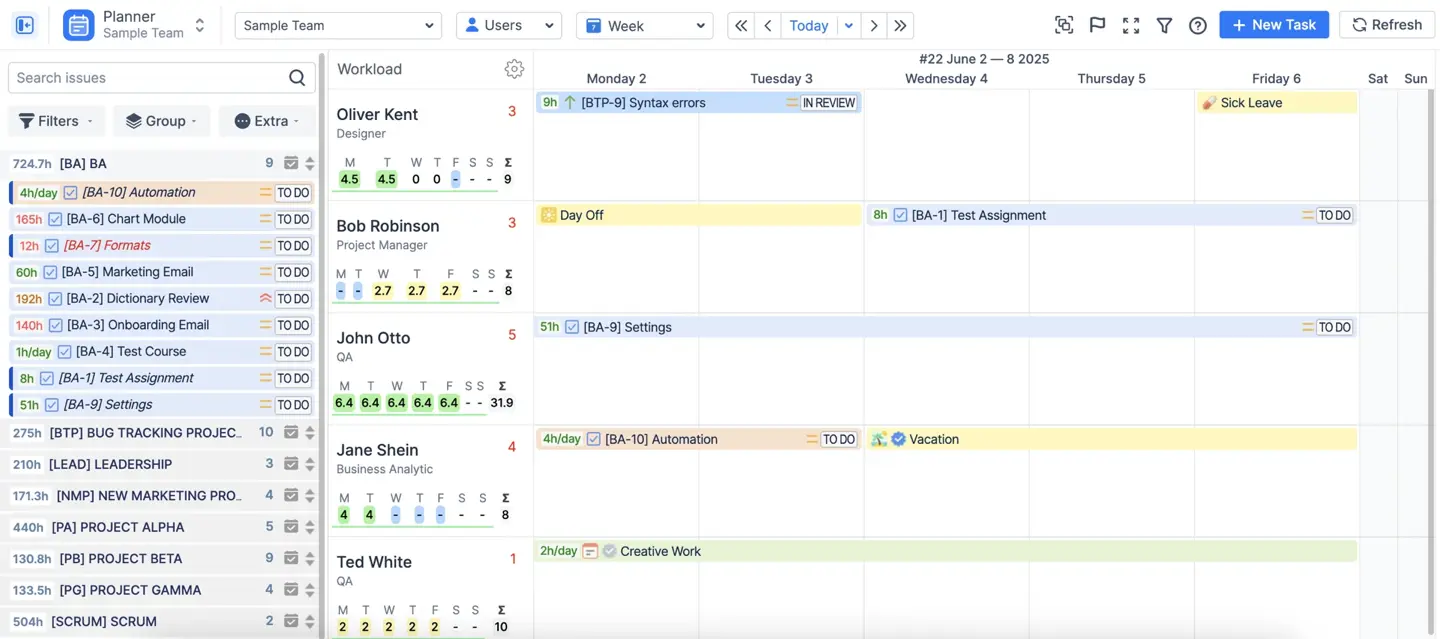
The tool synchronizes with Jira every 10 minutes. Any change to an issue status, assignee, or worklog updates in both systems instantly. This removes the need for manual double-entry and keeps your data fresh.
Under each resource name, you can see the workload indicator and display the hours allocated to a person for a specific period. Different colors of the indicator show how much a person is loaded compared to their capacity.
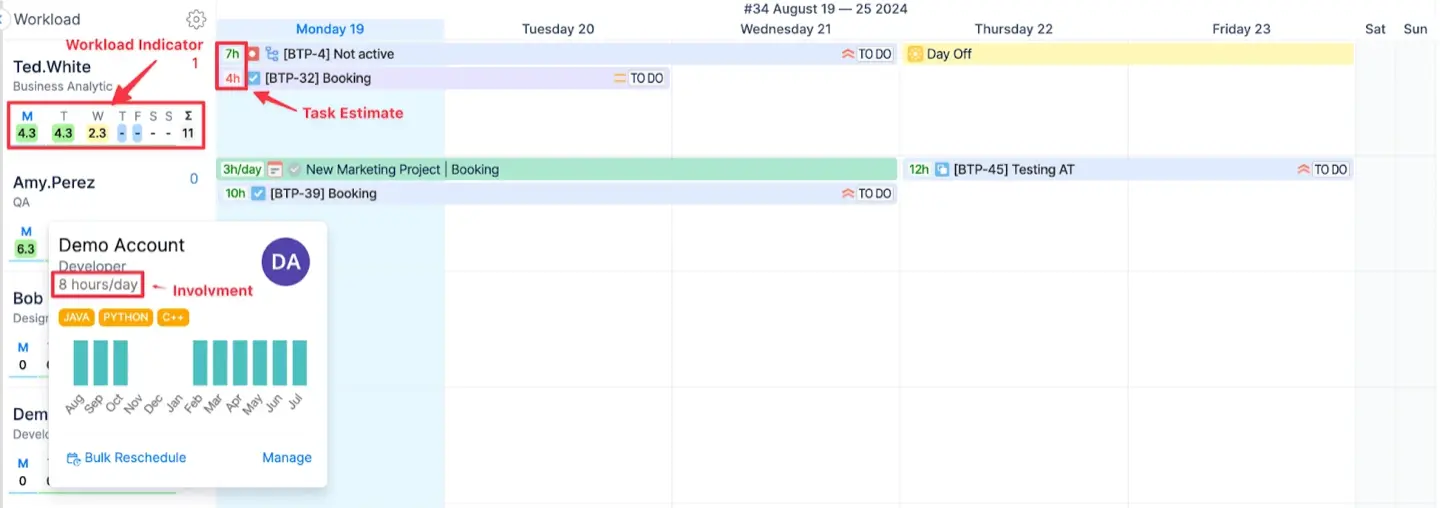
Planning is also faster with drag-and-drop features. You can move tasks from the backlog directly onto a user's timeline.
Users can also log time in the Workspace Module with one click in multiple ways.
Choosing a Jira time tracking app
Evaluation Criteria
If Jira isn't enough, check the Atlassian Marketplace. The right Jira time tracking plugin should offer:
- Automated recording of time. It is important to minimize manual entry so your data stays accurate and human errors are reduced.
- Personal and team timesheets. A tool must offer a unified view of all work to help you identify hidden costs across projects.
- Billable hours tracking. It is useful to have a tool that can separate client tasks from internal work to prevent mistakes in invoicing.
- Absence management. Reliable time tracking Jira tool should include holidays and sick leaves to show true capacity of your team.
- Custom reporting. You need reports that compare planned vs. actual work to improve future scheduling.
- Visibility and security. The software must allow you to control who can view or edit sensitive worklog data to keep your data safe.
Check compatibility and pricing
Once you find a tool that works, check if it fits your Jira environment before you purchase. A Cloud license won't work on Data Center. That is why you need to check the documentation and make sure the app fits your Jira.
Finding the best Jira time tracking plugin also depends on your budget. Compare costs, as apps might charge a flat fee or a price per user.
For example, ActivityTimeline starts at $2.50 per-user and drops to $0.10 as you scale.
Top 5 Jira time tracking apps
Here is a comparison of the best Jira time tracking plugin options:
ActivityTimeline
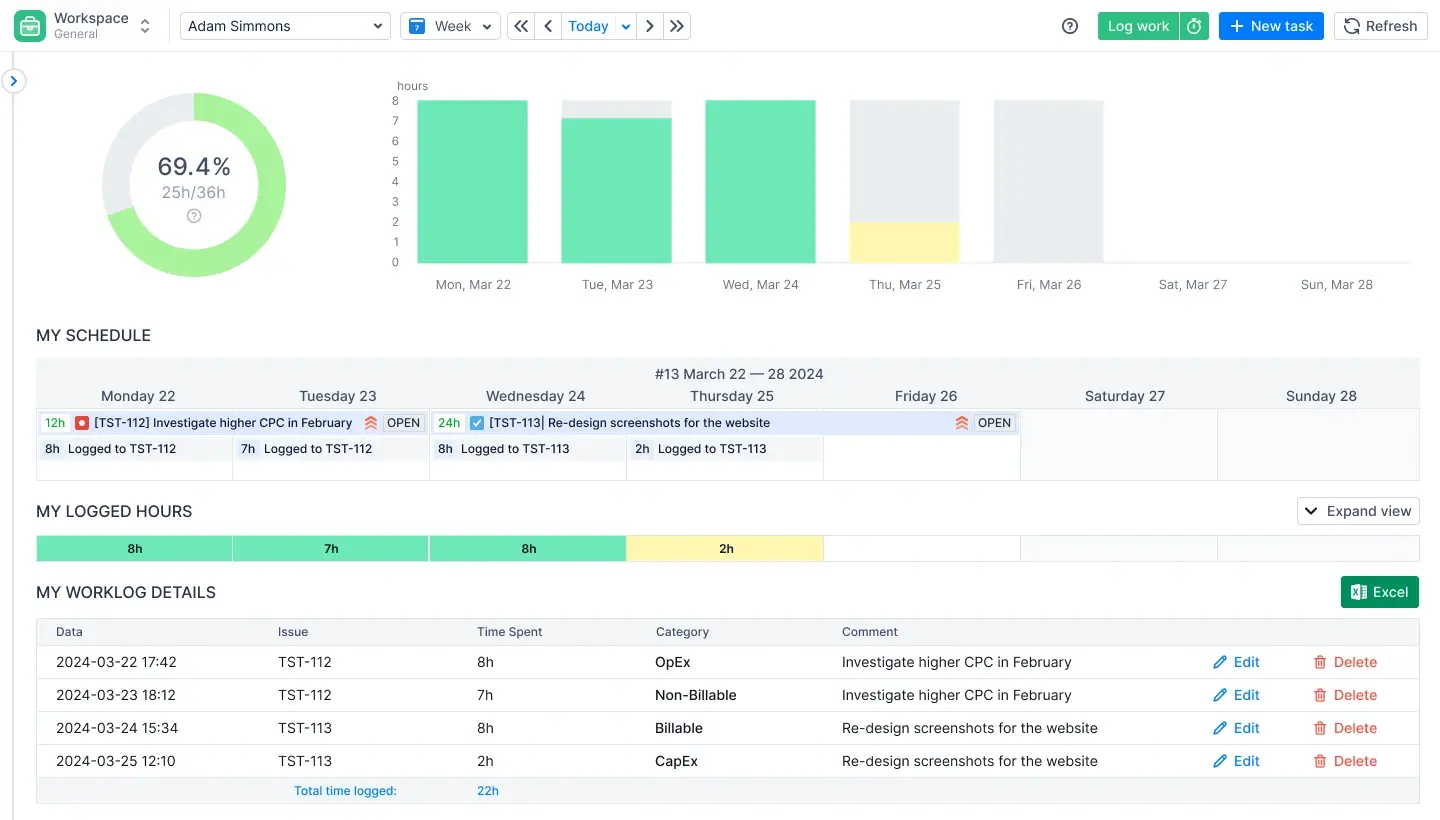
ActivityTimeline is a Jira-native app that visualizes tasks, workloads, and availability on a unified timeline. It helps teams know actual availability by including time-off tracking and capacity planning with working hours. With the drag-and-drop tool, users can schedule issues, log time, and modify plans. It makes resource management and work balance more clear.
ELVA struggled with outdated tools and planning data that was never up-to-date. After implementing this Jira time tracking plugin, they gained a real-time overview of their daily and weekly plans. Managers can now easily extend tasks over several weeks and keep a clear view of everyone's workload.
Jibble
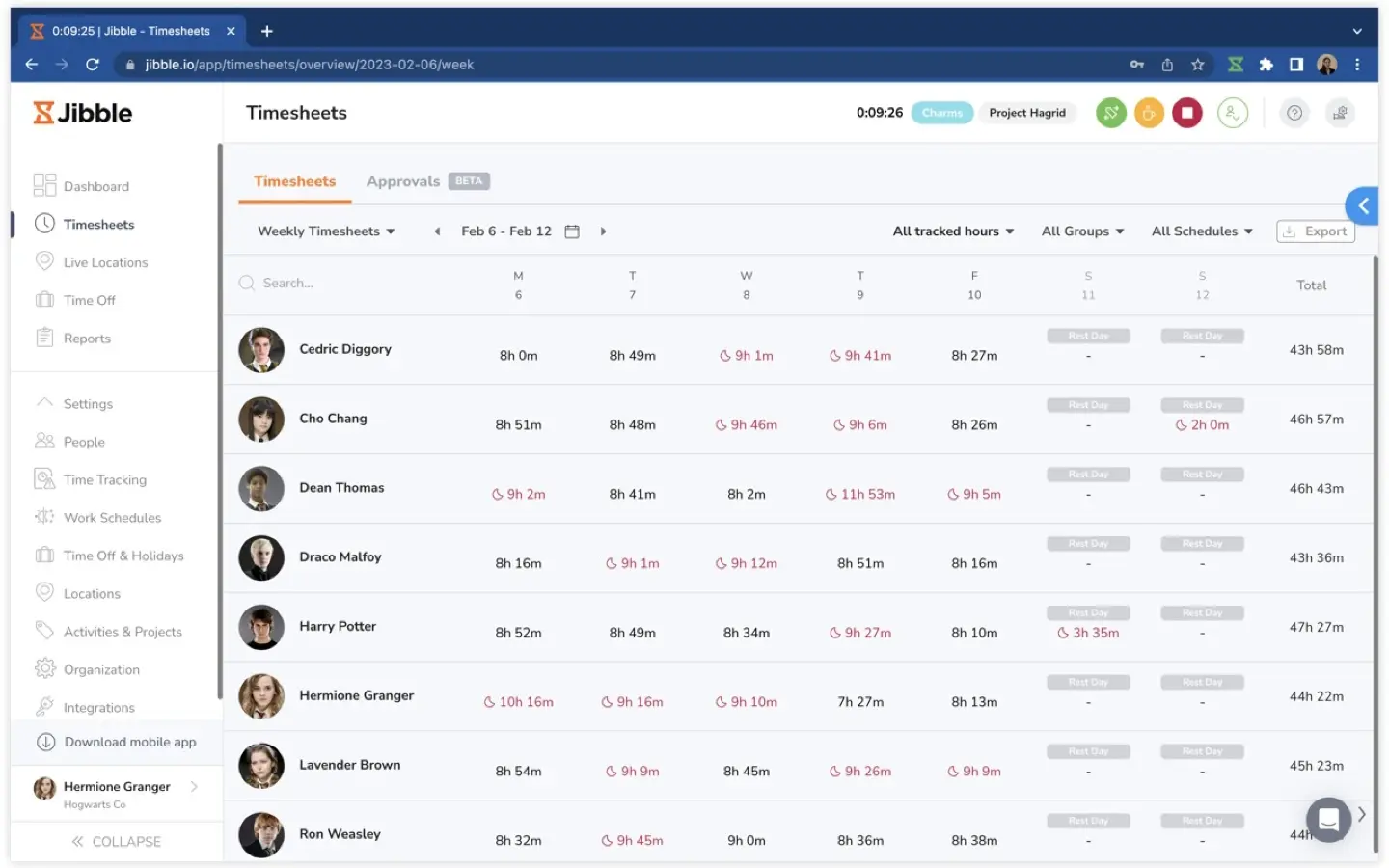
Jibble is a time tracking tool designed for attendance and workforce monitoring. It prevents time theft by using AI face recognition and GPS tracking at clock-in. Every log entry includes a location timestamp to verify the worker is at the correct job site.
Toggl Track
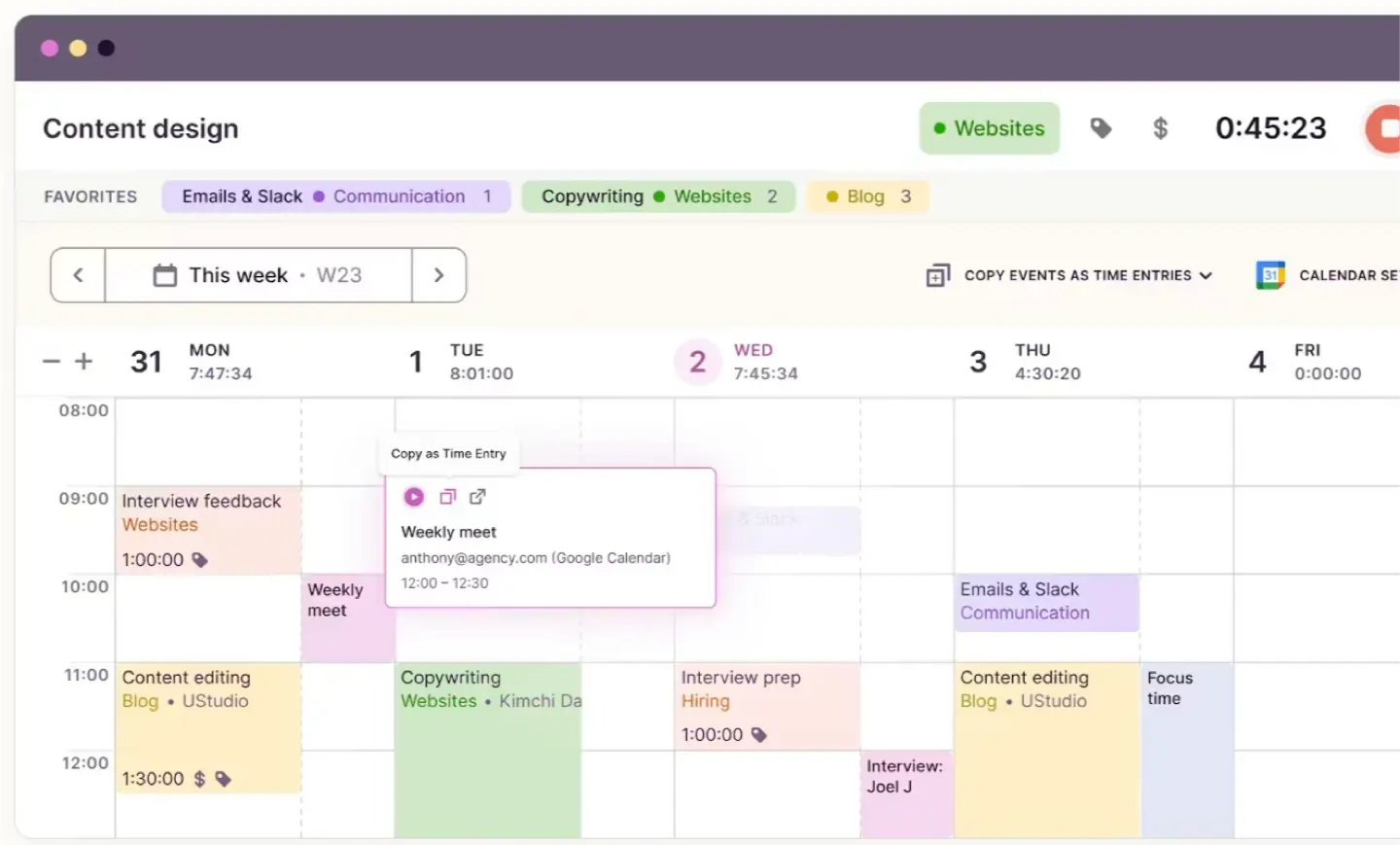
Toggl Track is a great option for anyone looking for a simple time tracking tool. To record activity, it has timers, manual entries and background tracking. The app works on mobile and desktop to track time spent anywhere. Its simple interface ensures teams start logging work without complex training.
Clockify
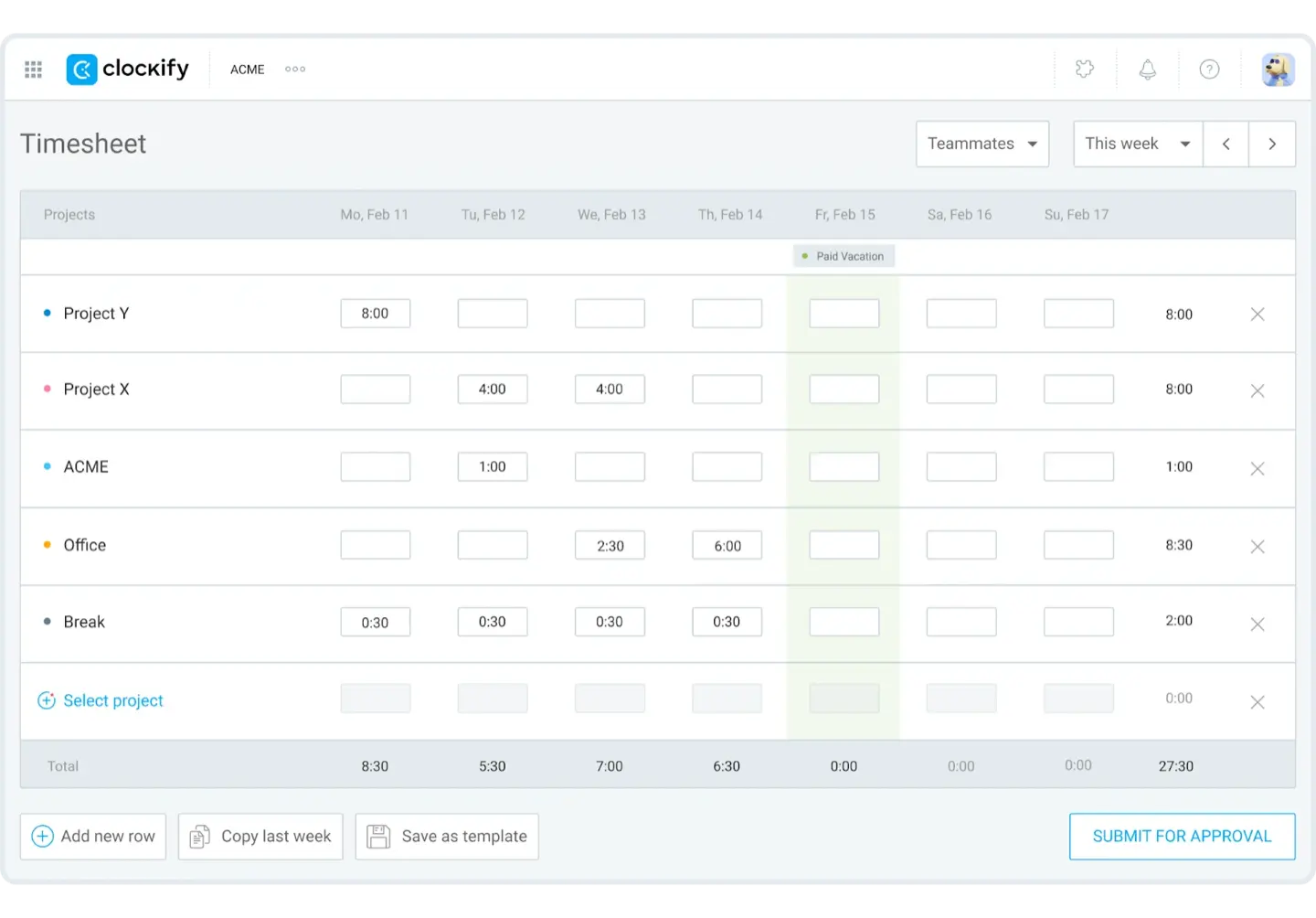
Clockify allows you to log work manually in a timesheet or use a stopwatch to record hours. The dashboard compares planned hours against actual logged time to track project budgets. Managers can lock timesheets to prevent users from changing old data. It includes detailed reporting features that show team productivity across various tasks and projects.
TMetric
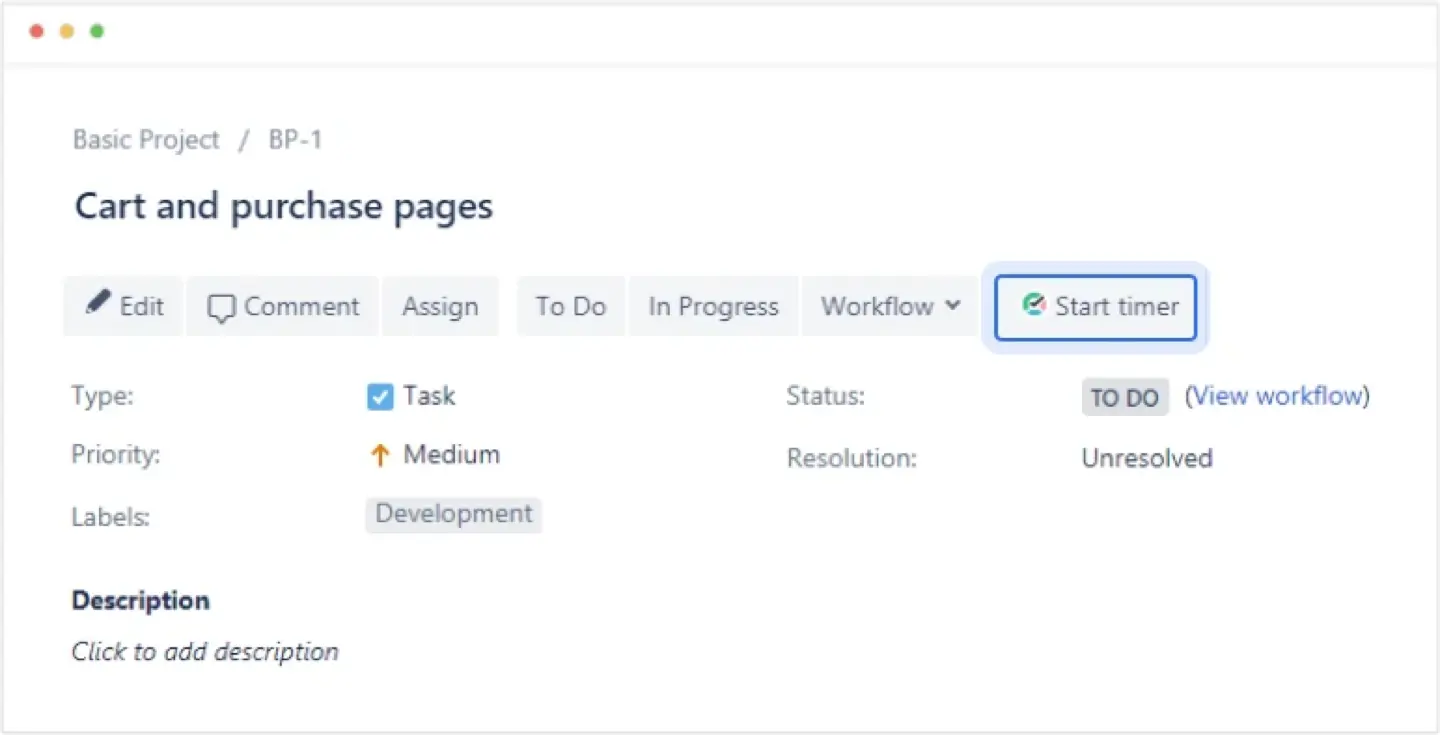
TMetric is a time tracking plugin for Jira that lets teams capture every minute spent on Jira issues with ease. It integrates a timer button directly into the Jira interface, enabling users to start and stop time tracking on any task without switching tools. TMetric provides detailed time reports, billable hours, and timesheets, helping teams improve productivity insights and manage project costs more effectively. The plugin also supports time synchronization back to Jira work logs, giving managers full visibility into team performance and project time allocation.
Implementation and best practices
Logging billable hours and invoicing
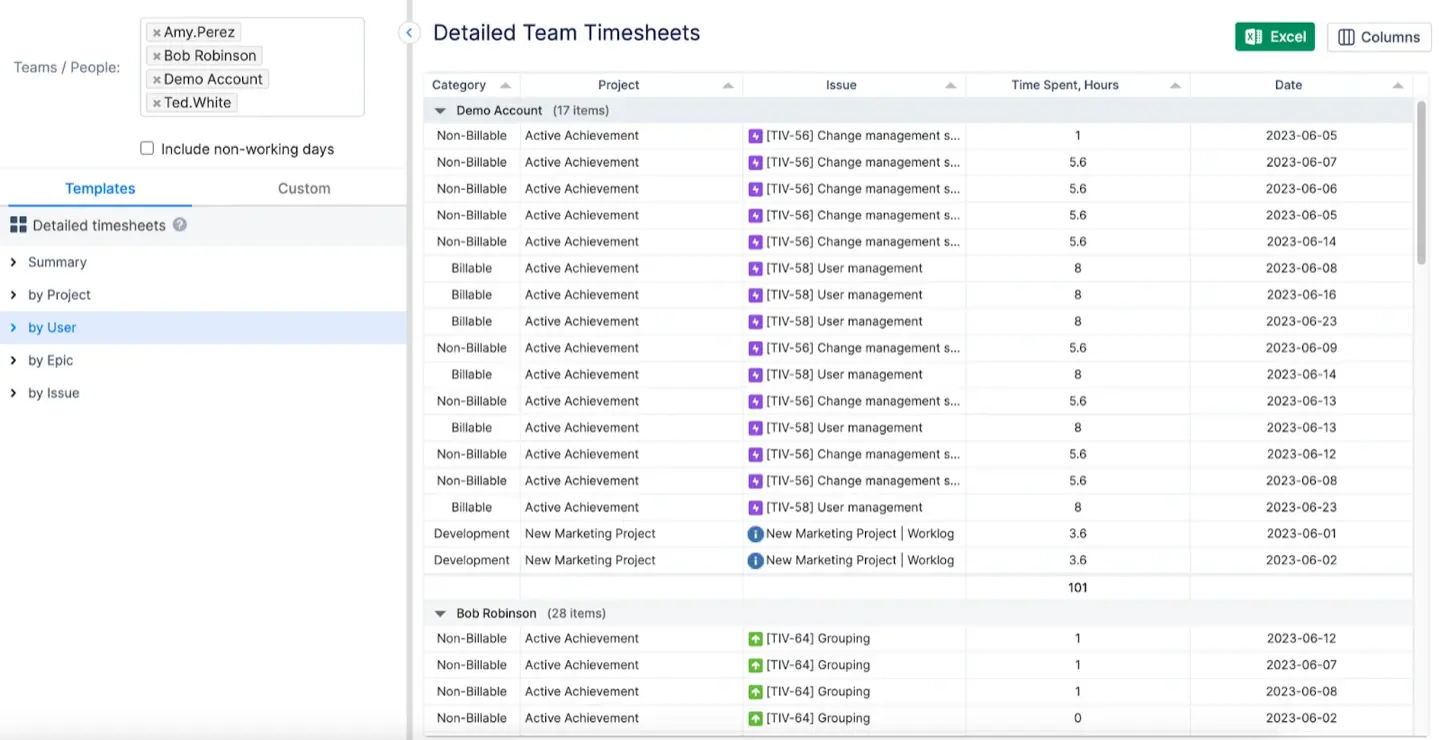
In ActivityTimeline, you can use custom worklog categories to separate client work from internal tasks. This ensures you only bill for actual services. Then generate a Detailed Team Timesheet to see every user and tasks. It also has be exported to Excel.
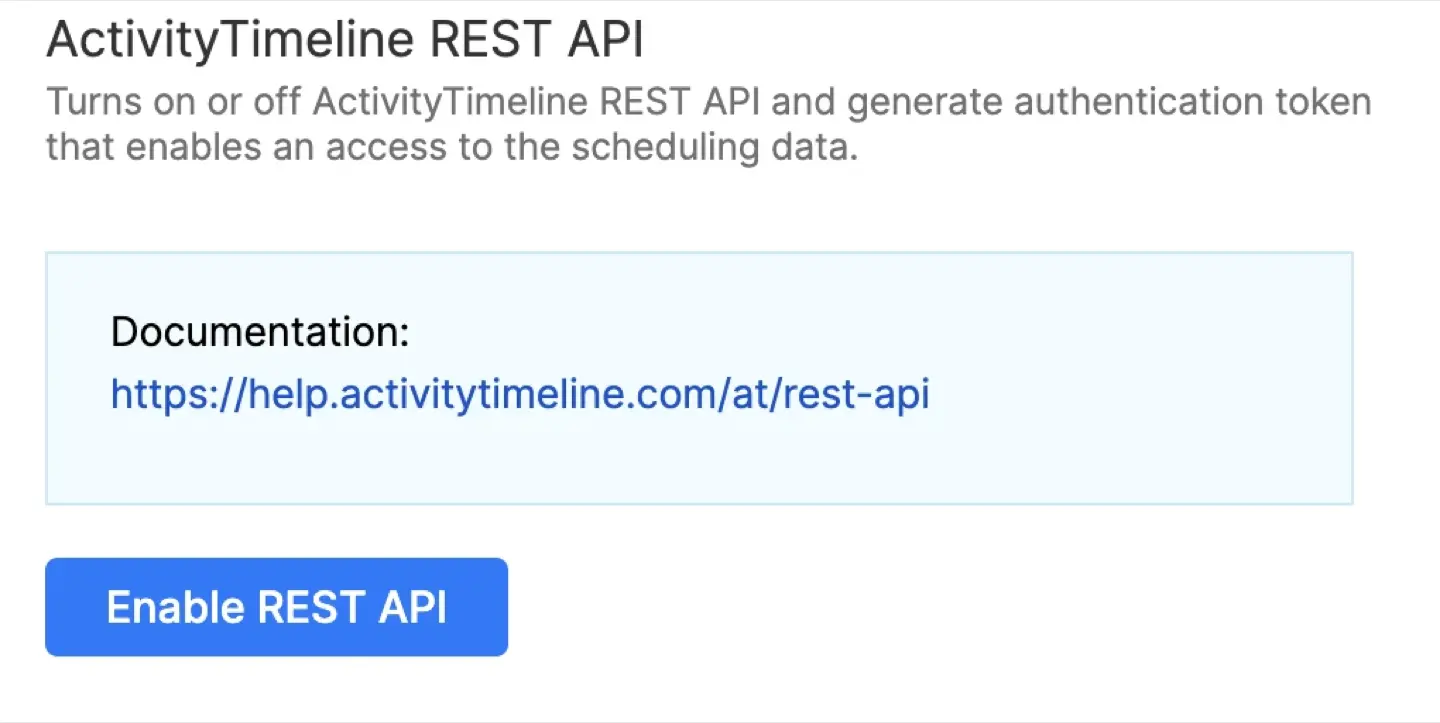
If you need more automation, use the REST API. It connects your Jira data with external invoicing tools.
There is built-in integration to move from Tempo. You can sync existing worklog and attributes without losing historical data. This makes the migration fast and keeps your records accurate.
Resource planning strategy
Use the Track module to create timesheets in just a few clicks. This makes time tracking for Jira much more transparent. Reports can be sorted by project, issue, or category. You can even use the Custom grouping.
Managers can track project progress directly on their Jira Dashboard using ActivityTimeline gadgets. These widgets show real-time charts in one view.
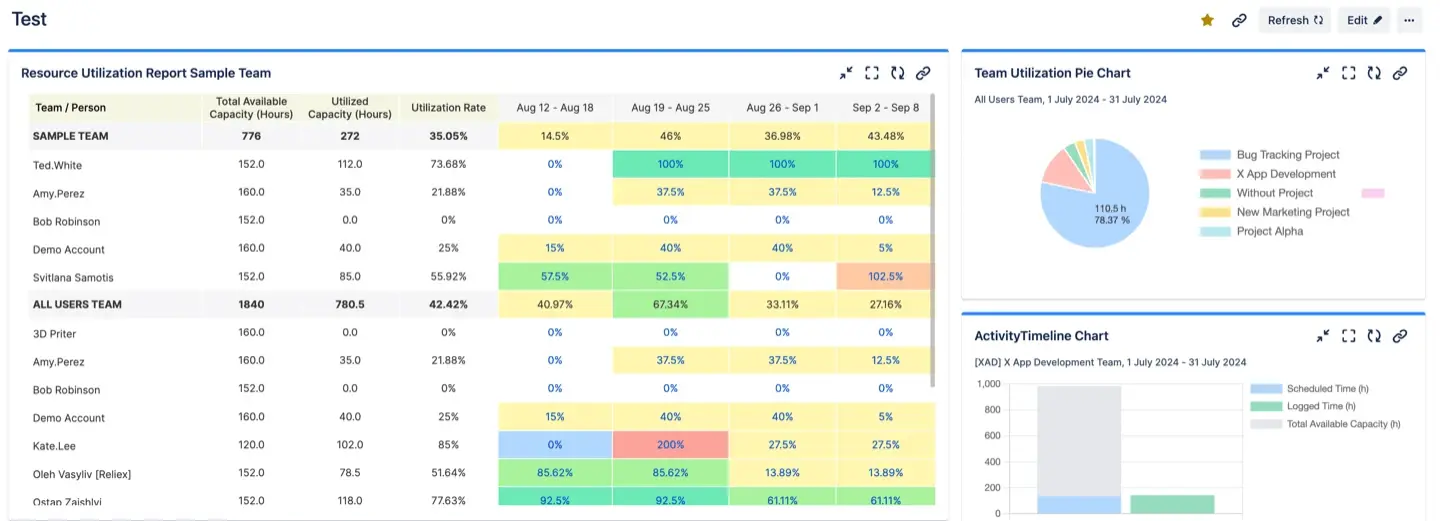
You can also add Gadgets to your Confluence page to see progress without clicking between tools.
Identify team members who are under/overworking using Workload Indicators.
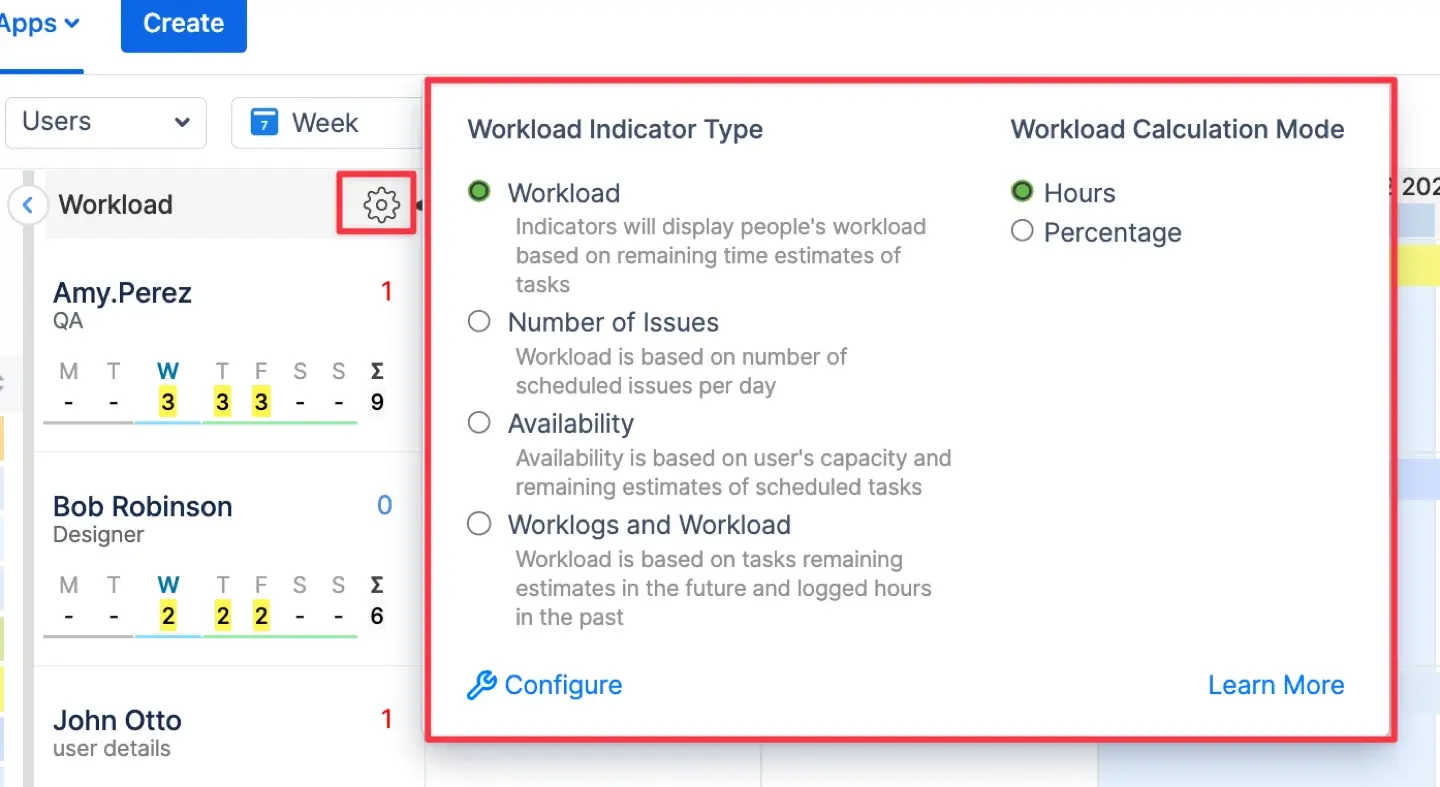
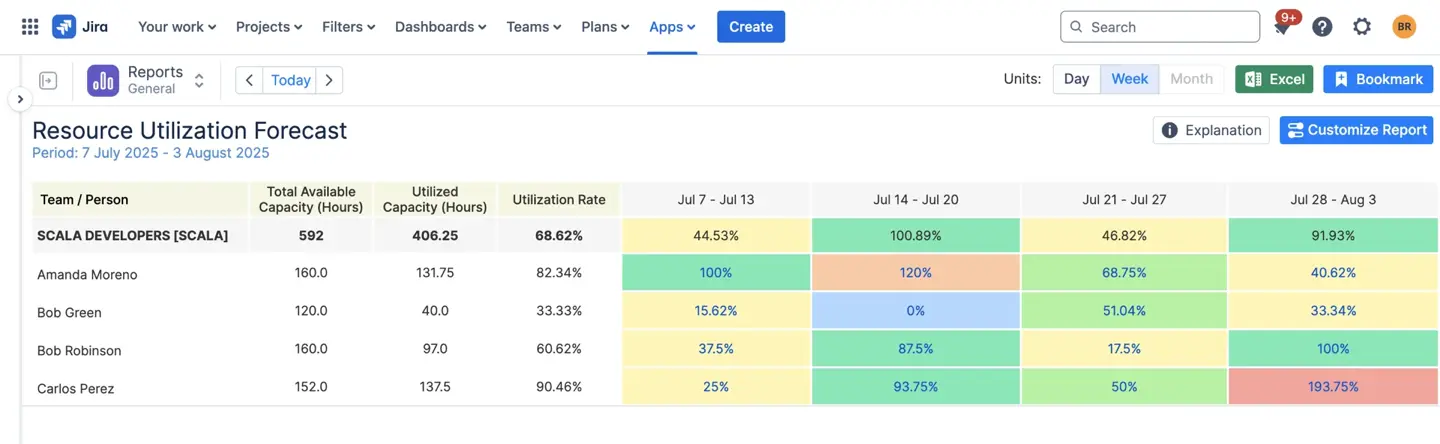
You can also use the Resource Utilization Forecast to see future capacity in percentages or hours.
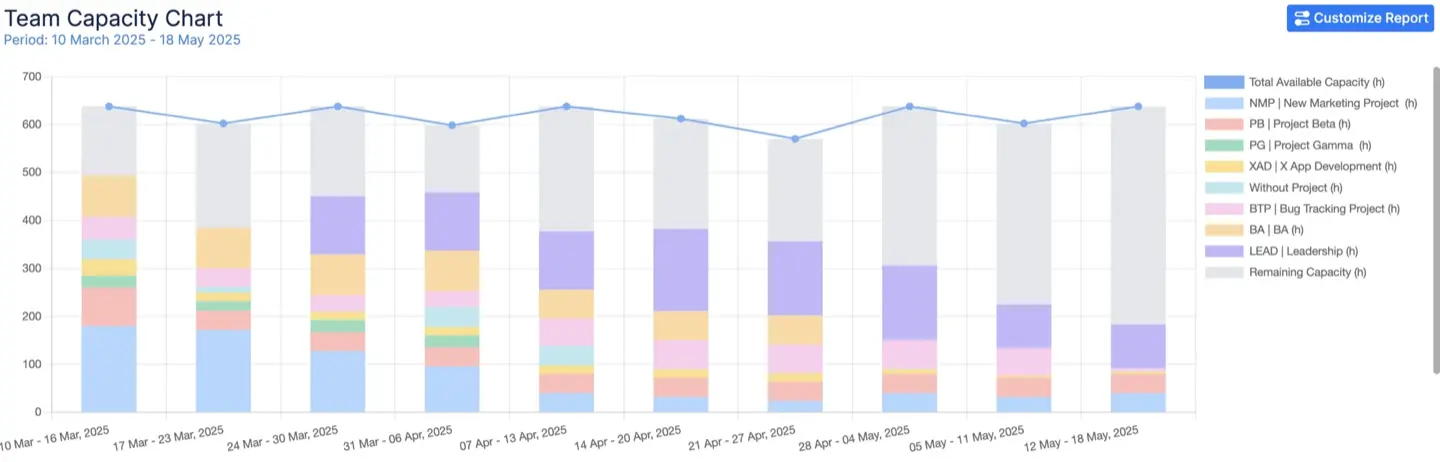
Use the Team Capacity Chart to optimize capacity and project planning. It shows the total available time for teams across projects.
Useful advices
- Create simple rules. Set working hours in settings and specify when to log work.
- Train your team. Show how to use ActivityTimeline and explain time tracking in Jira.
- Review timesheets weekly to correct errors.
- Use automation to limit manual work and prevent forgetting to log hours.
- Analyze project data to improve scheduling.
Conclusion
Knowing how to edit time tracking in Jira and make the process easier may save precious focus of your team. Keep your time data accurate using native Jira tools or apps that fit your needs. It is the best way to manage your work and master time tracking for Jira.





![Top 11 Time Tracking Software for Consultants [2026]](https://cdn.prod.website-files.com/60c76f07dc83db305171350c/69679a38bef00e707d73bb86_thumbnail_10%20Best%20Time%20Tracking%20Software%20for%20Consultants.png)