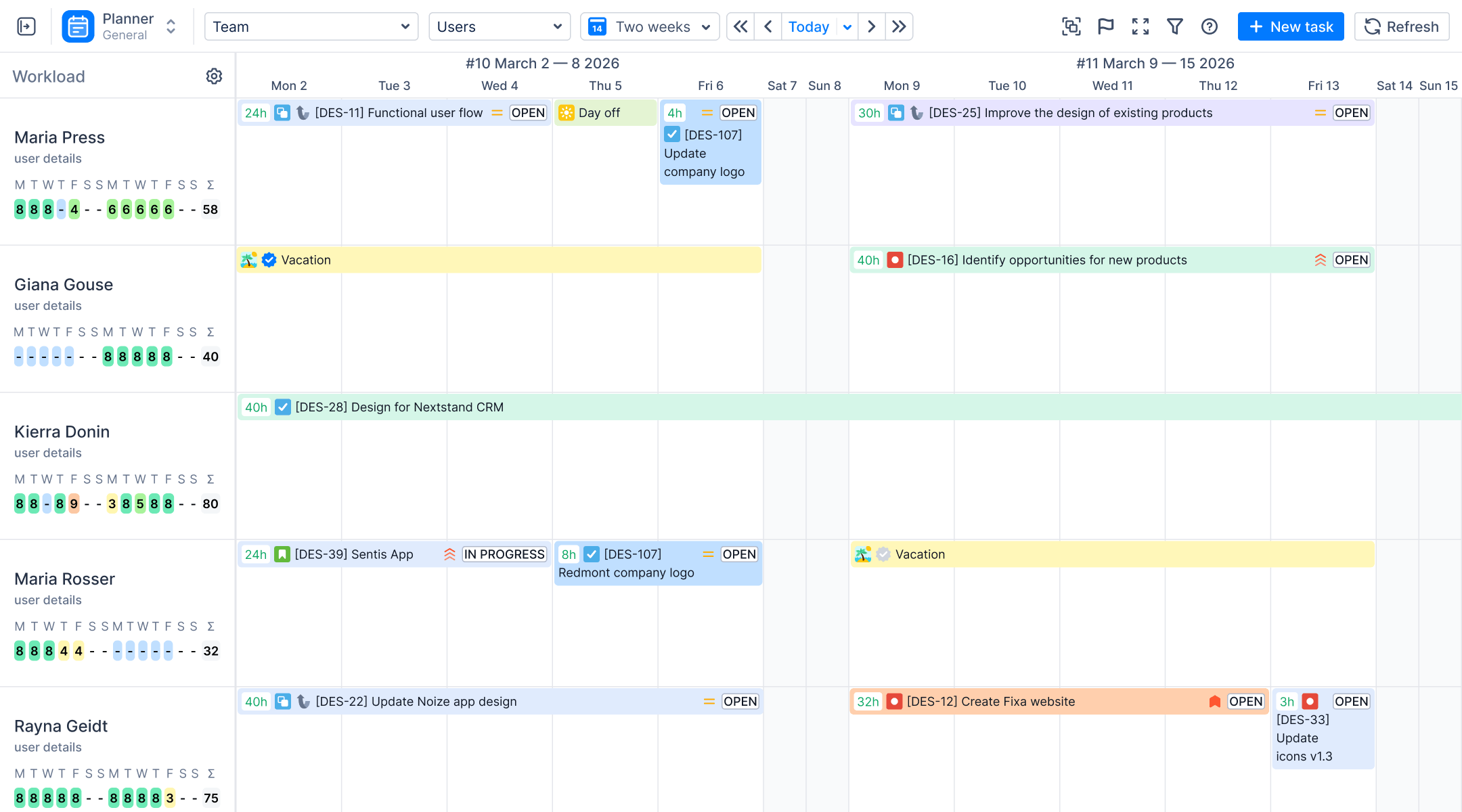
- A daily work log is a short record of what you worked on each day and how long it took, usually one line per task.
- A useful entry has five parts: date, task or Jira issue, time spent, a one-line note and, for client work, billable or not.
- In Jira, each work log is stored on its issue, so a daily view across issues needs a timesheet tool.
- In ActivityTimeline, people log time from their Workspace or with a timer, and managers review and approve it in Timesheets.
- Logging the same day is the habit that matters most; try ActivityTimeline free for 30 days to see your team's logs in one place.
It's Friday, the timesheet is due, and you're trying to remember what you did on Tuesday. You know there was a long call and a bug that took longer than it should have. The rest is a guess, and the guess goes into payroll and the client invoice.
A daily work log fixes that. It's a short record of what you did each day and how long it took, written the same day. Below is what to include, a filled-in example, a template you can copy, and how to keep the log in Jira so nobody has to rebuild a week from memory.
What is a daily work log?
A daily Jira work log is a list of the tasks you worked on during one day, with the time spent on each and a short note. Teams use it for three things: payroll and invoicing (hours are billed from it), planning (it shows where time actually goes), and status (a manager can see progress without asking).
Keep notes to one line. If an entry needs a paragraph, the task was probably too big to log as one item.
Daily work log example
Here's one day for a developer on a product team, logged against Jira issues:
Notice two things. The same issue appears twice, because the work happened in two blocks. And the meeting is in the log too: an 8-hour day with one hour of meetings has seven hours for issues, and the plan should know that.
Daily work log template
Copy this into a spreadsheet or a Confluence page if you're not logging in Jira yet:
Start and end times are optional. Most teams drop them after a week and keep only time spent.
Common Challenges in Work Logging
Most people forget to log their work daily. By the time they remember, details get fuzzy, leading to incorrect time entries. Manual logging also introduces errors, making it tough to get a reliable view of work hours. Even when teams log tasks properly, extracting meaningful insights from raw data can be overwhelming. Without proper tracking, it’s hard to prioritize tasks, identify areas for improvement, and ensure consistency in reporting.
How to keep a daily work log in Jira
In Jira, you log time on the issue itself: open it, click Log work (or the Time tracking field), enter the time spent, the date and a note. Each work log is saved on that issue. That's fine for one issue, but a daily work log is about the day, and Jira has no screen that shows one person's day across all issues. More on the details in our Jira work log guide.

ActivityTimeline adds that day view. In Workspace, each person sees their issues, their schedule and the hours logged against the hours required. There are several ways to log time there:
- Click Log Work in the top bar, or click an issue and choose Log work. The date and the hours left to log are filled in for you.
- Click a cell in My Logged Hours to log time on an issue for a specific day.
- Start the timer and stop it when you're done.
- Drag a work log to another day to change its date, or resize it to copy it to the next days.
Every work log is saved to Jira, so the issue's time spent and remaining estimate update as usual.

A spreadsheet is fine for one person. Once a manager needs to review ten people's logs every week, the spreadsheet becomes the bottleneck.
For managers, ActivityTimeline provides Timesheet reports:

Teams working on multiple projects benefit from the structured work log templates, which simplify tracking and improve time management. The ability to export timesheets to Word or Excel allows for further analysis and documentation. By using ActivityTimeline, businesses can keep a detailed record of tasks, enhance self-reflection, and ensure better communication and collaboration among team members.

How do managers review daily work logs?
Managers see everyone's work logs in Timesheets, in three views.
You can scope a timesheet by team, project, epic, worklog category or Jira filter, and export it to Excel.

The Progress view compares logged hours with required hours per person, so you spot who hasn't logged this week. The Timeline view shows hours per day or week, grouped by person, project or any Jira field. The Detailed view lists every work log with issue, date, time and note, and that's where you review and approve.

Two reports are worth knowing for daily logs. Planned vs Actual compares estimated hours with logged hours, which shows where estimates are consistently off. And the Timesheet Progress template shows who logged less than their capacity, which is usually the first sign that logs are being filled in late.

ActivityTimeline’s reports provide an easy way to keep track of work logs, offering the benefits of using structured log templates for better organization. The system provides insights into daily work logs by analyzing workload, skill levels, availability, and timesheet data, helping teams keep track of their daily activities and project performance.
In Reports section, there are three main types of reports available. Planning reports use the remaining time estimates from Jira tickets to assess workload distribution and ensure tasks are assigned based on team members’ capacity. These reports help teams stay organized and prevent resource overload when working on multiple projects.

Project reports focus on overall project progress rather than individual workloads. They compare planned efforts with actual time spent, allowing teams to identify discrepancies and make data-driven decisions. These reports are valuable for tracking if projects, epics, or initiatives are progressing as expected.


To visualize data, we also implemented charts. Planned vs Actual Chart gives an overview for team/project/epic with a drill down by week, month. For instance, the Planned vs. Actual chart ensures better project planning by comparing scheduled work against real-time execution, helping teams adjust priorities and stay on track.

Leave & Event reports help teams stay informed about non-working days, vacations, and other scheduled events. This ensures that availability is factored into time management, preventing scheduling conflicts.

How do you approve daily work logs?
Approval is off by default. An admin turns it on in Configuration → Timesheets Config. After that, Administrators, Managers, Power Team Leads and Team Leads can approve work logs one by one or with Bulk Approve, and the app records who approved each one.

You can also close reporting periods weekly or monthly, with a grace period of up to 30 days for late entries. The full setup is in our timesheet approval guide.

An approved work log is locked, so nobody changes last week's hours after payroll has run.


10 Best Daily Work Log Tips for Increased Productivity and Efficiency
Keeping a daily work log isn't just about tracking hours; it’s a game-changer for productivity and efficiency. It helps you stay organized, monitor progress, and make informed decisions. If you’re managing multiple projects or just trying to stay on top of daily tasks, these ten tips will help you optimize your work log and get more done in less time.
#1. Use a Work Log Template to Stay Organized
Use the same five fields every day (date, task, time, note, category), like in the template above. When every entry looks the same, a reviewer reads a week of logs in two minutes instead of ten.
#2. Log Activities in Real Time
Waiting until the end of the day to log tasks can lead to missed details and inaccurate time tracking. Instead, log your tasks as you complete them. This approach ensures precision and helps you monitor productivity effectively. If manual entry feels tedious, automated time tracking tools can help streamline the process.
#3. Prioritize Tasks for Better Time Management
A daily work log isn't just about recording what you've done—it should also help you plan what’s next. Before starting your day, add tasks and set priorities. Identify urgent work, allocate time for high-impact activities, and schedule personal tasks or breaks to maintain a balanced workload.
#4. Manually entering work hours can be time-consuming
Nothing logs your work for you, but a few things cut the typing. A timer saves you from estimating afterwards. Importing your Google Calendar or Outlook meetings into ActivityTimeline Cloud means calls show up as time without anyone entering them. And when you open Log Work on an issue, the date and remaining hours are already filled in.
#5. Track Billable and Non-Billable Hours
For consultants, freelancers, or teams working on multiple projects, distinguishing between billable and non-billable hours is crucial. A well-structured work log helps you categorize project tasks correctly, ensuring accurate invoicing and payroll processing. This also helps in evaluating performance and improving resource allocation.
#6. Review Your Work Log at the End of the Day
A daily review of your completed tasks provides valuable insights into productivity trends. Look at time spent on different activities, identify areas where you got distracted, and refine your workflow accordingly. Monitoring progress consistently helps in setting realistic goals and improving efficiency over time.
#7. Customize Your Work Log for Maximum Efficiency
One size doesn’t fit all when it comes to work logs. Customize your log template by adding fields for task status, due dates, project names, and other observations. Use color coding or conditional formatting to highlight priority tasks or pending work. A tailored log ensures better usability and makes data analysis easier.
#8. Use Worklog Approvals to Maintain Consistency
Approval gives logging a deadline. When periods close every week or month, people log before the cut-off instead of "sometime". In ActivityTimeline the admin sets the period and a grace period of 0 to 30 days for late entries; after that, the period is locked.
#9. Keep the log where the work is
If tasks live in Jira, log time in Jira. A separate spreadsheet means every hour is entered twice and the two never match. If someone needs the data elsewhere, export the timesheet to Excel at the end of the period.
#10. Analyze Trends and Optimize Your Workflow
A well-maintained work log isn’t just a record—it’s a valuable tool for self-reflection and continuous improvement. Use timesheets and project reports to identify patterns, track workload distribution, and optimize schedules. With tools like ActivityTimeline’s planned vs. actual reports, you can easily monitor productivity and make data-driven decisions to enhance efficiency.
The short version
Log the same day, use the same five fields, and keep the log next to the work. A log written on Friday from memory is a guess with a timestamp.
If you want your team's daily logs in one place, with review and approval built in, try ActivityTimeline free for 30 days.