


The need for resource management arises from the fact that all businesses are limited in the resources they have. Resource management involves planning and managing the deployment of these resources in a way that sustains the best possible state of operations. There is immense value in the available resources and it is this value that is to be optimized in order to achieve higher profits.
What is Resource Management?
According to Association for Project Management, resource management is the process of identifying and acquiring the resources necessary to achieve goals. Resource management is a critical part of every organization’s success. Resources can be physical, intangible, or human, they are capable of providing benefits to an organization. Although these are three different areas of focus, they must be closely combined for an effective resource management strategy.
What is the Role of Resource Management?
Resource management is an important aspect of project management. In the world of business, there is one thing you can be sure of – there is more demand for your products and services than there are resources to supply them. As a business owner, you have to be able to allocate your resources effectively – whether these are time, money, staff, materials, or space – you must meet the needs of your customers in a timely manner. Unfortunately, it’s not always easy to do.
The role of resource management is to ensure that the organization’s resources are managed effectively, efficiently, in a coordinated and controlled manner. It involves planning, managing, and coordinating the use of human, financial and technological resources within the organization.
The role of resource management is to ensure that the organization’s resources are managed effectively, efficiently, in a coordinated and controlled manner. It involves planning, managing, and coordinating the use of human, financial and technological resources within the organization.

Importance of Resource Allocation in Project Management
Allocating resources is one of the most important steps in planning a project. It involves determining the kind of resources needed to complete the project with the required quality, within the desired timeframe and budget.
Resource management focuses on the allocation of limited resources to the activities that have the greatest impact on achieving goals. Successful resource managers understand their business and clearly define their priorities. They also have a good understanding of how to utilize the available resources effectively and how to get the most out of their human resources:
Resource management focuses on the allocation of limited resources to the activities that have the greatest impact on achieving goals. Successful resource managers understand their business and clearly define their priorities. They also have a good understanding of how to utilize the available resources effectively and how to get the most out of their human resources:
The importance of resource allocation in project management shouldn’t be underestimated, so organizations always try different resource management tools to reach a high level of planning.
How to Manage Resources in Jira?
Jira is a huge platform that is used to organize and manage projects. It helps in making sure that all work is distributed correctly and not overlapping. This helps in avoiding issues like double work and makes sure that deadlines are met. Resource management in Jira provides an opportunity to track the availability of project resources and plan their utilization.

Resource allocation in project management, resource planning, and resource work utilization are not easy tasks, so you can extend Jira and use different resource management tools to improve your Jira resource management.
Benefits of Jira Resource Management Plugin
Jira provides lots of useful features, but it also presents a wide range of add-ons that can boost your improve resource management in Jira, save time, and boost productivity.

Jira Resource Management Plugin is an invaluable tool for any project manager, as it allows to create a list of resources, assign them to projects, add their skills, and track their progress. The plugin also allows you to create workflows that will help you organize your team's work and make sure everyone's working on the right things at the right time.
The Jira Resource Management Plugin gives you all of these benefits:
The Jira Resource Management Plugin gives you all of these benefits:
- Helps to manage the resources assigned to multiple projects.
- You can use it to create a list of resources so that people can see who has what skillsets available when they need help on a project or task.
- Progress tracking becomes effortless, so teams don't waste time on things that have already been done before.
Jira Resource Management with ActivityTimeline
How can I track my team’s resource utilization? How can I measure the time spent on different epics and features? How can I maintain a healthy pace for my team? Sometimes, it’s hard to track which team member is working on what. ActivityTimeline is a resource management tool that helps to plan, visualize, track and report on resources. The app allows to see who is doing what and when it will be done on both general & detailed levels.
A comprehensive planning dashboard provides all of the useful information about projects, tasks, and resources:
A comprehensive planning dashboard provides all of the useful information about projects, tasks, and resources:

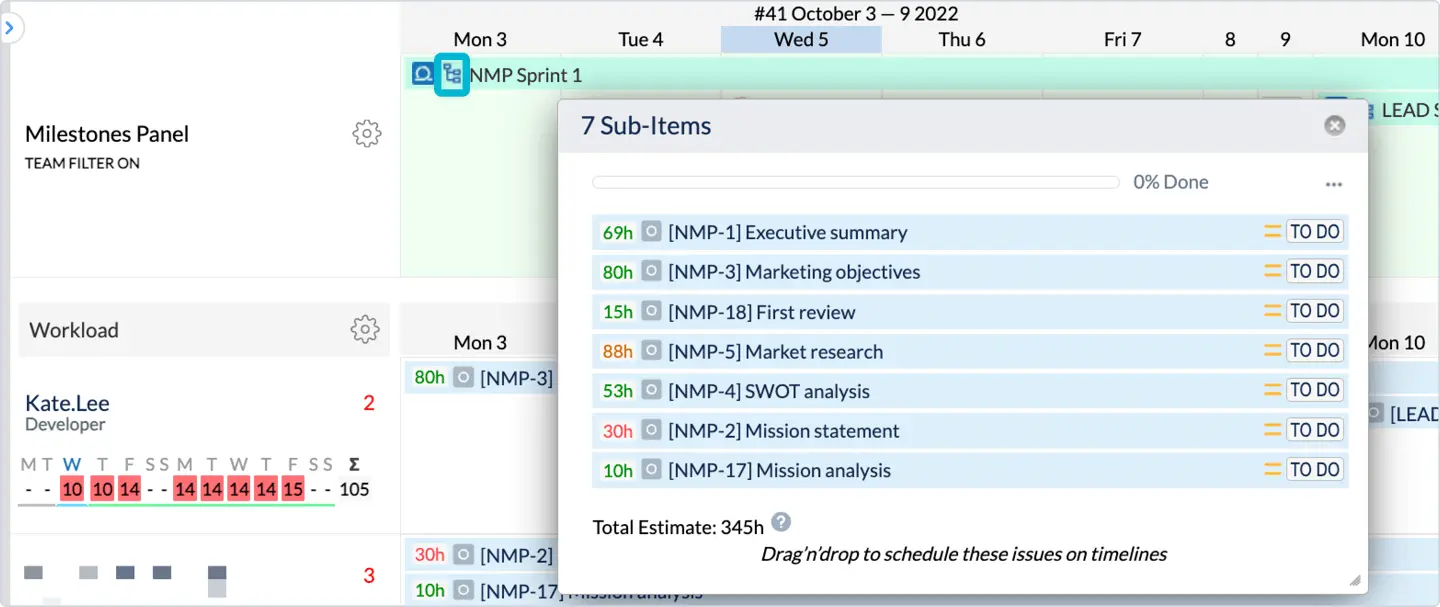
Tasks scheduling is easy. Assign existing Jira tasks by a simple drag-n-drop to separate users or even to the whole team. Create new tasks directly on the dashboard, the data is fully synchronized with Jira and reflected on the dashboard:
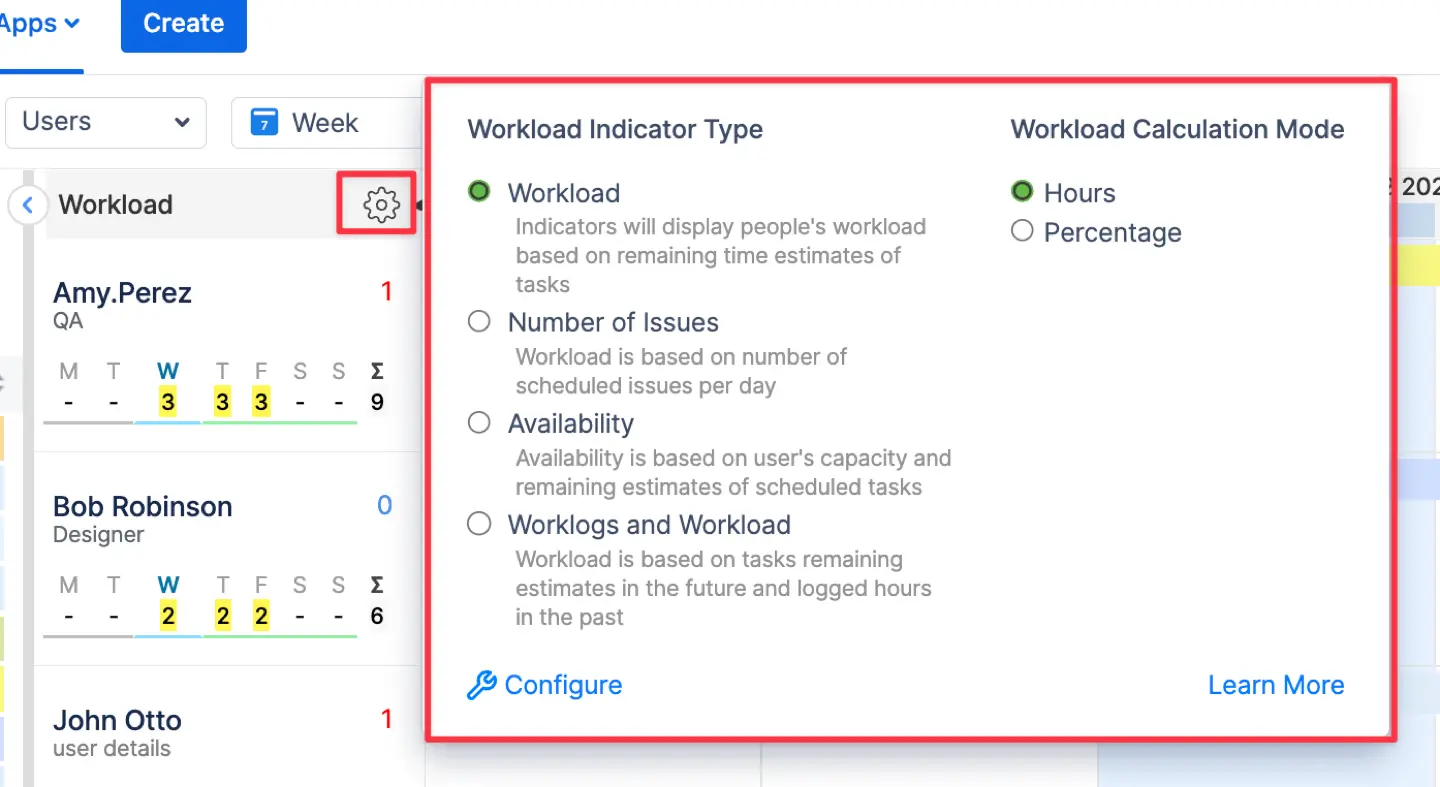
The resource workload indicators are very helpful as they show the resource utilization/availability and help to avoid work uder-, or overload:
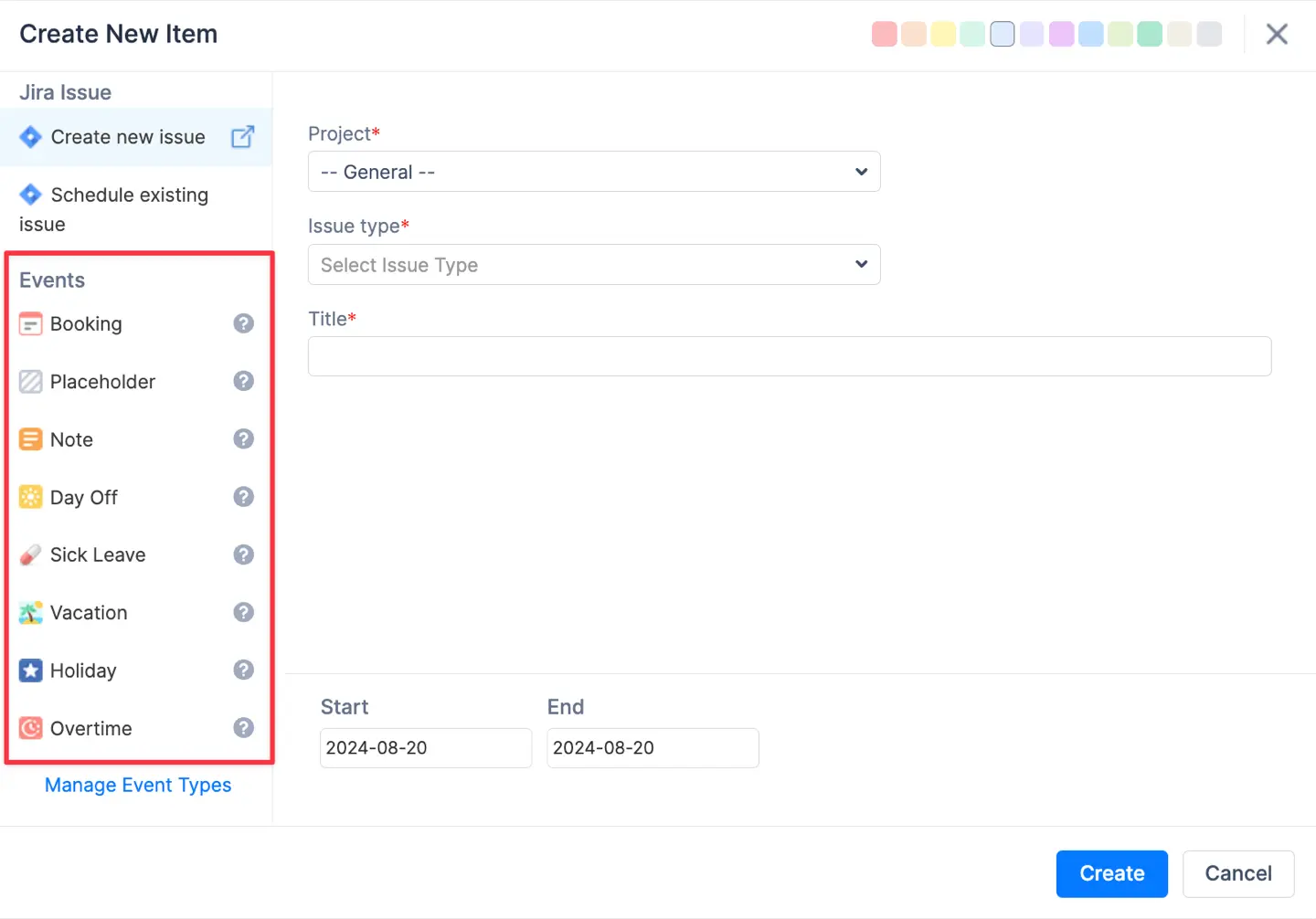
Users can also create various internal events to extend the planning facilities:
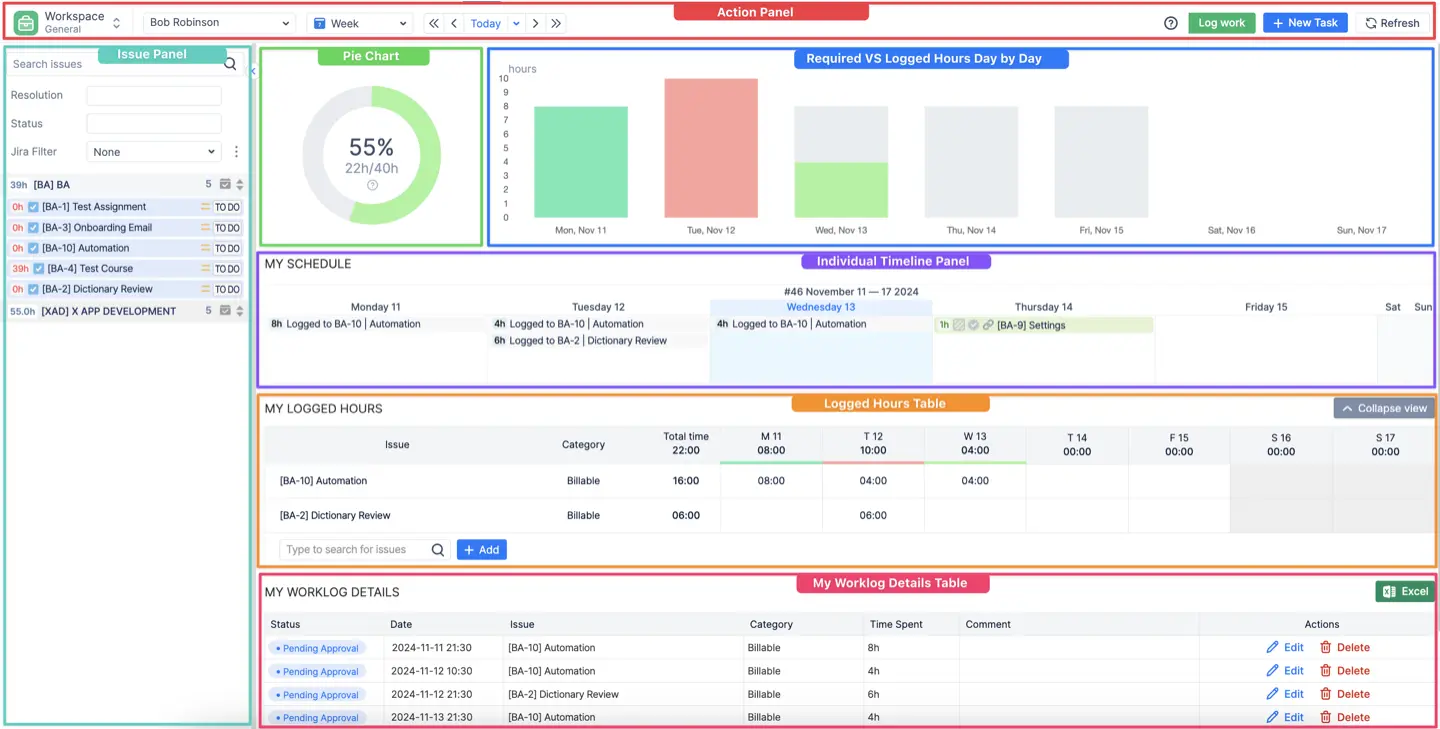
ActivityTimeline provides a personal cabinet for each employee, where users can track their own tasks, projects, and future plans:
ActivityTimeline for Personal Jira Task Management
This tool is useful not only for the PMs but also helps employees. The app has a personal workspace designed especially for each team member. Here they can find their own tasks and projects, log time, track the task progress and deadlines, ask for vacations, sick leaves, etc.
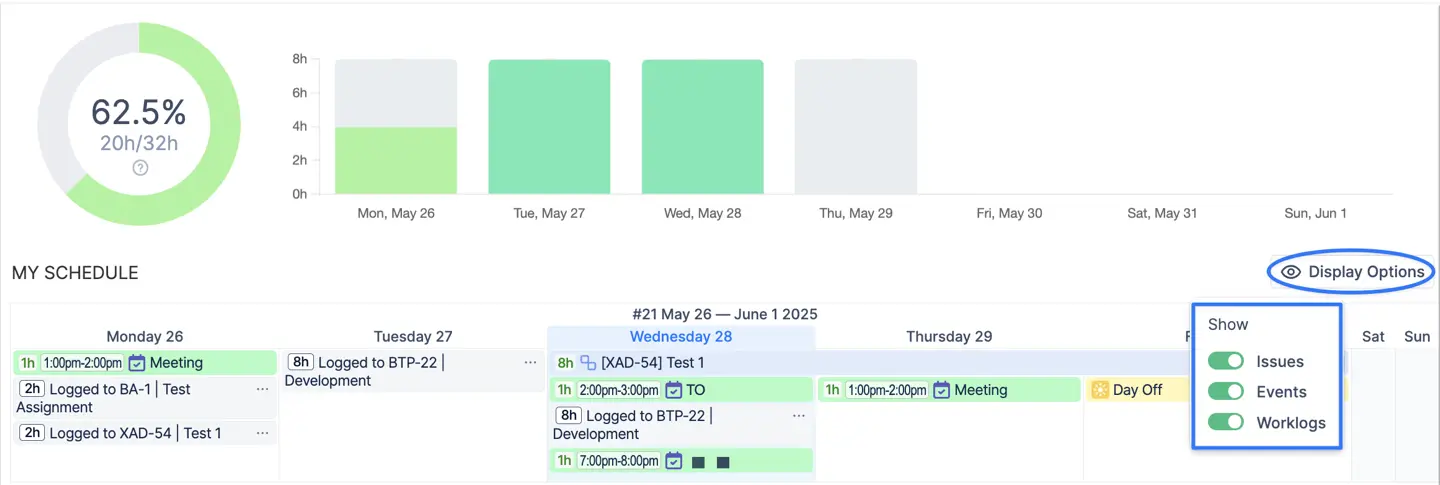
A personal cabinet helps users to control their workload to avoid overstrain, as well as saved precious time while tracking tasks and logging time.
Jira Reporting and Time Tracking
Jira resource management cannot be imagined without reporting and time tracking, so ActivityTimeline provides a wide range of reports and timesheets.
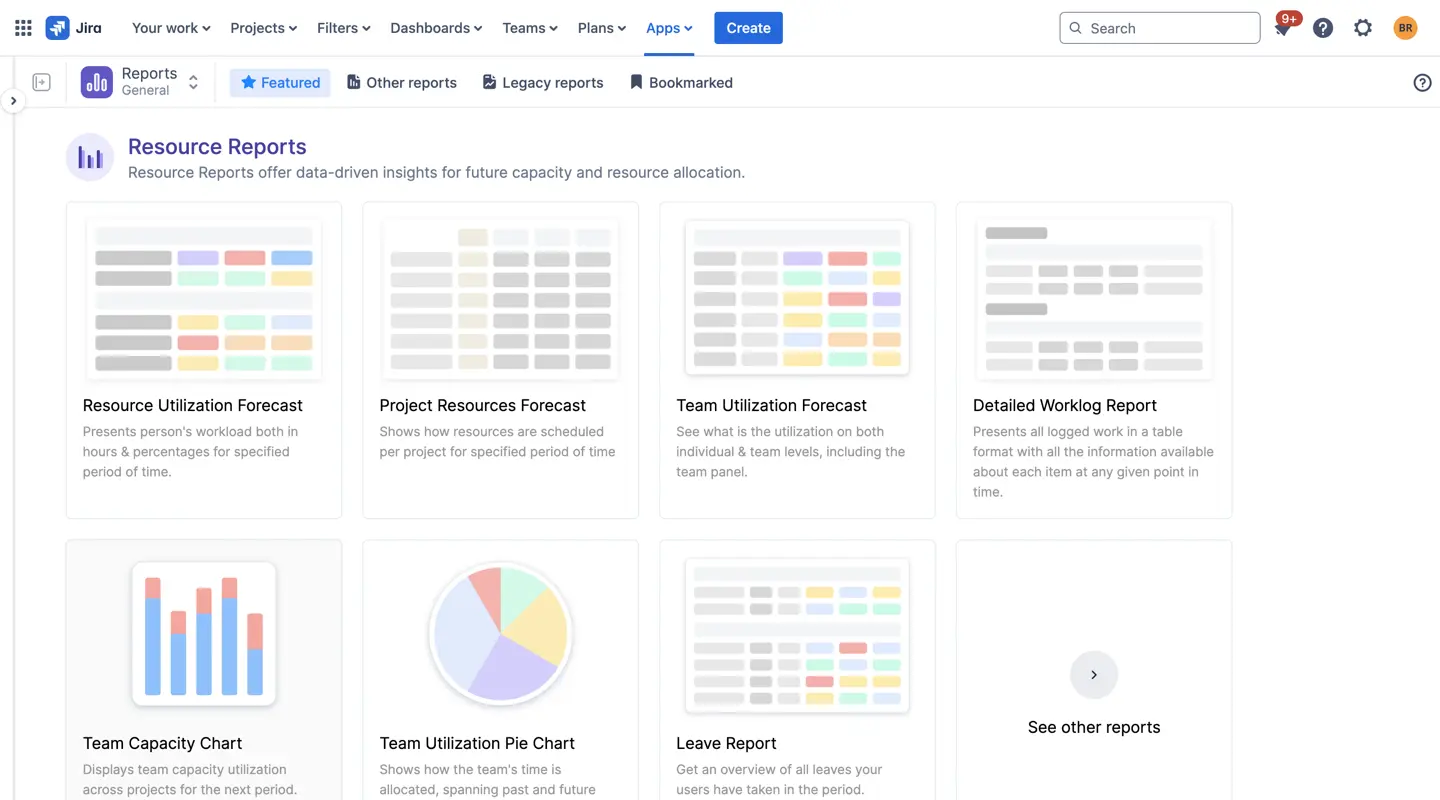
Create timesheets and track time spent on task effortlessly:
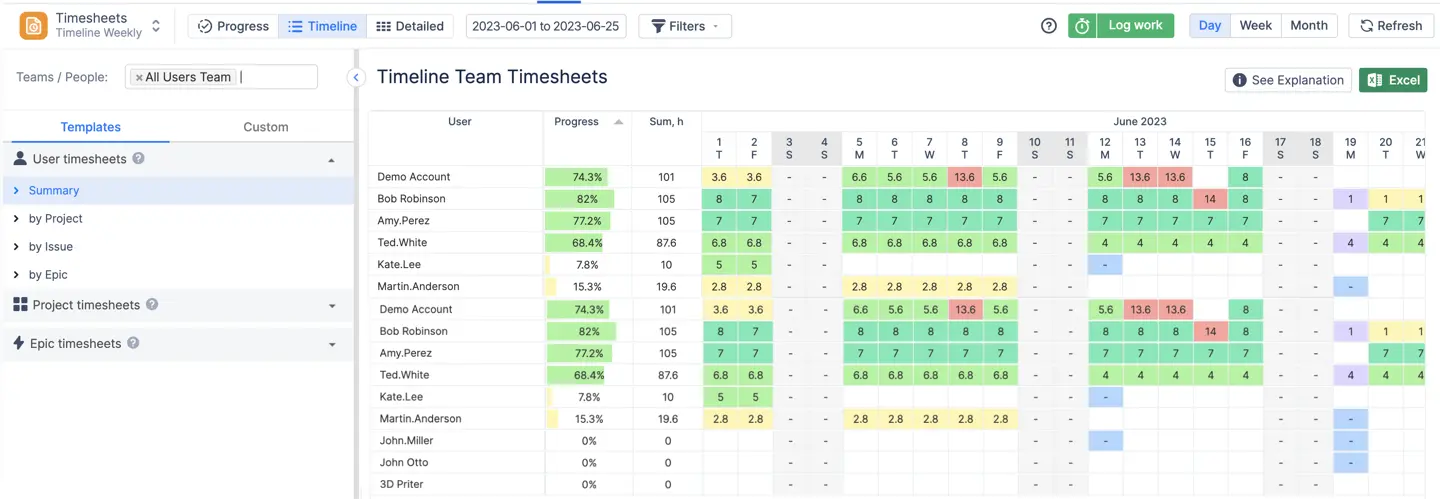
Understand the resource utilization:
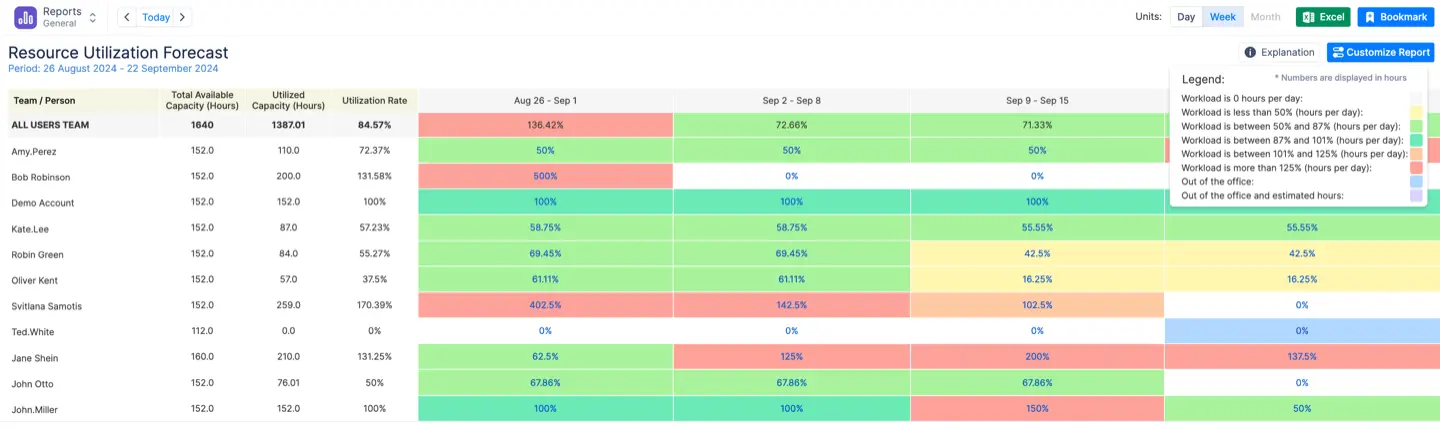
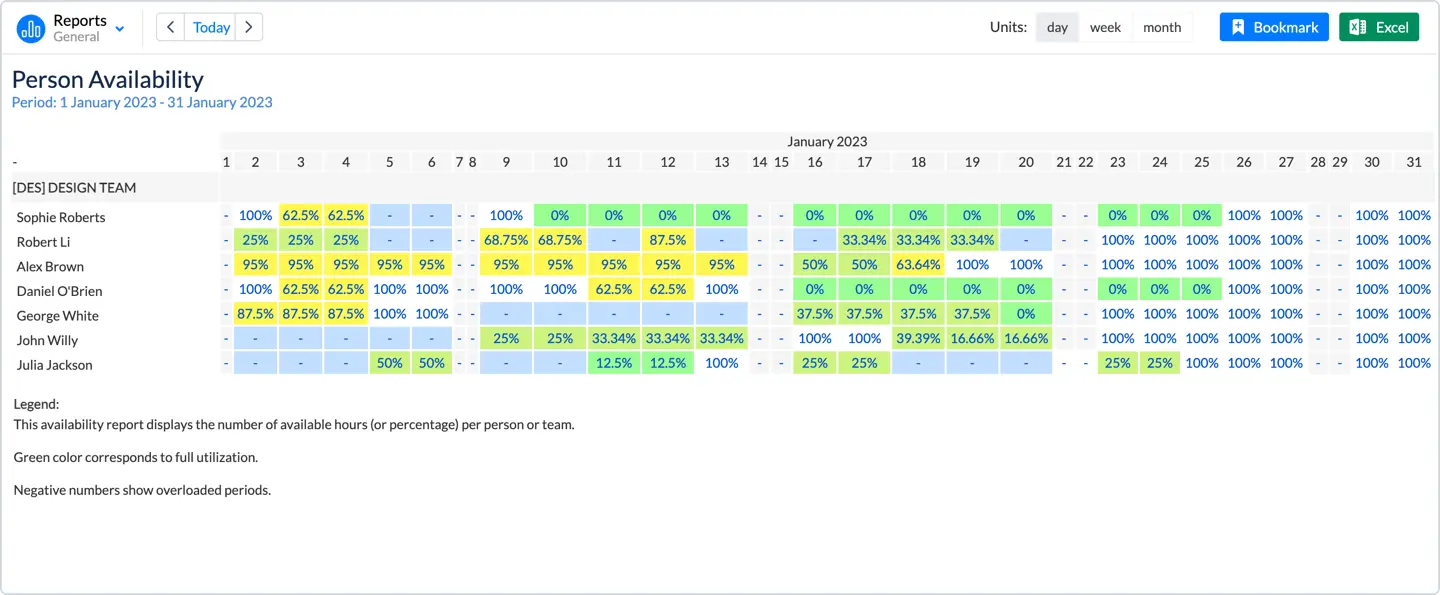
As well as the users' availability:
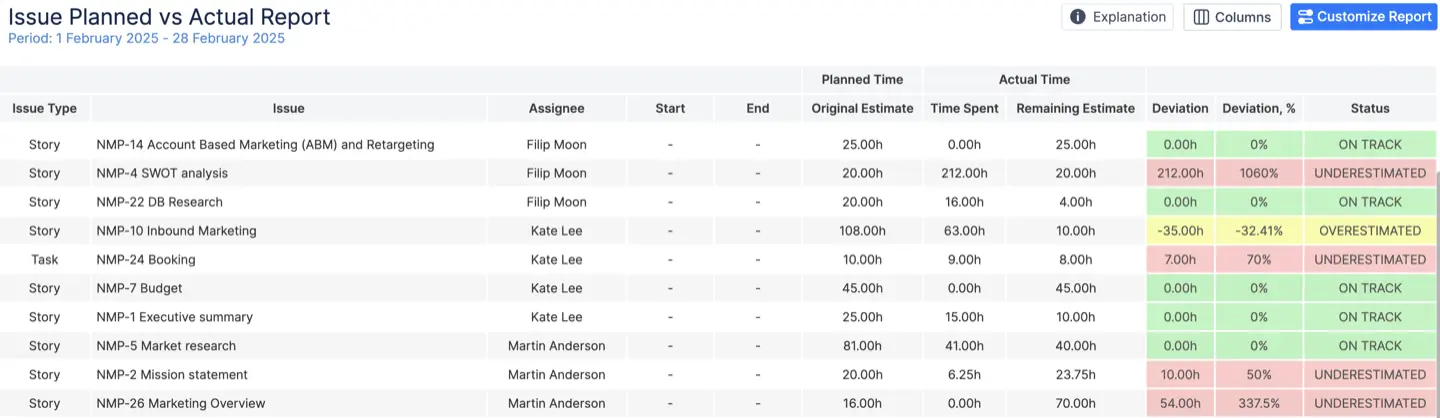
Enjoy the project reporting, reveal potential bottlenecks of your projects with the help of the Actual vs Planned report. Compare expected results with the actual execution of tasks/projects:
Conclusion
Jira is a powerful tool for collaboration, but it can be even more powerful when you manage your resources properly. Companies & teams need resource management in Jira because it makes their work more efficient. But with the help of plugins for Jira, your work will become even easier.
Resource management in Jira becomes simple with the right resource planning & tracking tool. In order to get acquainted with ActivityTimeline, you are welcome to check our video guides, schedule a Demo, or start a Free Trial on the Atlassian Marketplace!
Resource management in Jira becomes simple with the right resource planning & tracking tool. In order to get acquainted with ActivityTimeline, you are welcome to check our video guides, schedule a Demo, or start a Free Trial on the Atlassian Marketplace!


