
Managing money in a company has changed a lot. It requires speed, flexibility, and real-time data because projects change constantly. Managers need to know exactly where every dollar goes while the work is happening. This is why Jira Financial Management is so useful. It connects project tasks with actual costs right away and supports more effective Jira cost management across projects.
Finance teams need clear Jira budget tracking to understand how project activity affects spending. Without it, companies easily waste money on the wrong tasks. They might also miss when a project goes over budget. Efficiency is a huge focus for businesses right now. In fact, 88% of CFOs say that making their finance teams productivity is a top goal. They want to use clear data to make informed decisions instead of just guessing.
Good budget visibility gives teams this data. It helps managers reach their financial goals by spotting problems early. When everyone can see the numbers, it is much easier to finish projects without overspending.
Financial Control in Jira Cloud: Native Functions and Constraints
Jira is excellent for tracking daily tasks and project timelines. Teams use built-in features like original estimates and worklogs to monitor hours. For finance departments, Jira offers basic process control templates. You can set up workflows to track invoice statuses or manage purchase approvals.
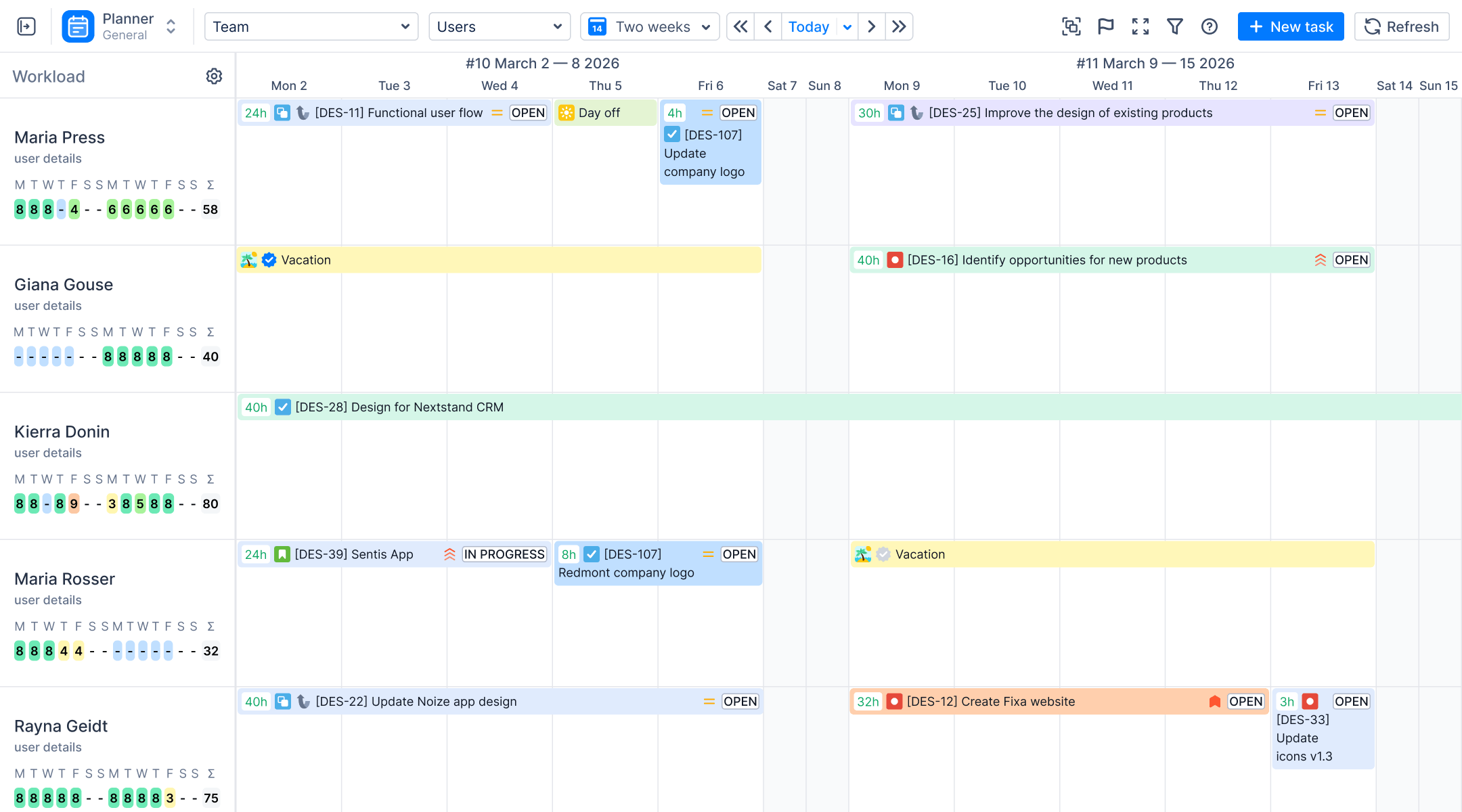
You can also use Jira Plans to see how changes to the project impact your team's resources and schedule.
The problem starts when you need to focus on tracking costs. Jira Cloud does not have a native concept of currency. It tracks hours perfectly, but it cannot automatically convert those hours into costs or revenue. There are no built-in settings for hourly labour rates, billable rates, or profit margins.
This means you cannot track budgets directly inside the tool. Standard Jira dashboards show project progress, but they do provide true project financial management. You will not get an automatic alert if a project goes over budget.
Because of these limits, financial manager usually export data into Excel files. This manual approach creates serious risks. Copying data can easily break formulas or mess up text formatting.
Managing budgets in separate spreadsheets causes delayed reporting. A 2025 study by Datarails showed that 90% of companies still rely on Excel for finance, but they constantly face version control issues and typing mistakes. When managers rely on outdated spreadsheet data, they cannot make better decisions.
Other Tools for Jira Financial Management:
Jira Align
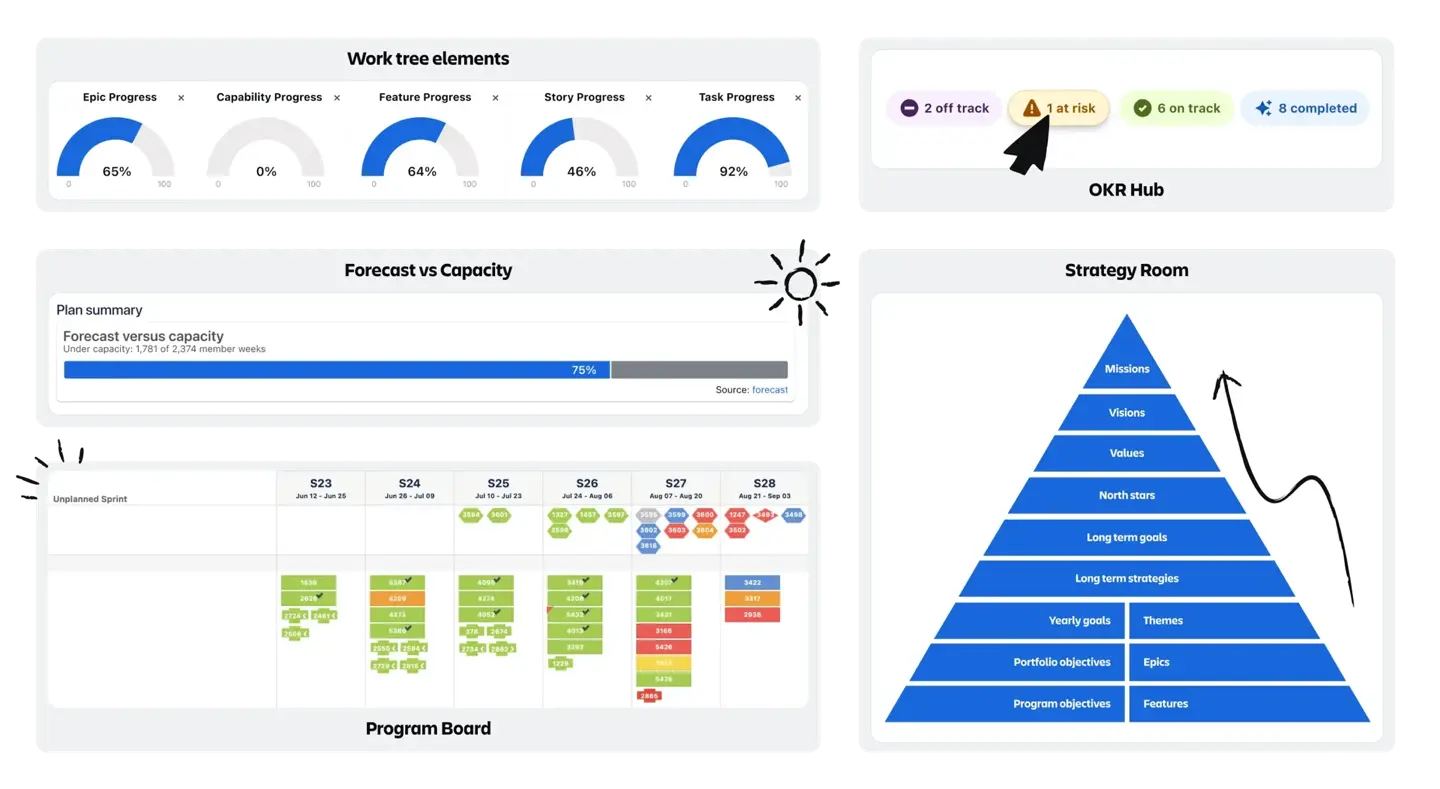
While daily operations happen in portals, strategic choices require Jira Align. This enterprise-level tool is built for portfolio financials and enterprise budget management. It works by connecting everyday team delivery data to high-level financial insights.
Jira Align pulls engineering progress from multiple projects and translates it into financial figures. This gives leaders the visibility they need to track the actual value of funded initiatives. Managers can use multi-tiered roadmaps to see dependencies and map team capacity to high-priority work. This data makes it easy to simulate outcomes, adjust spending plans when markets change, and align all product investments with major business goals.
Jira Service Management for Finance Departments
Jira Service Management focuses on daily financial operations. It includes a specific Finance Service Management template that helps teams set up a central customer portal. Employees can use this portal to submit financial requests, ask questions, or check a helpful knowledge base.
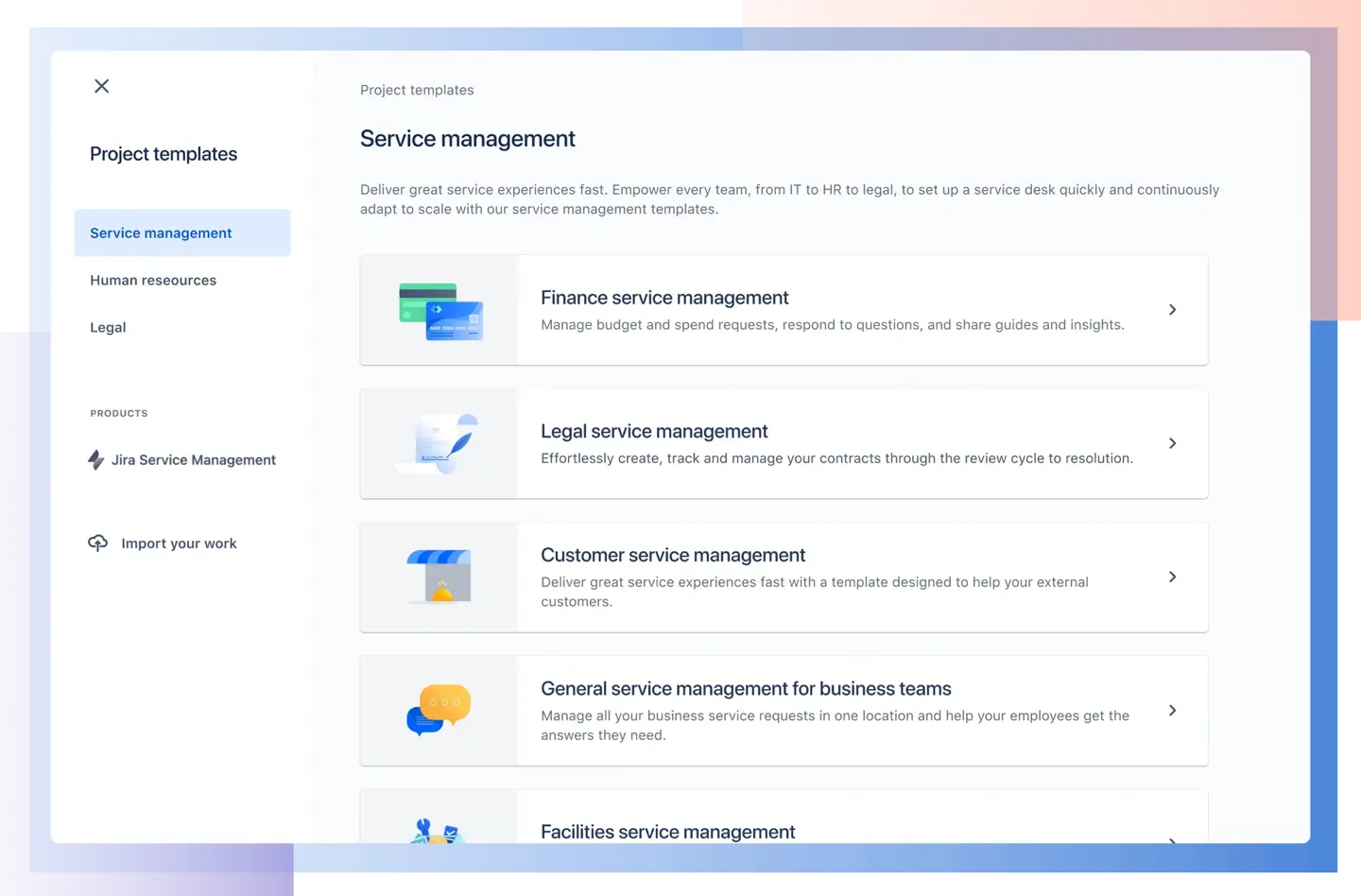
This template keeps budget and procurement request tracking organized in one secure space. It replaces messy email chains with clear workflows and trackable service-level agreements. The system uses strict permissions to protect sensitive financial data and ensure compliance with industry regulations. It also uses AI and automation to sort tickets into priority queues, which saves time on repetitive tasks.
Defining ActivityTimeline Finances
ActivityTimeline Finances is available as part of the ActivityTimeline ecosystem and can be installed directly from the Atlassian Marketplace. Once added to Jira, it extends your project management environment with built-in financial tracking capabilities.
ActivityTimeline Finances is an advanced cost tracker that integrates project financial management with Jira. It allows you to see the costs and revenue of your projects without leaving your project management system. The tool acts as a financial layer over your daily tasks. It turns your scheduling and updates into clear financial data.
You use Jira projects, specific Epics, or JQL filters to set up the exact project scope. The module then monitors three main areas to provide you with a comprehensive picture of your profit and loss:
- Budgets (Planned Targets): This is how much money you can spend. You can enter a fixed amount manually, or let the system calculate it automatically using original Jira task estimates. You can also break this budget down into smaller pieces for specific people or types of work.
- Costs (Actual Spend): This is the real money you spend as the project goes on. The system tracks this by taking the hours your team logs in Jira and multiplying them by their hourly cost rates. Then, it adds extra project expenses that do not depend on hours, like buying software licenses or paying for travel.
- Revenue (Actual Income): This is the total money your project brings in. It is calculated by taking the billable hours your team logs and multiplying them by your client billing rates. It also lets you add other fixed income, like flat fees for finishing a project milestone or subscription payments.
All this tracking provides real time updates across a summary dashboard and financial reports. You can see an example of this layout:
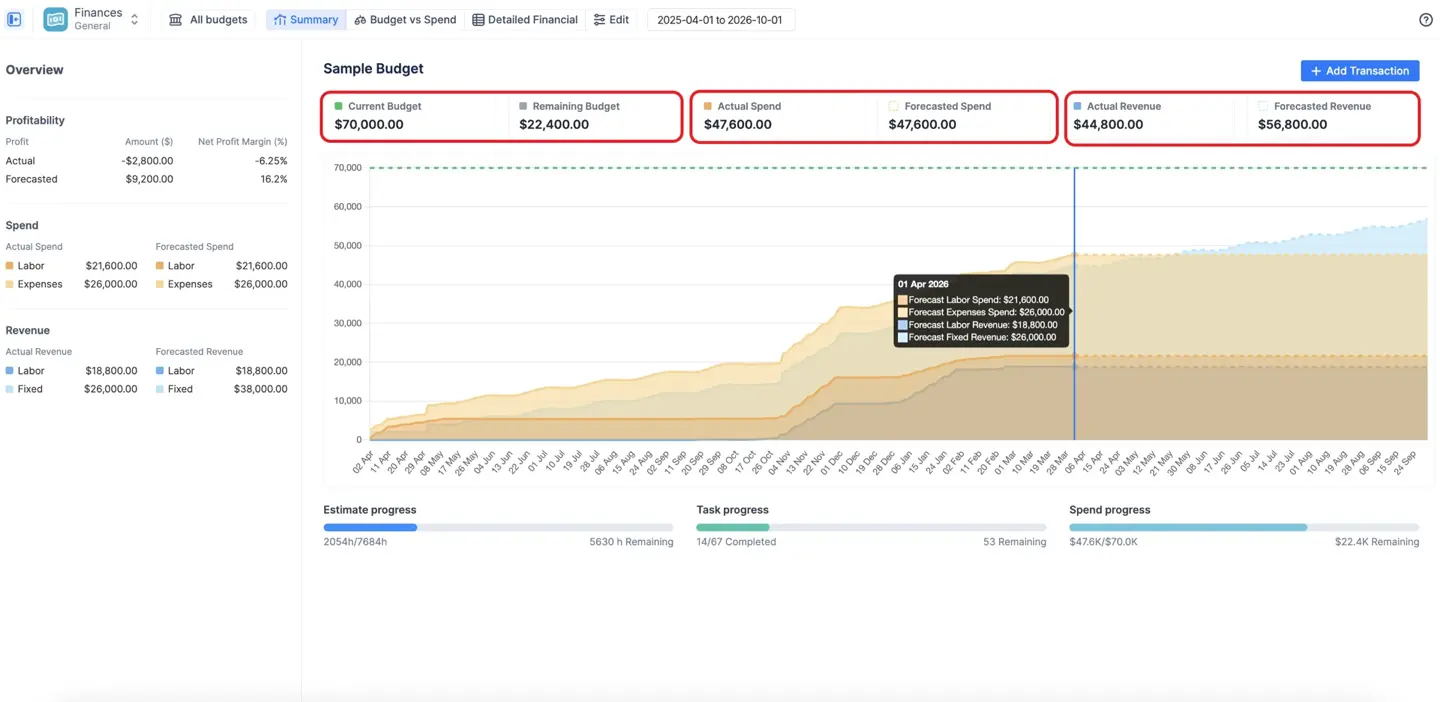
This main dashboard gives managers an immediate view of their project's financial health, displaying real-time profit rates, budget caps, and actual expenses on a single screen.
The biggest advantage of this module over tools like Excel is live synchronization. Native Jira worklogs are automatically converted into money numbers in real time by the system. To determine the appropriate hourly or monthly rate for a given date, it follows a rate hierarchy.
The system checks rates in a specific order. It looks for a category rate first, which applies to specific types of work. If that is missing, it checks for an individual user rate. If that is also missing, it falls back to a default budget rate.
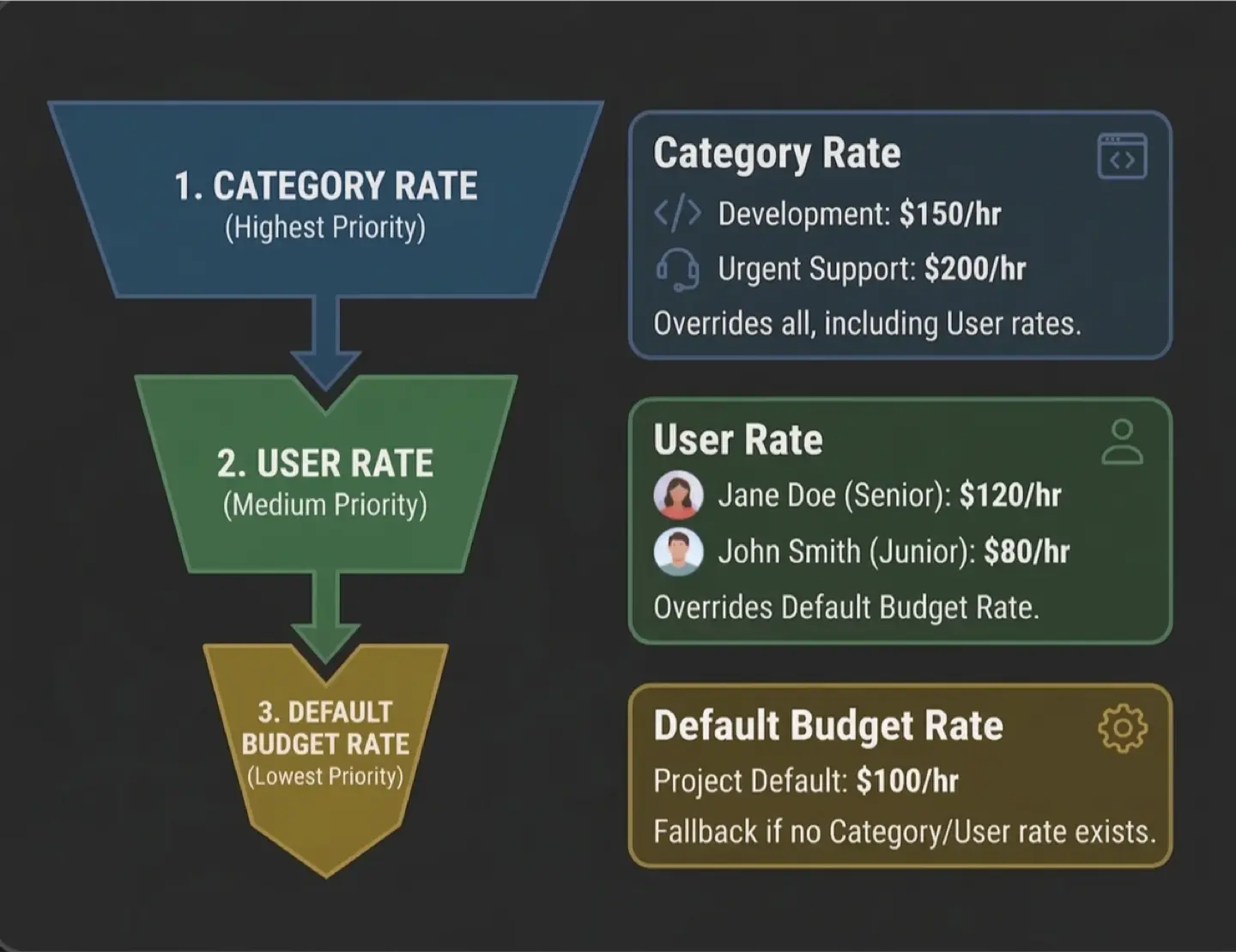
The module even supports fixed monthly rates for salaried employees by breaking them down into daily costs. Because everything updates instantly when a user logs time, you never have to deal with outdated data or broken spreadsheet formulas.
Budgeting and Strategic Financial Planning with ActivityTimeline
Budget Setup and Configuration
Setting up a budget in ActivityTimeline starts with choosing how to calculate your total spending limit. The system gives you two main methods.
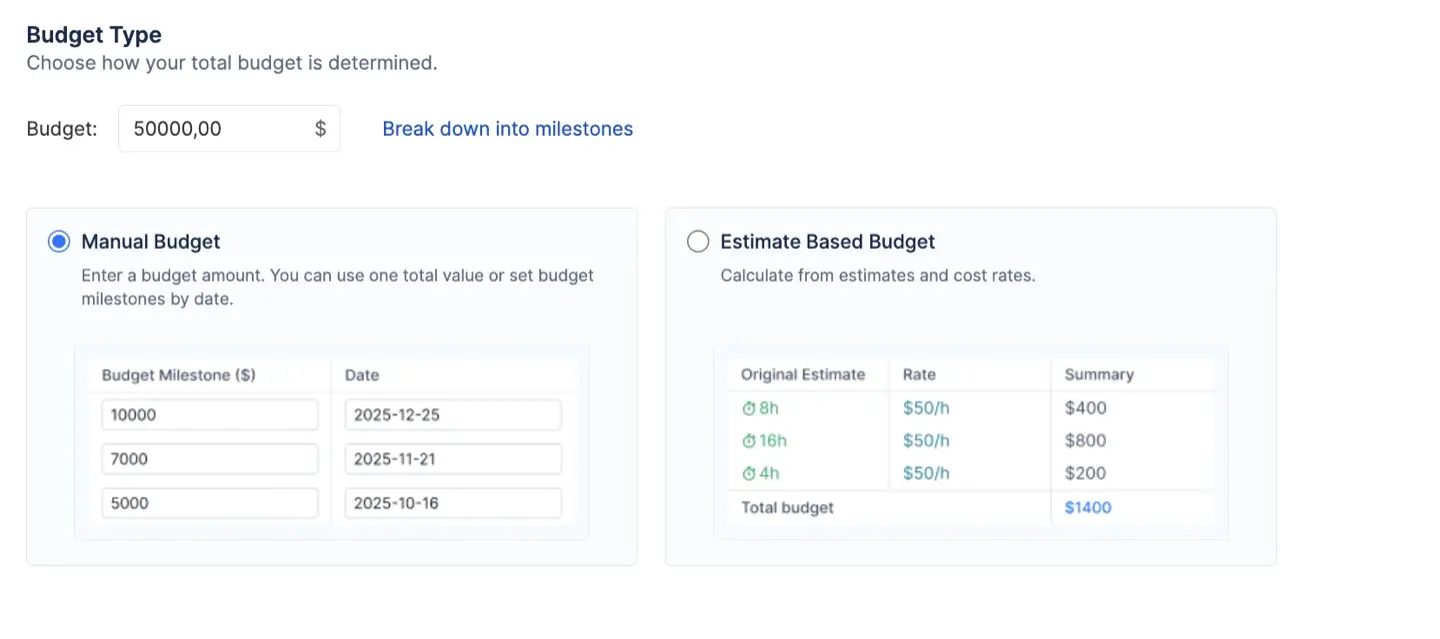
The first is a manual budget, which works from the top down. This is perfect if management gives you a strict cap. You simply type in a fixed amount of money. If needed, you can break this amount into smaller milestones with specific dates.
The second method is estimate-based, which works from the bottom up. Instead of typing a number, the system calculates the budget for you. It automatically multiplies the original time estimates on your Jira tasks by your team's cost rates.
Once you have your aggregated budget, you can divide it into smaller pieces. The tool lets you distribute funds by specific Jira projects, components, categories, or assignees.
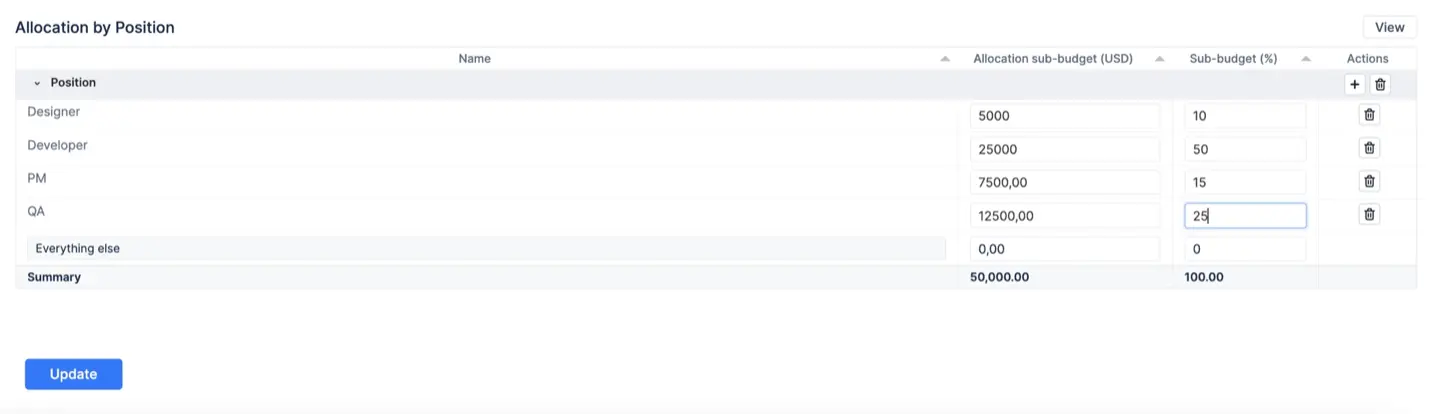
For example, you can choose exactly how much money goes to billable/non-billable tasks or urgent work. You can set these targets using exact dollar amounts or percentages.
These rules directly power your charts and reports. They allow you to easily compare your planned targets against actual spending in real time.
Revenue and Cost Monitoring
To track your project's true financial health, the module combines two different data streams.
The first is automated labor costing. The system automatically calculates costs and revenue by multiplying your team's logged Jira hours by their specific rates. For salaried workers, it breaks monthly pay down into daily rates. This happens entirely in the background without any manual data entry.
You can see how these logged hours and costs appear in the Detailed Financial report below.
The second stream covers fixed transaction entries, which you add manually. Real projects always include costs and income that do not depend on hourly work. You can manually record fixed expenses like software licenses or travel costs. You can also log fixed revenue, such as flat-fee milestone payments from clients. These entries can be one-time or recurring, which helps you build accurate financial forecasts.
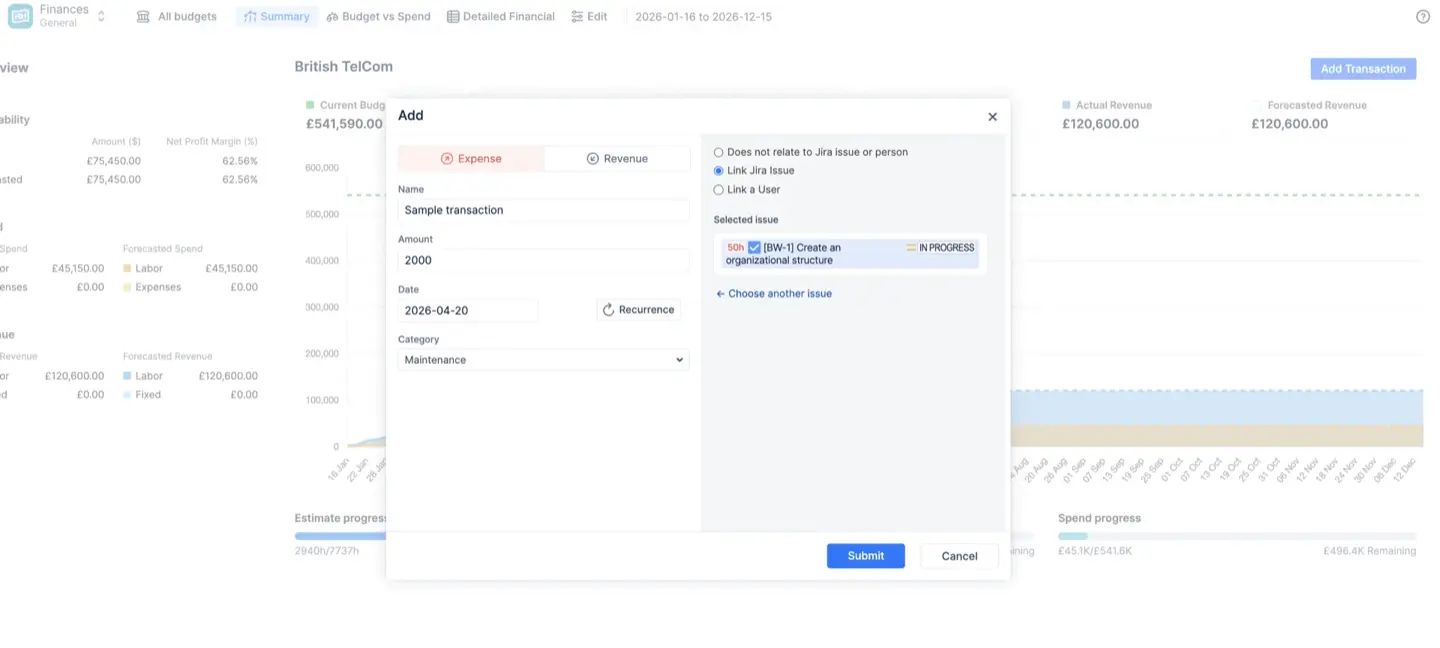
The pop-up window allows you to quickly log these non-labor costs and link them to specific categories or dates.
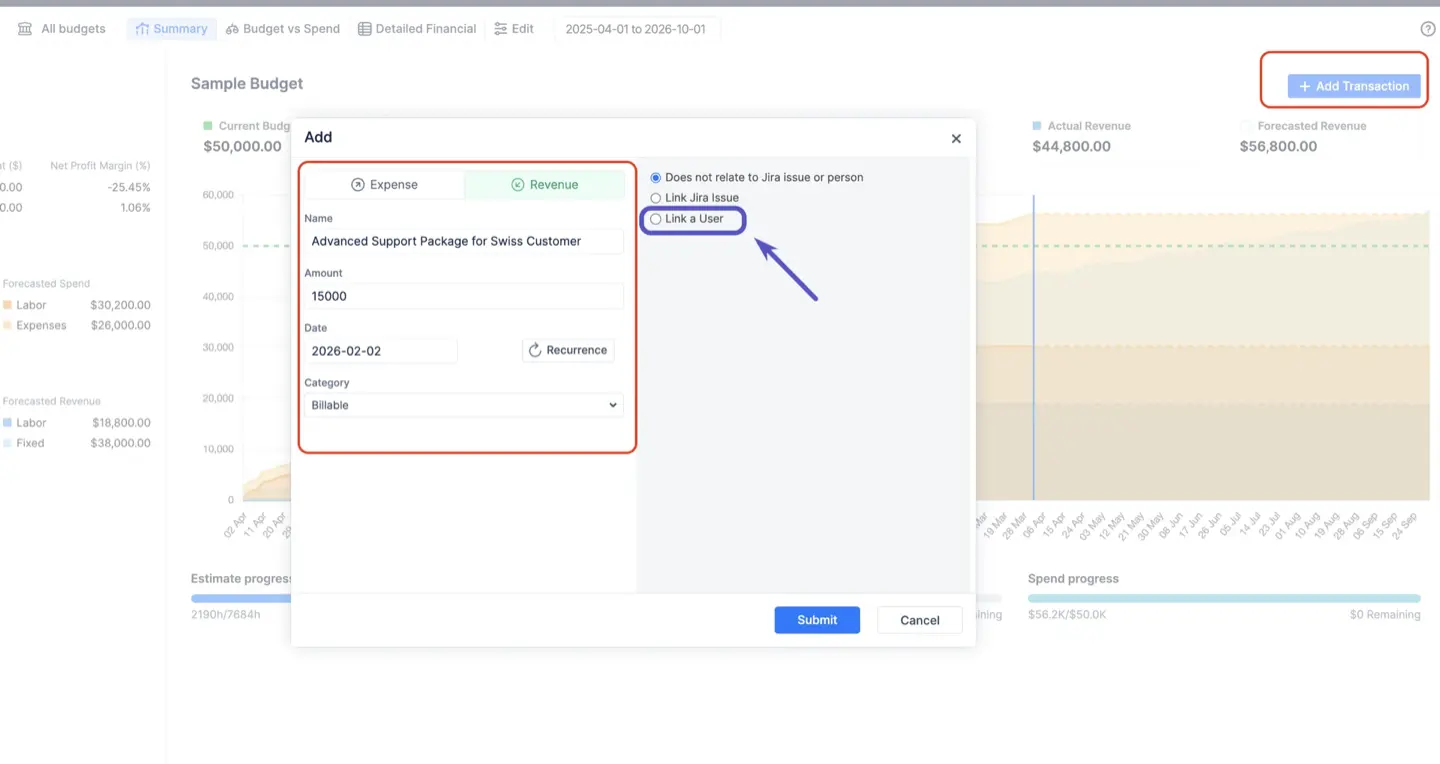
You can also link these manual transactions directly to specific team members. When you connect a transaction to a user, the system shifts its category from non-labor to labor. This is perfect for person-specific money items like employee bonuses, remote work stipends, or individual sales commissions. It ensures your final reports show the exact investment in every person.
Financial Math and Labor Rates
ActivityTimeline uses two methods to determine the financial impact.
- Hourly rates
Hourly rates multiply logged hours by a user's specific rate. For salaried employees, monthly rates apply a fixed cost instead. The system breaks this monthly cost into a daily rate automatically. All rates use effective dating, so changes only affect future work and never ruin your past records.
To find the right rate for each worklog, the tool follows a strict priority order. As mentioned earlier, it automatically checks the category, user, and default budget rates to apply the correct amount without repeating the breakdown.
- Category rates
Category rates let you adjust the financial math for specific types of work. You can set a flat dollar amount or use a multiplier, like charging double for urgent help. You can set the billing rate to zero for internal tasks while still tracking the actual cost of your team's labor.
Forecasting and Detailed Financial Reports
The module automatically generates financial reports to answer different questions.
The Consolidated Summary Dashboard gives a high-level overview of your project. It tracks six key metrics, including remaining budget, actual spend, and revenue. A cumulative trend chart highlights your historical burn rate and calculates your net profit margin at a glance, and builds reliable forecasts to alert you early if a project is going over budget.
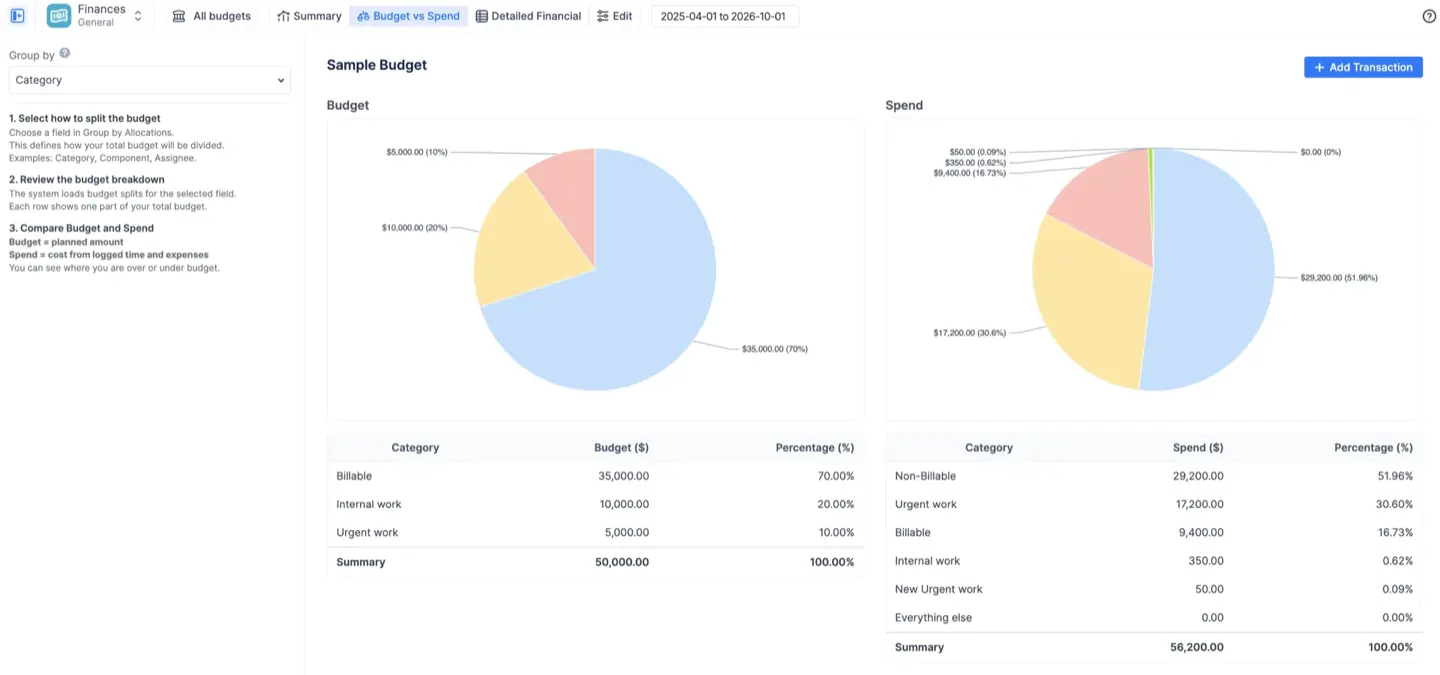
The Analysis of Budget vs. Actual Spend compares your real-time costs against your planned targets. You can group this data by category, project, or assignee. Visual pie charts and bar charts quickly reveal if a specific area is exceeding its financial cap.
If you need to check all your numbers, the Detailed Financial tab shows every single transaction in a clear, line-by-line list. It merges hourly worklogs, monthly salaries, and manual expenses into a single view. You can use quick templates to filter information and export the data directly to Excel for client invoicing or external audits.

Governance and Security for Financial Datasets
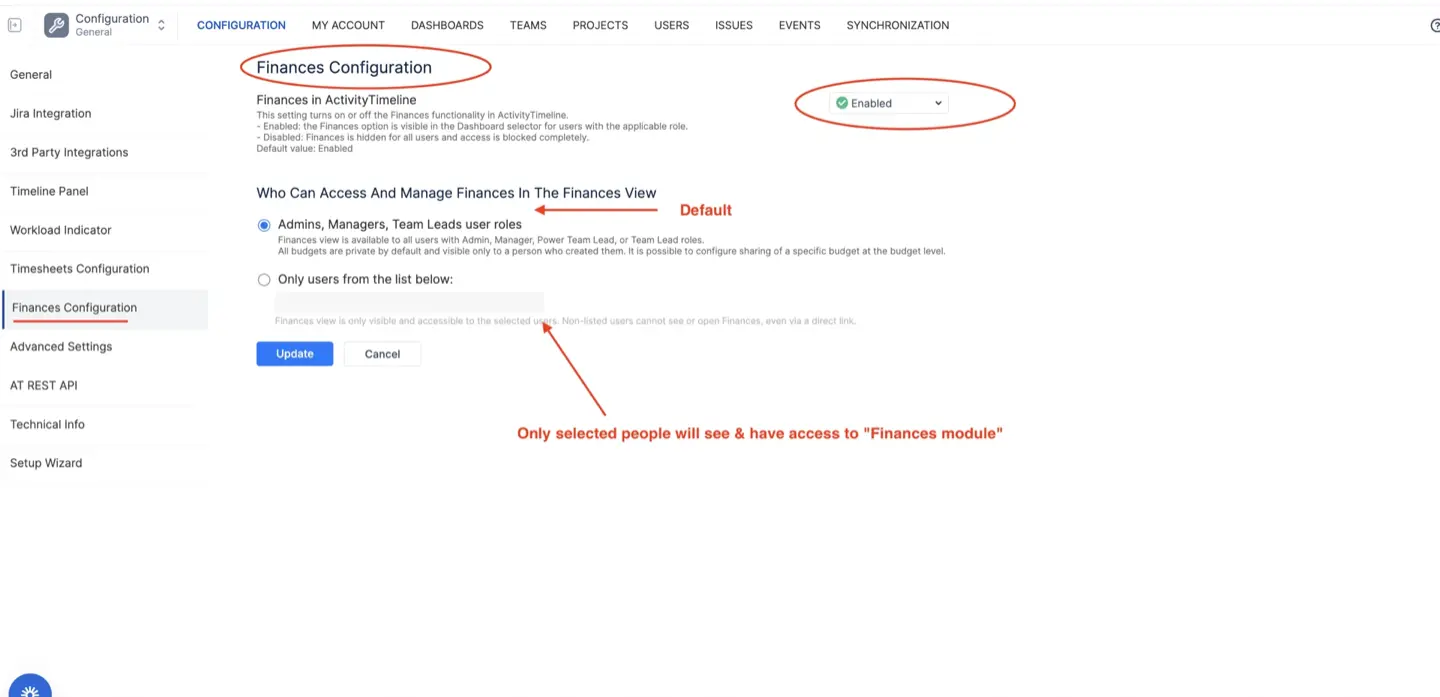
The finance module is entirely under the administrators' control. With just one button, they can activate or deactivate the system for the entire organization. When turned off, direct links are blocked and the module completely disappears.
If the module is on, administrators choose between two access modes. The default mode opens the menu for administrators, managers, and team leads. The restricted mode limits access to a specific list of people, like accountants or CFOs. Anyone else is completely blocked.
Inside each budget, permissions are split into three levels. The Owner is the creator. They have total control and manage who can see the budget. Administrators can edit settings and labor rates. However, they cannot add or remove users. Read-only users can view dashboards and export data to Excel. The system completely hides sensitive labor rates and salaries from them.
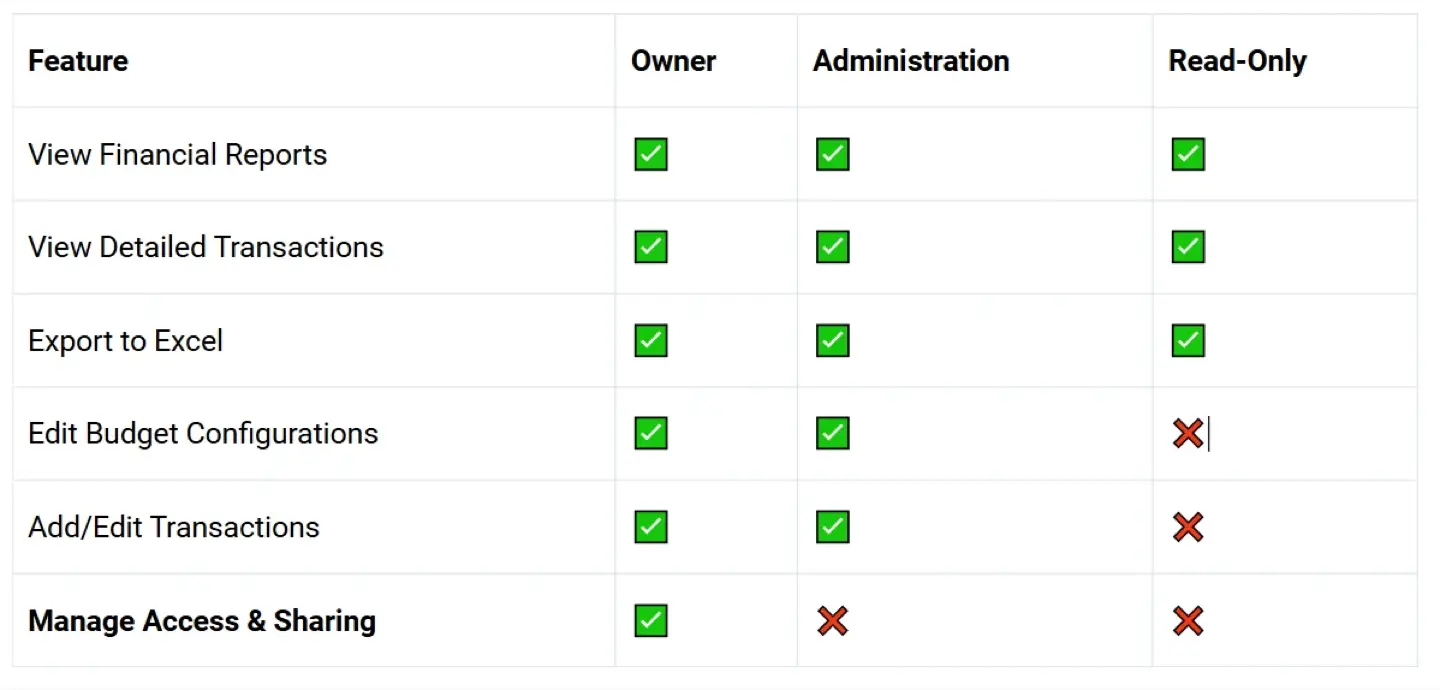
The system also mirrors your original Jira permissions. Even if someone has access to a budget, they cannot see its financial data without the native "Browse Project" permission in Jira. This keeps your confidential data perfectly safe.
Optimizing Jira Financial Management: Best Practices
Here are the best practices to optimize your project financial management processes:
- Standardize financial workflows
Make your financial processes the same across all teams. Define clear rules for how your financial tracking happens. Ensure everyone logs their hours the same way and uses the correct task categories.
When every team follows the same rules, your financial data stays clean. This setup makes it much easier to compare different projects and avoid human tracking mistakes.
- Implement real-time cost monitoring
Do not wait until the end of the month to check your project expenses. Connect your team's daily Jira worklogs directly to your financial tools. This setup lets you see the actual cost of labor as the work happens. You can quickly catch if a project is spending its budget too fast.
- Use financial dashboards frequently
Make financial dashboards a part of your regular weekly routine. Check them often to monitor key metrics like remaining budget, actual spend, and current revenue. Dashboards show you clear visual charts of your spending trends over time. Sharing this ensures that managers can spot financial risks quickly.
- Develop a financial oversight process
Build a clear process for financial review and control. Assign specific roles for who creates budgets, who manages permissions, and who reviews the final reports. Set up regular reality checks to compare actual project progress against the money you spent.
For example, if your task completion is low, but your spending is high, you know you need to step in. A strong review process keeps your projects profitable and secure.
Conclusion
Standard Jira tracks project timelines well, but it cannot manage actual money on its own. Companies need this financial module to stop relying on risky Excel files and see the real financial health of their projects instantly. ActivityTimeline Finances acts as a bridge to corporate accounting to ensure your work stays profitable. It delivers great features like live synchronization and automated labor rates while keeping your sensitive data safe.