
In modern project management, a monochrome calendar is a recipe for burnout and missed deadlines. Color coding is a simple yet powerful technique that can transform your organizational skills and task management. When every issue looks identical, your prioritization process slows down, and error-prone manual checking becomes a daily chore.
By assigning colors to tasks, priorities, or categories, you create a visually appealing and organized system that enhances clarity, prioritization, and productivity. Jira color coding transforms your workspace into a high-visibility heat map that helps you track progress and maintain consistency across your entire instance.
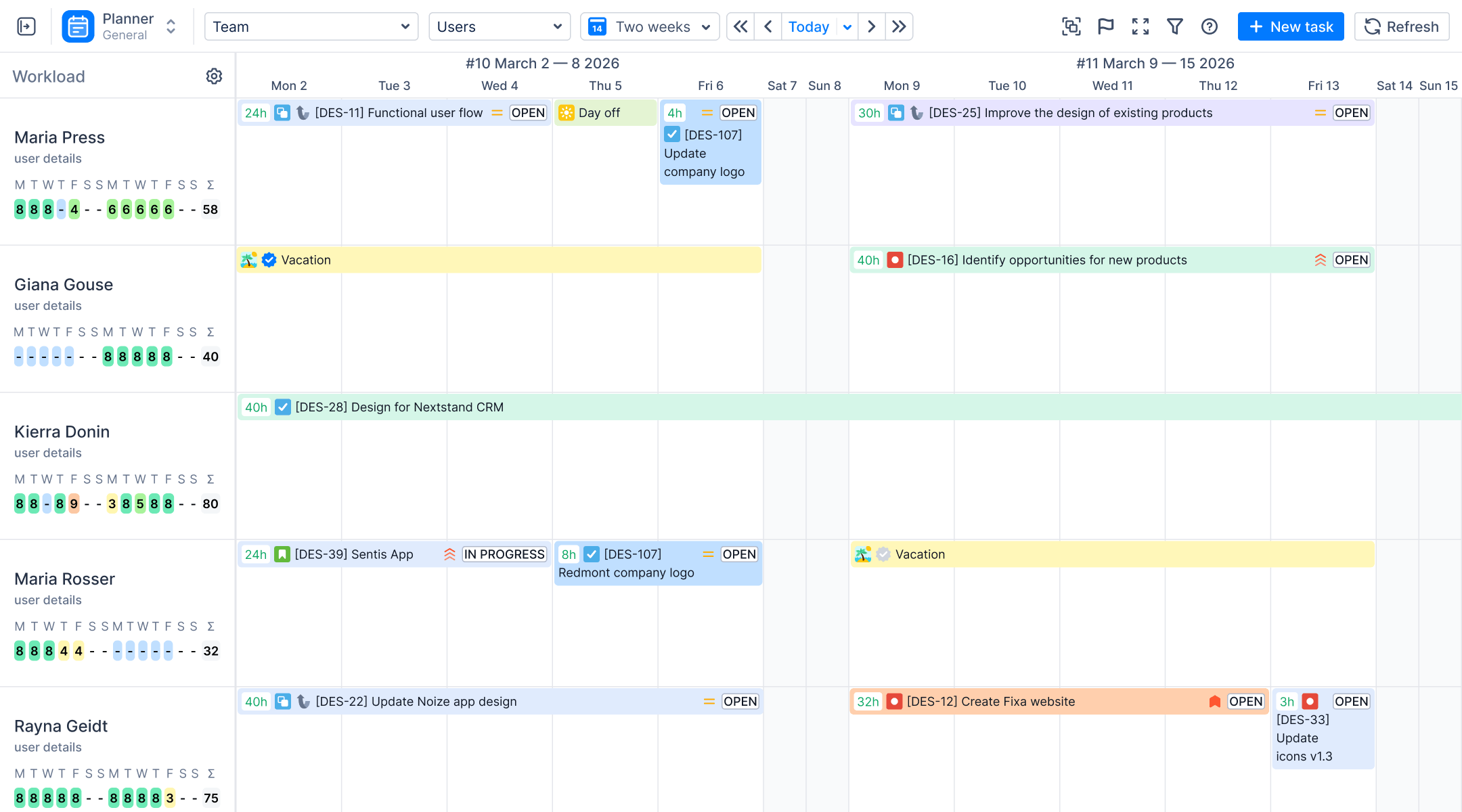
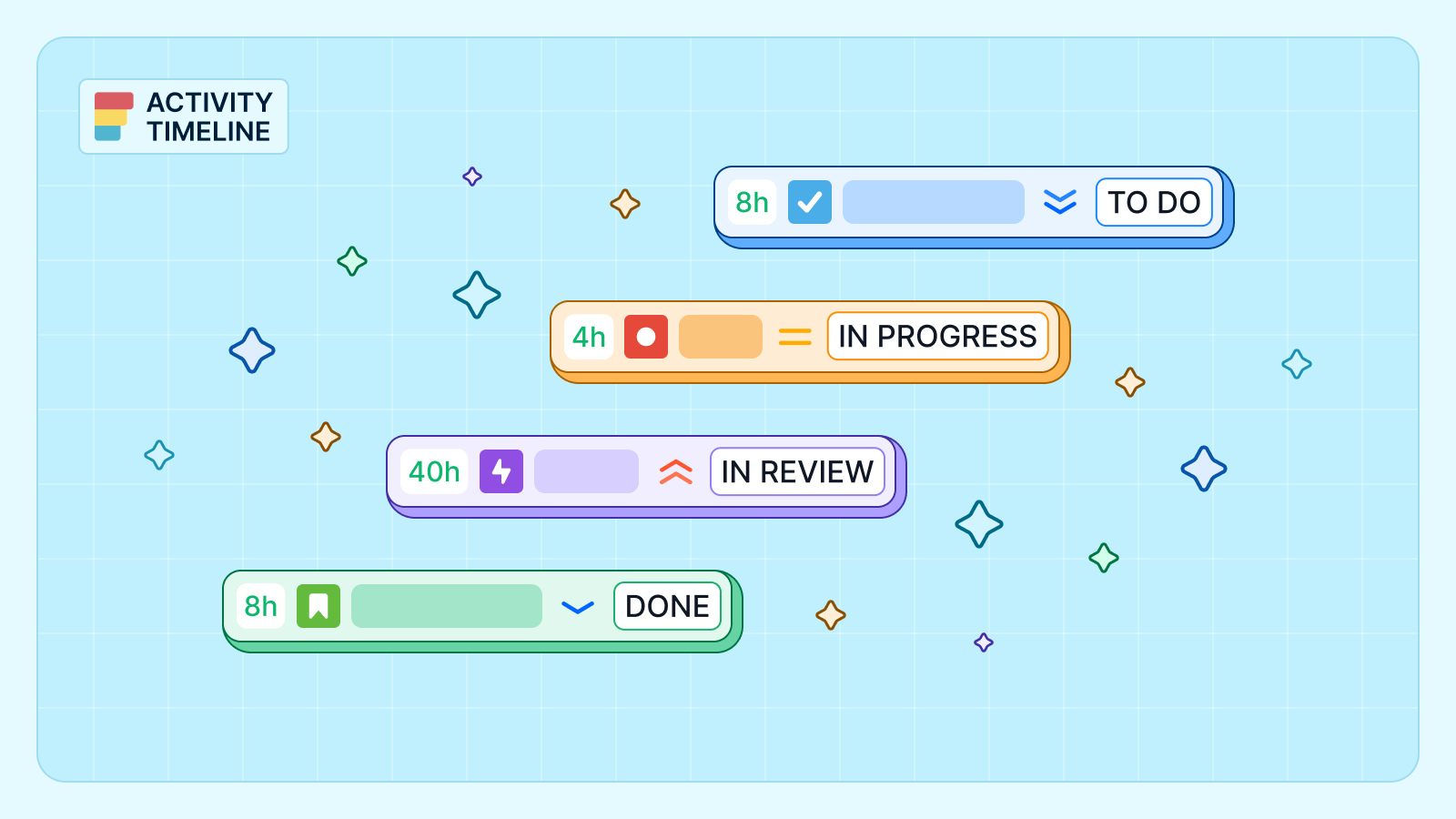
You can automatically color-code Jira issue on your planning calendar based on Priority, Status, and other key fields using ActivityTimeline.
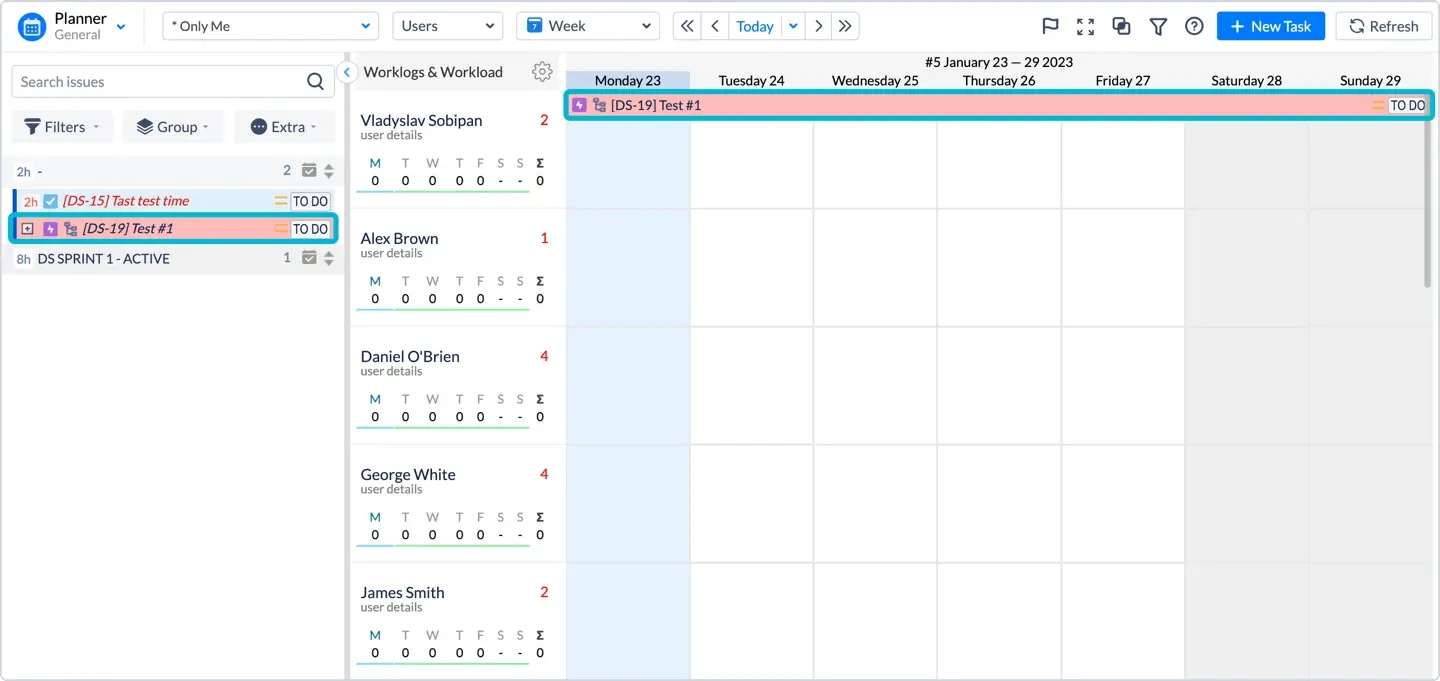
This functionality is provided through a dedicated Custom Styles feature that allows you to transform the visual appearance of issue cards to help you quickly identify critical tasks at a glance.
Why Is Visual Prioritization Essential for Managers?
A clear visual structure is the backbone of efficient resource management. Unfortunately, the default grey labels in Jira are often considered emotionless and unresponsive, failing to provide the immediate cognitive "hook" needed for fast decision-making.
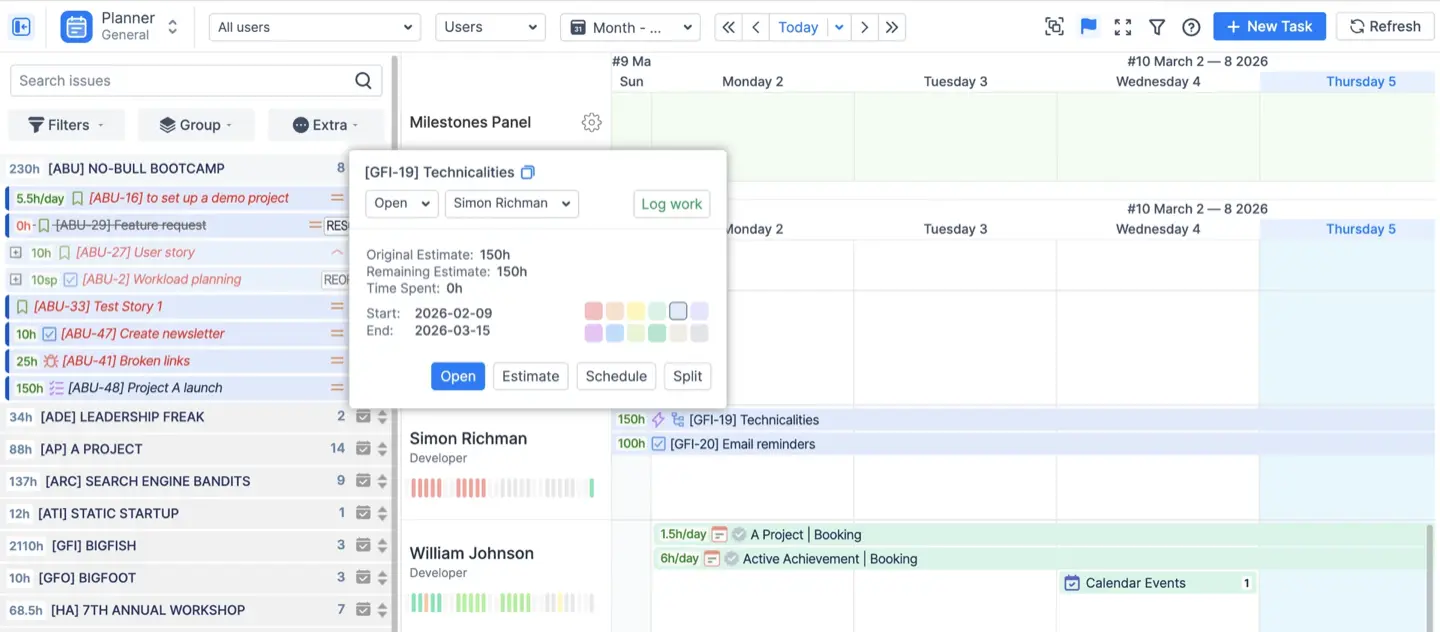
Without colorful labels or conditional formatting, project managers often struggle to separate open tasks from those in progress or closed. This lack of visibility leads to several negative consequences:
- Missed Bottlenecks. You cannot quickly identify which tasks are high priority and due-date critical. Ideally, users want to display overdue tasks in red, approaching due dates in orange, and on-track items in green.
- Information Overload. Constant manual filtering of Jira issues in a standard panel or column increases cognitive load.
- Communication Gaps. Without a "warm" or red visual cue for urgent items, team members may not realize which epic requires immediate attention.
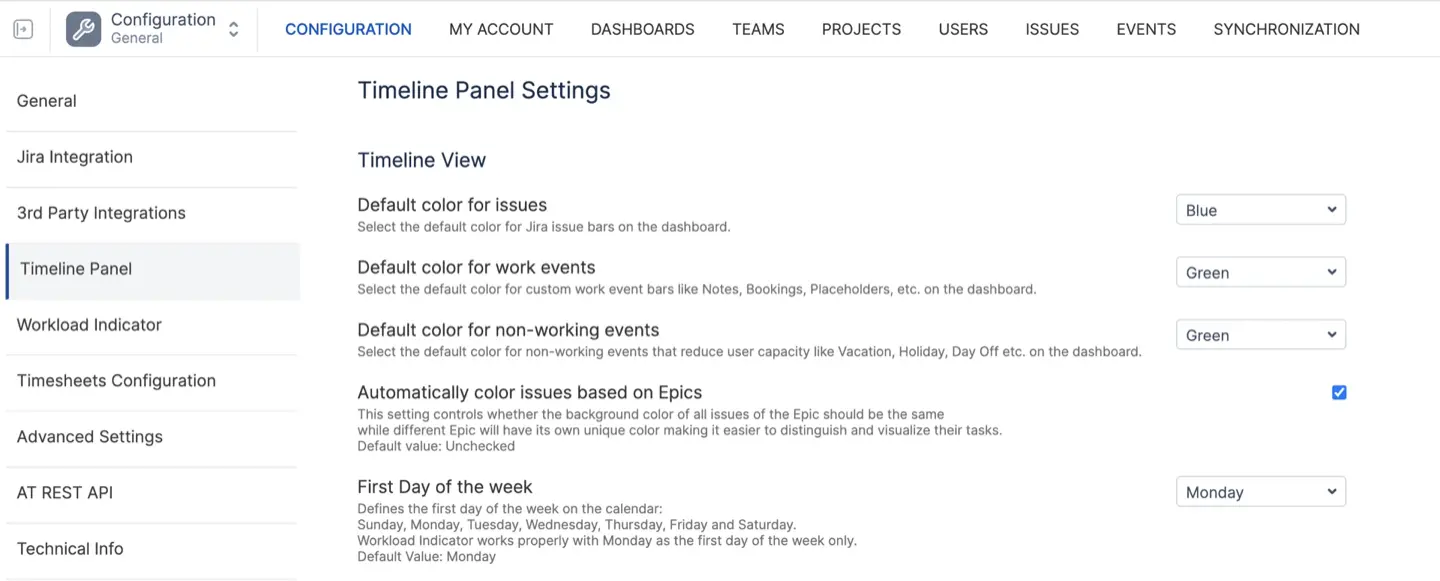
Native Jira Logic vs. Advanced Customization
Before diving into third-party tools, it is important to understand how Jira handles color natively. Jira automatically applies colors to statuses based on their category:
- To Do = Grey
- In Progress = Blue
- Done = Green
Native Jira card colors add a colored stripe to the left side of a work item for quick visual differentiation. While helpful, this is often too subtle for complex planning. Furthermore, when using JQL for card colors, Jira prioritizes the order of queries; the first matching rule determines the color applied to the card.
For Epics, Jira offers a custom text field named Epic Color to visually distinguish them from one another. This field includes 14 preset colors that can be selected for each Epic. While these choices have descriptive names associated with them, Jira does not allow searching for Epics based on this naming convention. Instead, users must search for Epics based on the specific text code associated with each Epic Color option.
The Definitive Solution: ActivityTimeline Custom Styles
ActivityTimeline provides a robust Custom Styles feature that acts like conditional formatting for your Jira Cloud or Data Center calendar. Instead of relying on wiki markup or a complex formula column as you might in Excel, you can define simple rules that apply automatically to your issue cards.
You can choose to change the background color, text color, and font of an issue card based on:
- Status (e.g., green for “Done”, warm yellow for “In Progress”).
- Priority (e.g., red for “Highest”, blue for “Low”).
- Issue Type (e.g., distinct colors for bugs, stories, or all the epics).
- Project or Assignee.
Step-by-Step Walkthrough: How to Color-Code Your Jira Calendar
To enhance your planner with different colors, an Administrator needs to follow these steps:
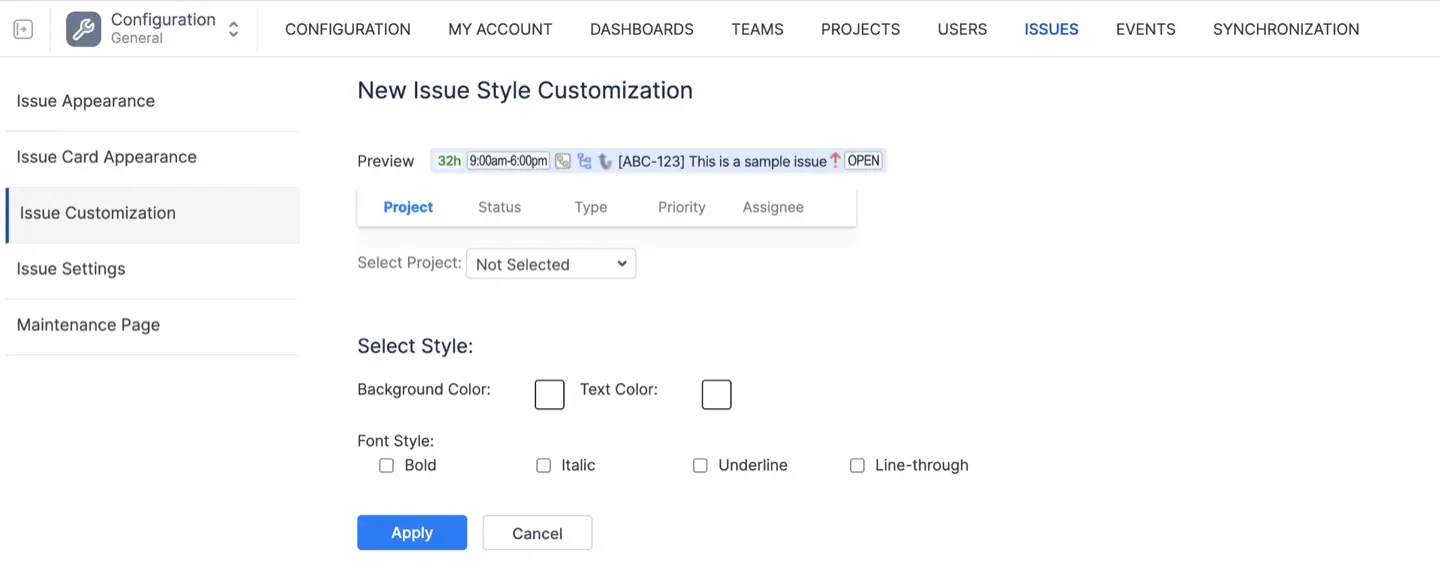
- Access the Issue Customization Menu. Navigate to ActivityTimeline Configuration. In the top panel, click on the Issues tab and select Issue Customization.
- Define Your Custom Style. Click on Add New Custom Style. From the selected dropdown, choose the field you want to base your color code on (e.g., Priority or Status).
- Choose Your Visual Cues. Select the specific value (like "Highest") and pick your color. Remember: consistency in color usage across different projects is essential to avoid confusion among team members.
- Apply Advanced CSS Rules (Optional). If your case requires complex logic, use the Custom CSS section. You can create rules that update card appearance dynamically based on specific combinations of labels and statuses.
- Verify and Refresh. Update the settings and return to the Planner. If you have recently changed issues in Jira, click the Refresh button on the top right to synchronize.
Conclusion
ActivityTimeline elegantly solves the visual limitations of standard Jira. By moving away from "unresponsive" grey defaults and implementing a system where overdue items flash red and Epics are clearly distinguished, you provide the clarity your team needs to succeed.
{{rich-cta-1}}