
Standard Jira issues offer a wealth of custom fields to track every detail of a task. Standard Jira issues offer a wealth of custom fields to track every detail of a task. However, Jira natively lacks the functionality to store any additional information on the actual time spent (Jira worklogs). When it comes to logging time, that issue-level granularity vanishes. Because Jira cannot capture these details out-of-the-box, third-party apps like ActivityTimeline are required to fill the void. ActivityTimeline provides Worklog Attributes—the missing link for organizations striving for precise reporting.
Yet, when it comes to logging time, that same level of granularity often vanishes. Jira Custom Fields for worklogs, or Worklog Attributes, are the missing link for many organizations striving for precise reporting. ActivityTimeline bridges this gap, allowing you to capture essential details like Cost Center, Activity Type, or Client Name the moment time is logged.
In this guide, you will learn how to configure, manage, and leverage Worklog Attributes to transform your time-tracking data into actionable business intelligence. Limiting the number of custom fields is important for maintaining optimal system performance.
The Missing Piece in Your Time Tracking Puzzle
Imagine reviewing your team’s timesheets at the end of the month. You see that a developer spent 40 hours on a “Website Redesign” ticket. But what did that time actually entail? Was it billable development work? Was it internal meetings? Or perhaps it was overtime spent on bug fixes?
Without Worklog Attributes, you are often left guessing. This lack of Jira Custom Fields for worklogs can lead to significant business challenges:
- Inaccurate Billing. inability to distinguish between billable and non-billable activities within a single task.
- Opaque Cost Allocation. Difficulty in assigning costs to specific departments or cost centers.
- Compliance Risks. Struggle to track specific data points required for audits, such as “Overtime” or “Location.” Required fields are just that—fields that must be filled in before submission. However, if users fill required fields with irrelevant or meaningless information to bypass validation, it can introduce junk data and compromise the effectiveness of your field configurations. Automatically filling required fields can ensure data is captured, but this should be used sparingly to avoid lazy or meaningless data entry.
For managerial audiences, solving this problem is not just about data hygiene; it is about protecting the bottom line and ensuring efficient resource planning.
ActivityTimeline: Elevating Jira Service Management Time Tracking
ActivityTimeline introduces Worklog Attributes to solve these precise challenges. These are custom fields specifically designed for time entries, allowing you to capture granular details that standard Jira worklogs cannot. ActivityTimeline administrators can easily configure Worklog Attributes to capture additional data as needed.
By using Worklog Attributes, you can attach specific metadata to every hour logged. Whether you need to track a Cost Center, Client Name, Activity Type, or Location, these attributes ensure your data is rich, structured, and ready for analysis. New custom fields can also be used as triggers or conditions in Jira automation rules, helping to streamline workflows.
Core Field Configuration & Field Types
Administrators can define these attributes globally, ensuring consistency across all enabled projects. The configuration process is straightforward and centralized. You can navigate to Configuration → Timesheets Configuration → Worklog Attributes to start building your fields.
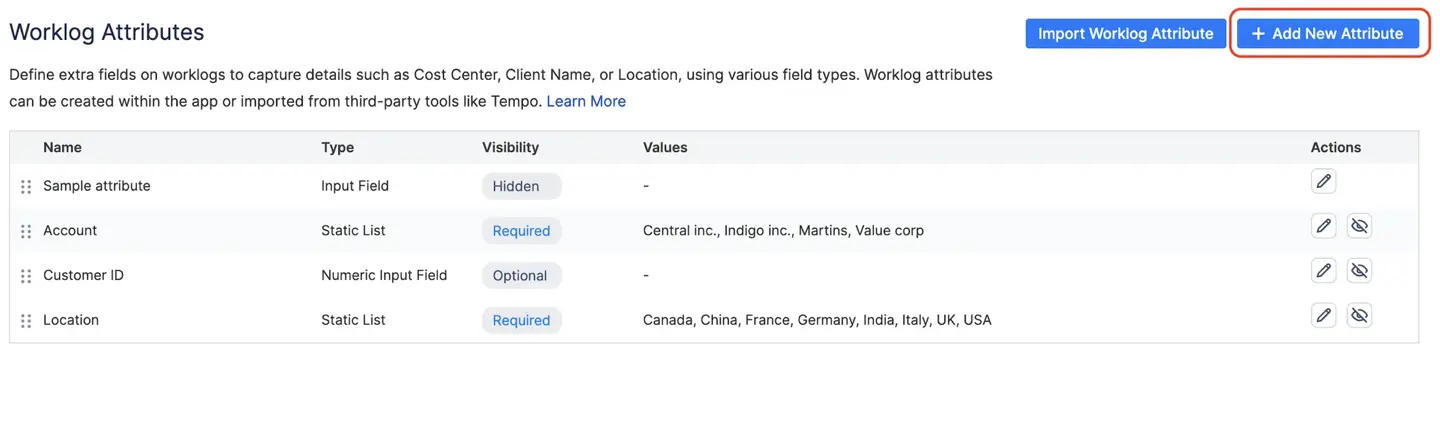
These attribute types are examples of custom field types in Jira. Selecting the right field type is important for data quality, user experience, and reporting accuracy. Field types determine the kind of data accepted, how it is displayed, and how it integrates with Jira apps and APIs.
ActivityTimeline provides four specific types of attributes to help you control data quality and ensure users provide the right information:
- Input Field: This is a free text field ideal for manual input, such as specific ticket notes or comments.
- Numeric Input Field: This restricts input to numbers only, making it perfect for tracking mileage, expense amounts, or other quantitative data.
- Checkbox: A simple Yes/No selection tool, useful for binary choices like “Overtime?” or “Billable?”.
- Static List: A dropdown menu with predefined values, such as “Design,” “Development,” or “Testing,” ensuring standardized reporting categories. Radio buttons are another custom field type available in Jira, allowing users to select a single option from a list. Structured fields like select lists and radio buttons are preferred over free-text fields for better reporting. For list-type custom fields, you need to use .value to return the selected value in automation rules.
Jira also offers advanced custom field types such as story points, which are used for estimation in Agile workflows. The field value refers to the specific data stored in a custom field, which can be used in JQL queries, filters, reports, and automation rules.
Visibility & Compliance Rules
To streamline the user experience while maintaining data integrity, you can apply specific visibility rules to each attribute. These rules dictate how and when fields appear to your users:
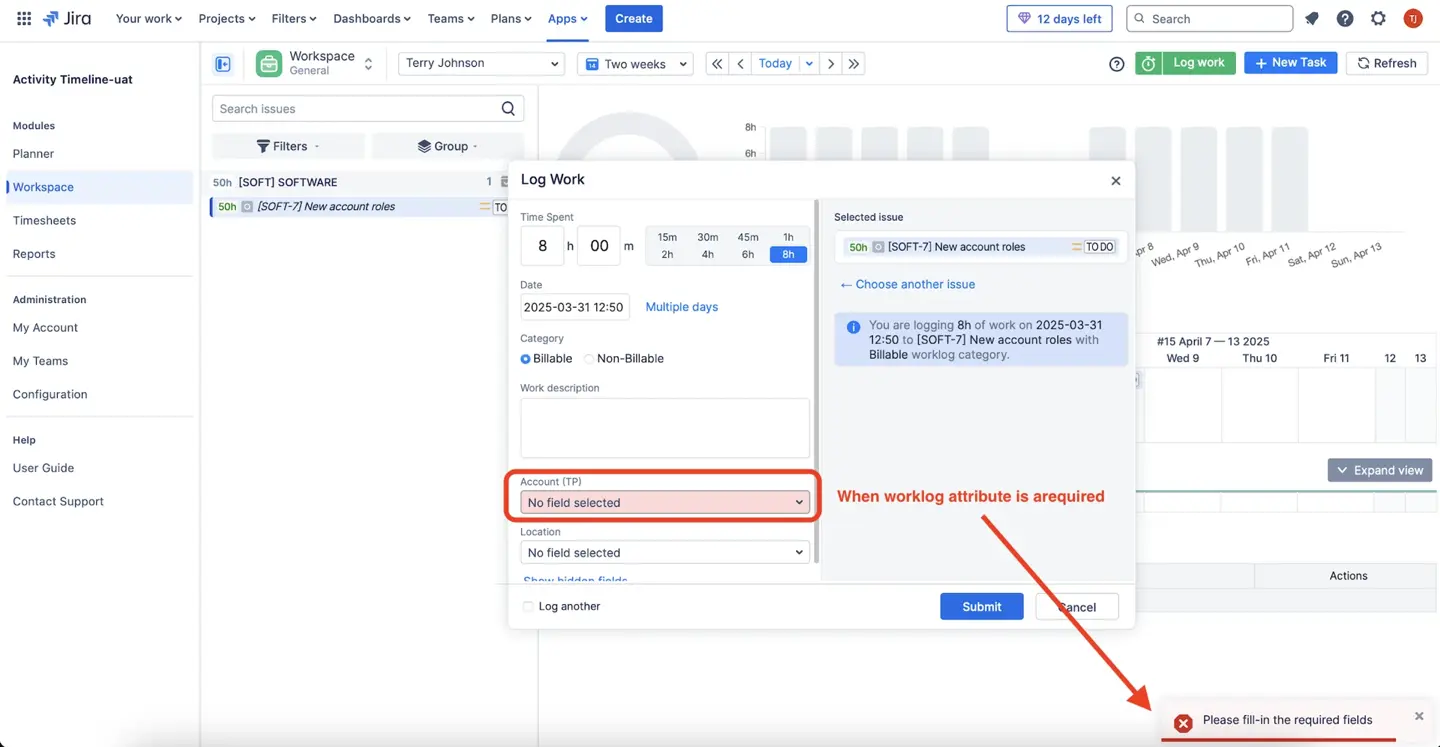
- Required: The user must complete this field to submit their worklog. If left blank, the system prevents submission and triggers a validation message, ensuring critical data is never missed.
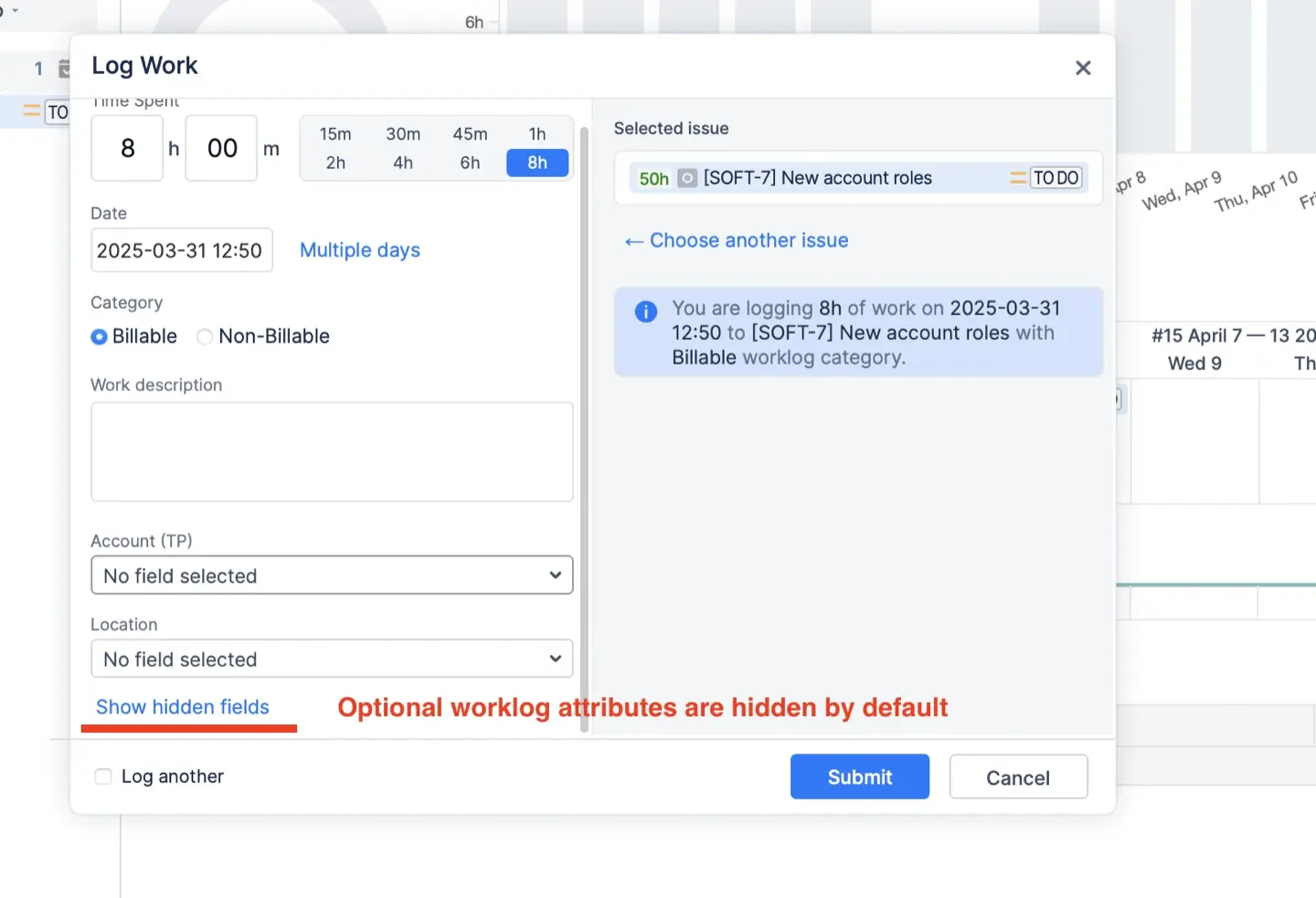
- Optional: These attributes are hidden by default to keep the “Log Work” dialog clean. Users can access them by clicking “Show hidden fields” if they need to add extra context.
- Hidden: This status is useful for deprecating attributes. The field is removed from the interface for new entries, but your historical data remains intact for reporting.
Note: After making configuration changes to custom fields, such as updating field contexts or field configuration, you should reindex Jira to ensure search accuracy and proper field visibility. Field contexts and field configuration must be set up correctly for a custom field to be visible in the appropriate projects.
Field Context: Custom Fields Across Projects and Issues
Field context is a powerful feature in Jira that allows you to control where and how a custom field appears across your Jira instance. By default, when you create a new custom field, it is assigned a global context, meaning it is available on every project and for all issue types. While this might seem convenient, it can quickly lead to cluttered screens and unnecessary data collection.
To optimize your field configuration and keep your data relevant, Jira recommends creating a new context for each custom field. This means you can define exactly which projects and issue types a custom field should be available for, rather than applying it everywhere by default. For example, you might want a “Client Name” field to appear only on issues in your Service Desk project, or a “Marketing Objective” field to be visible only for tasks in your marketing projects.
Setting up a new context is straightforward: navigate to the custom field configuration page, select the field you want to modify, and click “Add a new context.” From there, you can specify the projects and issue types where the field should be active. This targeted approach not only streamlines your screens but also improves Jira’s performance by reducing unnecessary indexing and data storage.
By leveraging field context, you can ensure that each custom field is used only where it’s needed, making your configuration more manageable and your data more meaningful.
How to Analyze Worklog Data
The true value of Worklog Attributes is realized in the Timesheets module. Once your team begins using these Jira Custom Fields, you can pivot your data to generate detailed, insightful reports.
Grouping and Sorting
ActivityTimeline allows you to organize your data based on these custom fields:
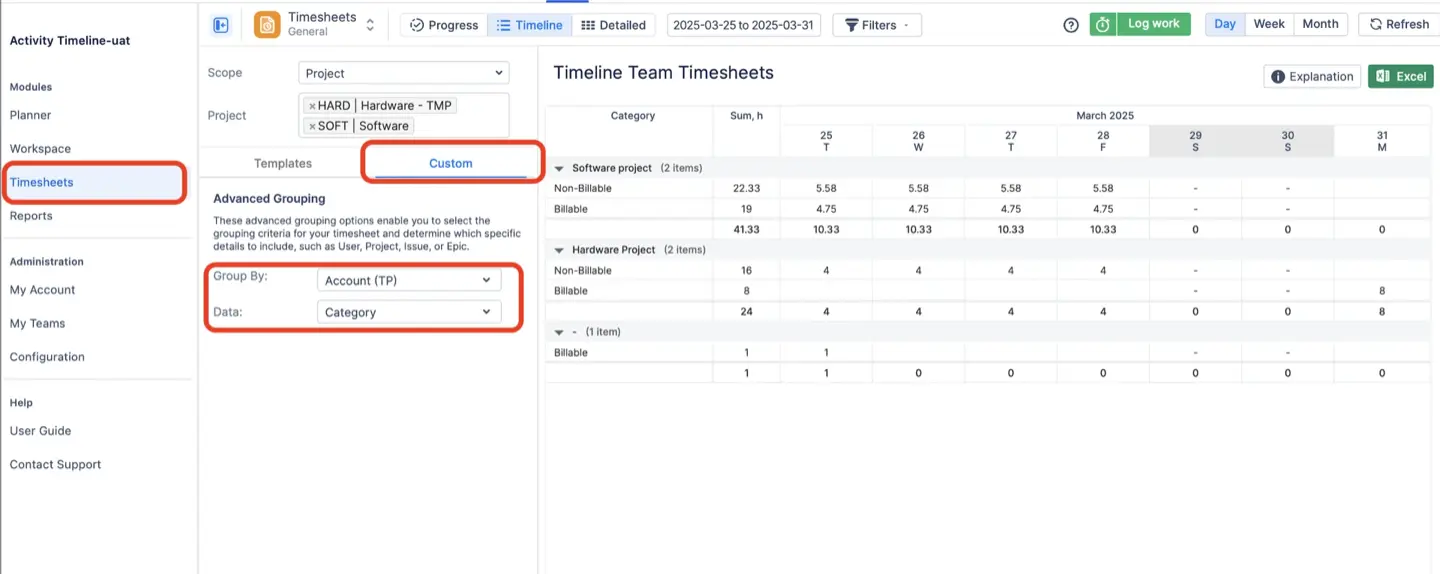
- Grouping: In the Detailed or Timeline Timesheet views, use the Custom tab to "Group By" a specific attribute. For instance, you can group time by "Activity Type" to visualize exactly how many hours were spent on "Development" versus "Meetings" across your entire team.
- Sorting: In detailed lists, you can sort worklogs by attribute columns. This functionality is essential for organizing data before export or during internal reviews.
Tempo Timesheets Integration
For teams migrating from or integrating with Tempo, ActivityTimeline offers a seamless transition. You can import existing Worklog Attributes directly from Tempo to maintain data continuity.
- Read-Only: Attributes imported from Tempo appear as read-only within ActivityTimeline. Their values and visibility settings must still be managed within Tempo.
- Tempo Accounts: You can also import Tempo Accounts as a "Static List" attribute. This allows users to log time against specific accounts, preserving your billing workflows.
API & Automation
For advanced requirements, ActivityTimeline supports Worklog Attributes via its REST API. When working with custom fields in Jira automation rules, you may need to reference a custom field by its ID number, especially if it does not appear in the automation rule dropdown list. In such cases, you can still access the custom field using its custom field ID. You can also reference custom fields using smart values in Jira automation rules, and the field's ID number can be used if the field is not listed.
This support allows for bulk updates and external integrations, enabling you to create, update, or retrieve worklogs with specific attribute values using dynamic parameters.
Known Limitations and Custom Fields
While custom fields are a cornerstone of Jira’s flexibility, there are some important limitations to keep in mind.
- The impact of having too many custom fields in your Jira instance. When dozens or even hundreds of custom fields are created, especially if many are unused or redundant, it can slow down your system, complicate field configuration, and make it harder for users to find the fields they actually need.
- Not all custom fields are supported equally across Atlassian’s ecosystem. For example, certain custom field types may not function correctly in Jira mobile or may lack full support in Confluence integrations. Features like rich rendering with UI Kit or Custom UI may also be limited in some locations, affecting how custom fields are displayed or edited.
Despite these challenges, Atlassian continues to enhance custom field functionality with each release. To avoid issues, it’s essential to plan your custom field strategy carefully—only create fields you truly need, and regularly review your configuration to retire or consolidate fields that are no longer in use. This approach will help your custom fields function correctly and keep your Jira instance running smoothly.
Best Practices for Creating Custom Fields
To maximize the value of custom fields in Jira, it’s important to follow best practices when creating and managing them.
- Start by choosing custom field names that are generic and reusable, so they can be applied across multiple projects without confusion.
- Avoid creating multiple fields with the same name, as this can lead to data inconsistencies and make field configuration more complex.
- Use field configuration schemes to control the visibility and behavior of custom fields, ensuring that only relevant fields appear on each screen.
- Limit the number of custom fields in your Jira instance—having too many can degrade performance and make administration more difficult.
- When you create a new custom field, provide a clear description and set default values where appropriate, so users know exactly what information is expected.
- Document your custom field configuration thoroughly, including the purpose and usage of each field. This will help current and future Jira administrators maintain a clean and effective setup.
By following these best practices, you can ensure that your custom fields are a powerful asset for managing and reporting on Jira issues, rather than a source of clutter or confusion.
Conclusion
Effective resource planning relies on accurate data. By implementing Jira Custom Fields for your worklogs through ActivityTimeline, you gain the granular visibility needed to make informed business decisions. Whether you are tracking billable hours for clients or analyzing internal costs, Worklog Attributes provide the flexibility and control your management team needs.
{{rich-cta-5}}